Voice chat usually stops working in Black Ops 7 because Voice Chat is disabled, the wrong microphone or headset is selected, platform privacy permissions block access, or party chat overrides game chat. Open Settings > Audio > Voice Chat, enable chat, check the input and output devices, then test with a friend in a multiplayer match.
For more help with this topic, use the Call of Duty: Black Ops 7 guides.
Check whether Black Ops 7 chat is muted or disabled
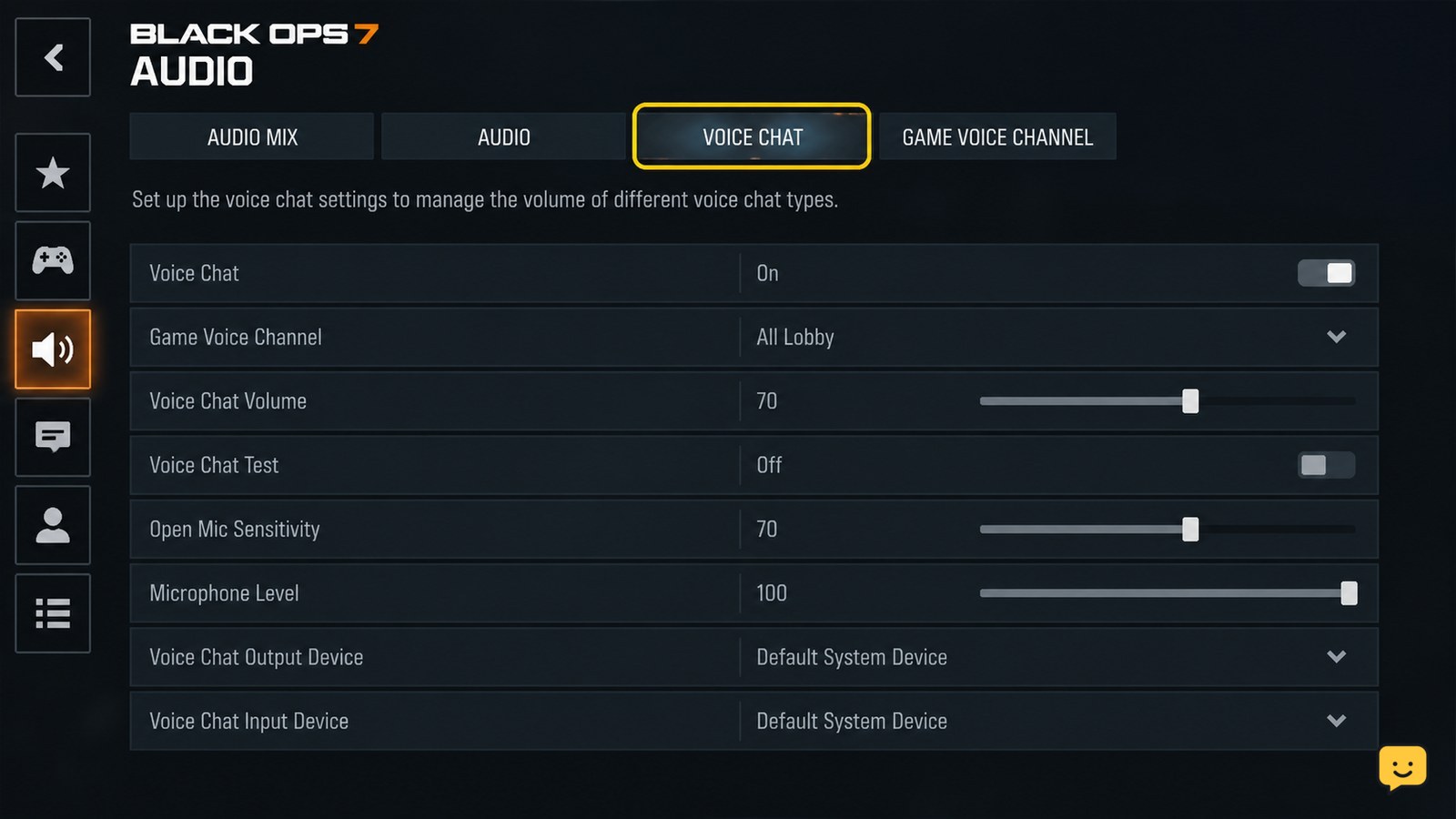
Black Ops 7 voice chat must be enabled in the game’s Audio settings before teammates can hear you or you can hear them. From the main menu, open Settings, choose Audio, and open the Voice Chat tab. Activision identifies this tab as the place for Black Ops 7 communication controls.
- Turn Voice Chat on if it is disabled.
- Review the voice chat channel or party-chat option and choose the channel that matches your test.
- Check that incoming voice volume is audible and that you have not muted yourself or every player.
- Save or apply the change, leave the menu, and re-enter it to confirm the setting stayed enabled.
Test in a multiplayer lobby or match. A visible microphone indicator or a teammate responding confirms that the game is receiving your voice. If you still cannot hear anyone, continue with the output-device checks below.
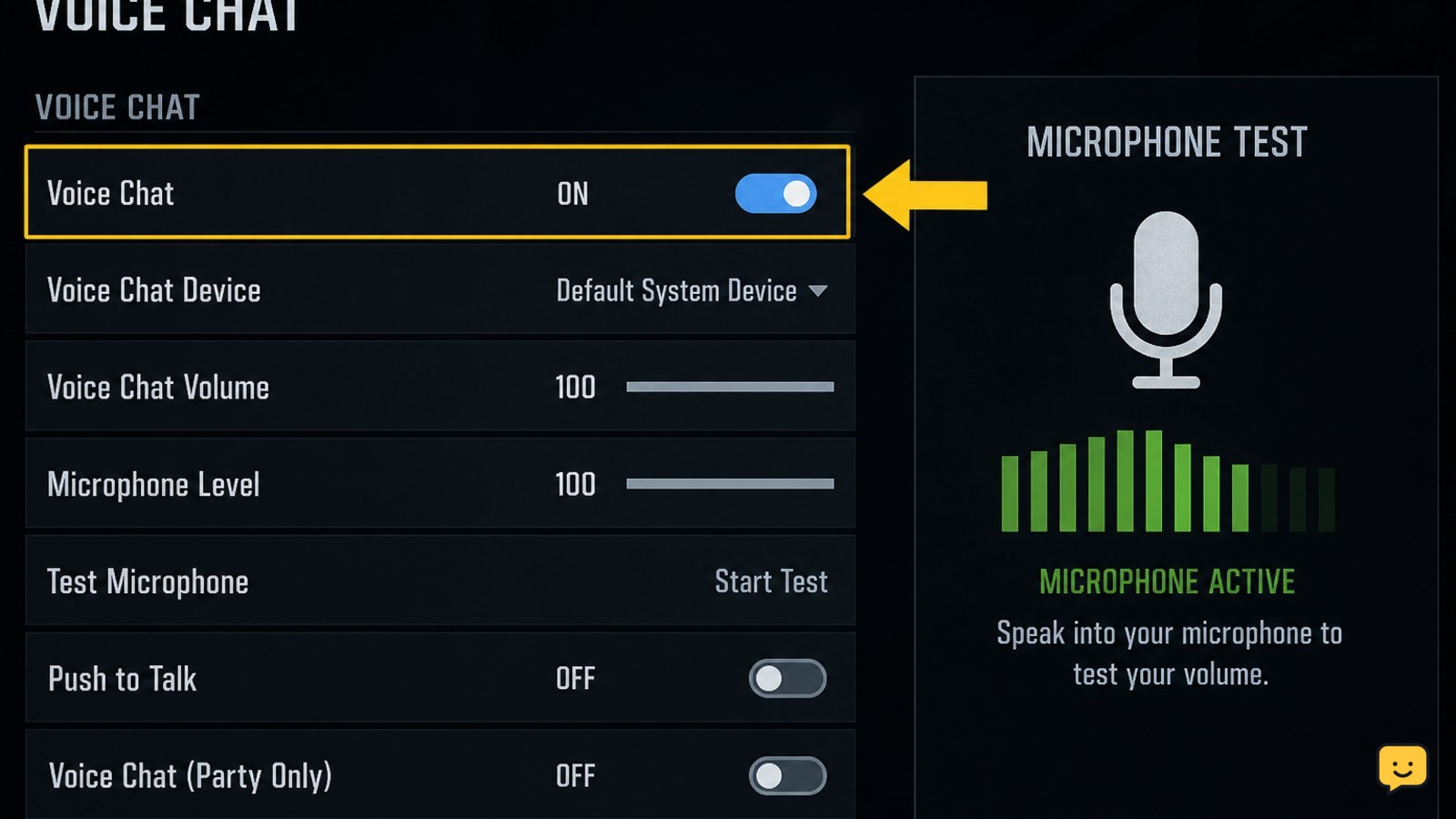
Choose the correct microphone and headset output
Black Ops 7 voice chat fails in one direction when the game sends microphone input to one device but plays teammate audio through another. Disconnect unused USB microphones, Bluetooth headsets, capture devices, and virtual audio devices temporarily so the active hardware is clear.
- On PC, set the intended microphone as the operating system’s default input and the headset or speakers as the default output.
- In Black Ops 7’s Audio and Voice Chat settings, select the matching input and output devices if those selectors are available in your version.
- Confirm the headset’s physical mute switch is off and raise its chat volume.
- Speak while watching the game’s microphone indicator, if displayed.
The input meter or microphone indicator should react to your voice, while a voice-chat test should produce sound through the selected headset. If the meter never moves, the problem is input access, a muted microphone, or the wrong device—not the teammate’s audio.
For the related controller, headset, and input-conflict checks, see why controller input stops working in Black Ops 7.
For related controller, headset, and input-conflict checks, see why controller input stops working in Black Ops 7.
Allow microphone access on your platform
Platform privacy controls can prevent Black Ops 7 from reading the microphone even when the headset works elsewhere. The setting names differ between Windows, PlayStation, and Xbox, but look for microphone privacy, app permissions, communication permissions, and cross-network communication controls.
- On Windows, open Settings > Privacy & security > Microphone and allow microphone access for the system and desktop apps.
- On PlayStation, check the console’s microphone input, mute status, and privacy or communication settings for the signed-in profile.
- On Xbox, check privacy and online-safety communication permissions, then confirm the headset is assigned to the active controller or profile.
- Return to Black Ops 7 after changing permission controls. Fully close and relaunch the game if the console or PC does not immediately expose the microphone.
Verify access outside the match with the platform’s microphone test or party chat. If the platform test also fails, repair the permission, connection, or headset problem there first. If platform chat works but game chat does not, continue with the channel and party-chat check.
Switch from platform party chat to game chat
Black Ops 7 may not use match voice chat while the platform party is active, muted, or configured to prioritize party audio. Leave the console or PC party temporarily and test the game’s voice channel with one friend.
- Leave the platform party or switch its chat output to game chat where the platform provides that control.
- In Black Ops 7, reopen Settings > Audio > Voice Chat and confirm voice chat remains enabled.
- Check the social or scoreboard screen for a mute icon beside your name or your friend’s name.
- Ask the friend to speak once, then speak back while watching for the microphone indicator.
If game chat works after leaving the party, the headset is probably functional and the conflict is the active platform channel. Rejoin the party only after deciding whether you want party chat or in-game team communication; both may not be audible at the same time.
What to do if voice chat still does not work
If Black Ops 7 voice chat remains unavailable after device, permission, and channel checks, isolate whether the failure is local, account-specific, or service-wide. Do not repeatedly reset unrelated game settings before identifying the failing layer.
- Close Black Ops 7 completely, reconnect the headset, and launch the game again.
- Test a different supported microphone or headset. If the second device works, inspect the original device’s mute, firmware, wireless connection, or system volume.
- Test another multiplayer lobby or mode. If chat works with one friend but not another, check whether either player is muted or communication-restricted.
- Check Activision and your platform’s service-status pages if matchmaking, social features, or other online services also fail.
- Check for a game update and restart the platform after installing one. If only Black Ops 7 still fails, contact Activision Support with your platform, device type, and the exact symptom.
Do not assume a network failure when the microphone indicator responds and only incoming audio is missing. That symptom points first to output selection, chat volume, mute state, or the active party channel.
For a broader in-game audio walkthrough, use the Black Ops 7 audio settings guide.
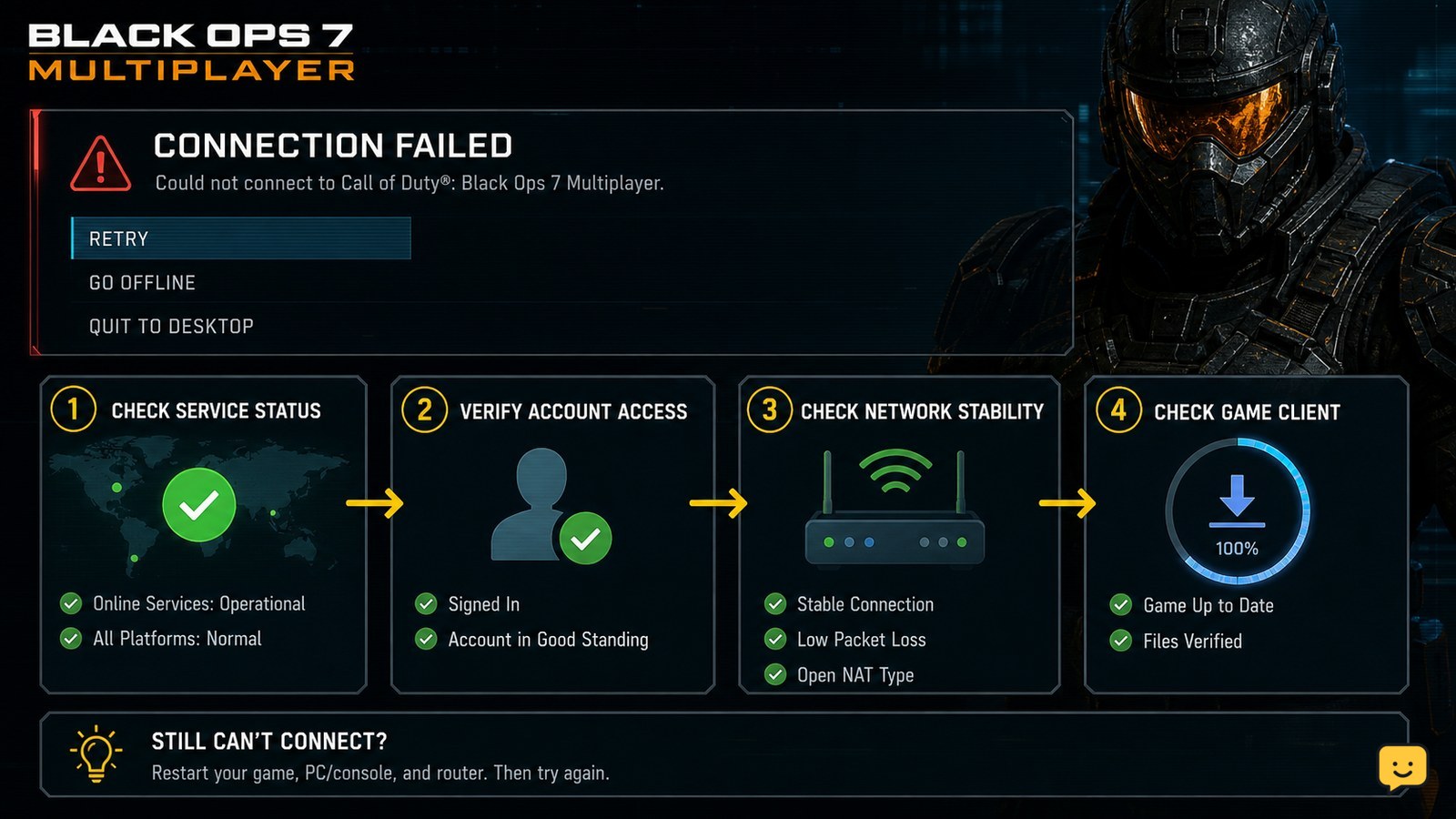
If multiplayer itself cannot connect, check Black Ops 7 multiplayer connection fixes before treating voice chat as an isolated problem.
For a broader in-game audio walkthrough, use the Black Ops 7 audio settings guide.
Frequently asked questions
Why can I hear my friends in Black Ops 7 but they cannot hear me?
Your microphone input is usually muted, blocked by platform permissions, or set to the wrong device. Check the headset mute switch, confirm microphone access in Windows or your console privacy settings, then select the intended microphone in Black Ops 7 and watch for its input indicator.
Why can my friends talk but I cannot hear them in Black Ops 7?
Check the selected voice-chat output, incoming voice volume, headset chat balance, and mute icons first. Platform party audio can also take priority over game chat. Leave the platform party temporarily and test voice chat through the headset selected for Black Ops 7.
Does Black Ops 7 voice chat work with a USB or Bluetooth headset?
It can, provided the platform recognizes the headset as an input and output device and Black Ops 7 is pointed to the same devices. Wireless headsets can expose separate chat and game-audio devices, so verify both selections and reconnect the headset before relaunching the game.
What should I do if voice chat stopped after a Black Ops 7 update?
Recheck the Voice Chat tab, microphone permissions, and input and output selections after the update. A setting or device assignment may have changed. If the microphone works in platform chat but not in Black Ops 7 after relaunching, check Activision Support for a current service notice or known issue.