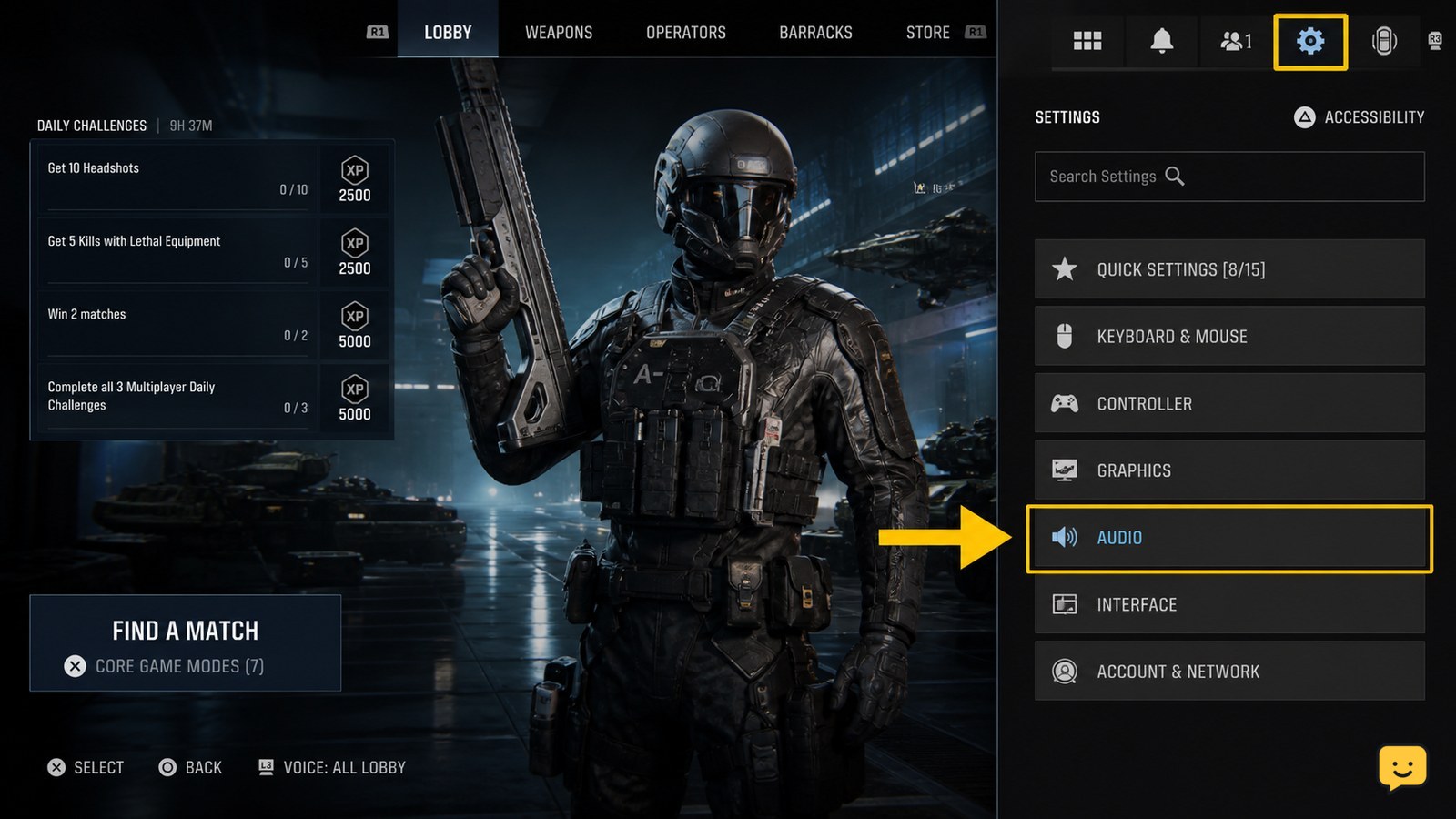
Open Call of Duty: Black Ops 7, select the Settings icon from the lobby, choose Audio, then adjust the volume, voice chat, subtitle, and output options shown on your platform. Save or apply the changes, then test them in a match. If no output-device selector appears, choose the device through your console or PC sound settings.
Browse more Call of Duty: Black Ops 7 guides
Find the Audio menu from the Black Ops 7 lobby
Call of Duty: Black Ops 7 opens its audio controls from the lobby Settings menu, rather than requiring a match to be active.
- Launch Call of Duty: Black Ops 7 and wait until the main lobby appears.
- Select the Settings icon, usually shown near the top-right area of the lobby.
- Choose Audio.
- If the page shows Show More under a volume group, open it to reveal additional controls.
AudioRadar documents this lobby-to-Settings-to-Audio route for Black Ops 7-related audio configuration. Menu placement and the number of visible controls can vary by platform or game update, so use the Audio label as the checkpoint. If Audio is not visible, return to the lobby and confirm that you opened the game Settings menu rather than a platform overlay.
Adjust gameplay volumes for clearer sound cues
Black Ops 7 gameplay audio is controlled through the volume options in the Audio tab, with the master level acting as the overall ceiling for game sound.
- Change Master Volume first. This controls the overall loudness of the game.
- Adjust the separate gameplay categories shown on your screen, such as effects, music, or dialogue, one at a time.
- For competitive play, reduce music if it masks movement or weapon cues, but keep effects high enough to hear combat and environmental sounds.
- Keep dialogue audible if mission instructions or character callouts matter in the mode you are playing.
Do not treat a single percentage as correct for every headset or speaker. Dot Esports recommends a moderate Master Volume range rather than maximum volume, but your device, hearing level, and room affect the result. A useful verification is to play a short private or low-stakes match and listen for weapon fire, movement, reloads, and nearby environmental sounds without distortion.
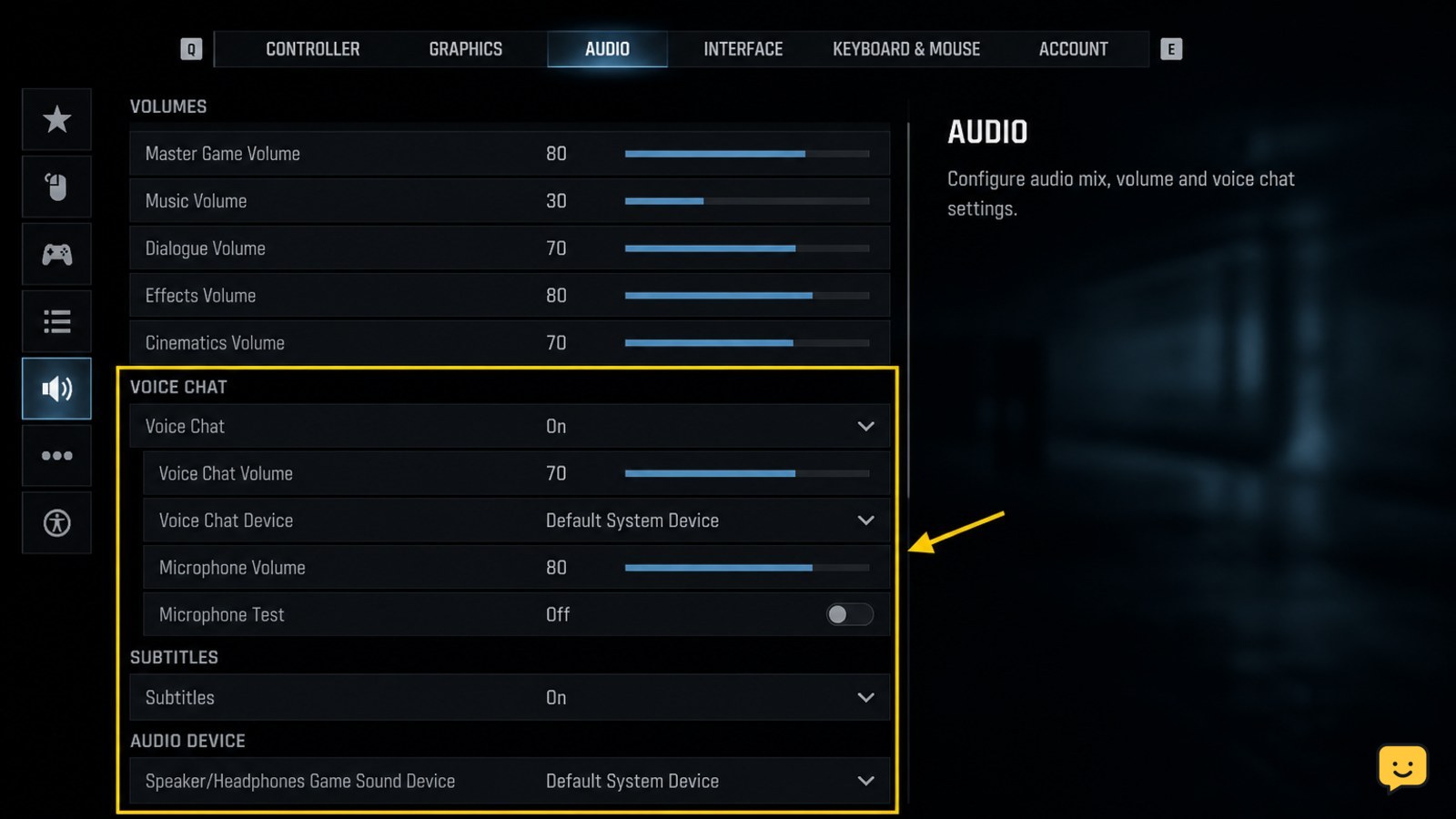
Set voice chat, subtitles, and the output device
Black Ops 7 separates game sound from communication and accessibility controls, so check each group instead of changing only Master Volume.
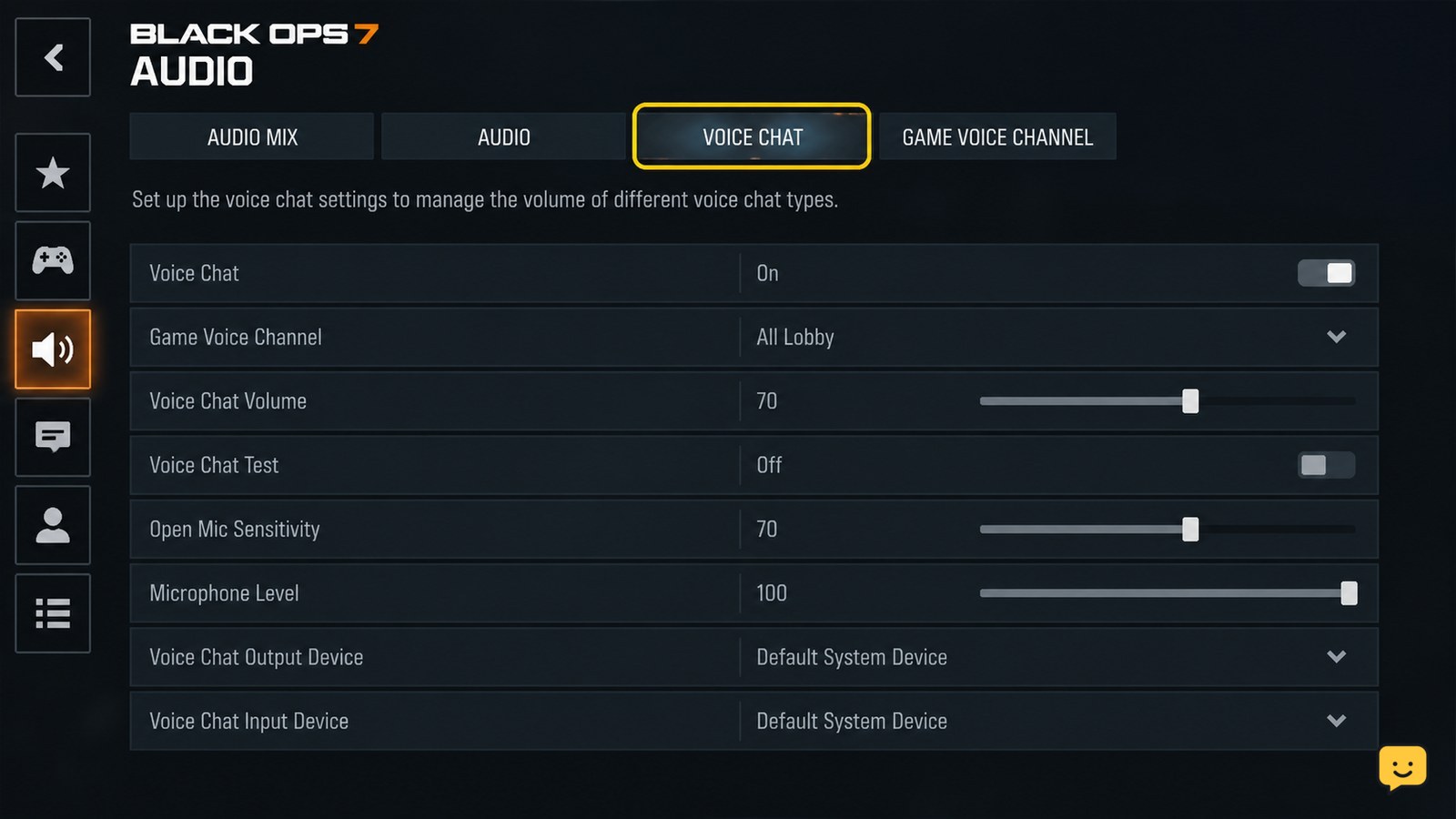
- Open the voice-chat controls in the Audio tab and set the Voice Chat Volume or equivalent option to a level where teammates are clear over gameplay.
- Check the Microphone or input controls if your platform exposes them. Speak briefly and watch for the microphone activity indicator, if one is available.
- Turn Subtitles on or off according to your preference. If subtitle size, background, or speaker labels are available, change only the options you need.
- Look for an Output Device, Audio Output Device, or similarly named selector. Choose the connected headset or speakers if the game lists them.
The output-device selector may not appear on every platform or configuration. If Black Ops 7 does not list your headset, set it as the active output through Windows, PlayStation, or Xbox sound settings instead. On PC, community reports also describe Windows spatial-audio and headset software as possible causes of altered positioning; if footsteps sound unusually distant or hollow, test those processing options one at a time and keep the setting that produces the clearest result.
Save the changes and verify audio in a match
Audio settings are changed successfully when the selected values remain after leaving the menu and the expected sound reaches the intended device.
- Back out of the Audio page and accept any Apply, Save, or confirmation prompt that appears.
- Start a practice, private, or public match.
- Confirm that gameplay sound comes from the intended headset or speakers.
- Test voice chat separately by checking whether teammate voices are audible and whether your microphone activity appears when speaking.
- Check subtitles during dialogue or another subtitle-triggering moment.
If the value resets immediately, reopen Audio and change one option at a time. If game sound works but chat does not, check voice-chat mute, platform privacy, and the selected microphone separately. If neither game sound nor chat works, exit to the platform or Windows sound menu and confirm that the headset is the active output before restarting the game.
Stop troubleshooting inside Black Ops 7 when the device is not detected outside the game, the headset is physically disconnected, or platform-level restrictions block voice communication. Those conditions cannot be corrected by another in-game volume adjustment.
Frequently asked questions
Where is the Audio setting in Black Ops 7?
The Audio setting is in the game Settings menu from the main lobby. Open the Settings icon, choose Audio, and expand Show More if additional volume controls are hidden.
How do I change the Black Ops 7 voice chat volume?
Open Settings, select Audio, and adjust the voice-chat volume control shown on your platform. If teammates still cannot be heard, check that they are not muted and confirm the platform’s communication output is the same headset you selected for game audio.
Can I choose a different audio output device in Black Ops 7?
Choose the headset or speakers from the Audio tab if Black Ops 7 displays an output-device option. If it does not, set the active output in Windows, PlayStation, or Xbox sound settings before returning to the game.
Why do my Black Ops 7 audio changes not work?
First confirm that the change was saved, then test the game in a match. If sound is missing, verify the active output device outside the game. If only voice chat fails, check mute, microphone selection, privacy controls, and platform communication restrictions.