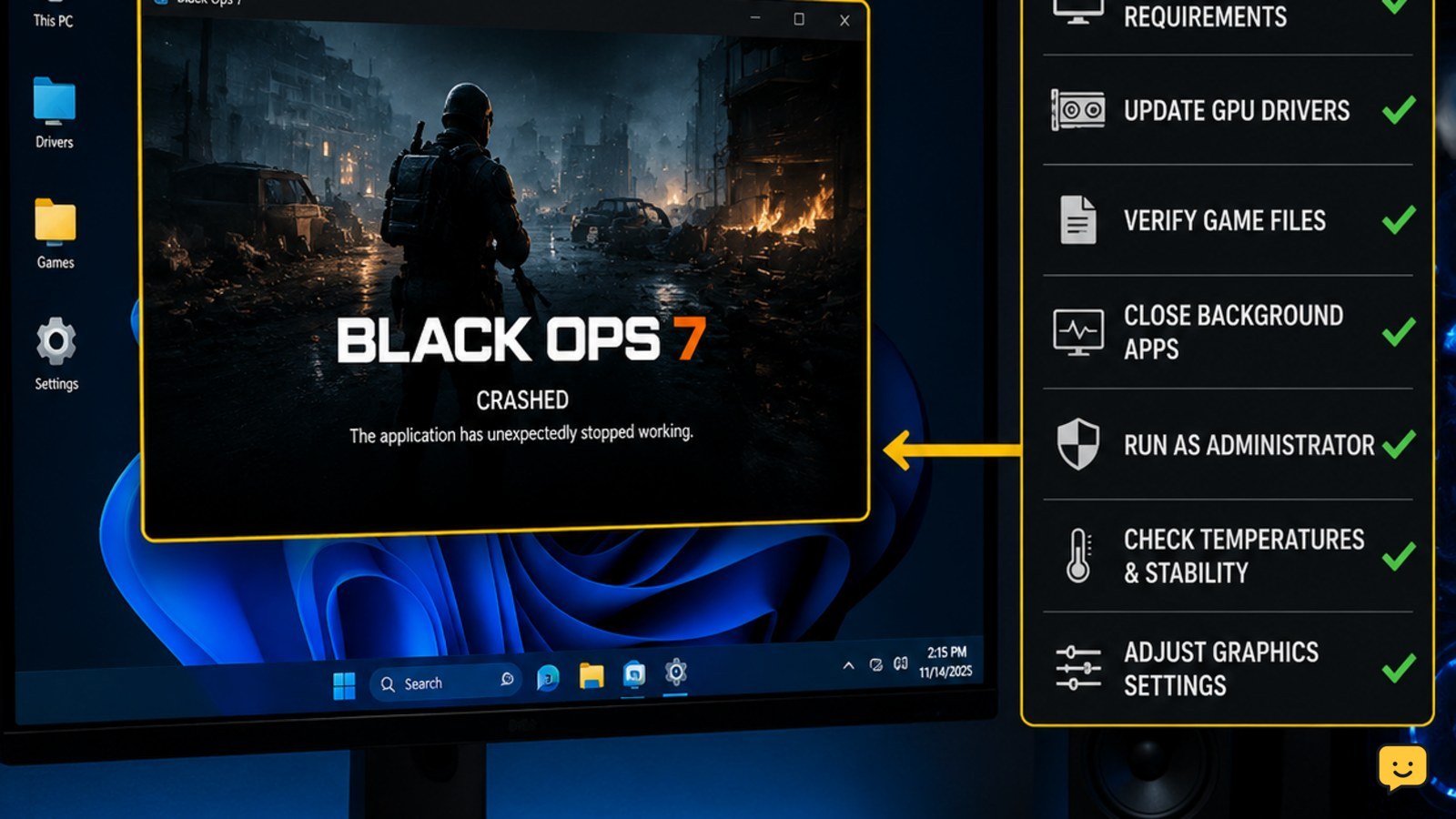
Black Ops 7 is most likely crashing on PC because of damaged installation files, a graphics-driver conflict, unstable graphics settings, overlay software, or system instability. First restart the PC, update or clean-install the GPU driver, verify the game files, disable overlays, and test with conservative graphics settings. If the entire PC restarts or shows a blue screen, stop treating it as a game-only crash and check hardware, temperatures, RAM, and Windows logs.
For more help with this topic, use the Call of Duty: Black Ops 7 guides.
Identify when Black Ops 7 crashes
Black Ops 7 crashes at different points for different reasons, so the timing of the failure determines the safest first check.
- Crash before the main menu: prioritize installation files, the graphics driver, permissions, and conflicting startup software.
- Crash while loading a mode: verify files and lower graphics settings before testing again.
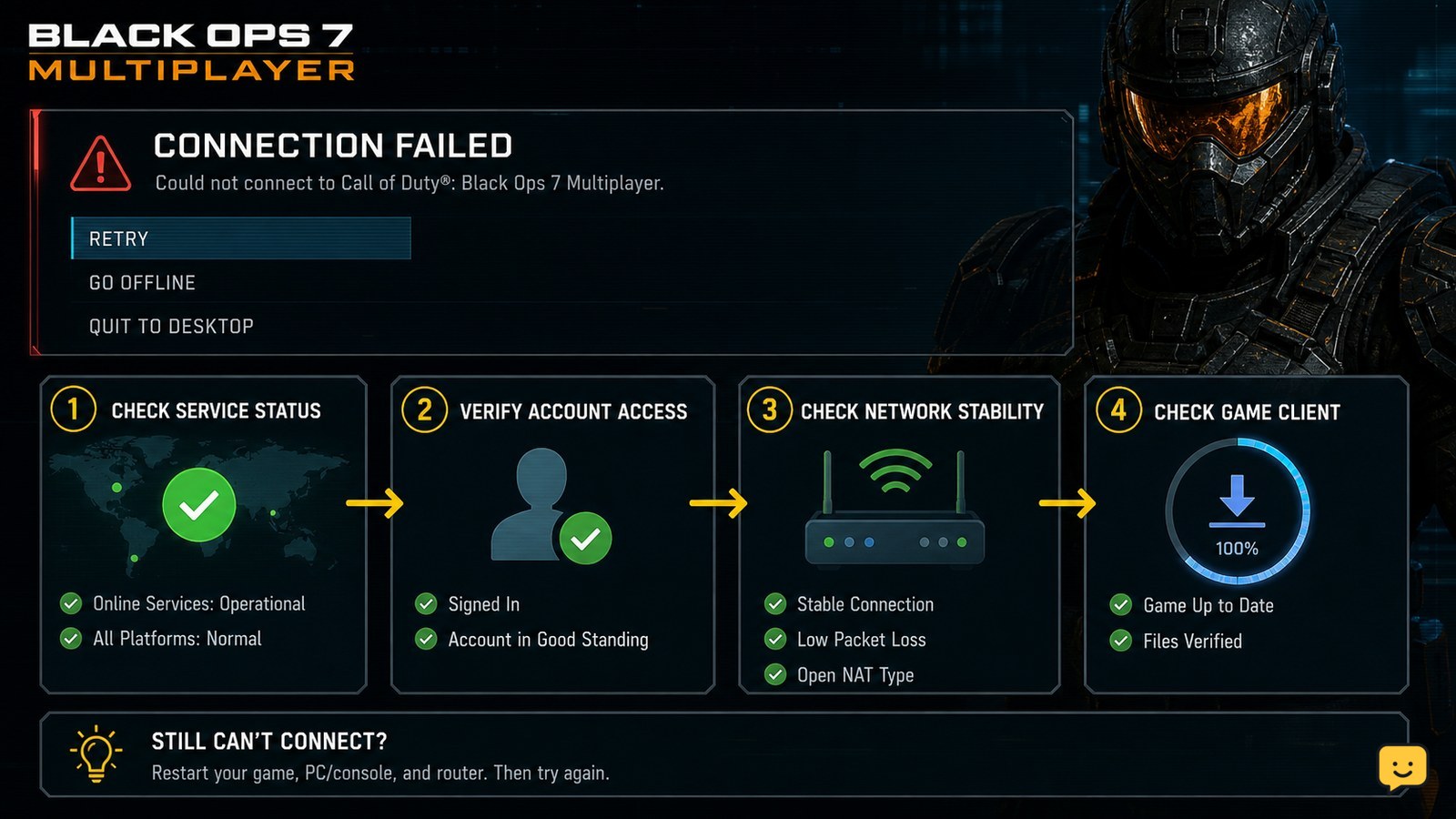
- Crash only in public Multiplayer: check for updates and compare the behavior with Campaign or another offline-capable mode. Activision’s support article specifically identifies launch failures and crashes during public Multiplayer as common PC scenarios.
- Crash after several minutes: check GPU and CPU temperatures, memory usage, overclocks, and background applications.
If every game and demanding application also crashes, Black Ops 7 may only be exposing a wider Windows, driver, temperature, RAM, or power problem.
Repair the Black Ops 7 installation
Repairing Black Ops 7 installation files is the first software fix when the game crashes at launch, while loading, or after an update.
- Open the launcher where you installed Black Ops 7.
- Find the game’s settings or management menu.
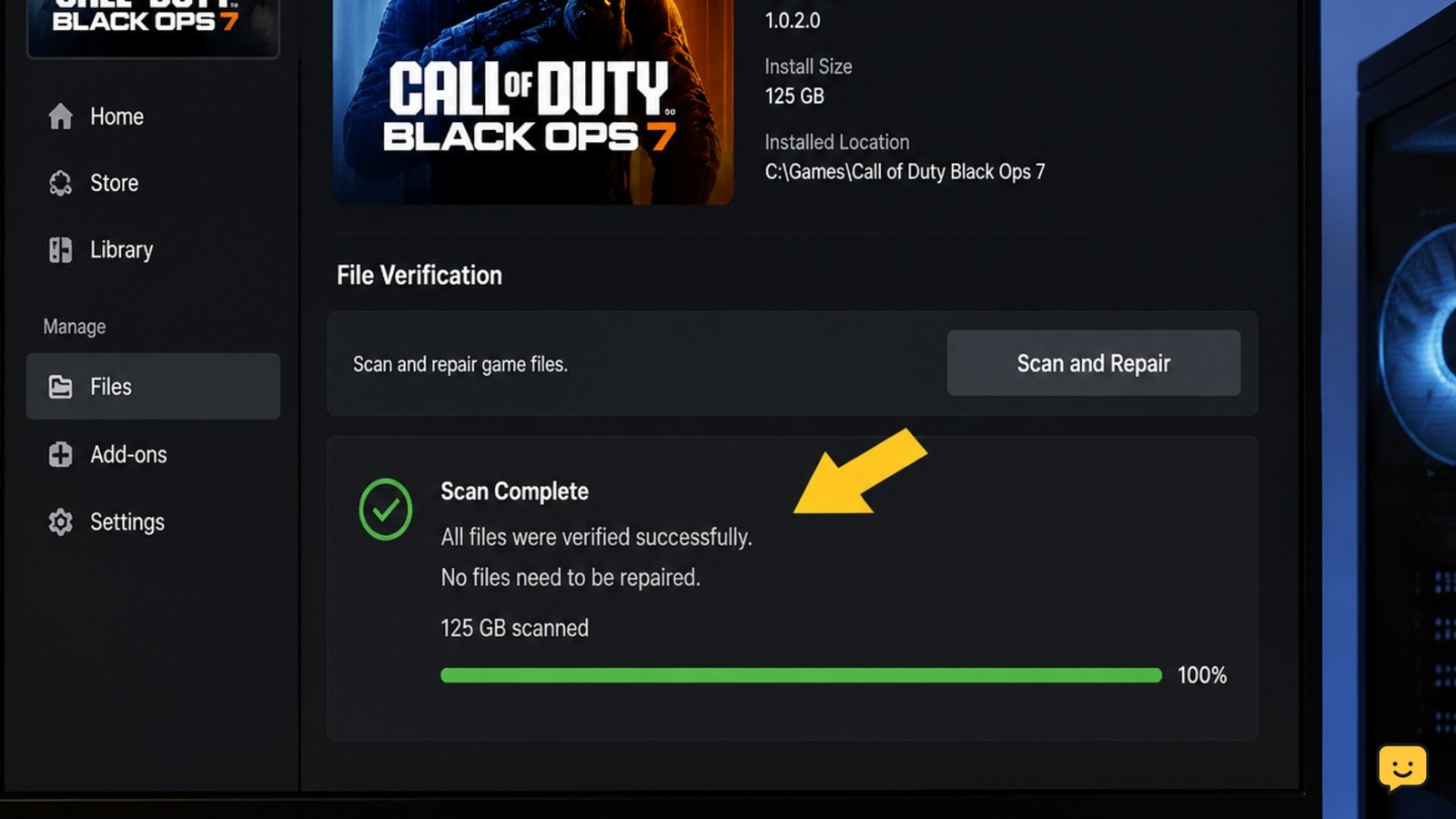
- Choose the launcher’s Verify, Scan and Repair, or equivalent file-repair option.
- Wait until the scan finishes, then restart the launcher and Windows.
This process replaces missing or damaged files without requiring a full reinstall. It may take longer on a large installation, and the launcher can report that no repair was needed even when another cause remains.
Verify: launch Black Ops 7 and repeat the action that previously caused the crash. If the repair fails, the scan stops, or the launcher cannot access the installation, check available storage and run the launcher with the normal Windows account that owns the installation. Do not move the game while a repair is running.
Update or reinstall the graphics driver
A graphics-driver conflict can crash Black Ops 7 during startup, shader preparation, loading screens, or graphics-heavy gameplay.
- Identify whether your PC uses an NVIDIA, AMD, or Intel GPU.
- Download the current driver for that exact GPU from the manufacturer’s official support application or website.
- Install the driver and restart Windows, choosing a clean-install option when the installer provides one.
- Remove temporary GPU tuning, undervolting, or overclock settings and return the graphics card to its default profile.
Do not assume that the newest driver is always the cause or the cure. If the crashes began immediately after a driver update, use the manufacturer’s supported rollback option instead of downloading an unofficial driver package.
Verify: test the game at its default display mode before restoring custom GPU profiles. If the driver installation itself fails, Windows reports a device error, or other 3D applications also crash, stop changing Black Ops 7 settings and troubleshoot the GPU installation or hardware.
Use conservative Black Ops 7 graphics settings
Lowering demanding graphics features can show whether Black Ops 7 is crashing because of a rendering, memory, or unstable settings conflict.
- Open the game’s graphics settings if you can reach the main menu.
- Set the display mode and resolution to a stable configuration already supported by your monitor.
- Lower texture, shadow, lighting, and effects quality temporarily.
- Disable frame-rate, GPU, and CPU overclock profiles while testing.
- Apply the changes, restart the game, and test the same mode or map.
Change one group of settings at a time. If the game becomes stable, restore settings gradually until the failing feature is identified. If it crashes before the graphics menu appears, this step does not apply yet; repair files and address the driver first.
For a graphics-settings reference, see our guide to turning off motion blur after the game stays open long enough to save settings.
Disable overlays and background conflicts
Overlay and monitoring software can conflict with Black Ops 7’s rendering, input, or anti-cheat components, especially when the crash occurs during launch or when entering a match.
- Close the game.
- Temporarily disable overlays from the game launcher, GPU software, chat applications, recording tools, and hardware-monitoring utilities.
- Close browser windows, RGB utilities, macro software, and other nonessential background programs.
- Restart Windows and launch Black Ops 7 with only the launcher and required security software running.
This is a diagnostic test, not a requirement to uninstall every background application. If the crash stops, re-enable programs one at a time until the conflict returns. Leave the conflicting overlay or utility disabled while playing, and update it through its official channel.
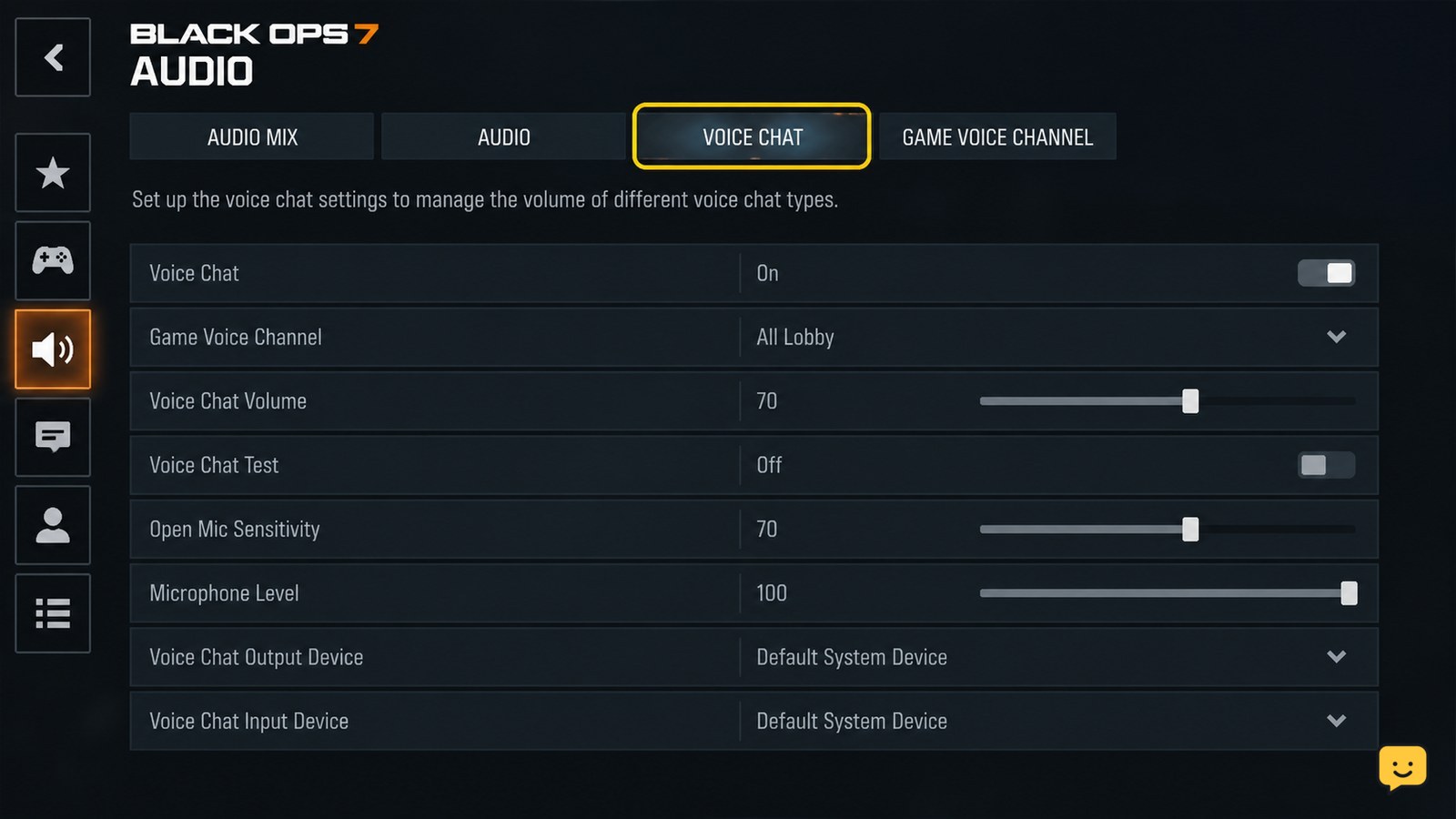
If you use voice chat, a headset utility, or a third-party microphone application, test with that utility closed first. If the game is stable but chat still fails, use the separate Black Ops 7 voice chat troubleshooting steps.
If the game is stable but chat still fails, use the Black Ops 7 voice chat troubleshooting steps.
Check Windows, storage, temperature, and RAM
Black Ops 7 crashes that persist after file repair and driver work can result from low free storage, overheating, unstable RAM, or broader Windows problems.
- Keep sufficient free space on the drive containing the game and the Windows system drive.
- Check Task Manager while launching the game for unusually high memory, CPU, or disk usage.
- Monitor GPU and CPU temperatures during the exact situation that causes the crash.
- Disable memory overclock profiles such as XMP or EXPO temporarily if crashes affect several demanding games.
- Run Windows Update and restart after updates finish.
- Check Windows Reliability Monitor or Event Viewer for the time of the crash. A display-driver failure, application error, blue screen, or unexpected shutdown points to different troubleshooting paths.
A normal desktop return with an application error is different from a full system restart. The latter is not a normal game crash and can indicate unstable hardware, power delivery, temperatures, or system memory. The Windows Central report cited RAM instability as the cause of a Call of Duty PC crash, but that report concerned an earlier Call of Duty title, so treat it as a hardware-checking lead rather than a Black Ops 7-specific diagnosis.
Verify: run another demanding game or benchmark only if the PC remains stable and temperatures are normal. If multiple applications fail, repair Windows or consult the component manufacturer before reinstalling Black Ops 7.
Reinstall only after the checklist fails
Reinstall Black Ops 7 only when file repair, driver checks, conservative settings, and a background-software test do not resolve the crash.
- Confirm that your account owns the game and that the launcher can download it again.
- Close the launcher and back up only supported local settings or save data.
- Uninstall Black Ops 7 using the launcher’s normal uninstall control.
- Restart Windows, install the game to a healthy drive with adequate free space, and allow all updates to complete.
- Launch with default graphics and no optional overlays before restoring custom settings.
Stop: do not reinstall repeatedly if the PC restarts, shows a blue screen, or other games crash. At that point, the next safe action is system and hardware diagnosis, not another game download.
Frequently asked questions
Why does Black Ops 7 crash when I launch it?
Black Ops 7 may crash at launch because of damaged files, a graphics-driver conflict, an overlay, or an incompatible background utility. Restart Windows, repair the installation through your launcher, update or clean-install the GPU driver, then test with overlays disabled.
Can an overclock cause Black Ops 7 to crash?
Yes. GPU, CPU, RAM, undervolt, XMP, and EXPO profiles can become unstable under a specific game workload. Return the system to default settings and test Black Ops 7 again. If the crashes stop, reapply changes one at a time rather than restoring the entire profile.
What should I do if Black Ops 7 crashes only in Multiplayer?
First compare the crash with Campaign or another mode, then repair the game files and confirm that the game and launcher are fully updated. If the crash occurs only in public Multiplayer after those checks, consult Activision’s current crash-support guidance and record the mode, map, and error details.
Why does my whole PC restart while playing Black Ops 7?
A full restart usually points beyond a normal application crash. Check temperatures, power connections, RAM stability, GPU drivers, Windows errors, and whether other demanding applications fail. Stop repeated testing if you see a blue screen, shutdown, burning smell, or abnormal hardware noise.