
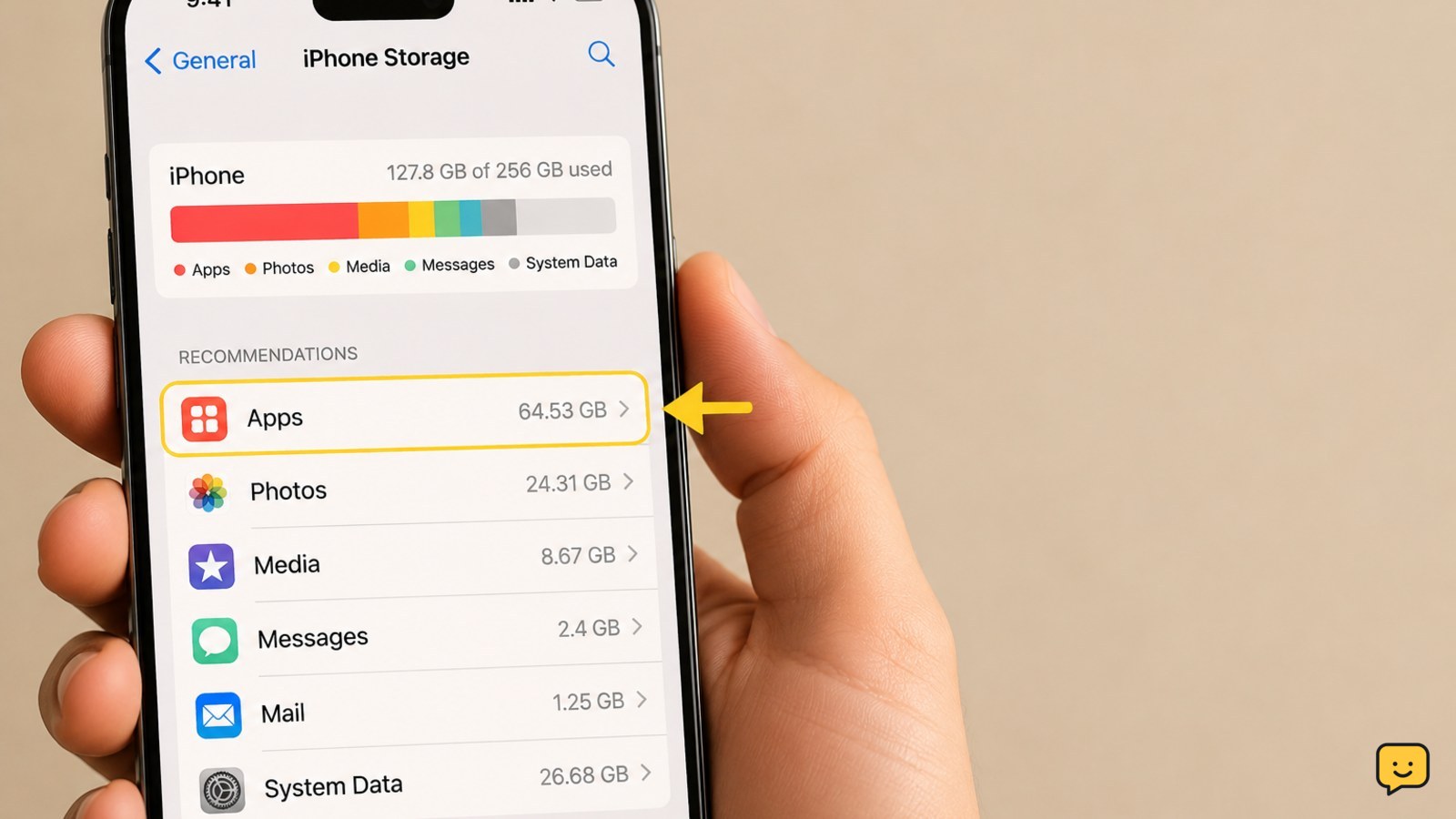
Your Android phone may still show full storage because deleted items remain in a trash folder, an app retains cached files or downloaded data, or another folder contains copies. Open Settings > Storage to find the largest category, empty trash in Files and Photos, review Downloads and offline media, then restart and check storage again. Do not clear app data until important content is backed up.
1. Check which category is actually full
Deleting a few visible files may not affect the category using most of the space. Android menu names differ between Samsung Galaxy, Google Pixel, Motorola, and other phones, but the storage summary is the best starting point.
- Open Settings.
- Tap Storage, or search Settings for “storage.”
- Record the largest categories, such as Apps, Images, Videos, Downloads, Audio, System, or Other.
- Open the largest category if your phone provides a list or cleanup option.
Verify: Note the free-space figure before making changes. Work on the largest category first rather than deleting random files. If Apps is largest, deleting photos will not solve the main problem.
2. Empty Files, Photos, and other trash folders
Many Android file and photo apps move deleted items to a temporary trash or bin. Until that bin is emptied, the files may continue using storage. The exact retention period and menu name depend on the app.
- Open Files, Files by Google, or your phone’s file manager.
- Open the menu and look for Trash, Bin, or Recently deleted.
- Review the contents, select only items you no longer need, and choose Delete permanently or Empty trash.
- Open your photo app and check its Trash or Recently deleted folder too.
- Check other apps that manage media, such as a gallery, messaging app, or cloud-photo app.
Verify: Return to Settings > Storage and wait for the total to refresh. If the number does not change, restart the phone once before assuming the deletion failed.
3. Find large downloads, duplicate files, and offline media
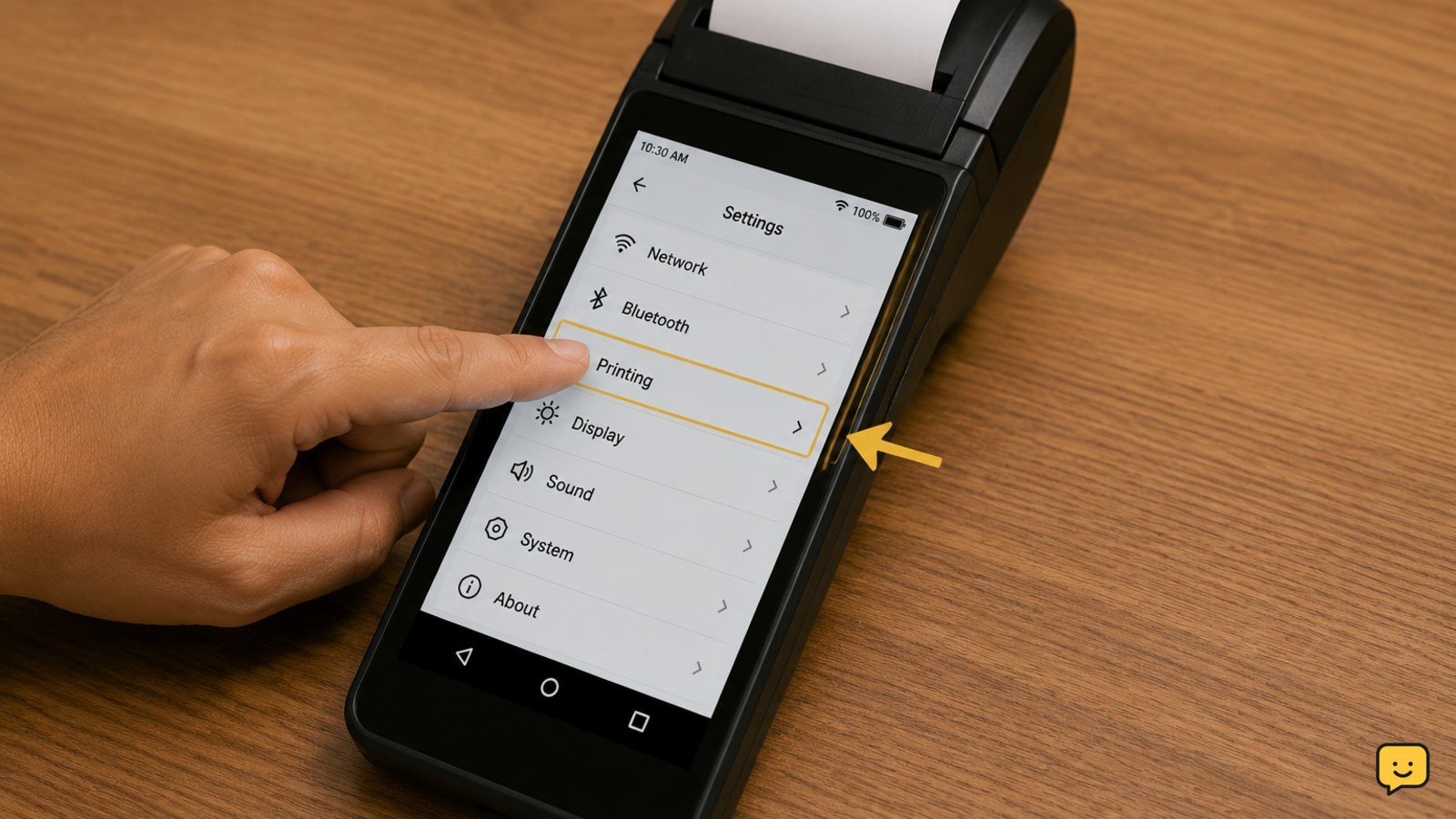
Downloads can be separate from photos and videos, and streaming apps may keep offline movies, music, podcasts, or maps. Cloud services can also sync a file back to the phone after you delete a local copy.
- In the file manager, open Downloads and sort by size if that option is available.
- Review large videos, installation packages, screen recordings, ZIP files, and documents.
- Open each relevant streaming, music, podcast, or navigation app and remove its Downloaded or Offline content.
- In a cloud-photo app, confirm whether you are deleting the phone’s local copy or the backed-up original. Use the app’s “free up space” option only after confirming the backup is complete.
- Check removable storage separately if your phone has a microSD card; deleting files there may not change internal storage.
Stop: Do not delete an unfamiliar file merely because it is large. Check its name, location, and associated app first.
4. Review app cache and app storage safely
Apps can accumulate cached images, video previews, browser data, and downloaded content. Clearing a cache is generally less disruptive than clearing app storage, but cached space may return as the app is used.
- Open Settings > Apps or Apps & notifications.
- Sort apps by size if your phone offers that control.
- Open an unusually large app and tap Storage or Storage & cache.
- Use Clear cache first. Avoid Clear storage, Clear data, or similar commands unless you understand what will be removed.
- For an app you no longer use, uninstall it instead of clearing data and leaving the app installed.
Warning: Clearing app data can remove downloaded media, settings, drafts, and locally stored account information. It may also sign you out. Back up or confirm cloud synchronization before proceeding.
Verify: Reopen the app after clearing its cache, then check Settings > Storage. A small change is normal; a very large app category may require removing offline content or uninstalling the app.
5. Refresh the storage calculation and diagnose System or Other
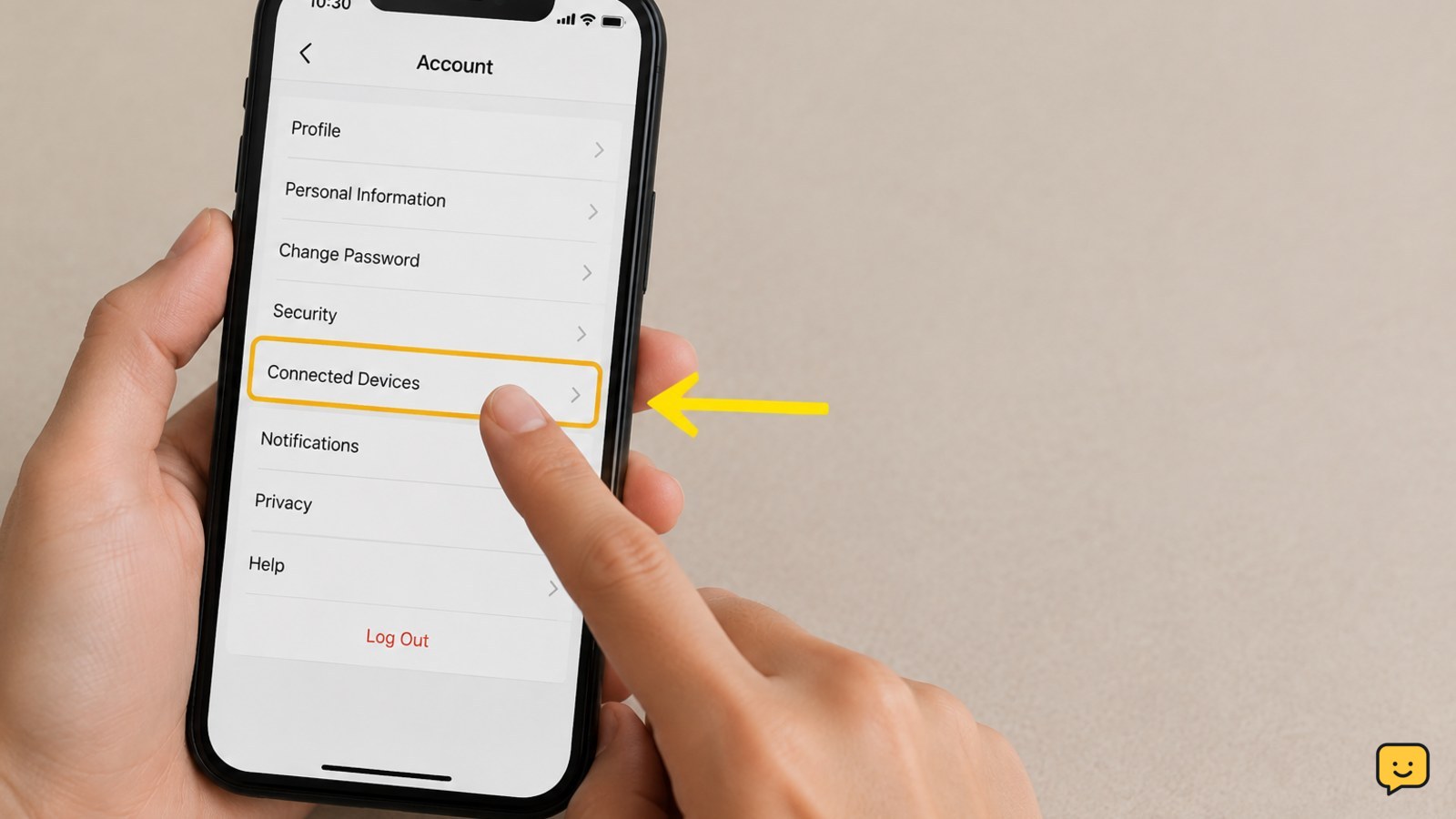
Storage totals can take time to update after a large deletion. Temporary files, update packages, thumbnails, and operating-system data may also appear under broad labels such as System or Other.
- Close open apps and restart the phone normally.
- Wait a few minutes after it starts, then open Settings > Storage again.
- Install a pending system update only if the phone has enough free space and the update is offered through Settings.
- Use the built-in storage cleanup recommendation, if shown, and review every suggested item before confirming.
- Check the storage screen again after each change so you can identify which action helped.
If System or Other remains unusually large, do not manually remove folders from protected system locations. Check the manufacturer’s support instructions for your exact model, back up your data, and contact support if the total keeps growing or the phone reports storage errors.
Success condition: You have identified the largest category, removed or relocated only verified content, and the available-space figure increases after the storage screen refreshes.
How to prevent Android storage from filling again
After recovering space, reduce repeat buildup with a short monthly check.
- Review Downloads and screen recordings.
- Remove offline video, music, podcasts, and maps you no longer use.
- Empty photo and file trash only after checking its contents.
- Uninstall unused apps and review the largest apps every few months.
- Keep a reliable backup of irreplaceable photos and documents before deleting local copies.
Stop when you have enough free space for normal updates and daily use. There is no need to remove system files or repeatedly clear every app cache.
Frequently asked questions
Why does Android storage not go down immediately after deleting files?
Android may need time to recalculate storage, and deleted items may still be in a trash folder. Empty Trash or Recently deleted in both your file manager and photo app, restart the phone, wait a few minutes, and check Settings > Storage again.
Does clearing the cache free storage on Android?
Yes, clearing an app’s cache can remove temporary files and free some space. The cache may rebuild as you use the app. Choose Clear cache, not Clear storage or Clear data, unless your important app content is backed up.
What is using Android storage if photos and videos are deleted?
Apps, offline media, Downloads, trash folders, duplicate files, cached data, and system files may be using the space. Settings > Storage shows which category is largest, so inspect that category before deleting anything else.
Is it safe to clear app data on an Android phone?
Clear app data only when you know what the app stores locally and have backed up anything important. It can remove downloads, drafts, settings, and sign-in information. Clear the cache or uninstall the app instead when those options meet your goal.
Browse more Mobile Devices guides for help with this topic.


