A phishing email example is a fake message that looks like it came from a bank, workplace, delivery service, or online account and tries to make you click a link, open an attachment, pay, or reveal a password or verification code. For example: “Unusual sign-in detected—verify your account now,” sent from a look-alike address.
Recognize this phishing email example
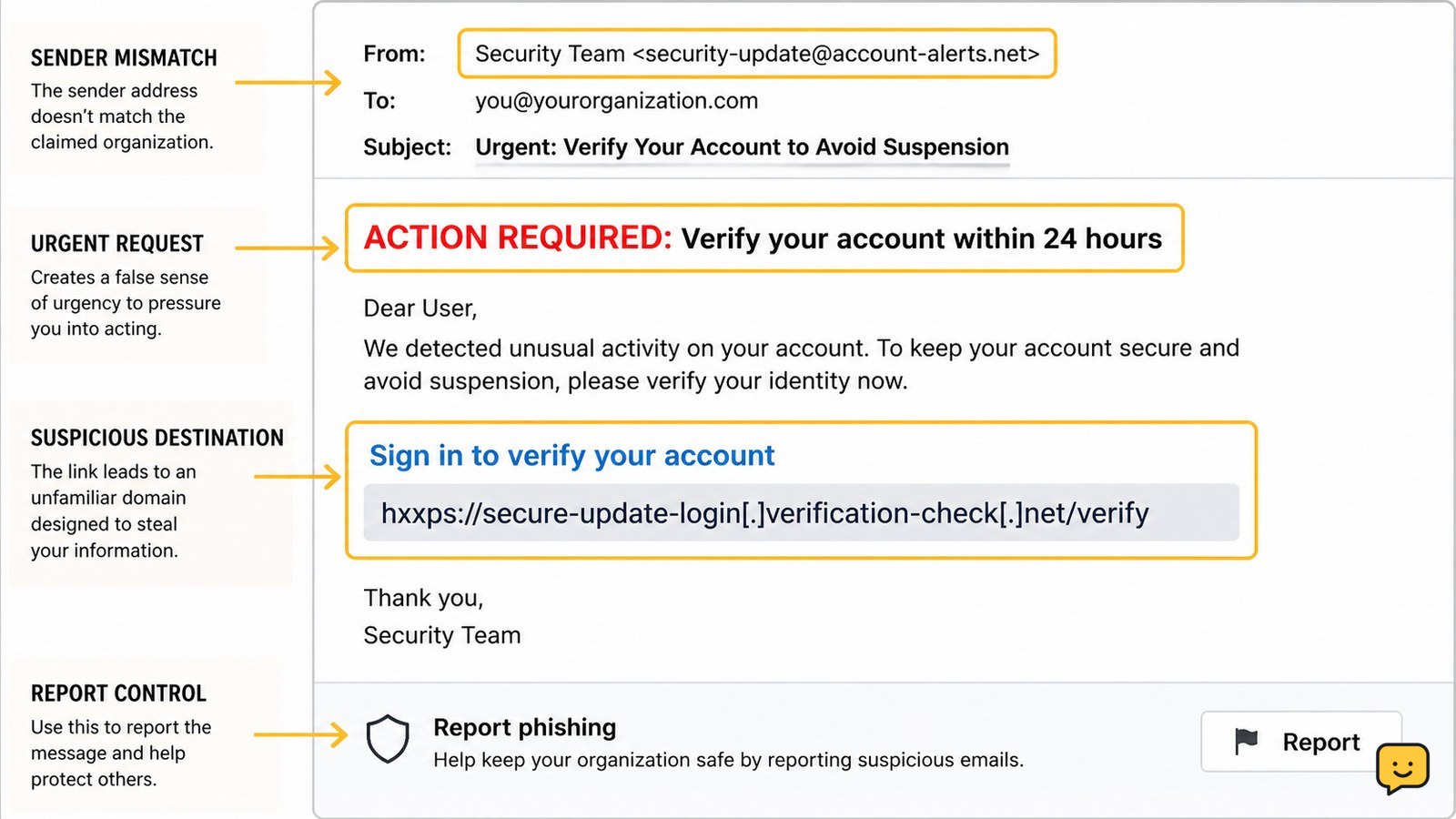
A phishing email example often combines a trusted brand or person with an urgent request. The message below is fictional and is safe to inspect because it contains no usable link or contact detail:
Subject: Unusual sign-in detected—action required
From: Account Security <[email protected]>
We detected a sign-in from a new location. Confirm your identity within 24 hours or your account will be suspended.
Button: Review sign-in
Failure to respond may result in permanent account closure.
This is suspicious because it creates pressure, threatens account loss, uses a generic security claim, and directs you to a sign-in action from inside the email. Microsoft lists fake security alerts and false invoices or payment requests among common phishing patterns.
Check the sender, request, and destination
A suspicious email becomes more likely to be phishing when several observable clues appear together.
- Inspect the full sender address. A display name such as “Your Bank” does not prove who sent the email. Look for misspellings, extra words, unusual domains, or a personal address used for a business request.
- Read the request literally. Treat demands for passwords, one-time codes, payment, bank details, gift cards, or remote access as high-risk.
- Look for pressure or secrecy. Deadlines, threats of suspension, unusual confidentiality requests, and instructions to bypass normal approval are warning signs.
- Check the link destination without opening it. On a computer, hover over the link; on a phone, use the platform’s link preview if available. Do not continue if the destination is misspelled, unrelated, shortened unexpectedly, or asks for information that the service normally does not request by email.
- Notice unexpected attachments. An invoice, document, or shared-file notice that you were not expecting can be a phishing lure, especially when opening it triggers a sign-in request.
No single clue proves that a message is fraudulent. However, an unexpected request combined with urgency and a mismatched sender or destination is enough to avoid the message.
Verify the claim without using the email
Verify an alleged account alert, invoice, or delivery problem through a separate trusted route rather than the message itself.
- Open the official app or type the service’s known website address into your browser.
- Sign in only on that independently opened service.
- Check its security alerts, recent activity, billing area, or message center for the same notice.
- If the email claims to be from a person or company, contact them through a phone number, email address, or internal directory you already trust—not through the suspicious message.
Verification succeeds when the same event appears inside the official account or a trusted contact confirms the request. If the alert appears only in the email, treat it as unverified and do not act on it.
Some real services send security notifications, so the presence of an alert alone does not establish fraud. The safe distinction is whether you can confirm it independently without following the email’s instructions.
Report and remove the suspicious message
Report a suspected phishing email using your email provider’s built-in phishing or junk-reporting control, then remove it from the inbox and deleted-items area if appropriate.
- Select the message without opening links or attachments.
- Choose the provider’s option labeled Report phishing, Report spam, or a similar control. The exact label depends on the service.
- Delete the message after reporting it.
- If it impersonates your workplace, bank, school, or another organization, report it through that organization’s official security or fraud channel.
If the report option is missing, use the provider’s official help center to find its current reporting method. Do not forward the message to coworkers or friends unless your organization’s security team specifically instructs you to do so.
Recover the account if you already interacted
If you clicked, entered information, opened an attachment, or approved a sign-in, treat the account as potentially exposed and act from the real service—not from the email.
For the related task, How to Know If You’ve Been Hacked covers the next checks separately.
- Change the affected password from the official app or website. If you reused that password elsewhere, change it there too.
- Review recent sign-ins, active sessions, recovery email addresses, phone numbers, forwarding rules, and connected apps. Sign out unfamiliar sessions and remove changes you did not make.
- Turn on two-factor authentication or a passkey where the service supports it. Never share a new verification code with anyone who contacts you.
- Contact your bank or payment provider immediately if financial details, payment, or a transfer were involved.
- Run your device’s normal security scan if you opened an unexpected attachment, and install updates offered through the device’s usual settings.
If you cannot sign in, use the service’s official account-recovery page. Stop and contact the provider through its published support channel if recovery details were changed or the account shows unfamiliar activity.
Frequently asked questions
What is the clearest sign of a phishing email?
The clearest sign is an unexpected request for sensitive information or payment combined with pressure to act through the email. A mismatched sender address, unfamiliar link destination, threat of account suspension, or request for a password or verification code strengthens the warning. Do not reply; verify the claim through the official app or website.
Can a phishing email look like it came from someone I know?
Yes. A phishing message can imitate a coworker, manager, friend, or family member. Check whether the request fits the person’s normal behavior and confirm it through a separate channel. Be especially cautious with requests for bank transfers, gift cards, passwords, codes, confidential files, or urgent secrecy.
What should I do if I clicked a phishing link but entered nothing?
Close the page, do not download anything, and avoid approving sign-in requests that appear afterward. Open the claimed service independently and review recent activity. Update your browser and device if updates are available. If a file downloaded or the account shows unfamiliar activity, contact the service’s official support channel and follow its security guidance.
Is an email from a real company automatically safe?
No. A real company name in the display field does not prove that the message is genuine, and a familiar-looking address can still be misleading. Verify unexpected requests inside the company’s official app or website. For payments, account changes, or security actions, use contact details you obtained separately.
For more help with this topic, use the Privacy Online Safety guides.