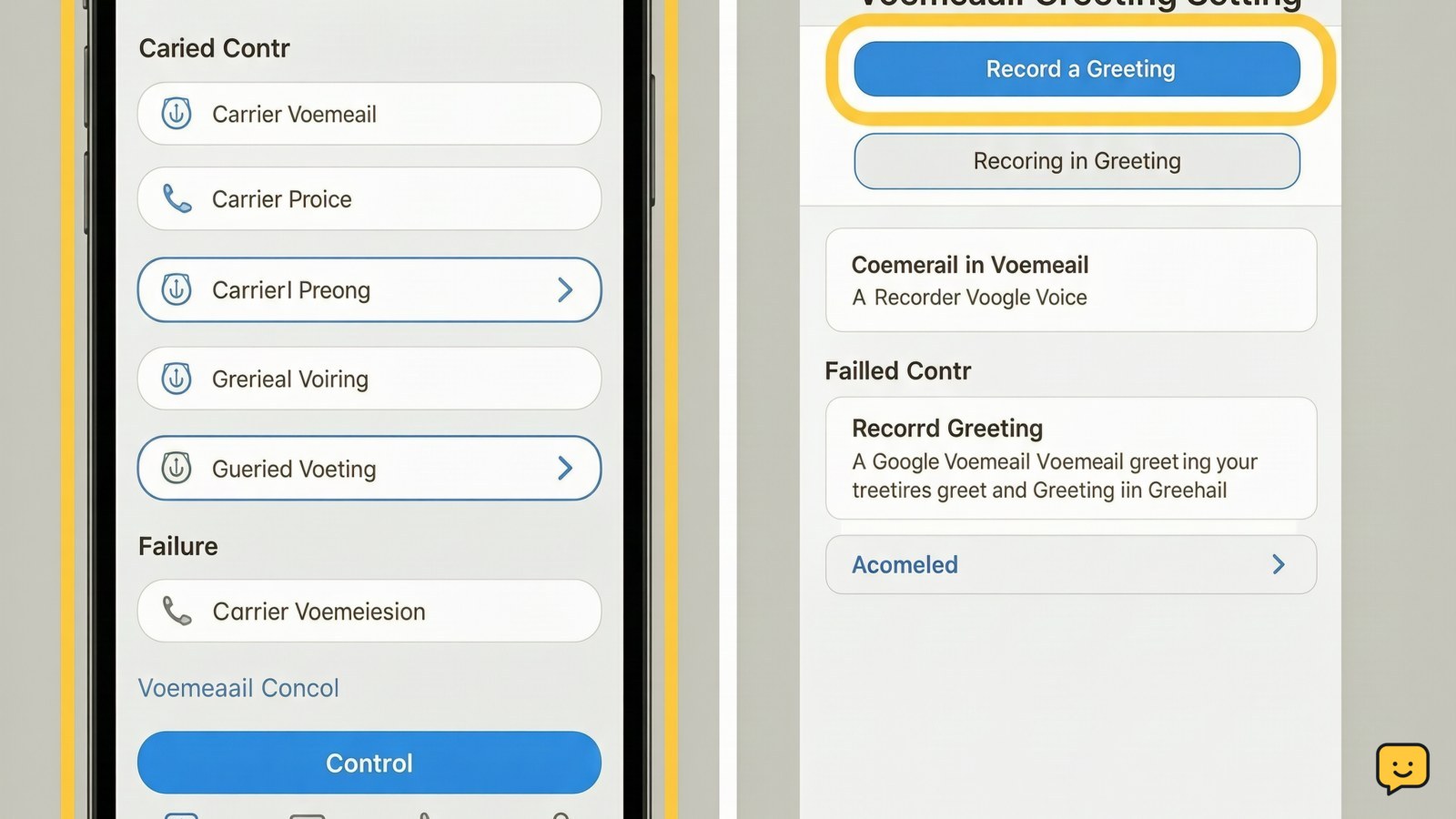
To set up voicemail, open your Phone app and tap Voicemail, or press and hold 1 to call your voicemail service. Follow the carrier prompts to create a PIN and record a greeting. On iPhone, the setup option is usually in Phone > Voicemail; in Google Voice, open Menu > Settings > Voicemail greeting. Call your number afterward to confirm it works.
For more help with this topic, use the Privacy Online Safety guides.
Choose the voicemail service you need
Your mobile carrier voicemail and Google Voice voicemail are separate services, so choose the one that receives calls for the number people use.
For a normal mobile number, use the phone’s built-in voicemail control or call the voicemail access number. On many phones, pressing and holding 1 starts the carrier voicemail setup, although the exact prompt depends on the carrier and plan. Google Voice uses its own inbox and greeting settings instead.
If you have two SIMs or eSIMs, check which line is active before starting. A voicemail button may open the mailbox for only one line, while a long press on 1 can follow the phone’s default calling line.
Set up carrier voicemail on an iPhone
On an iPhone, carrier voicemail setup normally begins in the Phone app’s Voicemail tab.
- Open Phone and tap Voicemail.
- Tap Set Up Now if it appears.
- Create a voicemail password or PIN when prompted, then enter it again to confirm.
- Choose the default greeting or record a custom greeting.
- Save the greeting and wait for the voicemail list or setup confirmation to appear.
Apple also documents Live Voicemail under Settings > Apps > Phone. Live Voicemail is a separate feature that displays a live transcription while someone leaves a message; turning it on does not replace carrier voicemail setup. If the Voicemail tab only shows a call option, tap it or hold 1 to complete setup through the carrier.
Set up voicemail on Android or Google Voice
On Android, carrier voicemail setup is controlled by the phone app and carrier, so button names can vary by manufacturer and plan.
- Open the Phone app and look for Voicemail, a voicemail icon, or the keypad.
- Tap the voicemail control, or press and hold 1 to dial the voicemail service.
- Follow the spoken instructions to create a PIN and record a greeting.
- End the call only after the system confirms that setup is complete.
For Google Voice, open the Google Voice app, tap Menu, choose Settings, and open Voicemail greeting. Google Voice Help identifies this path for recording a new greeting. Select the greeting option, record your message, listen to the playback, and save it.
If your Android phone has a visual voicemail tab but no setup control, use the carrier’s voicemail access number rather than installing an unverified voicemail app.
Record a safe greeting and protect the PIN
A voicemail greeting should identify the mailbox without exposing information that could help someone target you.
- State your first name or a neutral phrase, such as “You’ve reached this mailbox.”
- Ask the caller to leave their name, number, and a short message.
- Avoid mentioning travel dates, your address, workplace details, account numbers, or when you will return.
- Play the recording back before saving it and check that the words are clear.
Use a PIN that is not obvious and do not share it with callers. A voicemail PIN protects access to stored messages, but it does not replace your phone’s screen lock or carrier account security. If the system rejects the PIN, do not keep guessing; repeated failures may lock the mailbox or require a carrier reset.
Verify voicemail and fix setup failures
The reliable verification test is to call your number from another phone and confirm that the greeting plays, the caller can leave a message, and you can retrieve that message.
- Call the number from a different phone, or ask someone you trust to call.
- Let the call continue until voicemail answers.
- Leave a short test message without sensitive information.
- End the call, then open the voicemail inbox or dial the voicemail service.
- Play the test message and confirm the notification, timestamp, and audio are present.
If the call keeps ringing, voicemail may not be provisioned on the line or call forwarding may be changing the route. If callers hear a generic carrier message, repeat setup through the voicemail access number. If the voicemail tab is missing after setup, restart the phone and check for a carrier or account issue; do not erase the phone or change unrelated call settings as a first step.
When setup still fails, contact the carrier through an official channel and ask it to confirm that voicemail is enabled for the correct number. For Google Voice, verify that you are signed in to the intended Google account before changing the greeting.
Frequently asked questions
How do I know whether voicemail is already set up?
Call your number from another phone and wait for the greeting. If the caller can leave a message and you can retrieve it afterward, voicemail is active. A voicemail icon alone is not enough proof because some phones display the control before the carrier has enabled the mailbox.
Why does my phone say voicemail is unavailable?
The carrier may not have enabled voicemail on the line, the phone may be using the wrong SIM, or the voicemail access number may be incorrect. Check the active line, try the carrier’s official voicemail number, and contact the carrier if the service still cannot be reached.
Can I change my voicemail greeting later?
Yes. Open the voicemail settings in the Phone app or call the voicemail service and choose the greeting option. Google Voice users can open Menu > Settings > Voicemail greeting, select a greeting, record or replace it, listen to the result, and save it.
What should I do if I forget my voicemail PIN?
Do not guess repeatedly or use a PIN supplied by an unsolicited caller. Use the carrier’s official app, website, or support channel to reset the voicemail PIN. Google Voice users should use Google’s official account recovery process if access to the Google account is the problem.