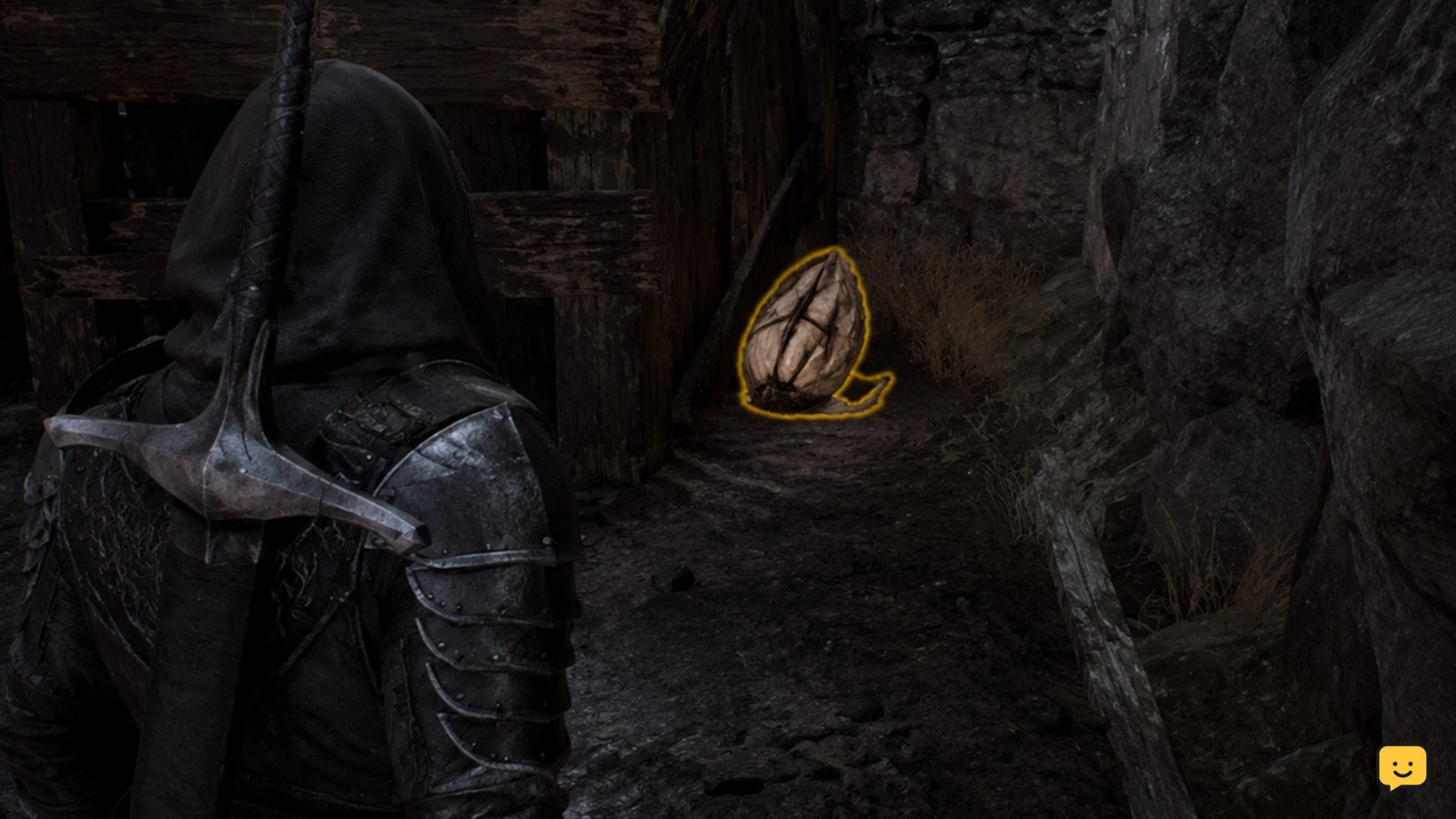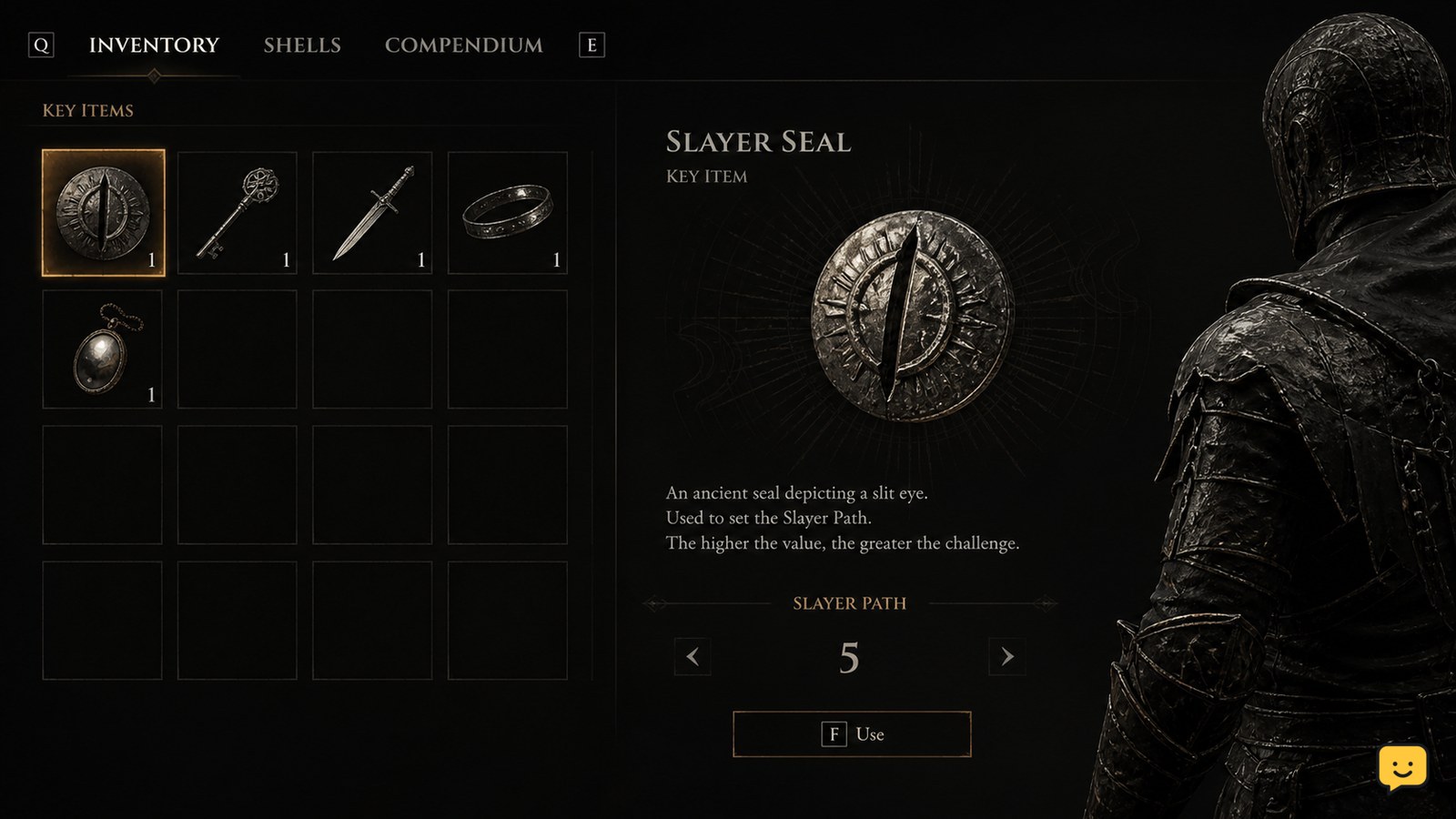
Mortal Shell II does not use a normal difficulty menu. Difficulty changes through the Slayer Seal, an item you find and use during a playthrough. Open the item’s available action, activate it, and look for an in-game confirmation. If no Slayer Seal or use prompt appears, stop rather than assuming the menu or save is broken.
Browse more Mortal Shell II guides
Check where Mortal Shell II changes difficulty
Mortal Shell II changes difficulty through an item rather than through a normal Difficulty selector in the Settings menu. IGN’s Mortal Shell II guide describes the mechanic as finding the correct item and using it to change the game’s difficulty, while its associated guide image identifies the item as the Slayer Seal.
This means an empty Settings menu is expected if you are looking for a conventional Easy, Normal, or Hard list. The change is tied to game-world progression and item access, so you cannot complete the procedure until the Slayer Seal is available in your playthrough.
The current evidence does not establish one universal item location for every platform or build. Avoid treating a location from an older video or from the original Mortal Shell as confirmed for Mortal Shell II.
Find the Slayer Seal before changing the challenge
You need the Slayer Seal before Mortal Shell II can change difficulty during an active playthrough. Search your inventory after obtaining the item and confirm that it has an available action rather than treating it as a passive collectible.
- Pause the game and open the inventory or item screen.
- Locate the item named Slayer Seal.
- Read the available control prompt for that item. The exact button depends on your platform and control bindings.
- Do not activate unrelated seals, shell abilities, or equipment while looking for the difficulty control.
If the Slayer Seal is not listed, the likely explanation is that you have not obtained the required item yet or that your build does not match the current guide evidence. Check the game’s current objective path or a platform-specific location reference before changing your save.
Use the Slayer Seal during your playthrough
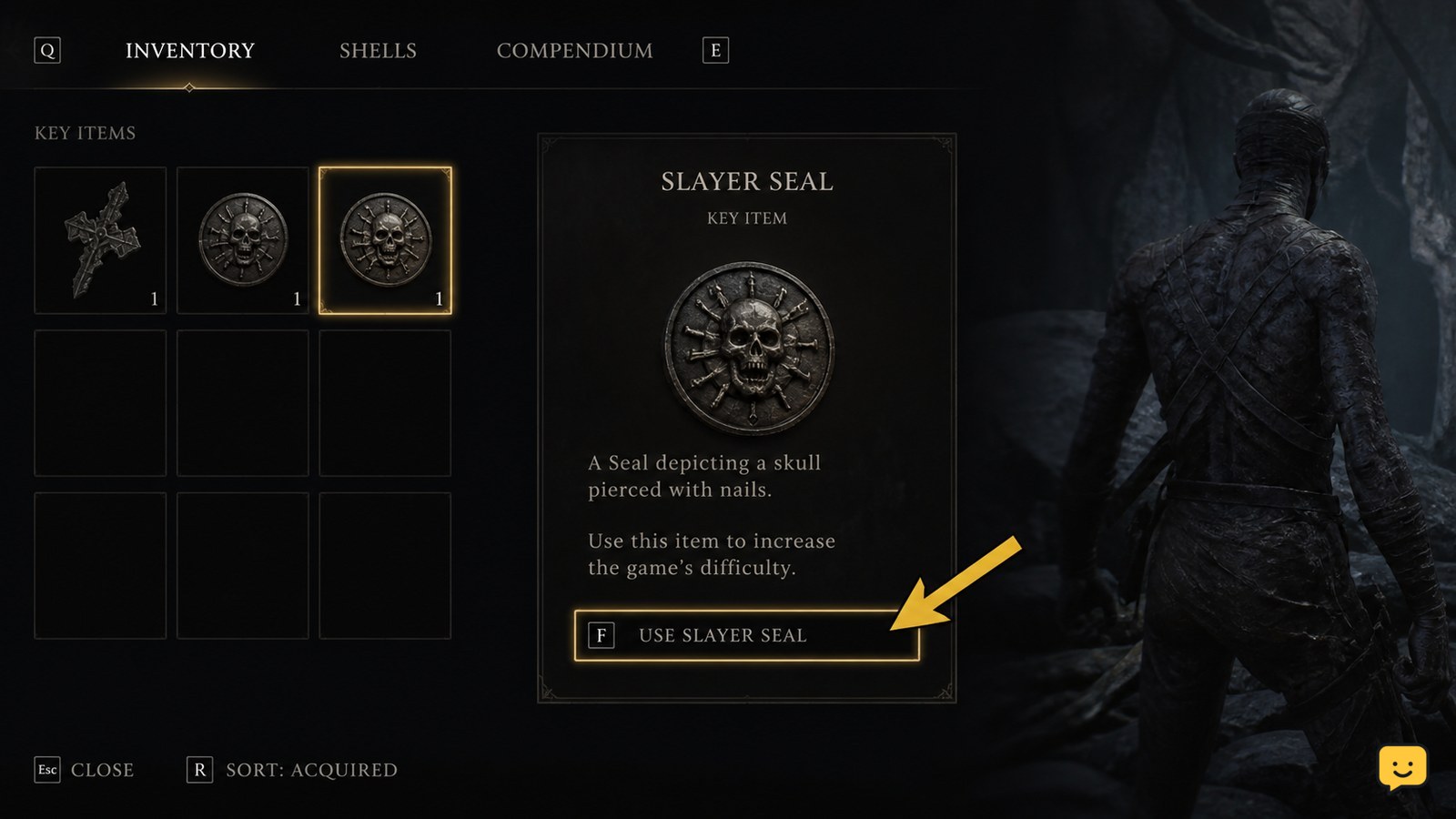
Once the Slayer Seal appears in your inventory, select it and use the displayed item action to apply the difficulty change. The important distinction is that this is an item interaction, not a setting you adjust with a left-right selector.
- Move to a safe area before activating the Slayer Seal.
- Open the inventory and highlight the Slayer Seal.
- Choose the on-screen use or activate command.
- Wait for the game to finish the interaction before closing the inventory or entering combat.
Do not assume the change worked merely because the item was highlighted. A successful activation should produce an in-game response, such as confirmation text, a changed item state, or another clear indication from the game. If the interface closes without any response, treat the attempt as unverified.
Verify the new difficulty before continuing
Verify a Mortal Shell II difficulty change through the game’s confirmation or resulting gameplay state before committing to a difficult encounter. The supplied sources confirm the item-based method but do not document a universal HUD label or exact numerical combat scaling for every version.
- Look for confirmation text or a changed Slayer Seal state after using the item.
- Return to gameplay and avoid starting a boss fight immediately.
- Use a nearby, familiar enemy as a low-risk check for any clearly changed challenge behavior.
- If the game provides no confirmation and the encounter feels unchanged, pause and inspect the item again rather than repeatedly activating it.
Do not claim a specific damage multiplier, enemy-health value, or permanent setting behavior unless your current version displays that information. The available evidence supports the activation method, not fixed combat numbers.
Fix a missing difficulty prompt or item action
A missing Difficulty menu is not, by itself, an error in Mortal Shell II because the game uses the Slayer Seal route described by IGN. Troubleshoot the item state first.
- Confirm that the inventory item is named Slayer Seal, not another seal or upgrade.
- Check whether the item is selectable and whether a platform-specific use button is shown.
- Move away from combat, scripted dialogue, or another restricted interaction and check again.
- If the item is present but has no action, save at a checkpoint, reload normally, and inspect it once more.
If the Slayer Seal remains absent or unusable after that check, stop. The available evidence does not support a universal workaround, console command, or menu path. Verify the game version and platform against a current source instead of modifying files or replacing the save.
Frequently asked questions
Can you change Mortal Shell II difficulty from the Settings menu?
No standard Difficulty menu is supported by the current guide evidence. Mortal Shell II uses the Slayer Seal instead, so an empty Settings menu is expected when you are looking for Easy or Hard options.
Can you change difficulty after starting a Mortal Shell II save?
Yes, the documented method is designed for an active playthrough: find the Slayer Seal and use it from the item interface. The evidence does not confirm whether every change is reversible, so verify the game’s confirmation before proceeding.
What is the Slayer Seal used for in Mortal Shell II?
The Slayer Seal is the item used to change Mortal Shell II’s difficulty. Select it in your inventory and use the displayed action prompt. If no prompt appears, the item may not be available for that game state or build.
Why is there no difficulty option in Mortal Shell II?
Mortal Shell II handles difficulty through a gameplay item rather than a conventional menu selector, according to the current IGN guide evidence. You must obtain the Slayer Seal before the change becomes available.
Does the difficulty change require a new game?
The available evidence indicates that you can change difficulty during a playthrough by using the Slayer Seal. It does not require selecting a mode from a new-game screen, but the item must first be available in your save.