To unsend an email in Outlook, open Sent Items, double-click the message, choose Recall This Message, and select whether to delete unread copies or replace the message. Recall is not guaranteed: it generally depends on the recipient using a compatible Microsoft 365 or Exchange mailbox and the message remaining unread. Check the recall report before assuming success.
For more help with this topic, use the Email Social Accounts guides.
Check whether Outlook recall applies
Outlook recall is most likely to work when the message was sent within a compatible Microsoft 365 or Exchange environment and the recipient has not opened it. Microsoft’s recall guidance also treats the sent message as the starting point: it must be opened from Sent Items in a separate message window.
Recall is not the same as deleting a message from your Sent Items folder. Deleting your copy does not remove a delivered copy from another mailbox. Messages sent to personal Gmail, Yahoo, or other external addresses may not be recallable through Outlook, and an already-read message may remain available to the recipient.
Before proceeding, check the To and Cc fields, the sending account, and the message’s Sent time. If the message went to an external address or contains sensitive information, prepare a correction rather than assuming recall will work.
Open the sent message in Outlook
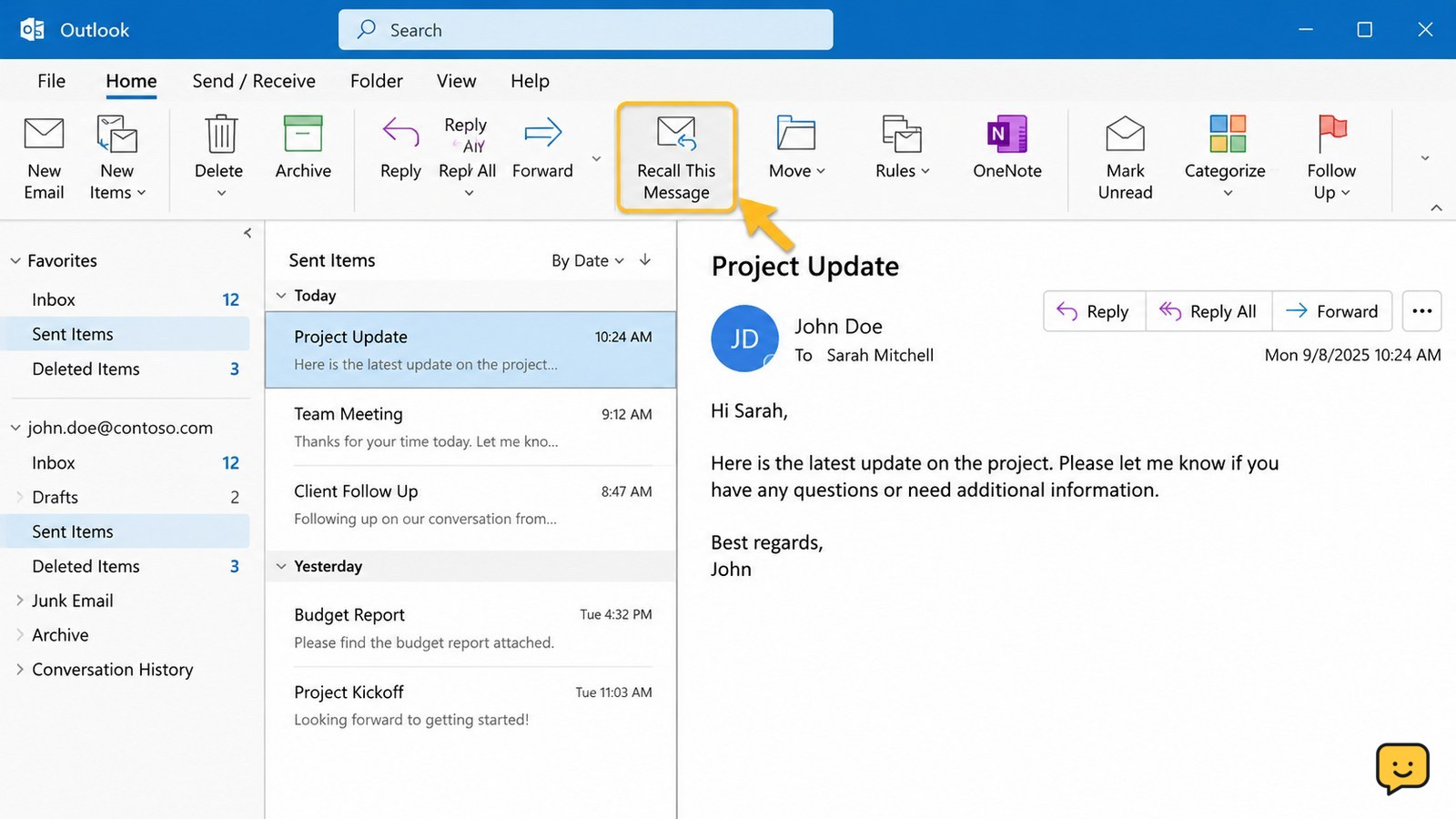
Open Outlook and select Sent Items in the left folder pane. Find the email you want to unsend, then double-click it so it opens in its own message window.
- Open Sent Items.
- Double-click the specific sent email.
- Confirm that the separate window shows the message you intended to recall.
- Look for the message controls or menu command for recalling or replacing the message.
Microsoft specifically documents opening the sent message in a separate window before starting a recall. If the email only appears in the reading pane, open it fully first. Do not select a draft or an unsent item.
For a broader explanation of what can and cannot be undone after sending, see when an email can be unsent. {link}
For a broader explanation of what can and cannot be undone after sending, see when an email can be unsent.
Choose Recall This Message
With the sent message open, choose Recall This Message. Outlook should present a choice to delete unread copies or to delete unread copies and replace the message with a corrected version.
- Select Recall This Message.
- Choose Delete unread copies of this message if no replacement is needed.
- Choose Delete unread copies and replace with a new message if the recipient needs accurate information.
- Confirm the recall request.
Choose replacement only when you can correct the original without creating a second confusing thread. Review the recipients and attachment in the replacement before sending it. A recall request cannot guarantee that every recipient’s copy will disappear.
Verify the recall result
Outlook recall succeeds only if the recipient’s mailbox and message state allow it, so verification is essential. Watch for the recall status or recall report that Outlook sends after processing the request.
- Open the recall report when it arrives.
- Check each recipient’s result instead of relying on a single overall impression.
- Look for wording that indicates the message was recalled or deleted.
- Note any result saying the message was read, could not be recalled, or remains available.
If Outlook provides no recall option, the report shows failure, or the recipient has already read the email, assume the original remains accessible. Do not delete your Sent Items copy as a substitute for recall. Preserve the message if your workplace needs it for an incident record.
Send a safe correction when recall fails
If recall fails, send one short correction that identifies the earlier message and states what the recipient should disregard. Do not repeat confidential data in the correction, and do not include an unsafe attachment again.
- Use a clear subject such as Correction to my earlier email.
- State which detail, attachment, or instruction was incorrect.
- Give the accurate replacement information.
- Ask the recipient to delete the earlier message only when appropriate for your organization’s policy.
If the message exposed a password, access code, personal record, payment detail, or confidential file, changing the affected credential or access permission may be more important than the email itself. Follow your organization’s incident process and contact its security team. For account-compromise concerns, use this guide to secure an email account after suspicious activity. {link}
For account-compromise concerns, use this guide to secure an email account after suspicious activity.
Frequently asked questions
Can I unsend an Outlook email after it was sent?
Sometimes. Outlook’s recall feature can remove or replace an unread message in some Microsoft 365 or Exchange environments. It is not a guaranteed remote delete, especially for external recipients or messages that have already been opened. Check the recall report for the actual result.
Why can’t I see Recall This Message in Outlook?
The command may be unavailable because the message was sent from an account or mailbox that does not support recall, the message is not open in its own window, or your Outlook version presents the command differently. Open the item from Sent Items first. If the command still does not appear, send a correction instead.
Does deleting an email from Sent Items unsend it?
No. Deleting your Sent Items copy normally affects only your mailbox view. It does not remove a delivered copy from the recipient’s mailbox. Use Outlook’s recall command when it is available, then verify the recall report.