Yes, but only for a short delay built into some email apps. Gmail lets you select Undo immediately after sending, and iPhone Mail shows Undo Send for a limited period. Once that option disappears or the email has been delivered, deleting it from Sent does not remove the recipient’s copy. Send a correction and protect any sensitive information instead.
For more help with this topic, use the Email Social Accounts guides.
Check whether the email can still be stopped
An email can be stopped only while your app is holding it during its brief send-delay window. Look for an Undo or Undo Send control immediately after you select Send.
If that control is visible, select it now rather than reopening the Sent folder. A successful undo normally returns the message to an editable draft, where you can correct the recipient, attachment, or text before sending again.
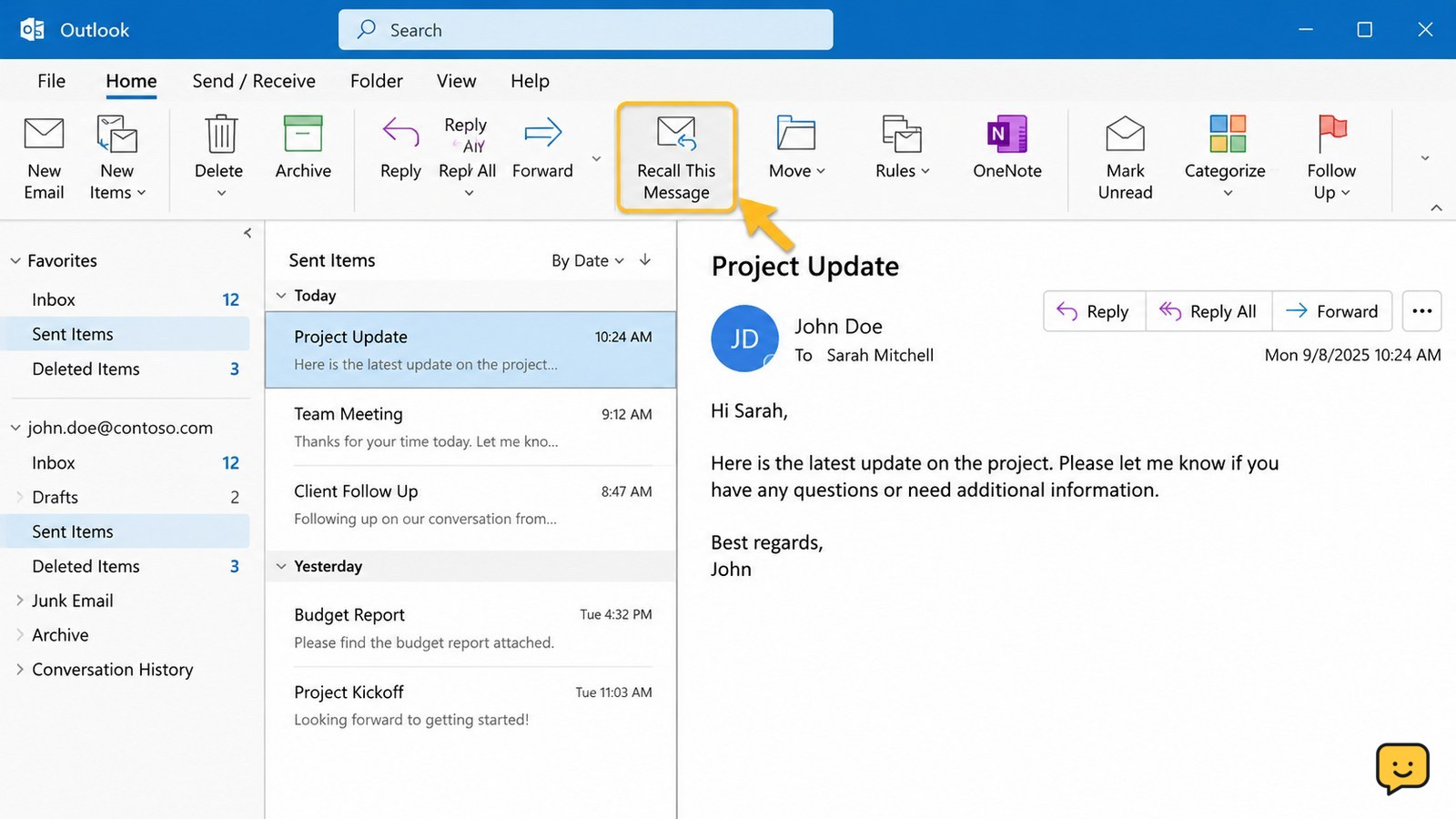
If the control is gone, treat the message as delivered or in transit. There is no universal command that removes a delivered email from another person’s inbox, downloaded mailbox, or forwarded copy.
Use Undo immediately in Gmail
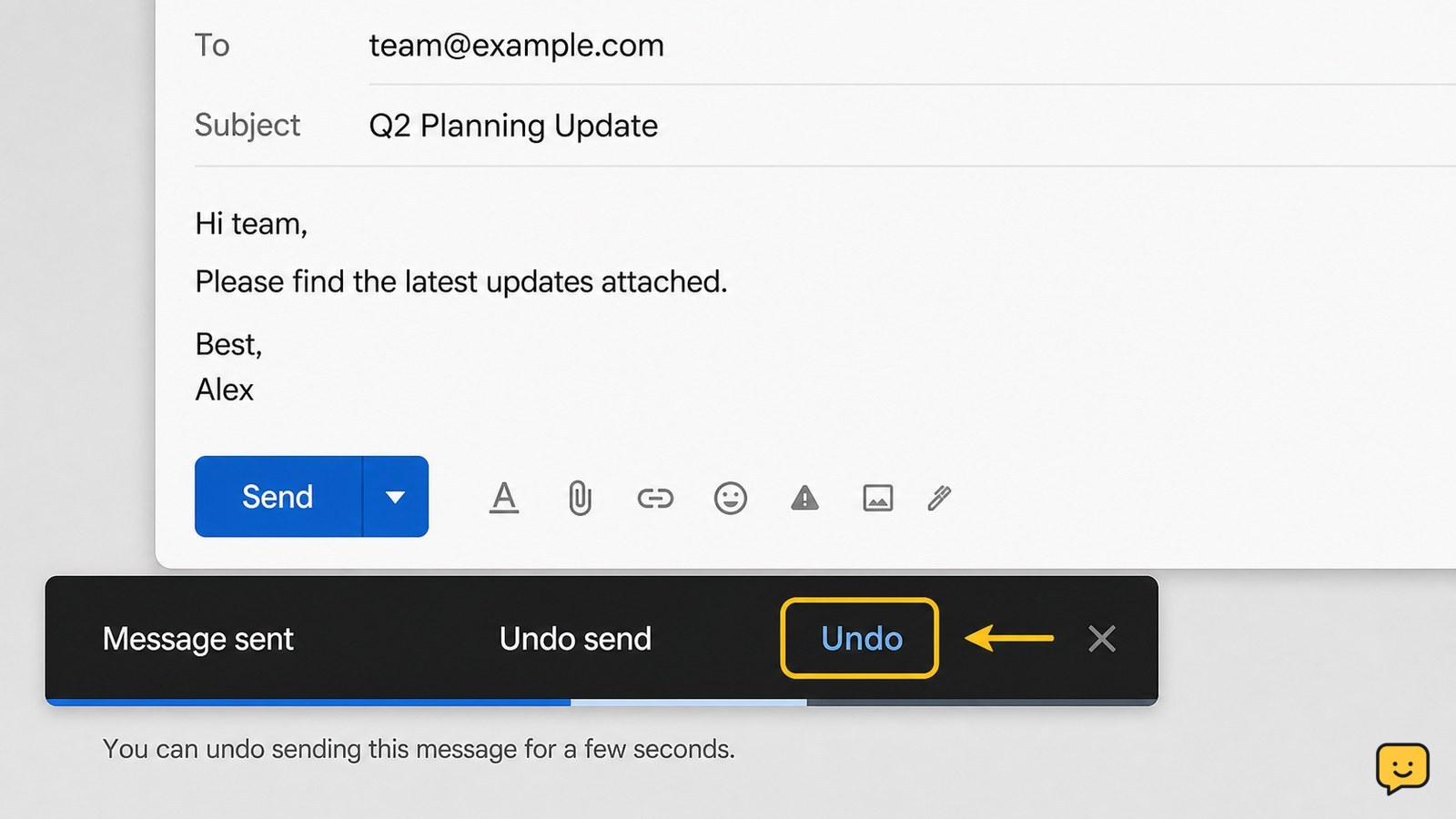
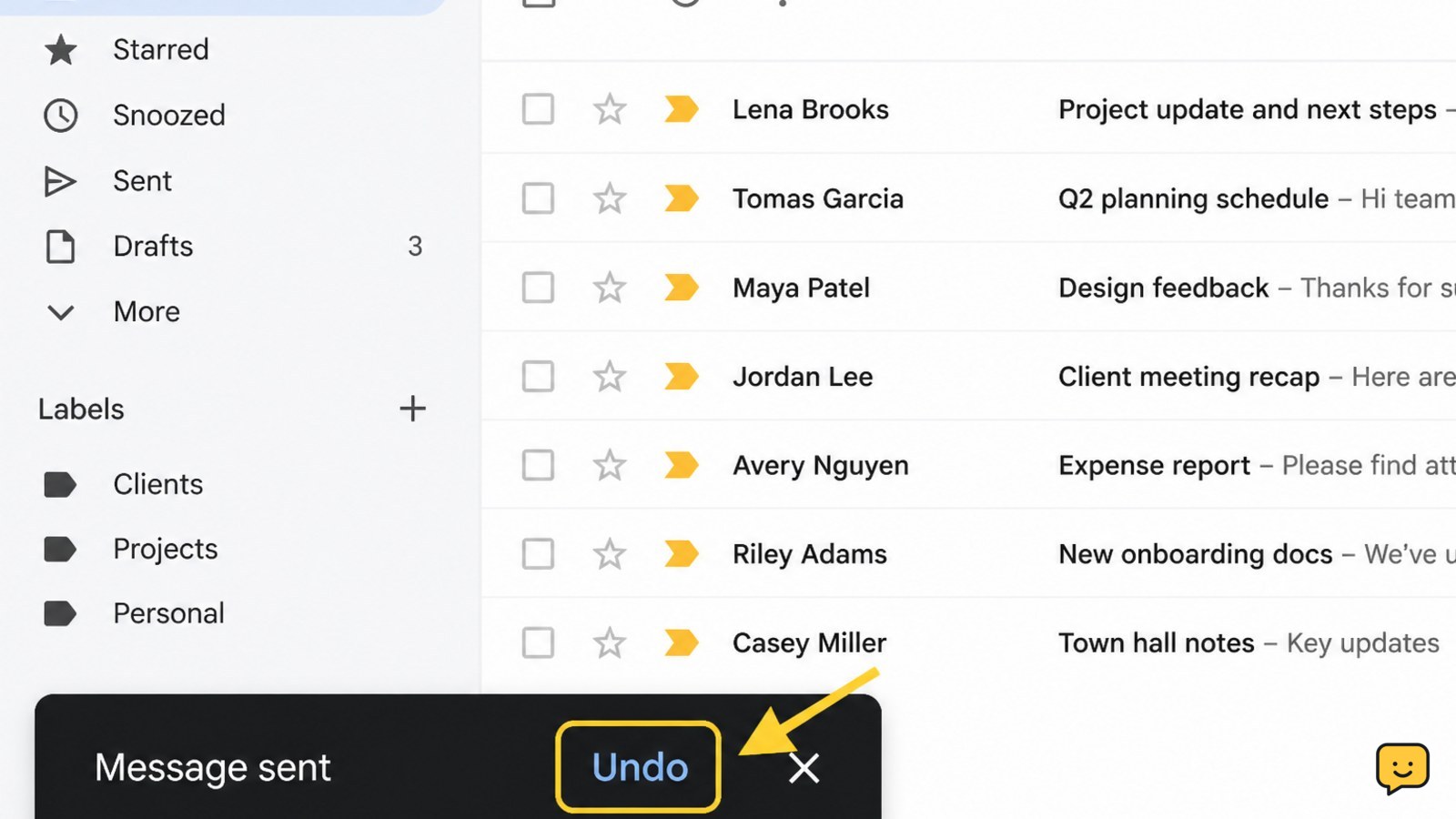
Gmail provides an Undo option immediately after a message is sent in a browser or the Gmail app. Google’s Gmail Help says that on a computer, a “Message sent” notice appears at the lower left with Undo and View message.
- Select Undo before the notice disappears.
- Wait for the compose window to reopen.
- Correct the message, remove the wrong recipient, or discard the draft.
- Review the To, Cc, Bcc, subject line, and attachments before sending again.
Success check: the message is back in a compose window and is no longer simply listed as a completed send. Failure path: if you only see the message in Sent, the undo period has passed; deleting it there will not retract the recipient’s copy.
Use Undo Send in Mail on iPhone
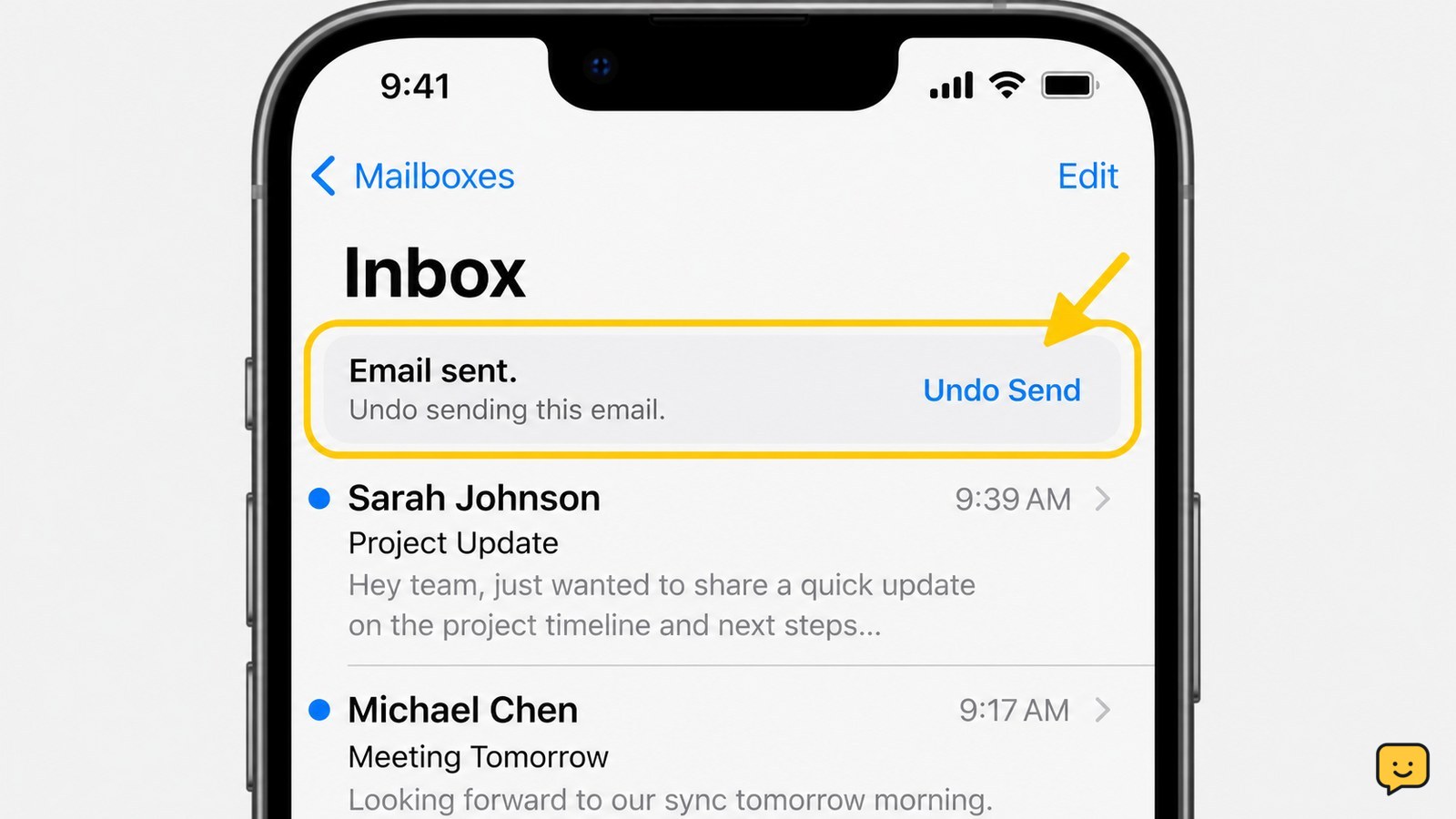
Mail on iPhone can show Undo Send at the top of the inbox just after you send an email. Apple states that you have 10 seconds to change your mind by default and can set a send delay to allow more time.
- After sending, return to or remain in the inbox.
- Tap Undo Send at the top of the inbox before it disappears.
- Check that the message returns for editing.
- Correct it or delete the draft instead of sending it again.
Success check: the outgoing email reappears as an editable message rather than remaining only in Sent. If Undo Send is no longer at the top of the inbox, stop attempting to retract it and use the delivered-message steps below.
Reduce harm when the email was already delivered
A delivered email cannot reliably be removed from the recipient’s mailbox, so the safest response is a clear correction and any needed account protection. Act based on what the message contained.
- Wrong person or wrong attachment: send a short follow-up asking the recipient not to use, share, or retain the message or attachment. Send the corrected information only to the intended address.
- Incorrect information: send a correction that identifies the original subject and plainly states the accurate detail. Avoid repeating private data unnecessarily.
- Password or account details: change that password using the official account settings. End unknown sessions and review recovery details if you suspect exposure.
- One-time verification code: do not send another code by email. Use the service’s official support or security path to protect the account or transaction.
If the message makes it look as though your email account sent something you did not write, secure the mailbox rather than assuming it was a simple sending mistake. This guide explains how to secure an email account after suspicious activity.
This guide explains how to secure an email account after suspicious activity if the message may expose account access or was not sent by you.
Prevent the next mistaken send
A send delay is useful because it creates a short review window before a message leaves the app. In Gmail or Mail on iPhone, choose the longest available send-delay setting that still fits how you work, then use that time to check the recipient and attachments.
- Add recipients after writing the message when the email contains sensitive details.
- Pause at the send screen and check the full address, especially autocomplete suggestions.
- Open every attachment once to confirm its contents and filename.
- Use a neutral subject line that does not reveal passwords, account numbers, or private details.
For repeated messages sent to several people, verify the membership of any reusable recipient list before sending. An Outlook contact group can make addressing faster, but it should be checked carefully before use.
Use this guide to verify an Outlook contact group before sending a repeated message to a saved recipient list.
Frequently asked questions
Can I unsend an email after an hour?
Usually no. Undo Send features work only during a brief send delay immediately after you select Send. After an hour, assume the recipient has received the message. Send a concise correction, ask the recipient not to use a mistaken attachment if appropriate, and secure any exposed account information.
Does deleting an email from Sent unsend it?
No. Deleting a message from Sent removes your copy from that folder; it does not remove the copy delivered to the recipient. Only an Undo or Undo Send control used during the app’s send-delay window can stop the message before normal delivery.
Can the recipient see an email if I use Undo Send?
No, provided you select Undo or Undo Send before the delay ends. The expected result is that the message returns to an editable draft. If the undo control has disappeared, do not assume the recipient cannot see it; use a correction or security response instead.
Why is there no Undo button after I send an email?
The available send-delay window has likely expired, or your email app may not offer an undo feature for that account or message. Check the app’s official help or settings for a send-delay option. Do not waste time deleting the Sent copy if the message contained sensitive data; protect the affected account.