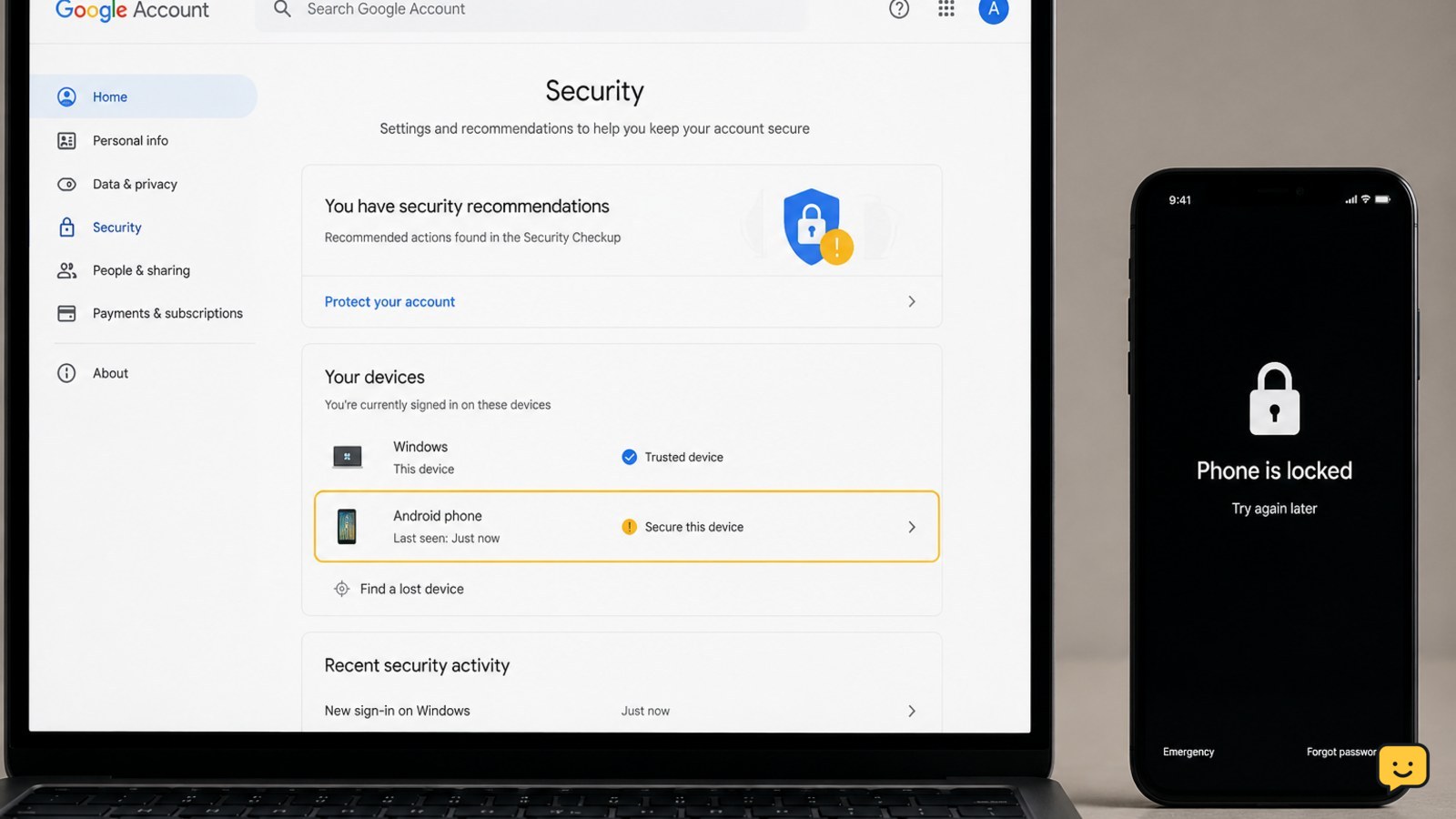
Use a trusted computer or replacement phone to open your Google Account security settings. Lock or erase the stolen phone, change your Google password, review recent security activity, sign out unfamiliar devices and sessions, check recovery methods and 2-Step Verification, then review saved passwords and Google payment activity. If you cannot sign in, use Google’s official Account Recovery page.
1. Lock or erase the stolen phone first
Start with the device because it may still contain an unlocked Google session, saved passwords, email, photos, cloud files, or payment information.
- Open Google Find Hub from a trusted device and select the missing phone.
- Use the available option to secure or mark the phone as lost. This can lock the device and display a contact message or number.
- If recovery is unlikely and the phone contains sensitive information, consider erasing it remotely. An erase can remove local data, but it may also prevent further location-based actions.
- Ask your carrier to suspend the SIM or eSIM. Replace the number when practical.
Verify: The phone should show as secured, marked lost, or erased in the device-management service. If it is offline, the command may wait until it reconnects.
2. Change the Google Account password
From a trusted device, open Google Account security and change the password. Choose a new, unique password that has never been used on another website.
- Sign in and open Password under “How you sign in to Google.”
- Complete Google’s identity check using an available trusted method.
- Save the new password in a secure password manager or write it down temporarily in a private place.
Changing the password helps protect the account, but it does not replace a review of devices, sessions, recovery methods, and connected services.
Verify: Sign out of the account on the trusted device, then sign in again with the new password.
If this fails: Do not keep guessing. Use Google Account Recovery from a familiar device, browser, and location when possible. Answer questions accurately and use the most recent password you remember.
3. Remove the stolen phone and unfamiliar sessions
Return to Google Account security and inspect both the device list and recent security activity.
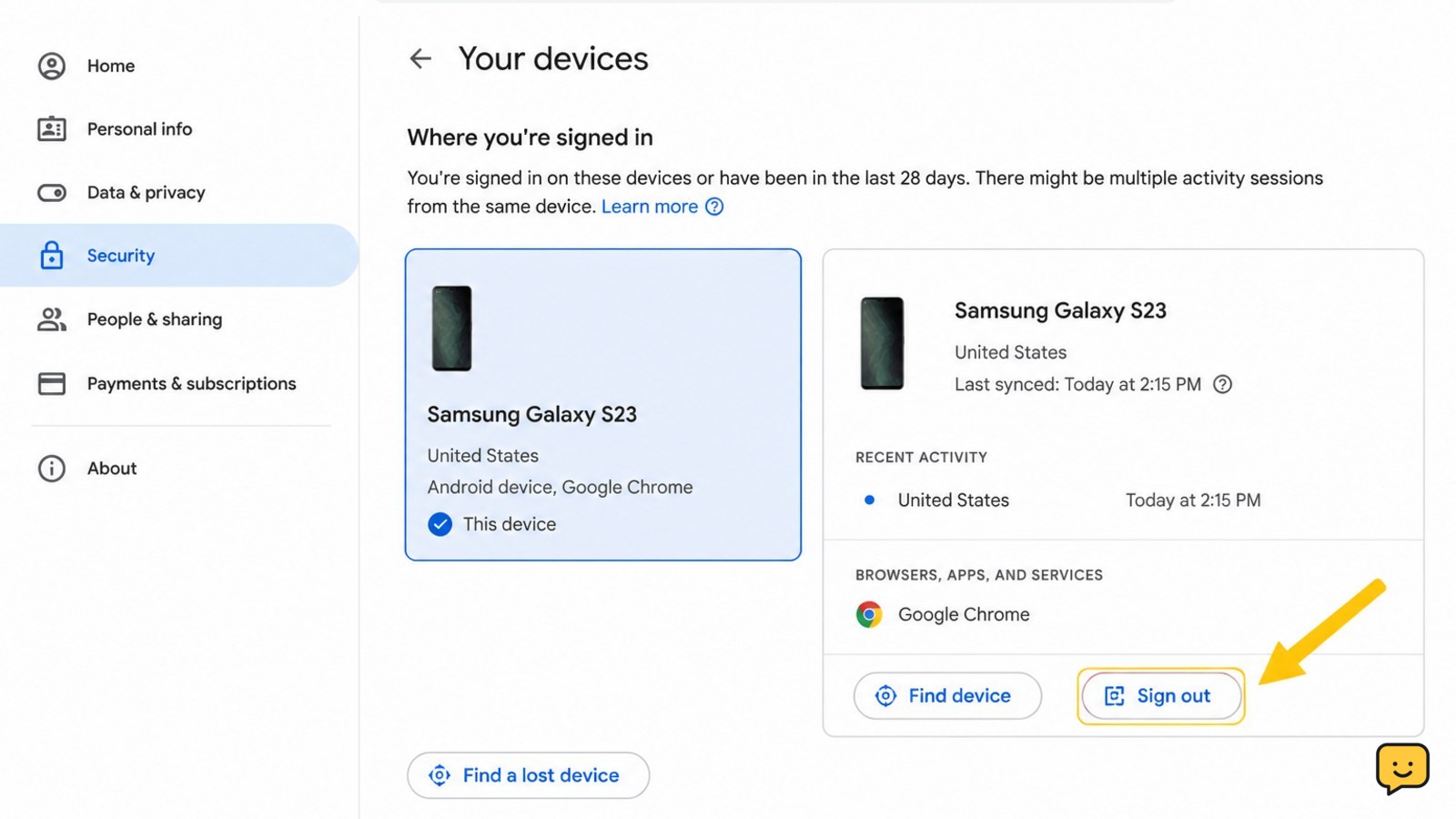
- Open Your devices and select Manage all devices.
- Choose the stolen phone and sign it out. Remove any other device you do not recognize.
- Review recent sign-ins, password changes, recovery changes, and security alerts.
- Check third-party connections and remove services you no longer use or do not recognize.
Google may show several sessions for one device, browser, or application. Review the location, time, and device details before removing access. A familiar location can still be wrong, so investigate anything that does not fit your activity.
Verify: The stolen phone no longer appears as an active signed-in device, and recent security activity contains no unexplained successful access.
If you see suspicious activity: Change the password again from a trusted device, sign out unfamiliar sessions, and inspect Gmail settings for forwarding addresses, filters, delegation, or messages you did not send.
4. Replace lost recovery and verification methods
A stolen phone may have received text messages, Google prompts, or authenticator codes. Replace methods that depend on the missing device.
- Under How you sign in to Google, review the recovery phone and recovery email.
- Remove the stolen number if you no longer control it, then add a current number only after your carrier confirms ownership.
- Open 2-Step Verification and remove the stolen phone from Google prompts or other listed devices.
- Replace lost backup codes and store the new set privately. Do not send codes to anyone.
- Add a secure alternative, such as an authenticator app, passkey on a device you control, or security key, if supported by your account.
Do not remove your only working recovery method until another method is ready and tested.
Verify: Start a sign-in on a separate trusted browser and confirm that the available verification choices belong to you. Cancel the test after confirming the methods; do not create unnecessary recovery attempts.
If no method works: Select Try another way during sign-in and follow Google’s official recovery instructions. Recovery may take longer when the usual phone is unavailable.
5. Protect Gmail, saved passwords, and synced data
Your Google Account may provide access to Gmail, Google Drive, Photos, Contacts, Chrome-saved passwords, and other synced information. Treat the account as a central access point.
- In Gmail, check Sent, Trash, filters, forwarding, delegation, and account access for changes you did not make.
- Open Google Password Manager and change passwords for important services that were saved or reused, starting with email, banking, shopping, and social accounts.
- Review Google Drive, Photos, and Contacts for unexpected sharing, deletion, or changes.
- Tell close contacts if suspicious messages may have been sent from your account, especially requests for money or verification codes.
Use each service’s official website or app when changing its password. Do not follow password-reset links in unexpected messages.
Verify: Important accounts have unique passwords, unfamiliar sharing and mail rules are gone, and contacts know to ignore suspicious requests made from your account.
6. Review Google payments and subscriptions
Check payment information after securing sign-in access. Open Google Payments Center and review payment methods, transactions, subscriptions, and purchases.
- Look for charges, subscriptions, or payment methods you do not recognize.
- Remove an exposed or unused card or bank account after confirming that you have another way to pay for services you intend to keep.
- Cancel unauthorized subscriptions where Google provides that option.
- Contact the bank or card issuer for disputed charges, replacement cards, or account monitoring.
Verify: Payment activity matches your records, and your bank confirms any needed card or account protections.
Stop condition: Do not wait for Google’s review if an unauthorized transaction is present. The card issuer can place immediate controls on the payment account.
7. Complete a final security check
After the urgent containment steps, open Google Account security once more and confirm the account is under your control.
- Confirm the password is new and unique.
- Confirm the stolen phone is locked, erased, or signed out.
- Confirm recovery email, recovery phone, 2-Step Verification, backup codes, and passkeys are current.
- Confirm unfamiliar devices, sessions, applications, and security events have been removed or investigated.
- Keep a replacement phone or trusted alternative ready before removing any remaining method.
If Google repeatedly asks you to verify your identity, use the trusted-device and recovery checks in Google Account Keeps Asking Me to Verify It’s Me? Fix It.
Finish only when you can sign in through a method you control and no unexplained account, device, email, or payment activity remains.
Frequently asked questions
Can I secure my Google Account without the stolen phone?
Yes. Use a trusted computer, tablet, replacement phone, recovery email, backup code, passkey, security key, or another signed-in device. Open Google Account security directly, not through an unexpected link. If every verification method depends on the stolen phone, use Google’s official Account Recovery page and provide accurate account details.
Should I change my Google password after my phone is stolen?
Yes. Change it promptly if the phone was unlocked, its screen lock may be known, or the account was signed in on the device. Use a unique password, then review devices and sessions because password changes should be followed by access checks.
How do I remove a stolen phone from my Google Account?
Open Google Account security, choose “Your devices,” select “Manage all devices,” choose the stolen phone, and sign it out. Also use Google Find Hub to secure, mark as lost, or erase the phone when those options are available.
What if my Google verification code goes to the stolen phone?
Select “Try another way” during sign-in and use a recovery email, backup code, authenticator, passkey, security key, or trusted device. If none is available, use Google Account Recovery. Never pay a person who claims to bypass Google verification or share a code with a caller.
Should I remove my recovery phone immediately?
Remove the stolen number after you have a working replacement method. Add and test a current recovery phone, recovery email, authenticator, passkey, security key, or backup codes first. Removing the only working method can make recovery harder.
For more current help, browse all Access & Recovery guides.


