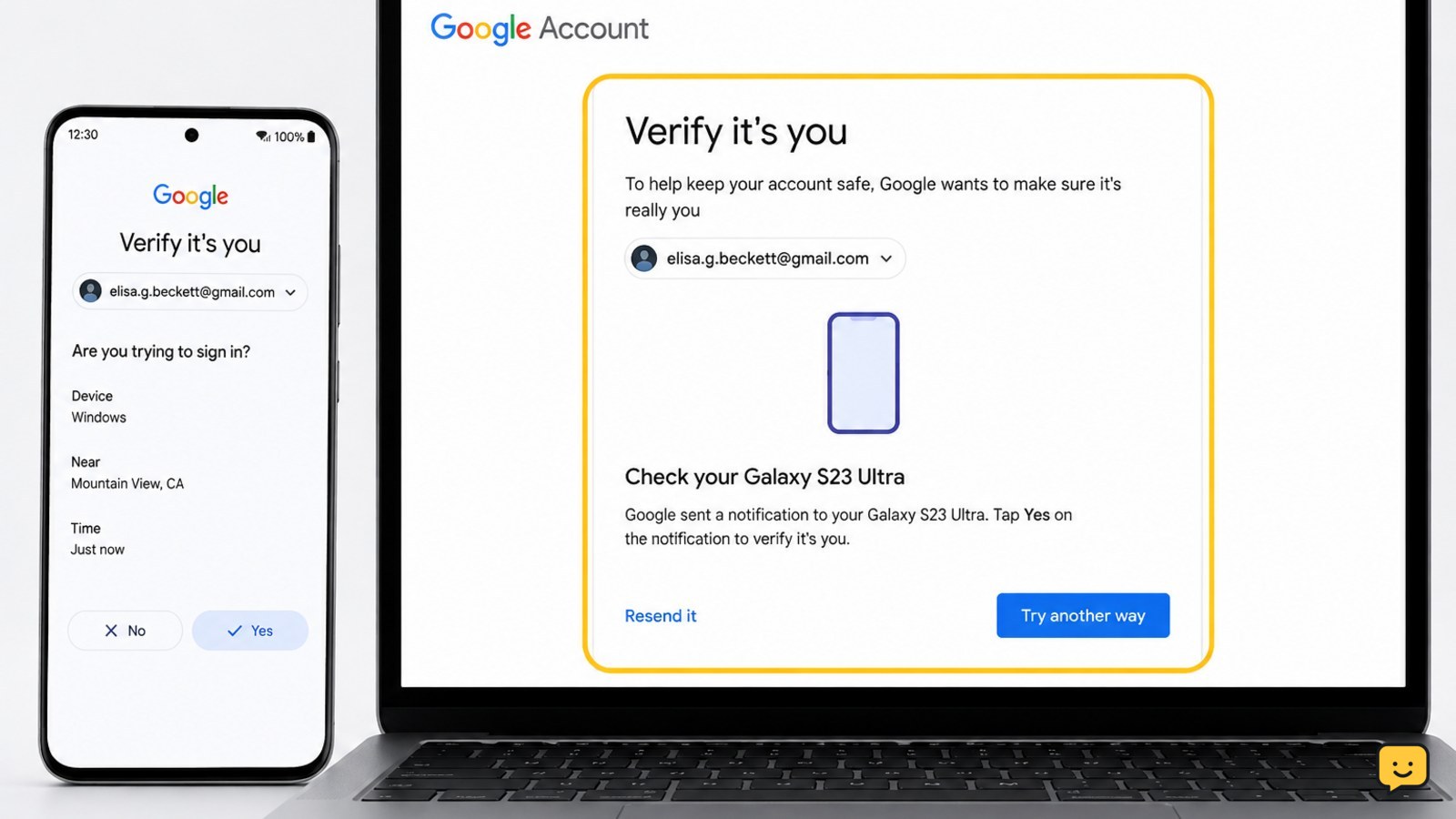
Google may repeat the identity check when a device, browser session, or action cannot be confidently recognized. Sign in from a familiar device and network, avoid private browsing, allow cookies, update the browser, and complete the requested check. Then review your Google Account security activity, recovery methods, and 2-Step Verification. Stop and use Google’s official recovery page if anything looks unfamiliar.
Why Google keeps asking for verification
Google uses identity checks for sign-ins and sensitive actions. A prompt can appear again when the current device or browser session is not recognized, when the session does not remain saved, or when Google needs another confirmation before allowing an account change.
Repeated prompts can also be connected to a browser that removes cookies when it closes, private browsing, disabled cookies, an outdated browser, or an extension that interferes with sign-in. Treat the prompt as a security control rather than something to bypass.
First identify when it happens: every sign-in, only in one browser, only on one device, or only when changing recovery details or security settings. That pattern determines which fix to try.
1. Complete the check from a familiar device
Use the phone, tablet, or computer where you regularly sign in to the account. If possible, use your usual home or work connection rather than switching between several networks during troubleshooting.
- Open a new browser window and type accounts.google.com yourself.
- Sign in with your normal password and complete the available verification option.
- Approve a Google prompt only when you started the sign-in yourself and the device details match.
- Keep the browser window open until the account page fully loads.
If Google does not offer a verification method, do not keep retrying random options. Google says adding 2-Step Verification and waiting at least seven days may be required before trying the sensitive action again.
Verify: Open your Google Account after signing in and confirm that the requested action completed. If the prompt returns only on a different device, continue with the browser and session checks below.
2. Keep the browser session from being erased
If the prompt returns every time the browser starts, the sign-in session may not be retained. Check the browser settings on the affected device.
- Turn off private or incognito browsing for this sign-in.
- Allow cookies for Google sites, including the cookies needed to keep you signed in.
- Check whether the browser is set to delete cookies or site data whenever it closes.
- Temporarily disable browser extensions that modify privacy, scripts, cookies, or sign-in pages.
- Update the browser, close it normally, reopen it, and sign in again.
Do not permanently weaken browser security for every website. If one extension appears to cause the loop, leave it disabled until you identify a safe, current configuration.
Verify: Sign in, close and reopen the browser normally, then visit a Google service. If the account remains signed in without an immediate repeat check, the session setting was likely involved.
Failure path: If the problem remains in one browser, test the same account in another up-to-date browser on the same familiar device. If it works there, reset or review the affected browser’s Google site data and extensions.
3. Review recovery methods and security activity
After you regain a stable session, review the account’s security information instead of changing settings repeatedly.
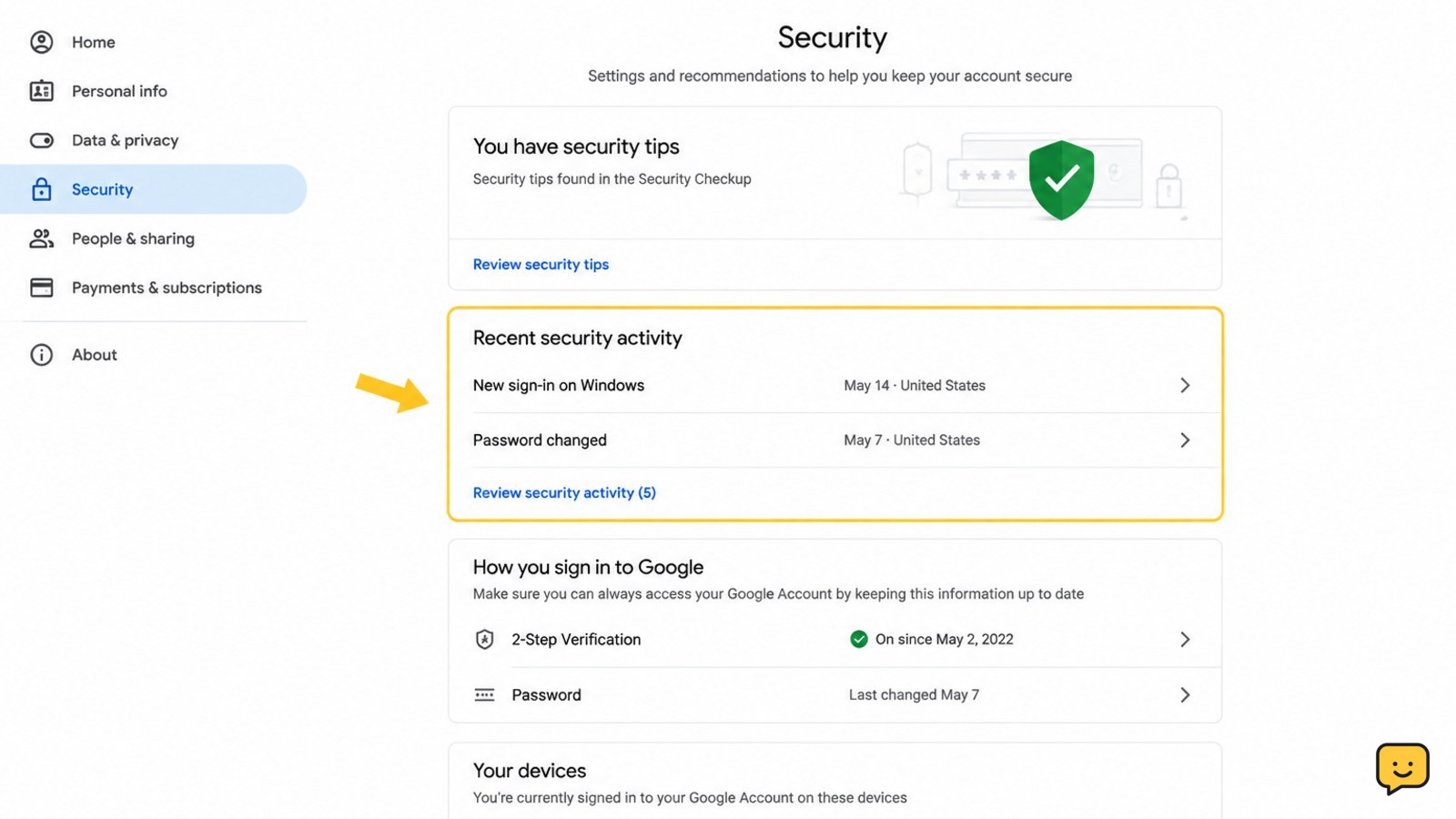
- Open myaccount.google.com/security by typing the address yourself.
- Review recent security activity and confirm that sign-ins and changes belong to you.
- Check the recovery phone number and recovery email for accuracy and current access.
- Review the devices and sessions listed for the account and sign out of any device you do not recognize.
- Confirm that 2-Step Verification is enabled and that its available methods still work.
If you find an unfamiliar sign-in or security change, change the password from a trusted device and follow Google’s account-security guidance. Do not approve unexpected prompts or use a code sent after someone contacts you.
Verify: The recovery details should be current, the security activity should be familiar, and no unknown session should remain. Test one normal sign-in using your usual device.
4. Use official account recovery if verification fails
If you cannot complete any offered check, use Google’s official recovery page: accounts.google.com/signin/recovery. Provide the information requested as accurately as possible and use a familiar device and location when available.
- Enter the Google Account address you own.
- Choose an available recovery method and follow the on-screen instructions.
- Check the recovery phone or email you control for Google’s message.
- Return to the recovery page only through the address you typed yourself.
Recovery may not immediately remove every verification prompt. Allow the account’s security settings to settle, then retry from the familiar device rather than changing several recovery details at once.
Stop: Never send your password or verification code to a supposed support agent, and never upload identity documents to a page reached through an unexpected email or message. If recovery repeatedly fails, use Google’s account-recovery guidance or contact your Workspace administrator when the account belongs to an organization.
How to prevent the prompt from returning
Keep the browser and device software current, use a normal browser profile, and avoid clearing Google cookies if you want the session to remain recognized. Keep recovery details accurate and maintain at least two secure verification options where Google makes them available.
Review security activity periodically. A prompt after a new device, browser reset, password change, recovery update, or sensitive action can be expected. A prompt combined with unfamiliar activity is different: secure the account first and investigate before approving anything.
Final check: Sign in once from your usual device, confirm the security page shows your current recovery methods, and verify that no unrecognized session or change is listed. Stop troubleshooting when the prompt no longer repeats under the same normal sign-in conditions.
Frequently asked questions
Why does Google ask me to verify it’s me every time I log in?
Google may be unable to recognize the device or preserve the browser session. Private browsing, deleted cookies, disabled cookies, browser extensions, or a changed device can contribute. Use a familiar device, allow Google cookies, disable problematic extensions, and complete the check through accounts.google.com.
How do I stop Google from asking for verification repeatedly?
Use your usual device and browser, avoid private browsing, allow cookies, and prevent the browser from deleting Google site data when it closes. Then review recent security activity and recovery methods at myaccount.google.com/security. Do not disable security checks or approve an unexpected request.
What should I do if Google does not offer a verification option?
Use Google’s official recovery process at accounts.google.com/signin/recovery from a familiar device and connection. Google’s help guidance also says that adding 2-Step Verification and waiting at least seven days may be needed before retrying some sensitive actions.
Could repeated Google verification mean my account was hacked?
Repeated verification alone does not prove a compromise. Check recent security activity, devices, recovery details, and security changes. If you find anything unfamiliar, change the password from a trusted device, sign out of unknown sessions, and do not approve unexpected prompts or share codes.
Browse more Access & Recovery guides for help with this topic.


