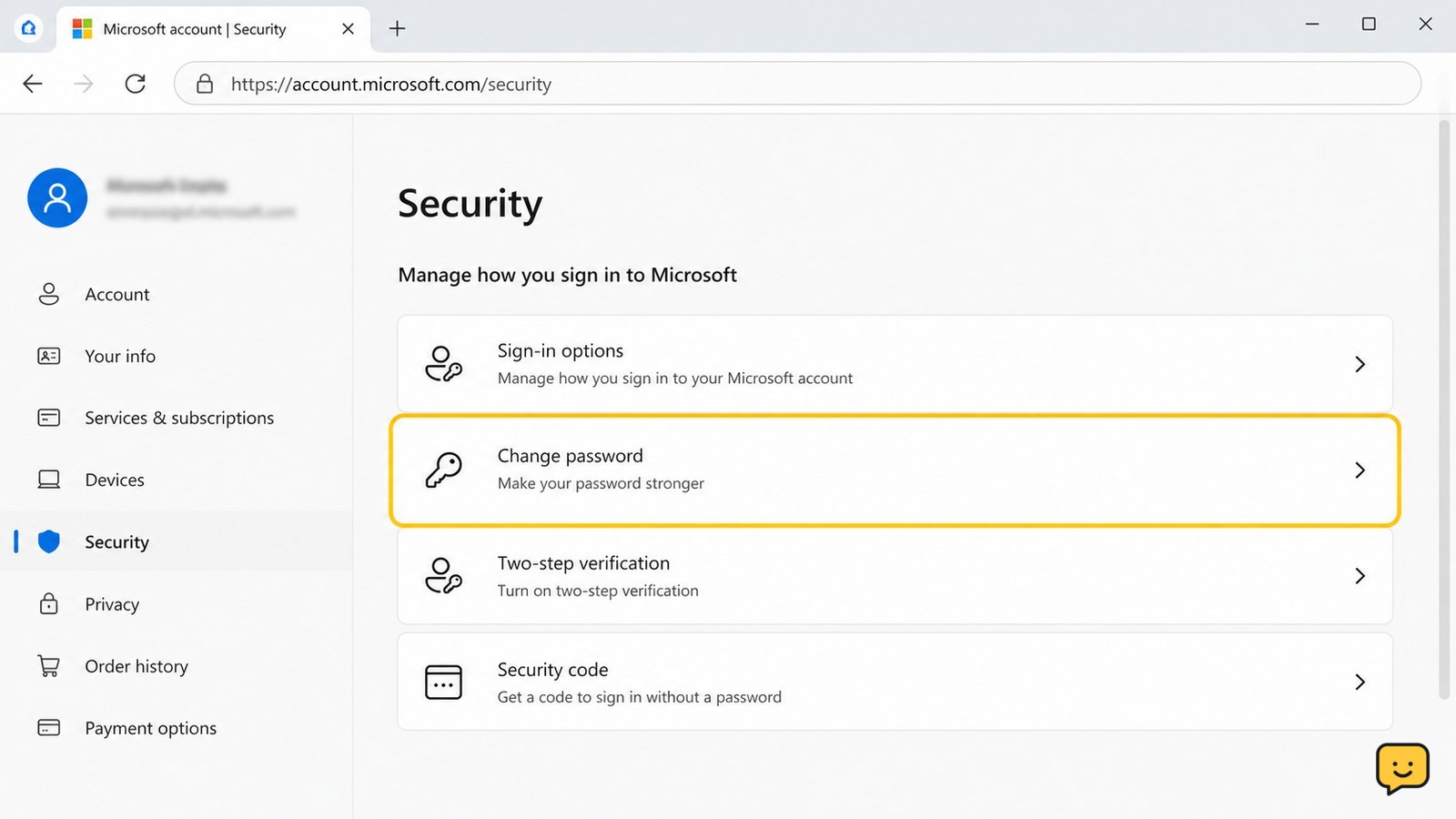
If a verification code never arrives, confirm where the provider sent it, check spam or blocked messages, request one fresh code, and use an available backup method such as an authenticator, passkey, recovery code, or trusted device. If none works, stop repeated attempts and open the provider’s official account-recovery form.
Check where the provider sent the code
The first check is the delivery destination shown on the sign-in or recovery screen. Confirm whether the code was sent by email, SMS, phone call, or an authenticator prompt, and compare the partially hidden address or number with one you still control.
For email codes, check Inbox, Spam, Junk, Promotions, Archive, and any filtered or blocked-sender folders. Search for the provider’s name and terms such as “verification,” “security code,” or “sign-in.” For SMS codes, confirm that the phone has service, can receive short messages, and is using the expected SIM or number. These are delivery checks rather than proof that the provider sent a new code.
If the displayed recovery email or phone is unfamiliar, do not keep trying to deliver codes there. That can indicate that the recovery information was changed. Use the provider’s official compromised-account or recovery route instead.
Request one fresh code and use only the newest message
Request one new verification code from the same official sign-in or recovery screen, then wait for that message before requesting another. Repeated requests can make it difficult to tell which message is current, and some providers may temporarily limit requests.
Keep the original page open if possible. When a code arrives, enter it on the provider’s official page rather than through a link in an email or message. Check the sender and web address before entering anything. Microsoft’s guidance for verification-code problems directs users to troubleshoot the code flow and then use its account-recovery form when the code cannot be received.
If the screen shows a temporary lockout, rate limit, or suspicious-activity message, stop requesting codes and follow the exact instruction shown. Do not try to bypass the restriction with unofficial tools or third-party services.
Choose an available backup verification method
Use a backup method when the primary email or phone route is unavailable. Depending on the account, the choices may include an authenticator app, passkey, saved recovery code, backup phone, trusted device, security key, or an approval prompt on a device where you are already signed in.
Google’s account help lists backup options for two-step verification and recommends using a trusted device or account-recovery flow when a normal verification code is unavailable. Microsoft likewise directs users to its account-recovery form when verification-code delivery does not work.
Do not guess recovery codes or approve an unexpected sign-in prompt. If an authenticator app is available, use the current code displayed there. If a passkey or trusted-device option succeeds, verify that the account opens fully before closing the existing session.
If no backup option appears, the method may not be enabled for that account. Continue to the official recovery process rather than searching for a bypass.
Start the provider’s official account-recovery process
Use the provider’s account-recovery form when no usable verification method delivers a code. Start from the provider’s known homepage or support site, select the sign-in or recovery option, and enter the requested account details carefully.
Give consistent information that you know is accurate. If the form asks for a recovery email, use an address you can currently open. Check that address for the provider’s response, including Spam or Junk. Google’s official help community documentation states that the account-recovery form may be the only option offered for an account that cannot receive a recovery code; availability and review steps vary by provider.
If the recovery request is denied, read the provider’s explanation and submit another request only when you can provide more accurate information or use a more familiar device or location. Do not send passwords or verification codes to a support contact. A legitimate provider will not need your one-time code to “unlock” the account through a private message.
Verify access and secure the account after recovery
Successful recovery means you can sign in through the official site or app and reach the account’s security settings without another unexpected verification failure. Confirm the recovery email, phone number, two-step verification methods, passkeys, and saved recovery codes.
Remove recovery details you do not recognize, end unfamiliar sessions, and change the password if you suspect that someone changed the account settings. Google recommends changing the password and signing out a lost or stolen phone when a verification device is unavailable. For related security checks, see what to do after an unfamiliar sign-in alert.
Finally, save new recovery codes in a private location and test at least one backup sign-in method while you are still signed in. If the account continues rejecting valid methods or displays a security hold, stop changing settings and use the provider’s official support or recovery instructions.
Frequently asked questions
What should I do if the verification code is sent to an old phone number?
Do not try to access the old number without authorization. Return to the official sign-in screen and choose another method, such as a recovery email, authenticator, passkey, trusted device, or recovery code. If none is available, use the provider’s official account-recovery form. Stop if the displayed number was changed without your permission and treat the account as potentially compromised.
Can I recover an account without receiving the verification code?
Sometimes. The provider may offer an authenticator, passkey, saved recovery code, trusted-device approval, or an account-recovery form. Google and Microsoft both document backup or recovery paths for users who cannot receive a normal code. The available choices depend on the account’s settings, so there is no universal bypass.
Why am I receiving old verification codes?
Old codes can arrive after a delivery delay or after several requests. Return to the original official sign-in page, request one fresh code, and use only the code associated with the current attempt if the provider identifies one. If the provider reports too many requests or a temporary lockout, stop and follow the message on screen.
What if someone asks me for the code to recover my account?
Do not provide it. A verification code is intended for the official sign-in or recovery page, not for a person contacting you by email, phone, or social media. Close the conversation, open the provider’s website yourself, and review account activity after access is restored.
Browse more Access & Recovery guides for help with this topic.