Open Instagram, go to your profile, open the menu, then Accounts Center and Password and security. Select Where you’re logged in to review active sessions. Choose an unfamiliar device and sign it out, or sign out of all listed sessions. Then change your Instagram password, enable two-factor authentication, and check recent account activity.
1. Review every Instagram login session
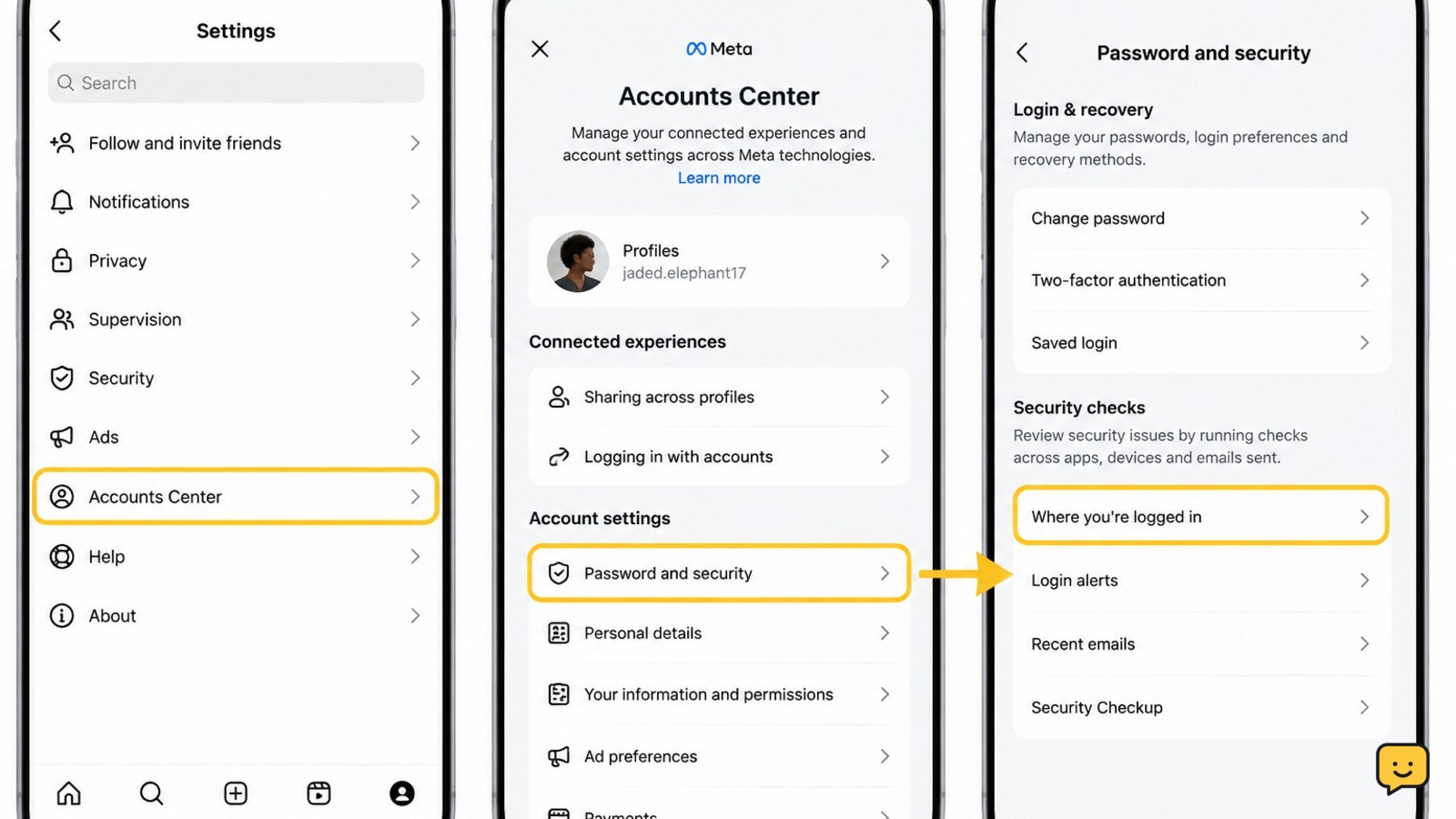
Start with the session list rather than guessing which device was used. Instagram’s current security controls are accessed through Accounts Center, although menu names and placement can vary by app version.
- Open Instagram and tap your profile picture.
- Tap the menu button, then open Accounts Center.
- Choose Password and security.
- Under the security area, open Where you’re logged in.
- Select your Instagram account if more than one account is shown.
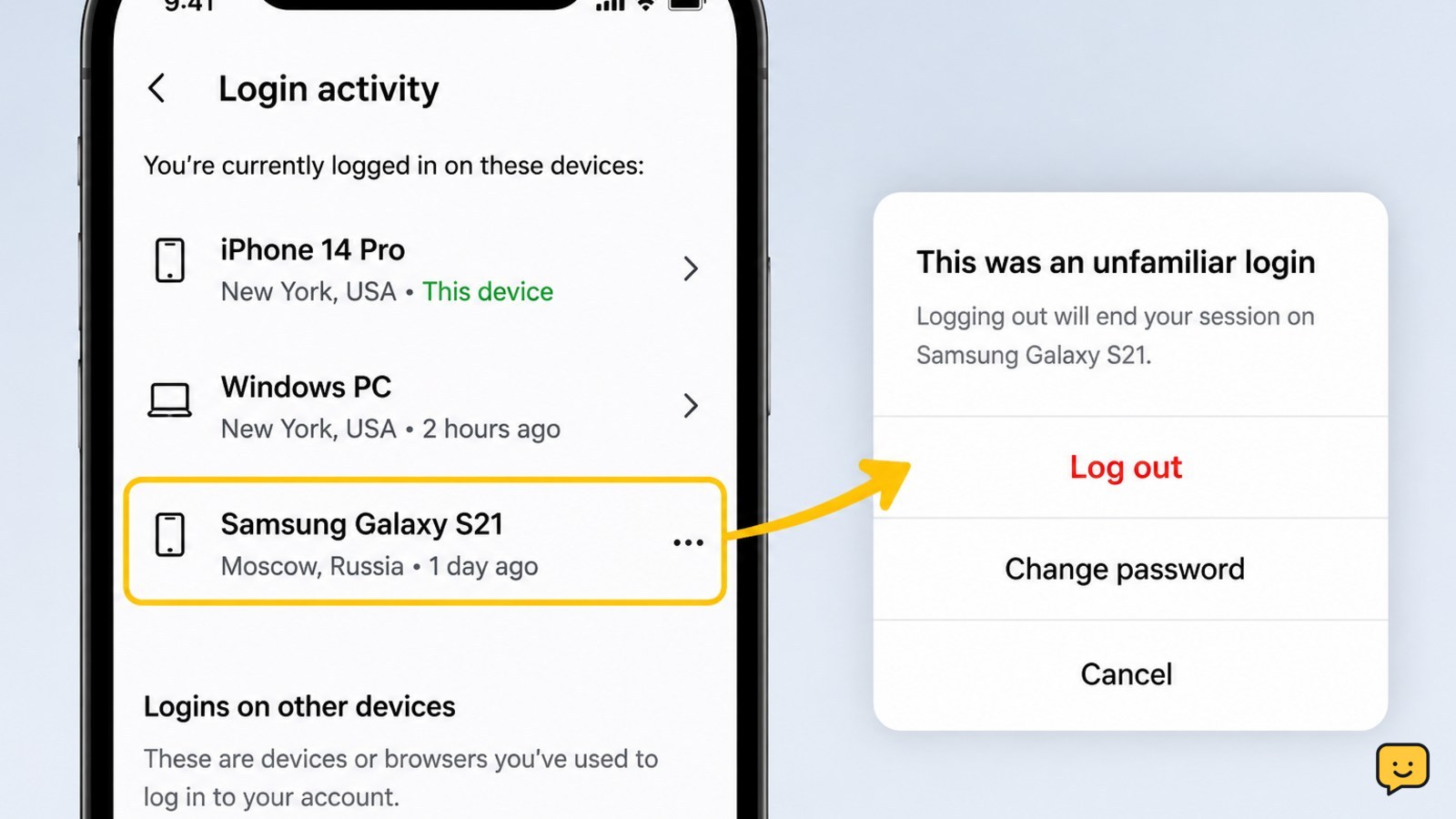
Review the device type, approximate location, and recent activity for each session. A location alone is not proof of unauthorized access because it may reflect your internet provider or a VPN. Look for a device, browser, or activity time that you cannot explain.
2. Sign out the unfamiliar device
When you identify a session you do not recognize, open its details and choose Log out or Sign out. Confirm the action if Instagram asks you to do so.
If several sessions are unfamiliar, use the option to select multiple sessions or sign out of all sessions. Keep your current device signed in only if you are confident it is secure and you need it to complete the remaining steps.
Session removal is an immediate containment step, not a complete account fix. Someone who knows your password may be able to sign in again, so continue to the password and two-factor steps below.
3. Change your Instagram password
Change the password after removing unknown sessions, even if the unfamiliar login might have been caused by an old phone or shared computer.
- Return to Accounts Center and open Password and security.
- Tap Change password, select Instagram, and enter your current password.
- Create a new, unique password that you have not used for Instagram or another service.
- Save the change and sign in again only through the official Instagram app or website.
If you cannot remember the current password, use Instagram’s password-reset option from the sign-in screen. Do not send your password or reset code to a person claiming to provide recovery help.
4. Turn on two-factor authentication
Two-factor authentication adds a second check when someone tries to sign in with your password. In Accounts Center > Password and security, open Two-factor authentication, select your Instagram account, and follow the available setup choices.
An authenticator app is generally a strong choice when you can keep it available. Text-message codes may also be available. Save any recovery codes in a secure place that is separate from your Instagram password, and never share a code with another person.
After setup, test the method from a device you trust. Keep your recovery phone number or authenticator access current so a future sign-in does not become an avoidable lockout.
5. Check for account changes and verify the result
Review Instagram’s recent security activity and account details for changes you did not make. Check the email address, phone number, connected accounts, and any linked apps or websites. Remove access for anything you do not recognize.
Also check recent messages, posts, stories, profile changes, and direct-message activity. Tell contacts to ignore suspicious messages sent from your account, and remove unauthorized content.
To verify the cleanup, return to Where you’re logged in. The unfamiliar session should no longer be active, your new password should work, and two-factor authentication should show as enabled. If a session returns after you sign it out, change the password again from a trusted device and begin Instagram’s official compromised-account recovery process.
If Instagram will not let you remove a session
First update Instagram from the official app store, close and reopen the app, and try the same security page in a browser at instagram.com. Avoid repeatedly entering passwords if Instagram is showing a temporary security restriction.
If you can still access the account, change the password and enable two-factor authentication even if the session list is temporarily unavailable. If you cannot access the account, the recovery path is different: use Instagram’s official sign-in help or hacked-account flow, follow the identity checks, and stop if a third party asks for payment, a password, or a verification code.
Frequently asked questions
Can I log out of all Instagram devices at once?
Yes. Open Instagram’s Accounts Center, choose Password and security, then Where you’re logged in. Select your Instagram account and use the available option to select multiple sessions or log out of all sessions. Instagram may use slightly different labels or place the control in a different location after an app update.
Why does Instagram show an unknown location for my own login?
An unknown location does not always mean someone accessed your account. Instagram may estimate location from your internet provider, mobile network, browser, or VPN, and the estimate can be inaccurate. Compare the device type and activity time with your own use. If either is unfamiliar, sign out of the session and change your password.
Will changing my Instagram password remove unknown sessions?
Changing your password can protect the account from someone who knows the old password, but you should still review and end unfamiliar sessions directly. After changing it, return to Where you’re logged in, remove devices you do not recognize, enable two-factor authentication, and check for unauthorized account changes.
What should I do if an unknown Instagram session comes back?
Change the password again from a trusted device, make sure it is unique, and enable two-factor authentication with an authenticator app or another available method. Review connected apps, recovery details, and recent activity. If the session returns or you cannot change these settings, use Instagram’s official compromised-account recovery flow.
Browse more Privacy & Online Safety guides for help with this topic.