To remove a recovery email, open your Google Account at myaccount.google.com, select Security, and open Recovery email. Verify your identity if Google asks, choose the listed address, select the remove option, and confirm. If Google will not allow removal, add and verify a replacement recovery method first, then try again.
1. Open your Google Account security settings
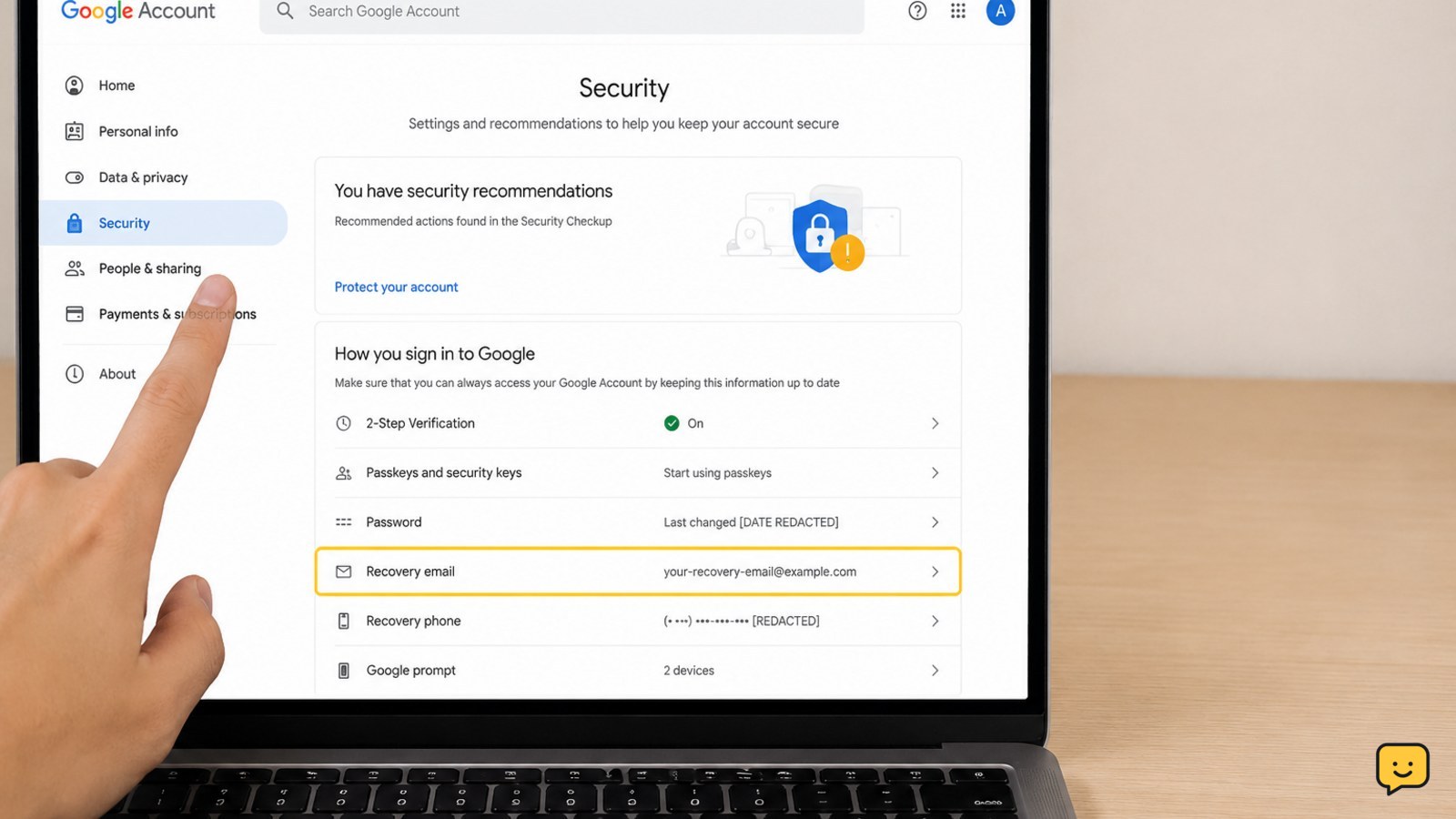
Open myaccount.google.com directly and sign in to the account whose recovery email you want to remove. Select Security from the navigation.
Look for the section that lists ways Google can contact you if it detects unusual activity or you lose access. The label may appear as Recovery email or within a broader recovery or verification area. Google can change the layout, so use the current label shown on your account.
Verification: Confirm that the profile name and account address at the top of the page are the ones you intended to edit.
2. Verify that you own the account
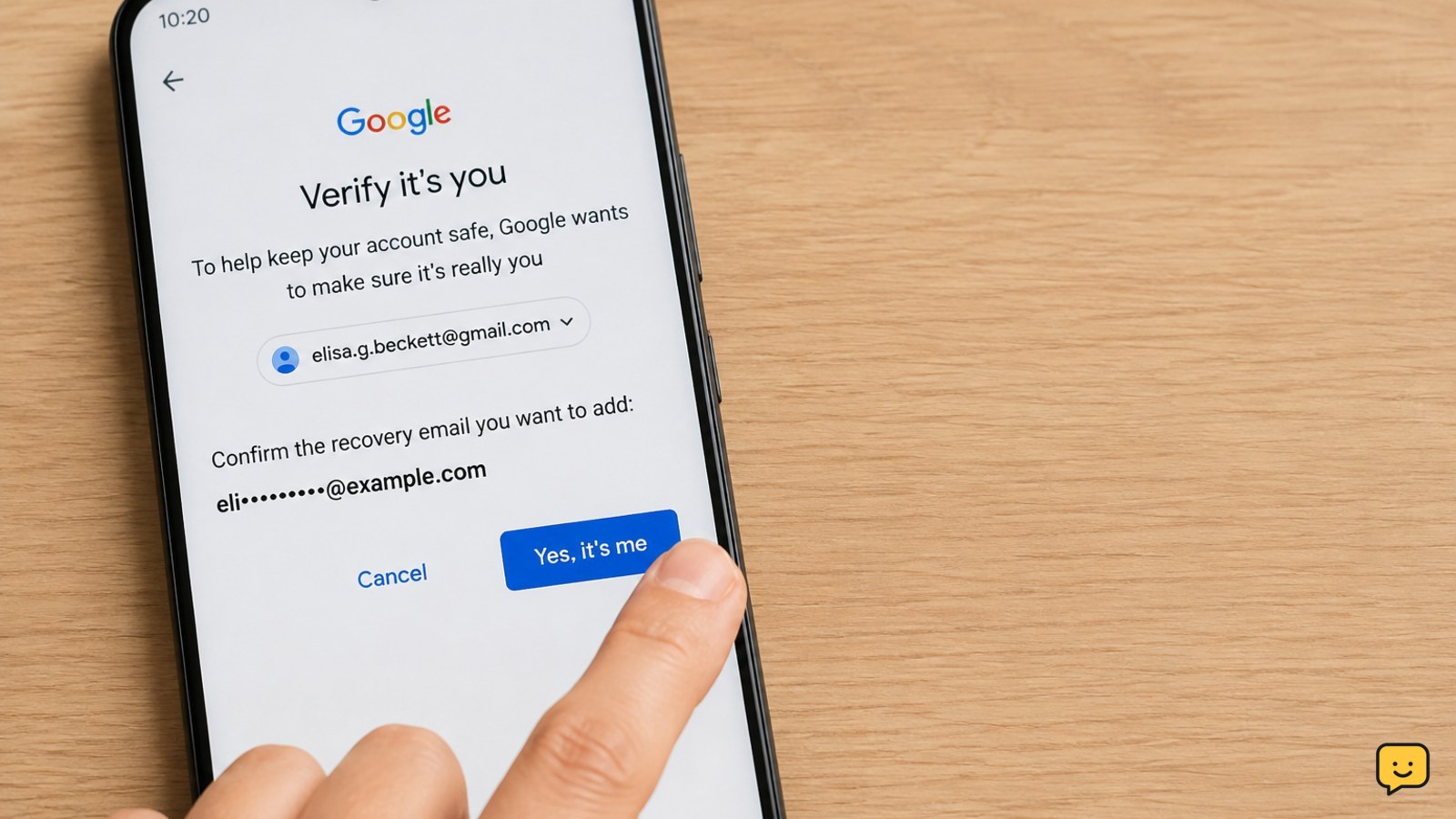
Select Recovery email and continue only when Google confirms the setting belongs to your account. Google may ask you to enter your password, approve a sign-in prompt, or complete another ownership check.
Complete the check using a trusted device, your normal browser, or another method already connected to the account. Never share a verification code with another person, even if they claim to be Google support.
Failure path: If verification fails, check that your password is current and that you are using your usual sign-in environment. If Google still cannot verify you, stop changing recovery settings and use the account-recovery route shown on the official Google page.
3. Remove or replace the recovery email
After verification, select the recovery email currently listed. Choose the remove, delete, or trash option, then confirm the change. The exact button name can vary by account and interface version.
If the address is outdated but you still need account-recovery protection, add a current recovery email before removing the old one. Enter the new address, request its verification message, and complete verification from the new inbox. Then return to the recovery settings and remove the outdated address.
A recovery email is different from your main Google Account address. If you are trying to change the address you use to sign in, stop and review the account’s basic information instead of deleting a recovery method.
Stop condition: Do not remove the old address when Google shows it is the only available recovery option unless you have successfully added another method you can access.
4. Confirm that the old address is gone
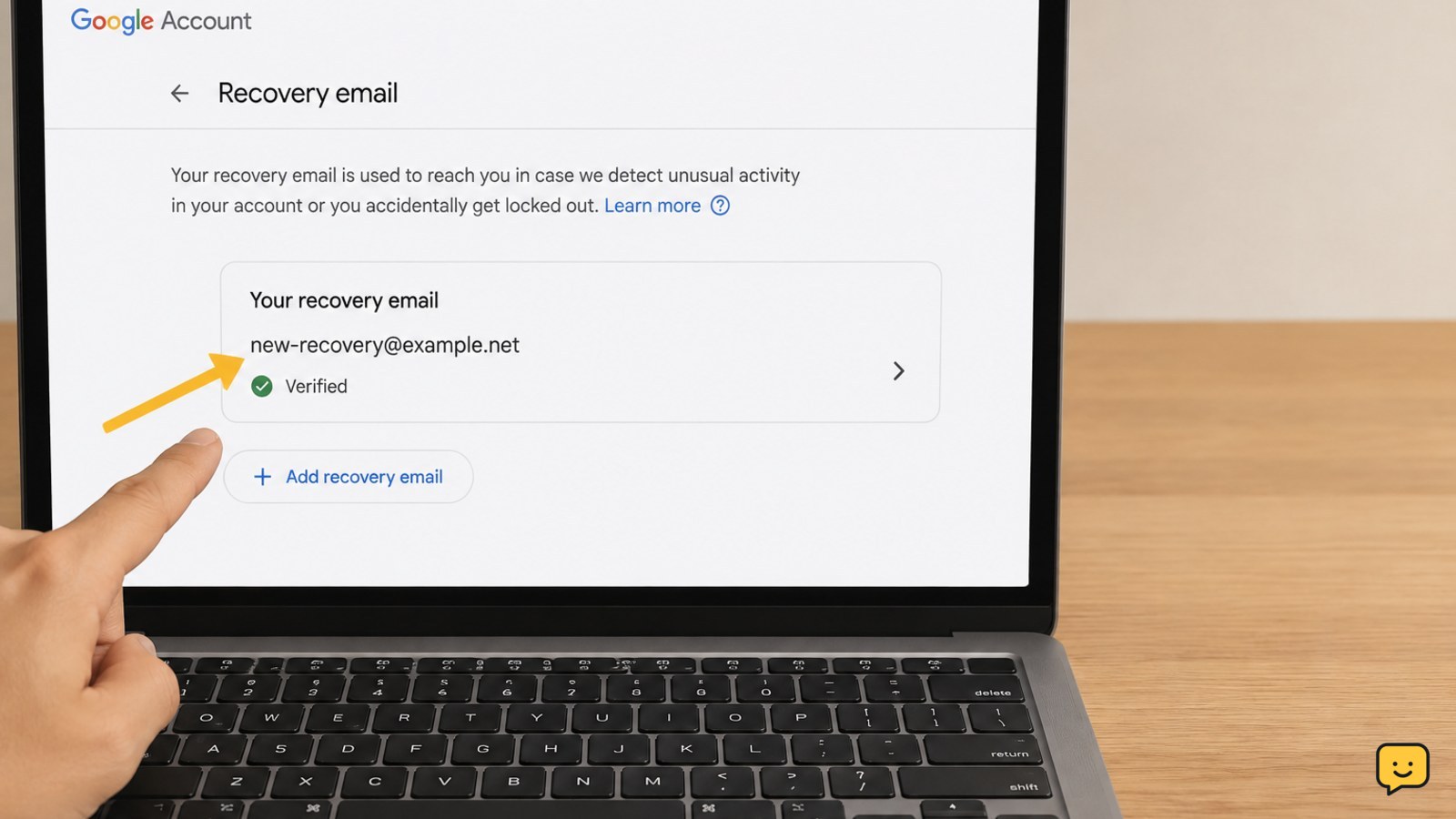
Return to the Recovery email setting and refresh the page. The old address should no longer be listed. If you added a replacement, confirm that the new address is shown and appears verified.
Also review other recovery and sign-in methods, such as the recovery phone, two-step verification methods, passkeys, or saved backup codes. Removing one address does not remove these other methods, so check that each one belongs to you and is still usable.
If the address still appears: sign out and back in, reload the security page, and check again later. If Google displays a security hold or says the change cannot be completed, follow that message rather than repeatedly attempting the change.
5. Review account activity after the change
While you are in Security, review recent security activity and the list of devices or sessions connected to the account. Look for unfamiliar sign-ins, devices, password changes, or recovery-setting changes.
If everything is familiar, the recovery-email change is complete. If you see activity you did not perform, secure the account immediately: change the Google password from a trusted device, remove unfamiliar sessions, review two-step verification, and check for other altered recovery details.
Do not delete evidence first: note unfamiliar dates, devices, and locations before signing out sessions if you may need them during account recovery or support.
6. What to do if you cannot remove it
Google may limit recovery-setting changes when it cannot confidently verify ownership, when the account is under a security review, or when the change is made from an unusual sign-in environment. These restrictions are designed to prevent someone who has temporary access from taking over recovery options.
- Confirm that you are signed in to the correct Google Account.
- Try again from a familiar device, browser, and location.
- Verify a current recovery email or phone if Google offers that option.
- Follow the on-screen account-recovery or security-review instructions.
If you received a message saying your address was added as the recovery email for an account you do not recognize, do not sign in through the message. Use Google’s official account-help pages and the removal option provided there, or contact the owner if you know them.
Stop: Never pay a third party or provide your password or verification codes to “unlock” recovery settings.
Frequently asked questions
Can I remove a recovery email without adding another one?
Sometimes, but Google may restrict removal when the address is your only practical recovery method. Add and verify a current recovery email, phone number, or other available method first. If Google still will not allow removal, follow the security or account-recovery instructions shown on the page.
Why does Google ask me to verify my identity before removing the email?
Google asks for verification to confirm that the account owner is changing a security setting. Use your password, trusted device, sign-in prompt, or another method Google offers. Do not guess repeatedly or share verification codes with anyone.
How do I know whether the recovery email was removed?
Open your Google Account, go to Security, and open Recovery email again. Refresh the page and confirm that the old address is no longer listed. If you added a replacement, make sure the new address appears and has completed verification.
What if someone added my email as the recovery email for their account?
Do not use an unexpected email link to sign in. Open Google’s official account-help pages directly and use the removal option provided for an unrecognized account. If the message looks suspicious, avoid replying or sharing any personal information.
Will removing the recovery email sign me out of Google?
Removing a recovery email normally changes the account’s recovery settings rather than deleting the account or changing its main sign-in address. Review the Security page afterward and check recent activity so you can identify any unfamiliar changes.
Browse more Email & Social Accounts guides for help with this topic.