
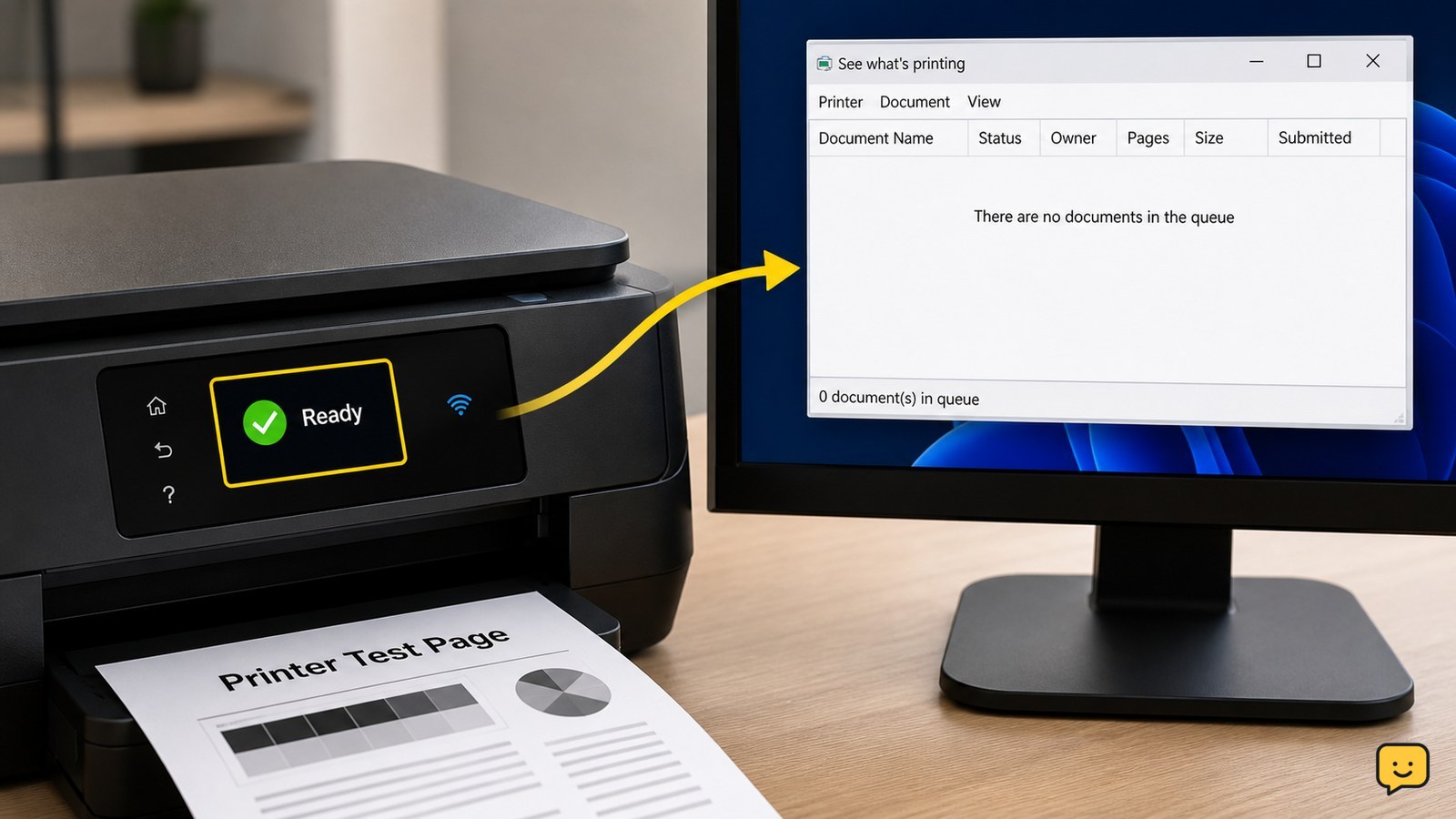
To get a printer back online, turn it off and on, confirm paper and ink or toner, and check its Wi-Fi or USB connection. Restart the router and computer if the printer is wireless. On Windows, open the printer queue and turn off “Use Printer Offline,” then clear paused jobs. Print a test page; if it still shows offline, reconnect or remove and add the printer again.
Browse more Computers & Internet guides
Check the printer’s power, paper, and connection
The printer must be fully awake, supplied with paper and free of a blocking warning before a computer can bring it online. Check the printer display or indicator lights for paper, ink or toner, cover, cartridge, jam or maintenance messages. Resolve a clearly identified warning first.
- Press the printer’s power button once and wait for the normal ready screen or steady ready light.
- Confirm that the paper tray is loaded correctly and that no sheet is visible in the feed path.
- For Wi-Fi printers, open the printer’s network or wireless information screen and check that it is connected to the same network as the computer.
- For USB printers, disconnect and reconnect the cable directly to the computer. Avoid a loose hub while testing.
Verify: the printer should show Ready, Connected or an equivalent status. If it shows an error, fix that error rather than repeatedly changing computer settings.
Restart the printer, router, and computer
Restarting the printer and the devices that carry its connection can clear a temporary offline state. Turn off the printer, wait until its display and lights are off, then turn it on and allow one or two minutes for startup. The supplied Doceo troubleshooting sequence also recommends restarting the router or modem and then the computer.
- Turn off the printer and wait about 30 seconds.
- If it is wireless, restart the router or modem. Wait until the network is available again; this commonly takes 30–60 seconds or longer.
- Restart the computer or phone that sent the print job.
- Try printing a short document after the printer returns to its ready state.
Verify: the printer reappears as available and the new job leaves the queue. If other devices also lost internet access, continue with the router connection rather than troubleshooting only the printer.
Turn off offline mode and clear stuck jobs in Windows
Windows can leave a printer marked offline or paused even after the physical connection has returned. Menu names can vary slightly between Windows 10 and Windows 11, but the printer’s queue contains the relevant status controls.
- Open Settings > Bluetooth & devices > Printers & scanners in Windows 11, or the equivalent printer settings in Windows 10.
- Select the affected printer and open its print queue.
- Use the queue menu to disable Pause Printing if it is enabled. If Use Printer Offline is selected, select it again to turn offline mode off.
- Cancel old jobs that remain stuck, then submit a fresh, small test document.
A printer can remain apparently offline when an earlier job is damaged or paused. Verify: the queue should show no paused jobs, and the printer status should change to Ready or Online. If the option immediately returns to offline mode, the connection or printer software is still failing.
Reconnect Wi-Fi or replace the USB link
Reconnect the printer when its network name, router or cable has changed. On the printer, open its wireless setup or network menu and choose the current Wi-Fi name, then enter the network password exactly as shown. A printer connected to a guest network may be unable to communicate with a computer on the main network.
For a USB printer, try a different USB port and, if available, a known-good compatible cable. Connect it directly to the computer while testing. If the computer detects a new printer but the old entry remains offline, use the printer settings to remove the stale entry and choose Add device or Add printer to create a fresh connection.
Verify: the printer’s own network page or display should report the current Wi-Fi connection, and the computer should show one available printer rather than several duplicate offline entries. Do not guess an IP address or alter advanced router settings unless the printer manual or administrator provides the required values.
Use macOS printer settings and verify a test page
On a Mac, check the printer in System Settings > Printers & Scanners. Select it and open the queue to see whether jobs are paused or waiting. Cancel a stuck job, then try printing again.
- Select the printer and confirm that it is not paused.
- Open the printer queue and remove jobs that never start.
- If the printer remains unavailable, remove the printer from Printers & Scanners and add it again while the printer is connected to the same Wi-Fi network or USB port.
- Print a one-page test document.
The final success check is physical: a test page feeds correctly and the queue returns to empty without an offline warning. If the printer works from one device but not another, the printer itself is online; troubleshoot the affected computer’s printer entry, connection or permissions. If no device can find it after reconnection, stop changing settings and consult the printer manufacturer’s current support instructions for that model.
Frequently asked questions
Why does my printer say offline when it is turned on?
A printer can say offline because it is connected to a different Wi-Fi network, Windows has enabled offline mode, a print job is paused, or the printer lost its network address. Check the printer’s own ready or network status first, then clear the queue and confirm that the computer and printer use the same network.
How do I get a wireless printer back online without resetting it?
Restart the printer and router, then reconnect the printer to the current Wi-Fi network through its wireless setup menu. Confirm that the computer is on that same network. Avoid a factory reset unless normal reconnection fails, because resetting can erase saved network details and require setup on every device.
Should I remove and reinstall a printer that is offline?
Remove and add the printer again when it stays offline after restarting, clearing the queue and confirming the connection. This replaces a stale printer entry. Before removing it, note the printer model and confirm that you know the Wi-Fi password or have the USB cable needed to add it again.
What if the printer works from another computer?
If another computer prints successfully, the printer is online and the problem is limited to the first device. Clear its print queue, turn off offline or paused mode, restart the device and add the printer again if necessary. Check for duplicate printer entries and select the one that reports Ready.


