
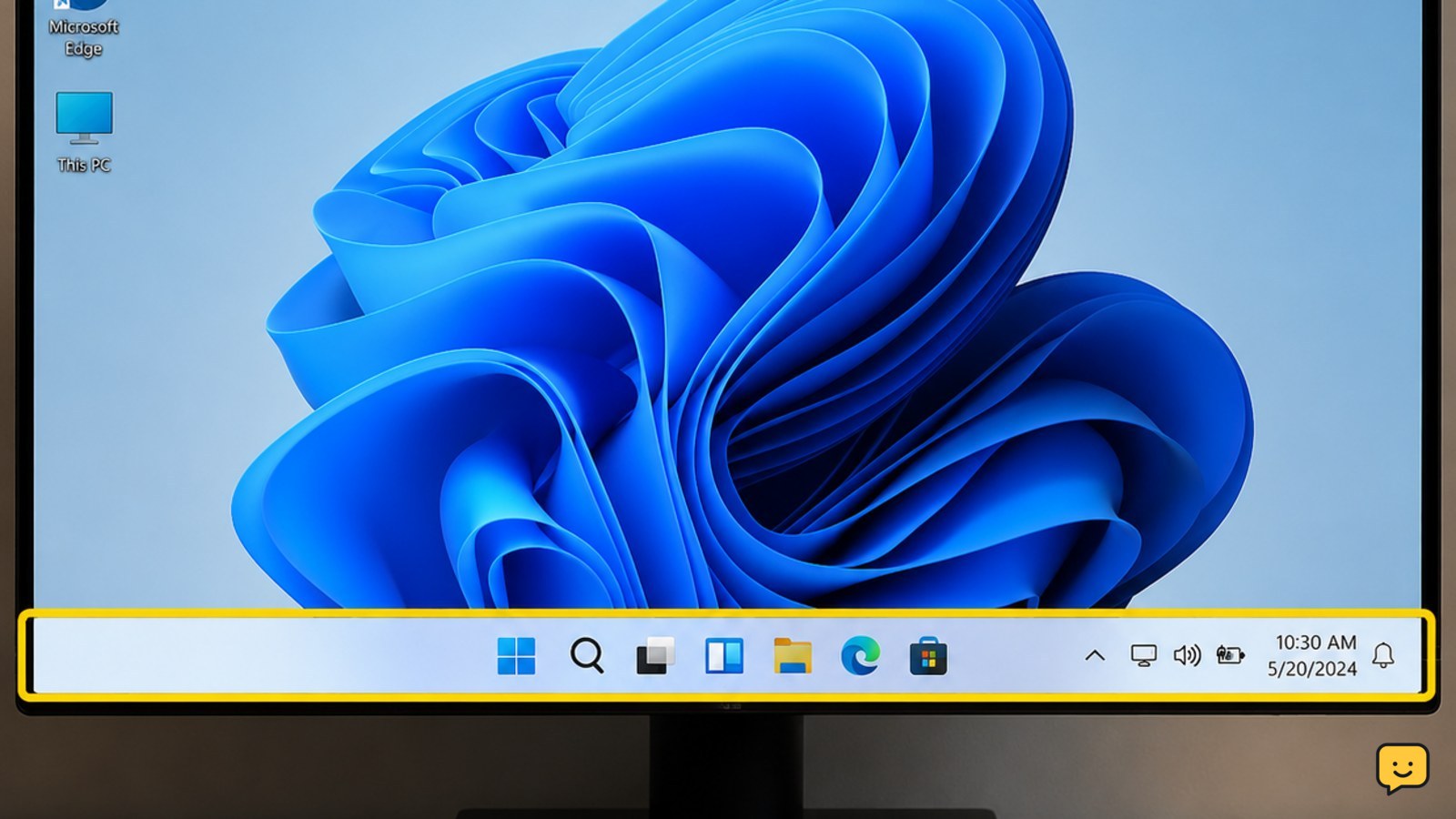
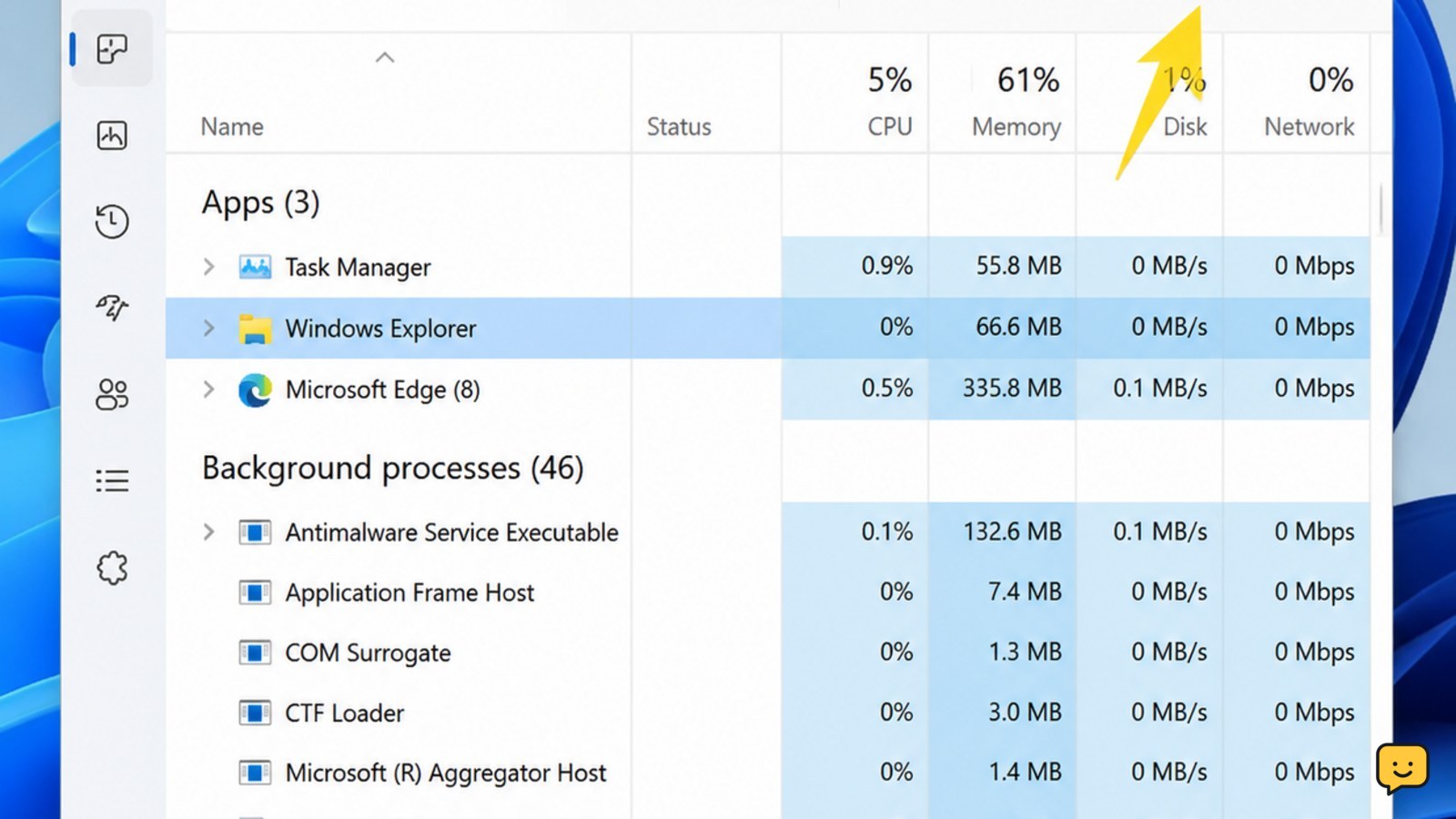
First press Ctrl+Shift+Esc, find Windows Explorer in Task Manager, right-click it, and choose Restart. If the taskbar remains missing, check Settings > Personalization > Taskbar > Taskbar behaviors and turn off Automatically hide the taskbar. Then repair Windows system files and restart the PC. Stop before resetting Windows unless these steps fail.
Check whether the taskbar is hidden or off-screen
Move the pointer to the bottom edge of the display. If the taskbar slides into view, Windows is probably using auto-hide rather than losing the taskbar completely.
- Press Windows+I to open Settings.
- Select Personalization, then Taskbar.
- Expand Taskbar behaviors.
- Clear Automatically hide the taskbar.
If you use more than one monitor, move the pointer to the bottom edge of each screen. Disconnect a dock or secondary monitor temporarily if the taskbar appears to be positioned on a display that is no longer connected.
Verify: The taskbar should remain visible after you move the pointer away. If it does not appear anywhere, continue to Windows Explorer.
Restart Windows Explorer from Task Manager
Windows Explorer controls much of the desktop, including the taskbar. Restarting it is a quick recovery step and does not remove your files.
- Press Ctrl+Shift+Esc to open Task Manager.
- If Task Manager shows a small window, select More details.
- On the Processes tab, find Windows Explorer.
- Right-click it and select Restart.
The screen may blink briefly. Open a folder or press the Windows key to check whether the taskbar and Start menu respond again.
If Windows Explorer is not listed: Select Run new task in Task Manager, enter explorer.exe, and select OK. Do not end other processes at random.
Verify: The taskbar should reappear and respond to Start, pinned apps, and the notification area. If it disappears again immediately, repair system files next.
Repair Windows system files in an elevated Command Prompt
A damaged Windows component can cause repeated desktop and taskbar failures. Microsoft Q&A responses for this symptom recommend checking system corruption with System File Checker, and related troubleshooting references also point to DISM repair.
- Open Task Manager with Ctrl+Shift+Esc.
- Select Run new task.
- Type
cmd, select Create this task with administrative privileges, and choose OK. - Run
DISM.exe /Online /Cleanup-Image /RestoreHealthand wait for it to finish. - Run
sfc /scannowand wait until verification reaches 100 percent. - Restart the PC.
These commands may take several minutes. If SFC says it repaired files, restart and check the taskbar. If it says it could not repair some files, run the DISM command again, restart, and run SFC once more.
Stop condition: Do not interrupt a repair because the percentage appears unchanged for a while. Stop only if the command returns an error that identifies a disk, servicing, or permission problem, then back up your files before deeper recovery work.
Install pending Windows updates and test the desktop
If the taskbar vanished after an update or keeps disappearing at regular intervals, install available Windows updates before making larger changes.
- Press Windows+I.
- Select Windows Update.
- Choose Check for updates.
- Install available updates and restart when prompted.
After signing in, open several apps, use Start, and restart Windows once more. A taskbar that returns only until the next sign-in is not fully fixed.
If Settings will not open: Use Task Manager’s Run new task option and enter ms-settings:windowsupdate. If the update page still fails to open, return to the system-file repair step rather than downloading repair tools from an unknown site.
Test a new Windows user profile before reinstalling
A test account can show whether the failure belongs to the current user profile or affects Windows more broadly. This is a diagnostic step, not a replacement for backing up your files.
- Open Settings > Accounts > Other users.
- Select Add account and create a temporary local test account using the available sign-in options.
- Sign out of the current account and sign in to the test account.
If the taskbar works normally in the test account, the original profile may be damaged. Copy personal files only after checking them, and do not delete the original profile until you have confirmed that your documents, browser data, and application settings are available.
If the taskbar is missing in both accounts, the problem is more likely system-wide. Continue to Windows repair rather than repeatedly changing profile settings.
Use an in-place Windows repair when the taskbar still fails
If restarting Explorer, repairing system files, updating Windows, and testing another profile do not restore a stable taskbar, an in-place Windows repair may be the next safer recovery option. Evidence for this symptom includes a Windows 11 repair using fresh installation media while keeping files and apps, but the exact choices depend on the installation media and Windows edition.
Back up important files first. Use official Windows installation media that matches your installed edition and language. Start the setup from within Windows, then confirm that the available option keeps personal files and apps before continuing.
Do not continue if Setup offers only an option that removes apps or personal files, if the edition does not match, or if you have not made a backup. Choose the correct recovery path or seek qualified support instead.
Verify: After the repair finishes, sign in, open Start, launch a few applications, and restart Windows. If the taskbar remains missing after an in-place repair, preserve your backup and arrange professional Windows or hardware diagnosis.
Frequently asked questions
What keyboard shortcut can I use when the Windows 11 taskbar is missing?
Press Ctrl+Shift+Esc to open Task Manager, then restart Windows Explorer. You can also press the Windows key to check whether Start responds. If both shortcuts work but the taskbar does not return, use Task Manager’s Run new task option to open Settings or Command Prompt.
Why does my Windows 11 taskbar keep disappearing after it returns?
Repeated disappearance can indicate auto-hide, a Windows Explorer failure, damaged system files, an update-related problem, or a user-profile issue. Turn off auto-hide, restart Explorer, install pending updates, and run DISM followed by SFC. Test another user account if the problem continues.
Will running SFC or DISM delete my personal files?
No. DISM and SFC repair Windows components and protected system files; they are not file-reset commands. Save your work first because a restart may be required. Back up important files before using an in-place repair or any recovery option that changes Windows.
What should I do if Windows Explorer is missing from Task Manager?
In Task Manager, select Run new task, enter explorer.exe, and choose OK. This starts the desktop shell again. If it fails or the taskbar disappears immediately, run the DISM and SFC repair commands from an elevated Command Prompt.
Browse more Computers & Internet guides for help with this topic.


