
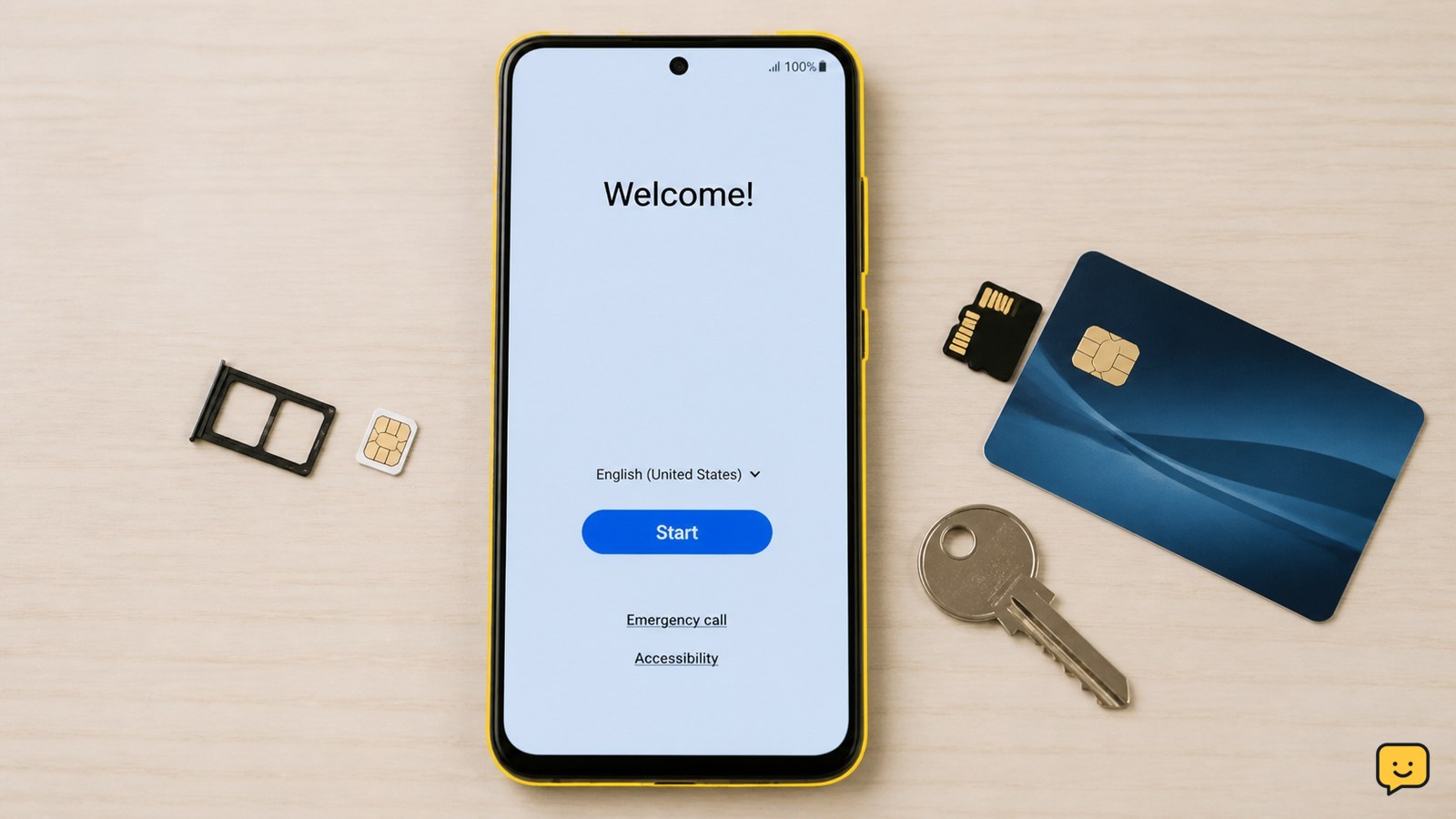
Back up anything you want to keep, remove your Google account and any other accounts, take out the SIM and microSD card, then open Settings and choose System > Reset options > Erase all data (factory reset). Confirm the reset and wait for the welcome screen. If the menu differs, search Settings for “factory reset.”
Back up data that will not return after the reset
A factory reset removes locally stored apps, photos, downloads, messages, settings, and other personal data from the phone. It does not recover information that was never backed up or transferred.
- Move photos and videos to your new phone or confirm that they are safely stored in your chosen backup service.
- Check contacts, text messages, call history, notes, files, and authenticator or banking apps separately. Some apps require their own transfer or backup process.
- Open your most important files from the backup or new phone to verify that they are usable.
Do not reset yet if a backup is incomplete, a file opens only on the old phone, or an account recovery method is stored only on this device.
Remove Google and other accounts before the handoff
Remove your accounts from the phone before erasing it. This helps prevent the next owner from encountering ownership verification after the reset.
- Open Settings and search for accounts, users and accounts, or passwords and accounts.
- Open the account list, select each personal Google account, and choose Remove account. Confirm with your screen lock if requested.
- Remove other personal accounts shown there, such as email, work, or manufacturer accounts, after confirming that their data is already backed up.
Menu names vary by manufacturer and Android version. If you cannot find the account list, use the Settings search field rather than guessing through unrelated menus. Stop if the phone is organization-managed and you are not authorized to remove its management.
Take out the SIM, microSD card, and accessories that stay yours
A factory reset affects the phone’s internal storage, but it does not automatically make a physical SIM card or microSD card safe to leave inside. Remove both before the sale if the phone has them.
- Power off the phone or use the manufacturer’s safe SIM-removal procedure.
- Eject the SIM tray and remove the SIM card.
- Remove the microSD card if present. Keep it, erase it separately, or transfer it only after checking its contents.
- Check the phone case, charging cable, and other accessories so you do not include items you intend to keep.
If the phone uses an eSIM, look for an option during the reset process to erase downloaded SIMs or mobile plans. Do not erase an eSIM you still need on the phone until your replacement device is working.
Start the Android factory reset from Settings
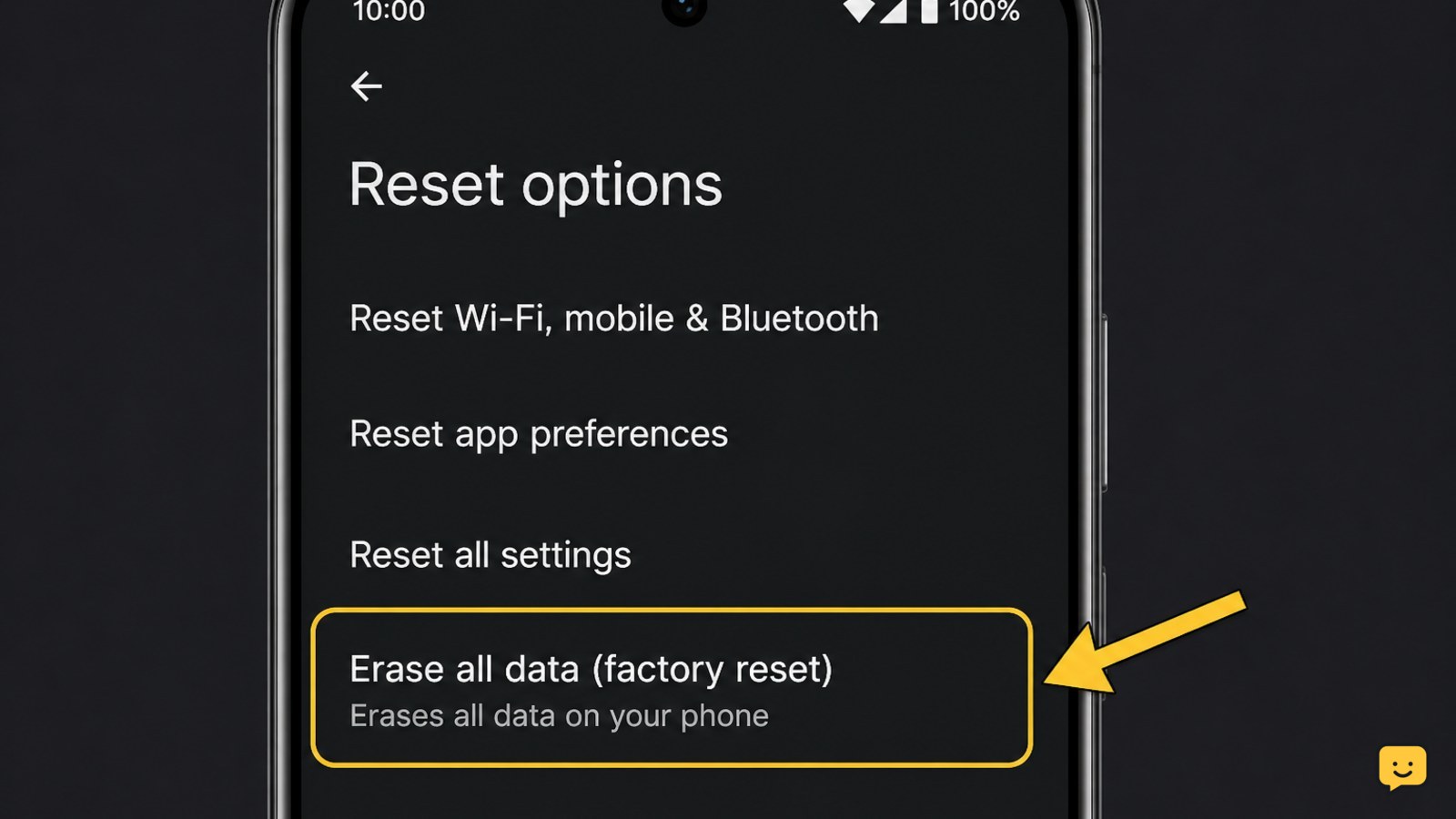
On many current Android phones, the reset control is under Settings > System > Reset options > Erase all data (factory reset). Older phones and some manufacturers use different labels, including Backup & reset or Factory data reset.
- Connect the phone to power or confirm that it has enough charge.
- Connect to Wi-Fi or mobile data.
- Open Settings, search for factory reset, and open the matching reset control if the standard path is not visible.
- Read the list of accounts and data that will be removed. Choose Erase all data, Factory data reset, or the equivalent control.
- Enter the screen lock credential when asked, then confirm the final warning.
The phone may restart several times and can take a while to finish. Do not interrupt it or remove power while the reset is running. The process is complete only when the welcome or initial setup screen appears.
Verify the phone is ready for its next owner
After the reset, check the result without signing back into your accounts.
- Confirm that the phone shows the initial Android welcome or setup screen, not your home screen, lock screen, or personal wallpaper.
- Check that your name, Google account, photos, messages, downloaded files, and installed apps are no longer visible.
- Leave the phone at the setup screen and power it off. Do not complete setup with your personal account.
If your old data is still present, repeat the reset from Settings after checking that the first attempt actually completed. If the phone asks for the previous owner’s account during setup, do not hand it over; resolve the account-removal issue first or contact the manufacturer or seller for authorized support.
What to do if Settings will not open or the reset fails
Do not use recovery-menu reset instructions as a first choice when Settings is available. A reset outside Settings can leave account or ownership checks that still require the previous credentials, and menu combinations differ by device.
If the phone is frozen, cannot boot, or will not accept the Settings path, identify its exact manufacturer and model and use that manufacturer’s official support instructions. Keep proof of ownership available and follow only authorized recovery steps.
Stop the sale if the phone cannot reach the initial setup screen, repeatedly returns to your old data, or displays an unresolved ownership or management warning. These states mean the handoff is not complete.
Frequently asked questions
Does a factory reset remove my Google account permanently?
No. It removes the account and its locally synced data from that phone, but it does not delete the Google account itself. Your account, cloud files, and other signed-in devices remain available when you sign in elsewhere. Remove the account from the phone before resetting, then verify that the setup screen appears.
Should I remove the SIM card before selling an Android phone?
Yes. Remove a physical SIM card before handing over the phone because the factory reset does not return it to you or cancel its service. If the phone uses an eSIM, transfer your mobile plan first and erase the eSIM only when the replacement phone is working.
What if the phone asks for my old Google account after resetting?
Do not sell or hand over the phone while it requests the previous account during setup. This usually means the account or ownership state was not cleared before the reset. Connect with the authorized owner account if appropriate, or contact the manufacturer, carrier, or seller with proof of ownership.
Can I factory-reset an Android phone that will not turn on normally?
Possibly, but the correct recovery procedure depends on the manufacturer and model. Use the official support instructions for that exact phone and keep proof of ownership available. Do not continue with the sale unless the device finishes at the initial Android setup screen without exposing your data.
Browse more Mobile Devices guides for help with this topic.


