
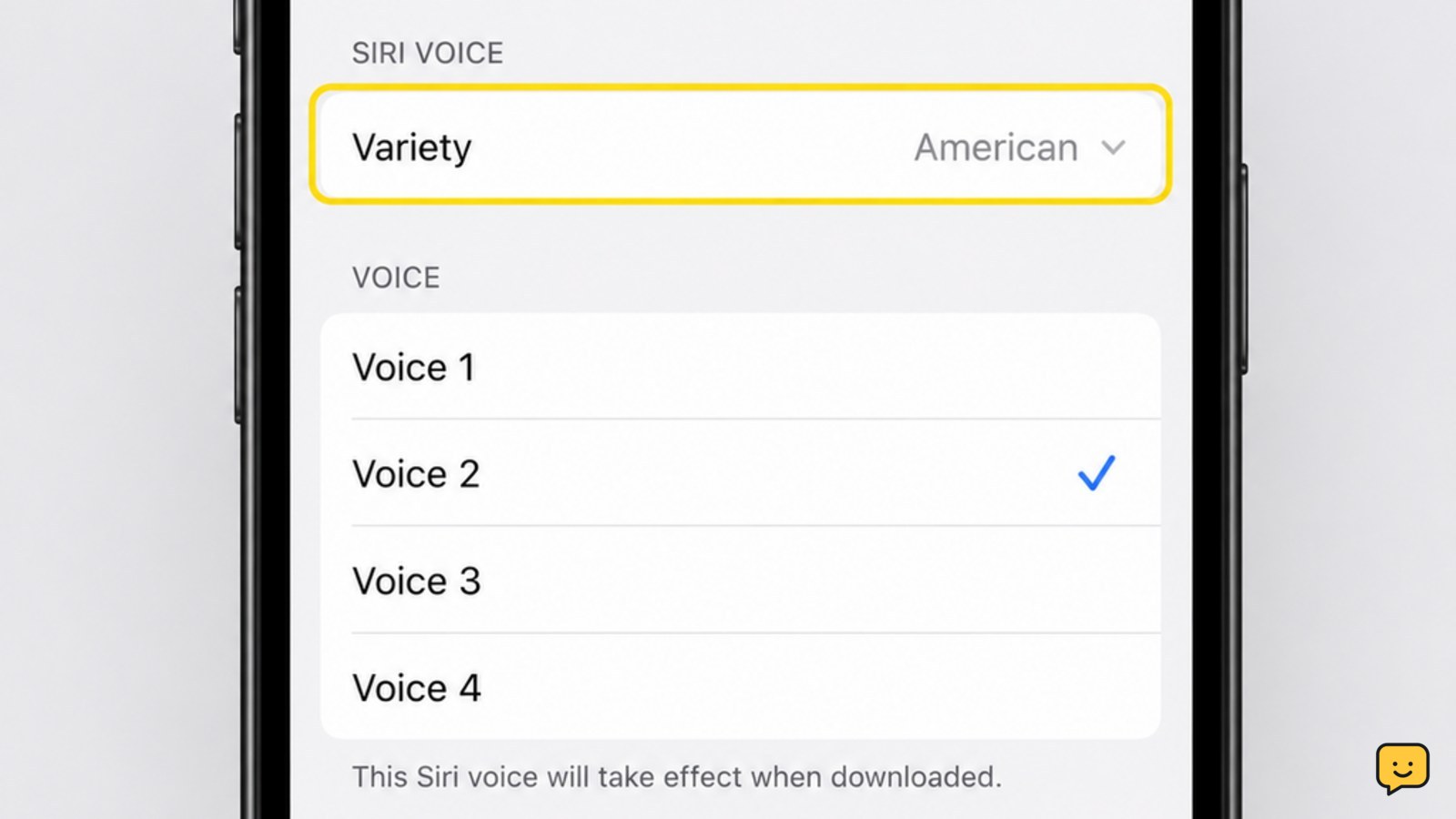
To change Siri’s voice on an iPhone or iPad, open Settings, choose Siri or Apple Intelligence & Siri, then tap Siri Voice. Select an available variety and voice; some choices download before they can be used. Ask Siri a simple question afterward to hear the selection and confirm that the change worked.
For more help with this topic, use the Mobile Devices guides.
Open the current Siri settings menu
On current iPhone and iPad software, Siri voice controls are in Settings > Siri or Settings > Apple Intelligence & Siri, depending on the software version and device. Open Settings and look for either of those menu names.
- Tap Siri or Apple Intelligence & Siri.
- Tap Siri Voice.
- Keep this screen open while you compare the available choices.
Apple identifies the same settings area as the place to change Siri language and voice-related preferences. The menu name can differ, so use the label shown on your own device rather than looking for an older menu name.
Choose a Siri variety and voice
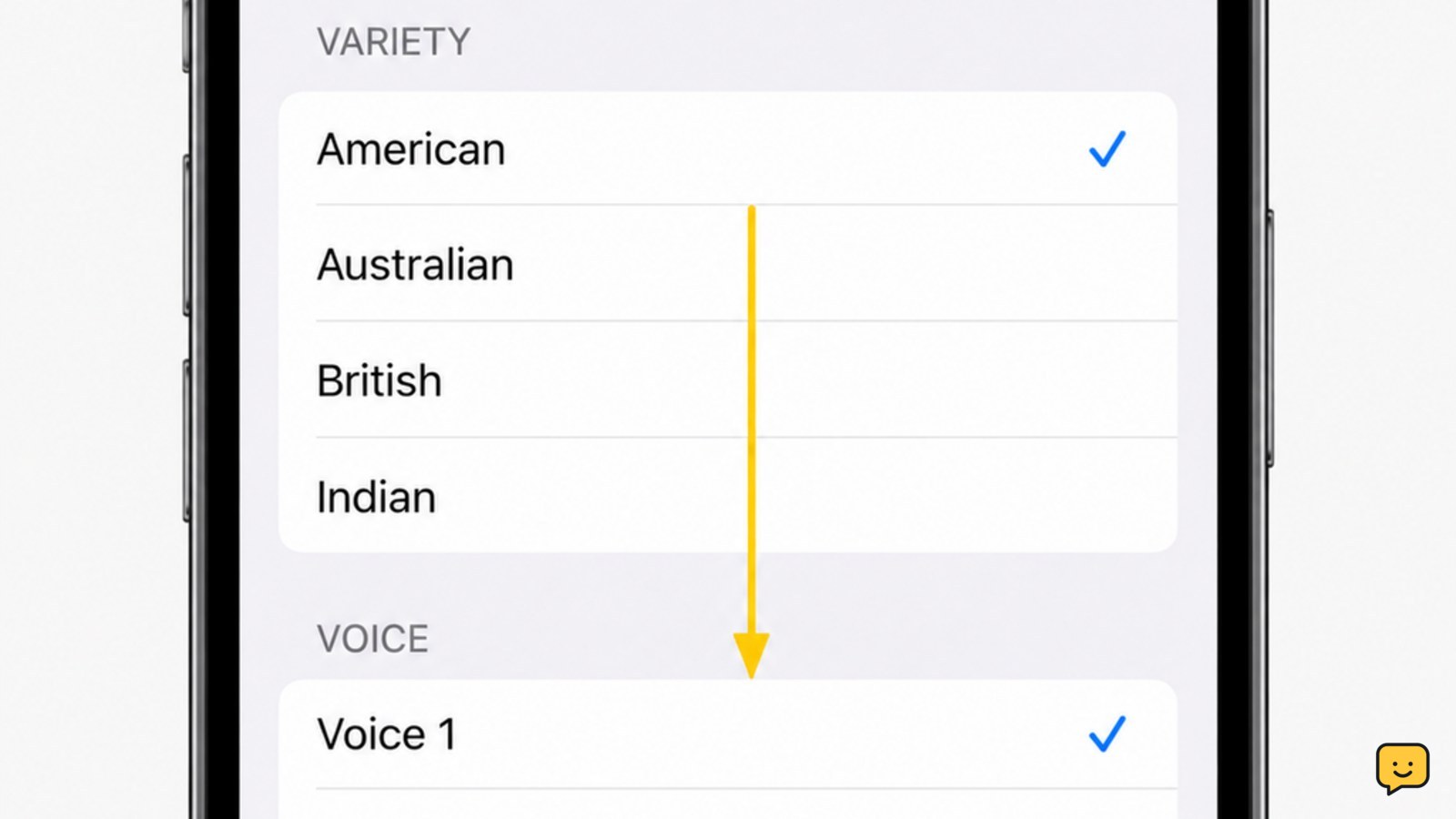
The Siri Voice screen lets you select an available Variety first, then a Voice within that variety. Tap a variety, then tap a voice option to hear its preview and make it your selection.
- Choose the variety that matches the accent or regional speech style you want.
- Tap each available voice to preview it.
- Select the voice you prefer and leave the screen open if the device starts a download.
A selected voice may show a loading or download state before Siri can use it. Keep the device on a reliable network until that state finishes. Do not assume the change failed simply because Siri continues to use the previous voice during the download.
Change Siri language when the voice you want is unavailable
Siri voice choices depend on the Siri language selected on the device. If the variety or voice you expected is not listed, return to the Siri settings screen, tap Language, and select a supported language before checking Siri Voice again.
Changing Siri’s language changes the language Siri uses for requests and responses, according to Apple. Choose it only when you want to speak to Siri and receive responses in that language. A language change can also alter which voice choices appear.
For example, a person who wants Siri to understand and answer in a different language should change Language; a person who only wants a different speaking style should normally stay in the current language and use Siri Voice.
Verify that Siri is using the new voice
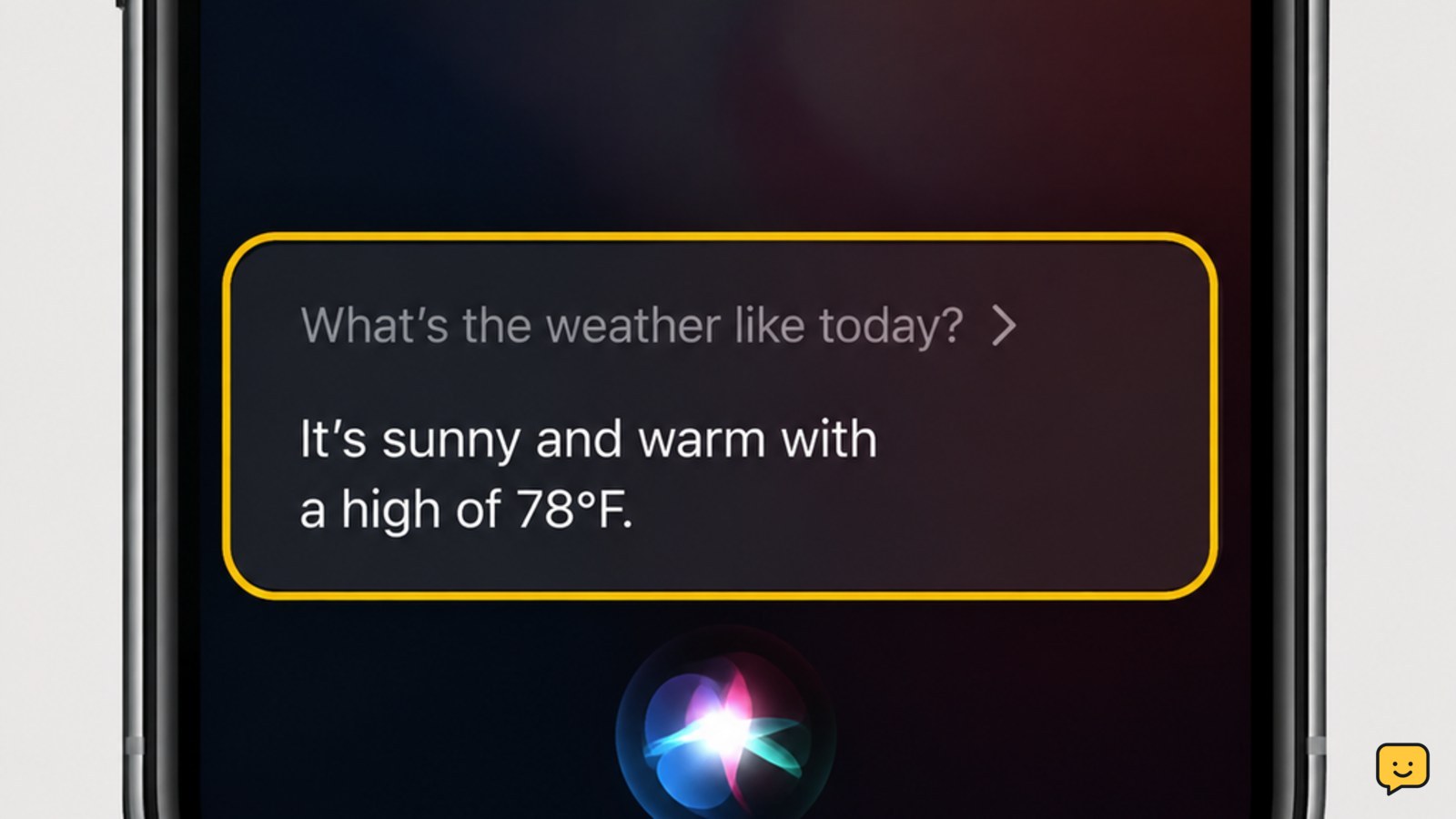
Siri is using the new voice when a spoken test request plays back in the variety and voice you selected. Activate Siri using your usual method and ask a short question, such as “What day is it?”
Listen for the response rather than relying only on the selected checkmark. If Siri still sounds unchanged, return to Siri Voice and check whether the chosen option is still selected or still downloading. Wait for the download to finish, then repeat the test.
What to do when Siri Voice is missing or will not change
A missing Siri Voice option usually needs a settings or availability check, not a device reset. First confirm that you opened Settings > Siri or Settings > Apple Intelligence & Siri, then look for Siri Voice below the language controls.
- Restart the Settings app and check the Siri menu again.
- Check Language; available voices can change with the selected language.
- Connect to Wi-Fi and retry the voice selection if it is stuck downloading.
- Install the latest available iPhone or iPad software update, then check the menu again.
If the voice list remains unavailable after those checks, stop before resetting settings or erasing the device. The available Siri languages and voices can vary by device software and region, so choose one of the listed options or contact Apple Support for device-specific availability help.
Frequently asked questions
Can I change Siri’s voice without changing the language?
Yes. Open Siri Voice and choose another available variety or voice while leaving the Language setting unchanged. Change Language only when you also want Siri to recognize requests and respond in a different language.
Why does Siri still use the old voice?
Siri can keep using the previous voice while the new one downloads. Return to Settings and check the selected voice for a download or loading state, connect to Wi-Fi, wait for it to complete, and test Siri again with a short request.
Can I use a different Siri voice on each Apple device?
Yes, check the Siri settings on each iPhone or iPad separately. The voices displayed can depend on that device’s software, selected Siri language, and regional availability, so the same choices may not appear everywhere.
Does changing Siri’s voice change my phone’s alert sounds?
No. Siri Voice changes Siri’s spoken responses. Ringtones, notification sounds, alarms, and other device alerts are controlled in separate sound settings and are not changed by selecting a Siri voice.


