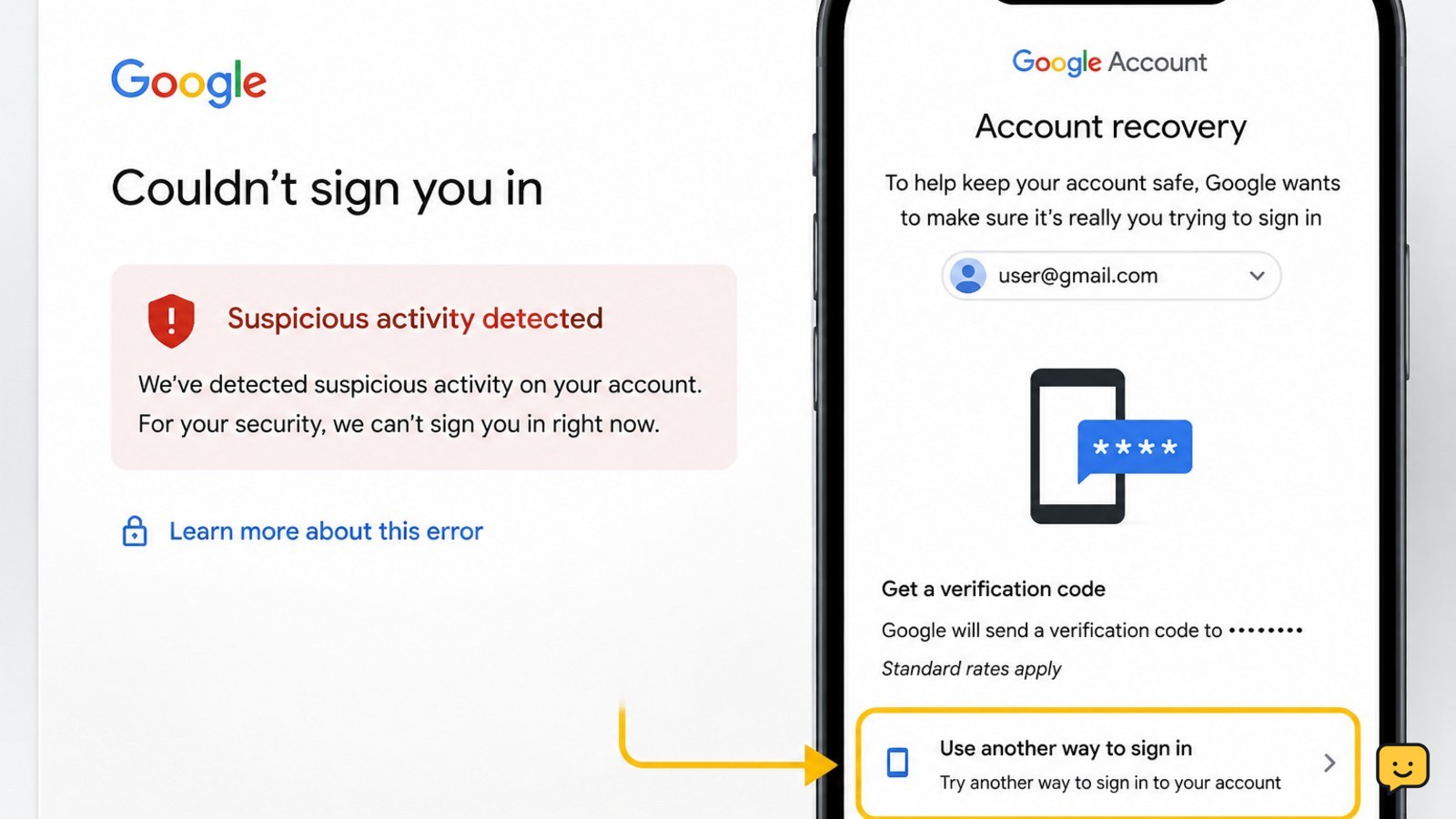
When Gmail blocks sign-in for suspicious activity, stop repeated attempts and open Google’s official account recovery page on a familiar device, browser, and network. Verify your identity with the recovery email, phone, passkey, authenticator, or another offered method. After access returns, change your password, review security activity and devices, and check Gmail forwarding and filter settings.
1. Confirm that the warning is really from Google
A suspicious-activity warning can appear when Google detects a sign-in attempt it cannot confidently associate with you. Google says suspicious Gmail activity can include unusual messages sent from the account, missing incoming mail, or other changes you did not make.
Do not use a link from an unexpected email, text message, pop-up, or social-media message. Instead, type accounts.google.com into the address bar and begin there. Check the address bar before entering any information.
If you still have an open Google session on another device, review the alert there. Choose the option that says the activity was not you only when that is true.
2. Try the familiar-device sign-in once
Use the device and browser you normally use for Gmail. Connect from your usual location and network if possible. Avoid switching between several devices, browsers, VPN connections, or public networks while Google is checking your identity.
- Open Gmail or the Google Account sign-in page.
- Enter the Gmail address you own and select Next.
- Enter the most recent password you remember, even if Google rejects it.
- Complete the identity check Google displays.
A familiar device may already have a trusted sign-in session, saved passkey, or screen lock that can confirm it is you. If the sign-in succeeds, continue to the post-recovery checks below.
Verification: You have regained access only when Gmail loads your mailbox and you can open Google Account settings without another blocked sign-in prompt.
3. Use Google Account Recovery when sign-in remains blocked
If the normal sign-in fails, go directly to accounts.google.com/signin/recovery. Answer as many questions as you can, using information that belongs to your account. Google may offer different checks depending on what is available and what it can verify.
- Enter the Gmail address or phone number connected to the account.
- Provide the latest password you remember.
- Select an available recovery method, such as a recovery email, phone, passkey, authenticator, or backup code.
- Enter the code only on Google’s recovery page.
- Follow the remaining instructions to set a new password if Google approves the recovery.
If Google asks for an email address you can check now, use an address you already associate with the account. Check its spam or junk folder for Google’s message, but do not trust messages that request your password or ask you to call an unfamiliar number.
Verification: Recovery is complete when Google confirms the account and lets you create a new password or return to Gmail.
4. Fix the common verification failures
If a code does not arrive, confirm that you selected the correct phone number or email address. Check cellular reception, spam folders, blocked messages, and the time on your device. Requesting many codes can make it harder to tell which one is current, so use the newest code and avoid rapid repeated requests.
If Google says it cannot verify the account, do not guess repeatedly. Return to the recovery page later from the same familiar device, browser, location, and network. Use the most recent password you genuinely remember and provide consistent account information.
If a passkey is offered but fails, make sure the device has a screen lock and that the browser and operating system are current. You can use another offered recovery method instead. For more passkey-specific checks, see Google Account passkey fixes.
Stop condition: If no offered method works after careful attempts, stop cycling through devices and services. Use Google’s official recovery options only; no legitimate third party can bypass Google’s identity checks.
5. Secure the account immediately after access returns
Regaining access does not prove that the account is safe. Open myaccount.google.com/security and review the account before resuming normal use.
- Change the password to a long, unique password that you have not used on another website.
- Review recent security activity and mark unfamiliar activity as unauthorized.
- Open your devices or sessions list and sign out devices you do not recognize.
- Check recovery phone numbers and email addresses, and remove or replace anything you do not recognize.
- Review 2-Step Verification methods, authenticator entries, passkeys, and backup codes.
- Run Google’s Security Checkup and complete the recommendations that apply to your account.
Sign out of other sessions only after you have changed the password and confirmed that your recovery methods are correct. If you find an unfamiliar device, recovery detail, or security change, treat the account as potentially compromised and keep reviewing the activity.
6. Check Gmail for changes you did not make
Open Gmail settings and inspect forwarding addresses, filters, blocked addresses, vacation replies, delegated access, and the “Send mail as” accounts. Remove changes you did not make. Also check Sent, Trash, Spam, and the mailbox for messages that could explain how the account was used.
Ask trusted contacts whether they received unusual messages from you. If they did, warn them not to open links or attachments in those messages. Review connected apps and remove access for services you no longer use or do not recognize.
Finally, update the device’s operating system and browser and run its built-in security scan. If you suspect harmful software, do not sign in again from that device until it has been checked.
Verification: The account is in a safer state when the password and recovery details are yours, unfamiliar sessions are removed, 2-Step Verification is enabled, and Gmail settings contain no unauthorized forwarding or filtering.
Frequently asked questions
Why does Gmail say suspicious activity and block my sign-in?
Gmail may block sign-in when Google cannot confidently match an attempt to your usual account activity. A new device, unusual location, changed network, malware, or an unauthorized attempt can trigger a security check. The warning does not by itself prove that someone accessed the account.
What is the safest way to recover a Gmail account locked for suspicious activity?
The safest method is Google’s official recovery page at accounts.google.com/signin/recovery. Use a familiar device, browser, location, and network, then complete the recovery method Google offers. Never send your password or verification code to a person who claims to provide account recovery.
What should I do if my Gmail verification code is not arriving?
Check the recovery phone’s signal, blocked messages, the recovery email’s spam folder, and whether the device clock is correct. Request the code again only when necessary and enter the newest code on Google’s page. If delivery continues to fail, use another offered recovery method and avoid repeated rapid attempts.
Can I recover Gmail without my recovery phone?
You may be able to recover the account without the recovery phone if Google offers another method, such as a recovery email, passkey, authenticator, backup code, or a familiar signed-in device. Follow only the options shown in Google’s recovery flow. Do not use services claiming to bypass verification.
How do I know whether my Gmail account was hacked after I recover it?
Check recent security activity, signed-in devices, recovery details, connected apps, Gmail forwarding, filters, delegates, Sent mail, Trash, and Spam. Unfamiliar changes or messages you did not send are warning signs. Remove unauthorized access, change the password, enable 2-Step Verification, and secure any affected device.
Browse more Access & Recovery guides for help with this topic.


