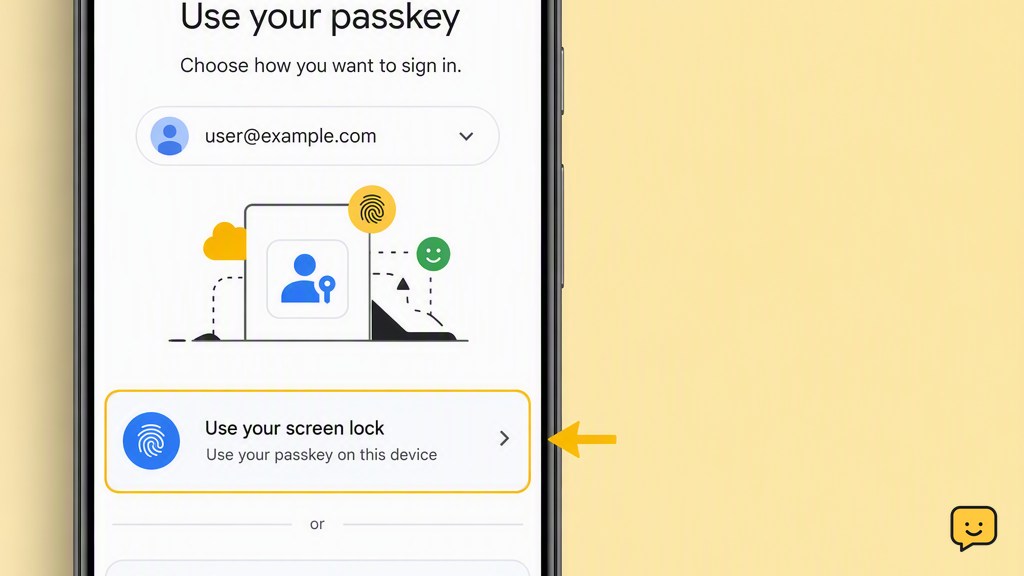
If your Google Account passkey is not working, first use the device and profile where it was created. Confirm that screen lock is enabled, update the operating system and browser, and retry without interfering extensions. For cross-device sign-in, enable Bluetooth on both nearby devices. If it still fails, select another sign-in method instead of deleting the passkey.
1. Start on the device that holds the passkey
A passkey is available only through the device, security key, password manager, or synced credential provider where it was saved. Begin with the phone or computer used when the passkey was created.
- Open a current browser and go directly to accounts.google.com.
- Enter the email address for the correct Google Account.
- Choose the passkey option and follow the device prompt.
- Use the requested fingerprint, face recognition, PIN, pattern, or security key.
Verify: The device should display its normal local unlock prompt. Google should not ask you to send anyone a code or reveal a device PIN.
If it fails: Check that you are using the same operating-system profile, browser profile, and password manager that contains the passkey. A passkey stored under another profile may not appear.
2. Check operating-system and browser support
Google advises keeping the operating system and browser up to date because some older combinations cannot use passkeys correctly.
- Install available system updates on the phone, tablet, Chromebook, Mac, or Windows computer.
- Update Chrome, Edge, Safari, Firefox, or the browser you normally use.
- Close every browser window, reopen the browser, and try again.
- If possible, test a different current browser on the same device.
Verify: A supported attempt should open the device’s passkey selector or local identity prompt rather than repeatedly returning to the account page.
If it fails: Continue on a newer device that has access to the same passkey provider, or use another sign-in method. Do not install an unknown browser or credential utility offered by a pop-up.
3. Confirm that screen lock is enabled
Passkeys depend on a device security method that verifies your identity locally. A missing or recently changed screen lock can prevent the expected passkey prompt from working.
- Open the device’s security or lock-screen settings.
- Confirm that a PIN, password, pattern, fingerprint, or face-unlock method is active.
- Lock and unlock the device once using that method.
- Return to the Google sign-in page and retry the passkey.
Verify: The same trusted system prompt used to unlock the device should appear during sign-in.
Stop: Do not remove or weaken the screen lock as a troubleshooting step. That can affect passkey availability and device security.
4. Rule out browser and extension interference
An extension that manages passwords, filters page content, or changes privacy behavior can interfere with a passkey request.
- Close extra Google sign-in tabs so only one attempt remains open.
- Temporarily pause third-party password-manager or privacy extensions you recognize.
- Reload the official Google sign-in page and try once more.
- Re-enable the extensions after the test.
Verify: If the passkey prompt works while an extension is paused, update that extension and check its passkey or credential settings before using it again.
If it fails: Try a clean profile or another updated browser. Avoid clearing all browser data unless you understand what saved sessions and local credentials could be removed.
5. Check the passkey provider, profile, and sync
A passkey may be stored in a device credential manager, browser profile, password manager, or physical security key. It will not necessarily appear in every profile or on every device.
- Confirm that the device is using the expected Apple, Google, Microsoft, or local operating-system profile.
- Open the credential or password manager you normally use and check whether an entry for the Google Account is present.
- Make sure credential syncing is enabled if you previously relied on that provider to make the passkey available on another device.
- If several credential providers appear during sign-in, select the one that originally saved the passkey.
Verify: The correct provider should offer a credential associated with the intended Google Account.
If it fails: Return to the original device. Do not assume that seeing passwords on a second device means its passkeys also synced.
6. Fix nearby-device and Bluetooth sign-in
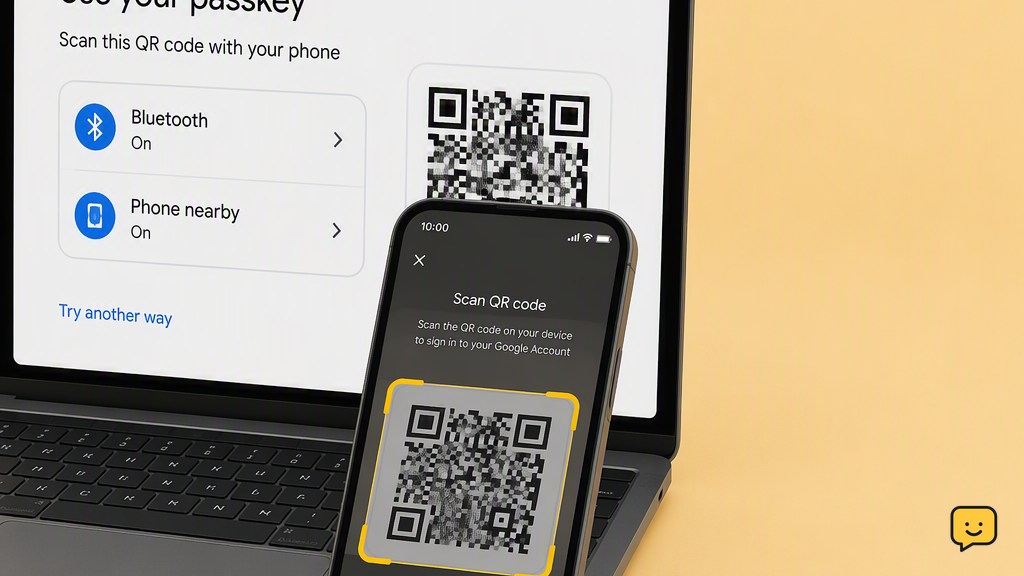
If the passkey is on a phone but you are signing in on a computer, Google may use a QR code and Bluetooth proximity check. Both devices must remain nearby during the request.
- Turn on Bluetooth on the computer and phone.
- Keep both devices unlocked, connected to the internet, and physically close.
- On the computer, choose the option to use a passkey from another device.
- Scan the displayed QR code with the phone’s normal camera or the system option shown.
- Approve the request on the phone using its screen lock.
Verify: The computer should continue signing in immediately after approval on the nearby phone.
If it fails: Cancel the old QR code and start a fresh request. Do not scan a code sent through email, text, chat, or an unexpected website.
7. Use another sign-in method safely
A failed passkey does not always mean the Google Account is lost. On the sign-in page, choose Try another way or the equivalent option offered for that account.
Depending on the security methods already configured, Google may offer a password, Google prompt, authenticator code, backup code, security key, recovery email, or account-recovery check. Only options previously associated with the account will be available.
Verify: After signing in, open the Google Account security settings and confirm that the listed devices, recovery details, and passkeys are yours.
If no alternative works: Start Google’s official account-recovery process from a familiar device and location. Answer as accurately as possible. Never pay someone who claims they can bypass Google’s verification.
8. Repair or replace the passkey after access returns
Only change passkey settings after you have regained access and verified another working sign-in method.
- Open your Google Account security settings.
- Review the listed passkeys and security keys.
- Remove only entries tied to devices you no longer own or recognize.
- Create a replacement passkey on the device and profile you intend to keep using.
- Sign out in a separate browser session and test the new passkey before removing the old one.
Stop: If you see unknown passkeys, unfamiliar devices, changed recovery information, or sign-ins you did not make, secure the account immediately by changing the password, reviewing active sessions, and removing unauthorized access.
Frequently asked questions
Why does Google say there is no passkey on this device?
The passkey is probably stored in another device, profile, password manager, or security key. Check the original device and the credential provider used when the passkey was created. Also confirm that you selected the correct Google Account. Do not delete existing credentials while investigating.
Why is my Google passkey QR code not working?
The QR flow may fail if Bluetooth is off, the devices are not nearby, or the request has expired. Enable Bluetooth on both devices, keep them close and online, then cancel the old request and display a new QR code. Scan only codes shown on the official Google sign-in page.
Can I sign in to Google without the broken passkey?
Yes, if another method is already available for the account. Select “Try another way” and use an offered password, prompt, authenticator code, backup code, security key, or recovery option. If none works, use Google’s official account-recovery process from a familiar device and location.
Will deleting my Google passkey fix the problem?
Not necessarily, and deleting it can make access harder. First verify that another sign-in method works. After regaining access, review the passkey list, create and test a replacement, and only then remove an obsolete or malfunctioning passkey.
Can a browser extension stop a passkey from working?
Yes, some password-manager or privacy extensions can interfere with passkey requests. Temporarily pause extensions you recognize, retry the official Google sign-in page, and then re-enable them. If that fixes the issue, update the conflicting extension and review its credential settings.
Browse more Access & Recovery guides for help with this topic.


