
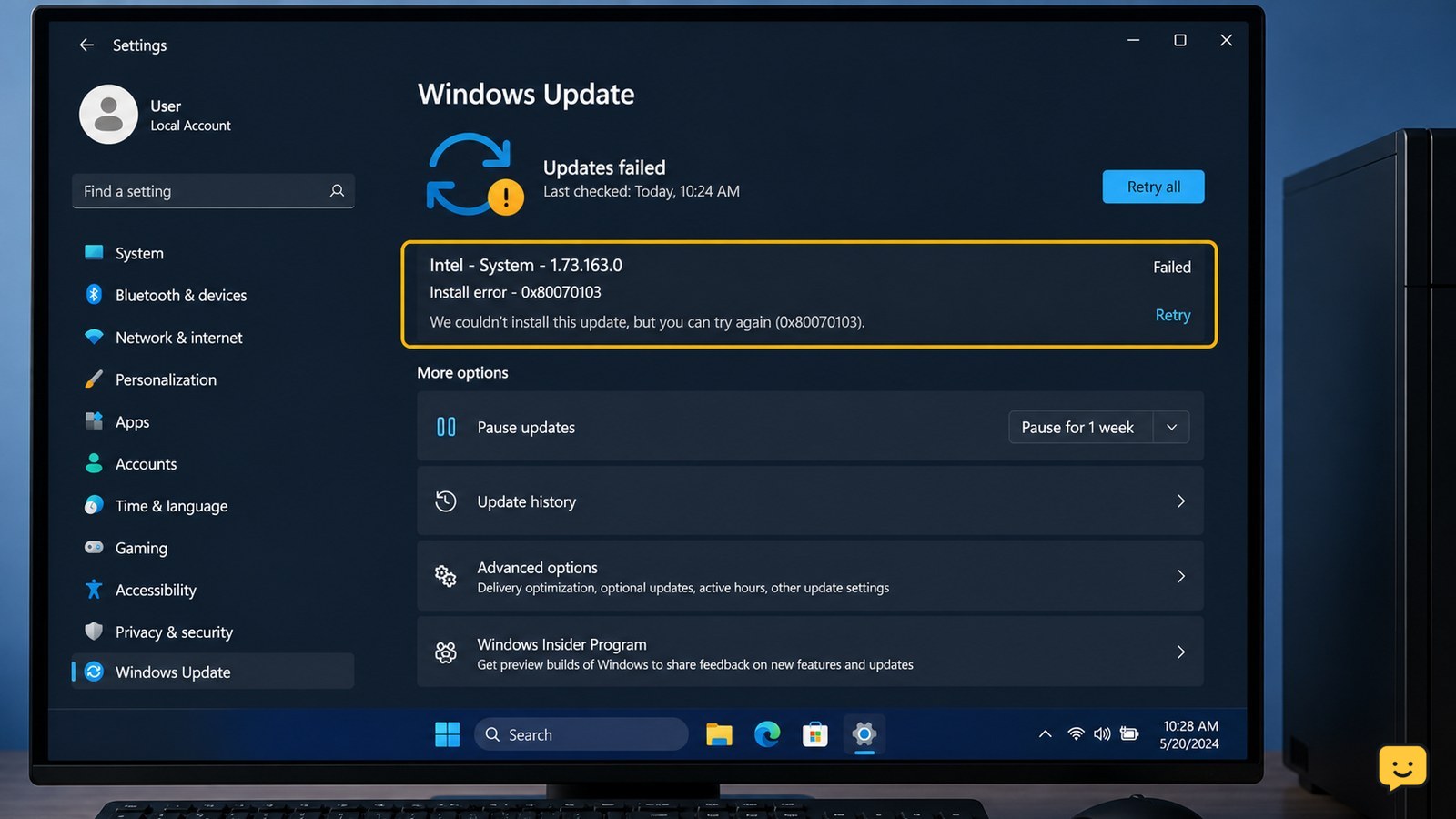
Install error 0x80070103 usually affects a Windows driver update that is already installed, ranked as incompatible, or being offered for the wrong hardware state. Check Windows Update history to identify the device, restart the PC, and install the driver from the computer or component manufacturer. If the device works normally and the same update keeps returning, hide that specific driver update rather than forcing it.
For more help with this topic, use the Computers Internet guides.
Check which driver triggered 0x80070103
Windows Update error 0x80070103 is usually a driver conflict, not proof that Windows itself is damaged. Microsoft-hosted Q&A guidance describes the code as occurring when Windows Update attempts to install a driver that is already installed or incompatible with the device.
- Open Settings.
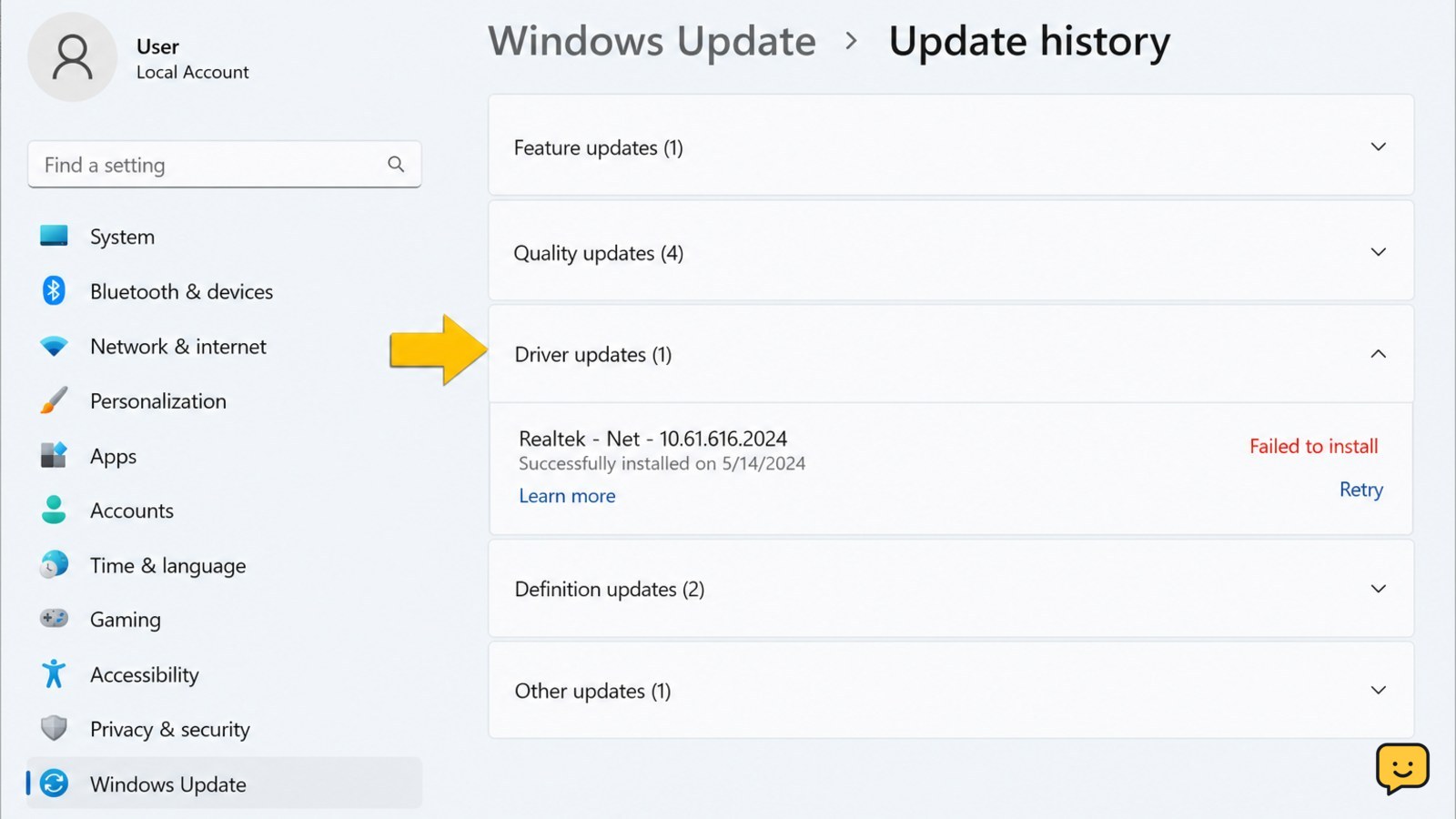
- Select Windows Update, then open Update history.
- Expand Driver updates and look for the failed item, manufacturer name, device name, or version.
- Write down the affected device before changing anything.
Verification: You should have a specific device to investigate. If the history shows only the error code with no useful name, continue with the restart step rather than guessing which driver to remove.
Restart Windows and retry the update once
A full restart can clear a pending driver-installation state and is the safest first repair when the affected device still works.
- Close open applications and choose Start > Power > Restart.
- After Windows loads, wait until the desktop is ready.
- Open Settings > Windows Update.
- Select Check for updates, then allow the update process to finish.
Success check: The failed driver no longer appears, or Windows reports that the update is installed. If 0x80070103 returns for the same driver, do not keep selecting retry; use the manufacturer-driver path below.
For a different Windows Update failure that may require component repair, see Windows Update repair steps.
For a different Windows Update failure that may require component repair, see Windows Update repair steps.
Install the correct driver from the manufacturer
The safest replacement for a repeatedly rejected driver is the current package supplied for the exact PC model or hardware component.
- Use the device name from Update history. On a laptop or desktop, start with the computer manufacturer’s support page; for separately installed graphics, Wi-Fi, Bluetooth, or other hardware, check the component manufacturer’s support page.
- Enter the exact model or serial-free product family as requested by the support site. Choose the driver for your installed Windows version and system type.
- Download the driver only from that manufacturer’s support page.
- Run the installer, accept the prompts, and restart when requested.
Verification: Open Device Manager, expand the relevant category, and confirm that the device is present without a yellow warning icon. Test the affected function—for example, connect to Wi-Fi, adjust display brightness, play audio, or pair the Bluetooth device.
Failure path: If the manufacturer’s installer says the driver is not applicable, stop and recheck the PC model, Windows edition, and device name. Do not force the package onto different hardware.
Run the Windows Update troubleshooter when the error persists
The Windows Update troubleshooter can address update-detection or service problems when the driver is correct but the same failed item remains queued.
- Open Settings > System > Troubleshoot > Other troubleshooters.
- Find Windows Update and select Run. This menu path is also identified in Intel community guidance for the error.
- Apply any recommended repair, then restart the computer if Windows requests it.
- Return to Settings > Windows Update and check for updates once.
Success check: The driver update installs, disappears from the pending list, or stops producing 0x80070103. If the troubleshooter reports no problem and the hardware works normally, avoid escalating to broad system repairs solely to remove this code.
Hide only the repeated driver update
Hiding the specific update is a reasonable fallback when the device operates correctly but Windows Update repeatedly offers the same incompatible or duplicate driver.
- Confirm the device works in Device Manager and during a normal function test.
- Record the exact driver name, version, and hardware category from Update history.
- Use Microsoft’s supported update-hiding method if it is available for your Windows release, or follow the device manufacturer’s documented guidance. The commonly referenced “Show or hide updates” utility is a version-dependent option, so do not download an unverified copy.
- Select only the identified driver update—not cumulative Windows updates, security updates, or unrelated hardware updates.
Verification: Run Windows Update again. The selected driver should no longer be offered, while other updates remain visible.
Do not use this workaround if the hardware is malfunctioning, the driver is required for security or stability, or the update is the only available fix for a warning shown in Device Manager. In those cases, contact the PC or component manufacturer.
What to do if 0x80070103 causes a device problem
If the error appears alongside a malfunctioning device, treat the hardware symptom as the priority instead of simply suppressing the update.
- Open Device Manager and locate the affected device.
- Open its Properties and check the Device status message.
- If a recent driver installation caused the failure, use Driver > Roll Back Driver only when that button is available and Windows identifies a previous driver.
- Restart and test the device again.
If rollback is unavailable or the device remains unusable, use the manufacturer’s recovery or support instructions. Back up important files before BIOS, firmware, chipset, storage, or system-repair work. Stop immediately if Windows becomes unstable or the storage device is no longer detected.
Frequently asked questions
Is Windows error 0x80070103 dangerous?
Usually, no. The code commonly indicates that Windows Update is offering a driver that is already installed or incompatible. It becomes more serious when the related device has stopped working, Device Manager shows a warning icon, or Windows is crashing. Test the affected hardware before hiding the update.
Should I uninstall the current driver to fix 0x80070103?
Usually, no. Uninstalling a working driver can leave you without display, Wi-Fi, audio, or another essential function. First identify the failed device, restart Windows, and install the correct package from the computer or component manufacturer. Consider removal only when the manufacturer’s instructions specifically require it and a recovery driver is available.
Why does 0x80070103 keep returning after the driver is installed?
Windows Update may continue offering a duplicate, older, or incompatible driver even though a functioning version is already present. Compare the failed update in Update history with the installed device driver, then use the manufacturer’s package. If the device works normally, hide only that repeated driver update.
Can I ignore install error 0x80070103?
You can generally leave it alone when the named device works correctly and no warning appears in Device Manager. Do not ignore it when the device is failing, the update concerns storage or firmware, or the error is accompanied by crashes. In those cases, use the manufacturer’s support path before suppressing the update.


