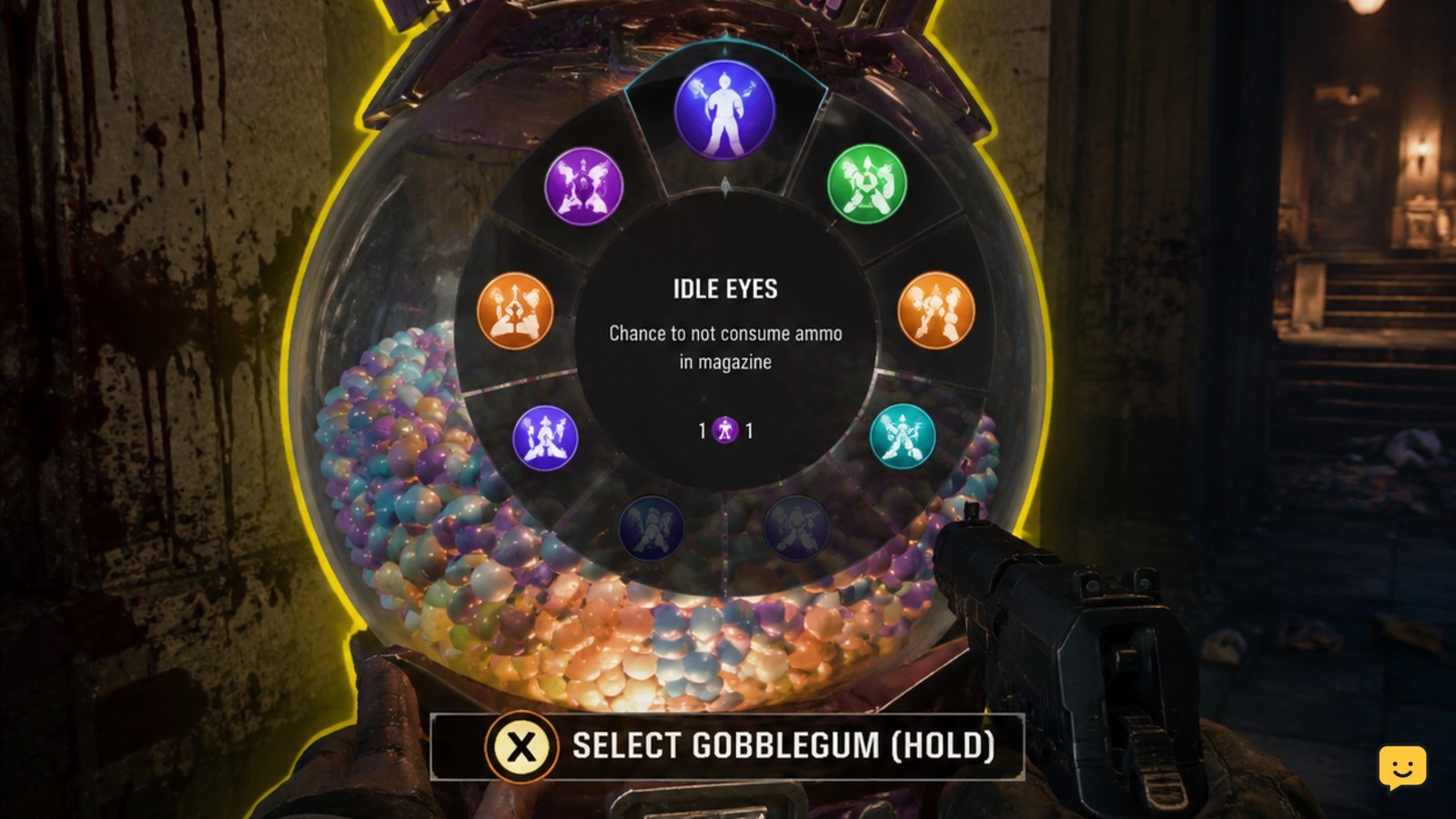
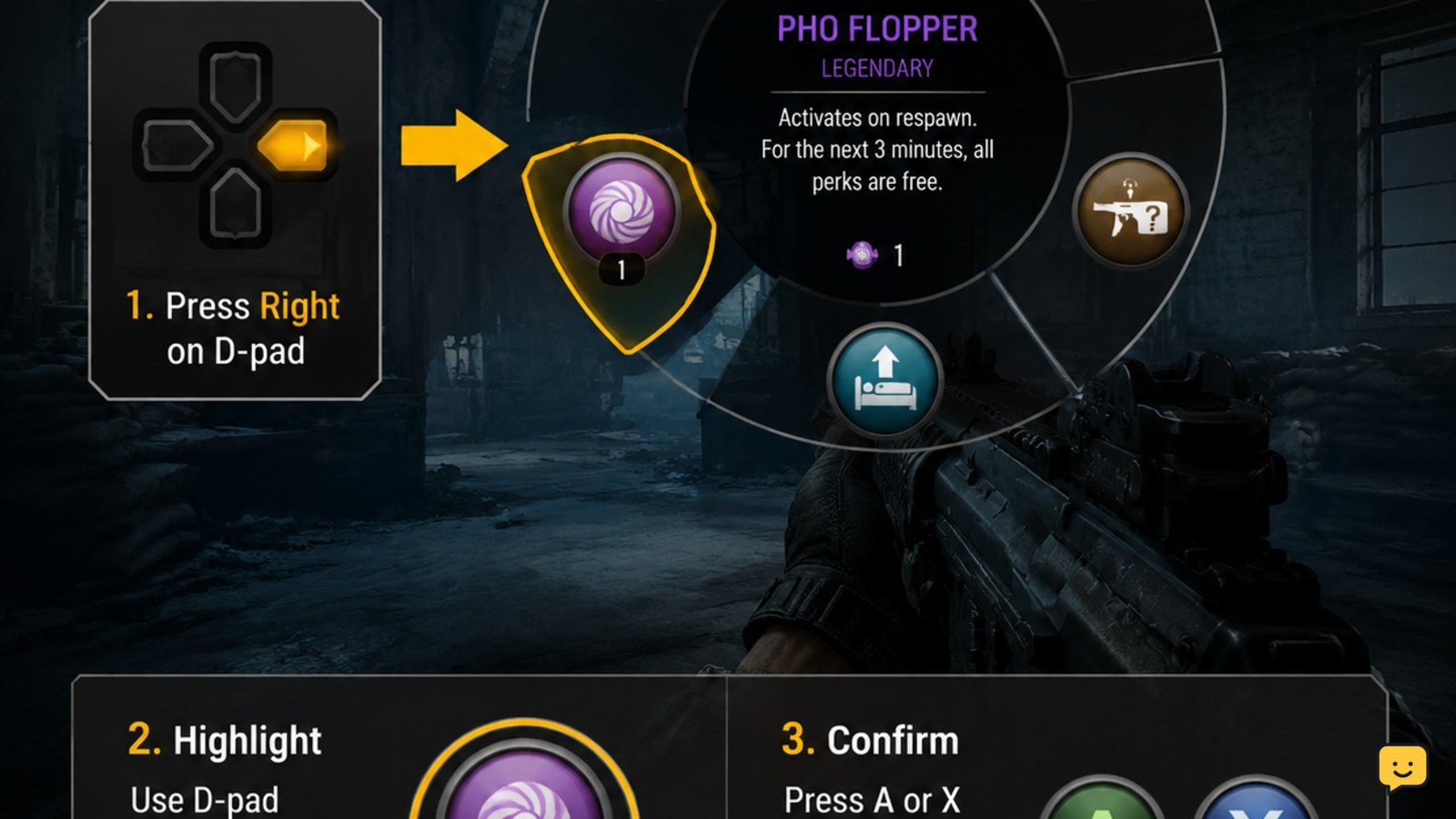
Before a Zombies match, equip the GobbleGum pack you want to use. During the match, approach an available GobbleGum machine and follow the on-screen interaction prompt. Open the GobbleGum wheel with Right on the D-pad on controller, choose a loaded GobbleGum, and confirm it. Check the HUD for the active effect before moving away.
Browse more Call of Duty: Black Ops 7 guides
Choose the GobbleGum pack before you queue
GobbleGums are selected through the Zombies loadout rather than chosen for the first time after you spawn. Open the Zombies loadout, find the GobbleGum pack area, and review the loaded items. A pack gives you a set of choices for the match, so place emergency, setup, and round-management effects where you can identify them quickly.
Do not assume that every GobbleGum in your collection is available in the current match. The in-match wheel reflects the pack you equipped before loading in. If a desired item is missing from the wheel, leave the match and check the loadout instead of searching the machine repeatedly.
Verify: Before starting, the pack screen should show the GobbleGums you expect to use. If it does not, change the pack and save or confirm the loadout before matchmaking.
Find an available GobbleGum machine
During the match, locate a GobbleGum machine and approach it closely enough for the interaction prompt to appear. The machine is the physical point where you obtain or activate the available selection; the wheel is used to choose from the GobbleGums currently loaded for your match.
Check the machine before opening the wheel. If it has no prompt, is unavailable, or does not provide a selection, move away and try again later. A missing prompt is an availability problem, not proof that the wheel input is broken.
Success state: You should see an interaction prompt or a clear machine response before attempting to confirm a GobbleGum.
Open the GobbleGum wheel and select an item
On a controller, press Right on the D-pad to open the GobbleGum wheel, then use the directional controls to highlight the GobbleGum you want. The available control reference lists X or A as the confirmation input, depending on the controller platform. On keyboard, use the binding displayed in your current controls menu rather than copying a controller input.
Read the highlighted item’s name and effect before confirming. Selection and activation are separate decisions: moving the highlight does not necessarily spend the GobbleGum, while the confirmation input can consume or trigger it.
- Press Right on the D-pad to open the wheel on controller.
- Highlight the required GobbleGum.
- Check the name and effect shown by the interface.
- Press the displayed confirm input, such as A or X, only when ready.
If Right on the D-pad does nothing, open the controls menu and check whether the GobbleGum action has been remapped. If the wheel opens but no item can be selected, check that the pack contains available items and that the match has not blocked the interaction.
Confirm the effect before spending another GobbleGum
After confirmation, look at the HUD for the GobbleGum icon, name, timer, charge, or other effect indicator. The exact display can depend on the item’s behavior, but there should be an observable change when activation succeeds. Use that state to distinguish a successful activation from a failed input.
Some effects are better used before a planned action, while others are more useful during a dangerous round or recovery. Activate a utility effect before entering the situation it supports, but keep a defensive or emergency effect unused until the threat actually appears. Avoid triggering multiple items together unless their effects are clearly compatible.
For example, use a setup-focused GobbleGum before opening an objective area or preparing a weapon, and reserve a recovery-focused item for a downed teammate, heavy special-enemy pressure, or a difficult escape. The correct timing depends on the effect description, not on a fixed round number.
Verify: Continue only when the HUD confirms the active effect or the game visibly performs the promised action. If neither appears, do not immediately activate a second item.
Manage the pack when the desired GobbleGum is unavailable
If the GobbleGum you want is not available, first check which item is highlighted and whether the machine has supplied a usable selection. The wheel cannot provide an item that is absent from the equipped pack or unavailable in the current match state.
When the problem is the pack, finish or leave the match and edit the Zombies loadout. When the problem is the machine, wait for its availability state or try another machine interaction later. When the problem is the input, compare the HUD prompt with the controls menu and test the binding only in a safe moment.
Do not spend a different GobbleGum merely because the preferred item is missing. Save the alternative for a situation where its own effect is useful and clearly confirmed.
Fix GobbleGum activation that does not work
Use the symptom to choose the next check:
- No wheel: Confirm that you are in a Zombies match, check the GobbleGum binding, and use the current HUD prompt.
- Wheel opens but nothing confirms: Highlight an available item, check for a required machine interaction, and press the displayed confirmation input.
- The item disappears but no effect is visible: Check the HUD for a timer, icon, delayed trigger, or condition-based effect before trying another item.
- The machine has no prompt: Treat it as unavailable or out of range. Move away, wait, and retry only after the prompt returns.
- The pack is wrong: Edit the Zombies loadout between matches. The in-match wheel does not replace the equipped pack.
If the current interface still gives no prompt, no wheel, and no HUD response after checking the binding and match state, stop using the input sequence. Record the platform and visible symptom, then check the game’s current controls or support information before relying on older key guides.
Frequently asked questions
Can you use any GobbleGum from your collection during a Zombies match?
No. The match uses the GobbleGum pack equipped in the Zombies loadout before matchmaking. If an item is missing from the in-match wheel, return to the loadout after the match and add it to the active pack.
Why does Right on the D-pad not open GobbleGums?
Check that you are in Zombies, that the GobbleGum action has not been remapped, and that the current HUD still assigns Right on the D-pad to the wheel. If the machine has no interaction prompt, the problem may be availability rather than the control.
How do you know a GobbleGum activated successfully?
Look for the item’s icon, name, timer, charge, or another visible HUD change. Some effects may trigger only when their condition is met, so read the description and do not spend another GobbleGum until the first item’s state is clear.
Do GobbleGum controls work the same on keyboard and controller?
The supplied controller reference uses Right on the D-pad to open the wheel and A or X to confirm. Keyboard inputs can vary with the current binding, so open the controls menu and follow the displayed GobbleGum command instead of using a controller shortcut.
What should you do if a GobbleGum machine is unavailable?
Do not repeatedly press the activation button. Move away, confirm whether the machine shows an interaction prompt, and try again when it becomes available. If the prompt never returns, check the match state and current game controls before assuming the item or pack is faulty.