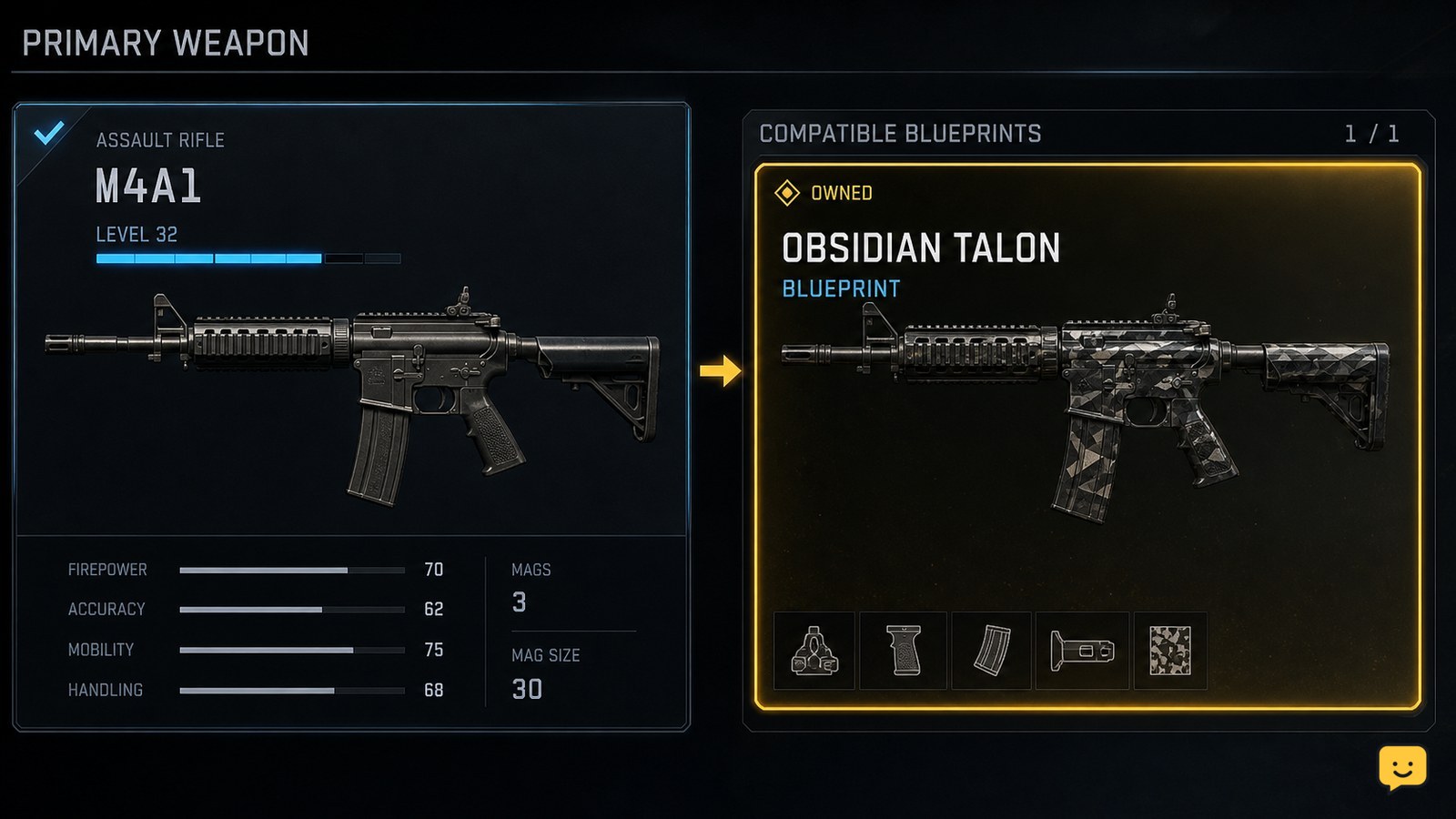
Open the mode’s Loadouts screen, select the weapon slot, then choose the same base weapon named by your owned blueprint. On that weapon’s selection or build screen, switch from the standard weapon to its available blueprint variant and equip it. Confirm the blueprint name or appearance appears on the loadout. Stop if the blueprint is for another weapon family.
Browse more Call of Duty: Black Ops 7 guides
Check that the blueprint matches your weapon
A Call of Duty Black Ops 7 weapon blueprint is tied to one base weapon, so it cannot be applied to an unrelated rifle, SMG, pistol, or other weapon. Read the weapon name on the blueprint tile first, then select that same weapon in the loadout slot.
This is the key compatibility check. If you select a different base weapon, its blueprint list may be empty even though you own several blueprints for other guns.
Apply the blueprint from the Loadouts weapon screen
Call of Duty Black Ops 7 blueprints are equipped from the weapon-selection path for a loadout, not by placing a cosmetic on any weapon. The public blueprint catalog maintained by Games Atlas confirms that Black Ops 7 blueprints are associated with individual weapons; use the matching weapon’s tile to find its available variants.
- Open the game mode’s Loadouts or class-editing screen.
- Select the primary or secondary weapon slot you want to change.
- Find and select the base weapon named by the blueprint.
- Look for a blueprint, variant, or alternate weapon selection on that weapon’s screen.
- Select the owned blueprint and use the displayed equip or confirm control.
- Return to the class overview.
The exact button label can vary by platform and interface update. Use the on-screen control that changes the selected weapon from its standard version to the blueprint version; do not rely on a button name from an older video or another Call of Duty title.
Verify that the class saved the blueprint
A successfully equipped Black Ops 7 weapon blueprint should be visible on the loadout before the match starts. Check for the blueprint name, its distinct weapon preview, or both in the weapon slot after you leave the selection screen.
If the loadout still shows the plain base weapon, reopen that weapon’s selection screen and equip the variant again. Back out to the class overview once more before queuing. Do not assume a preview alone means the class was updated.
Decide whether to keep or change the preset attachments
A weapon blueprint can include a preset visual design and, where the game permits, a preset build. Check the attachment view after equipping it if you care about the weapon’s setup rather than only its appearance.
Leave the blueprint unchanged if you want its original configuration. If you edit an attachment, recheck the weapon preview and name afterward. Some interfaces retain the blueprint identity while others may show that the weapon has been customized; the on-screen result is the reliable checkpoint.
Fix a blueprint that does not appear
A missing Black Ops 7 blueprint usually means the selected base weapon, game mode, or signed-in account does not match the owned item. Work through these checks in order:
- Return to the blueprint’s reward, store, or collection entry and confirm it is marked owned.
- Compare its base weapon name with the weapon currently selected in Loadouts.
- Open the matching weapon’s selection screen again instead of searching under a different weapon category.
- Check the loadout in the intended mode, because classes may not carry across every mode.
- Leave the loadout menu and reopen it if the owned item is not refreshing in the interface.
If the blueprint is marked owned but never appears under its exact matching weapon after reopening the menu, stop changing the class. Use the game’s in-menu support route or official support channel and provide the blueprint name, the base weapon name, and a screenshot of the owned-item screen.
What to do when the blueprint equips but looks wrong
A blueprint that equips but has an unexpected appearance may have been altered by a weapon customization choice rather than applied to the wrong class. Reopen the selected weapon, check the blueprint name, and inspect the attachment or customization areas for changes made after the blueprint was equipped.
If the weapon name is correct but the preview is not, remove only the recent customization changes, return to the class overview, and verify again. If the menu displays a different base weapon name, replace it with the blueprint’s correct base weapon instead of trying to force the cosmetic onto the current gun.
Frequently asked questions
Can I use a weapon blueprint on any gun in Black Ops 7?
No. A weapon blueprint applies only to its matching base weapon. Check the blueprint’s weapon name, then select that same gun in the appropriate Loadouts slot before looking for its available variants.
Why is my Black Ops 7 blueprint missing from the weapon list?
The most likely cause is that you are viewing a different base weapon, a different mode’s loadout, or an account where the item is not marked owned. Confirm ownership first, then open the exact weapon named by the blueprint.
Do weapon blueprints change my attachments?
They can present a preset weapon configuration where the game allows it. After equipping one, inspect the weapon’s attachment view and keep it unchanged if you want the preset setup. Recheck the class after making any attachment edits.
Why does the blueprint show in the menu but not in my match?
First confirm that the updated weapon is visible in the class overview for the mode you entered. If the loadout shows the plain weapon, re-equip the blueprint and back out of the weapon screen before starting a match.