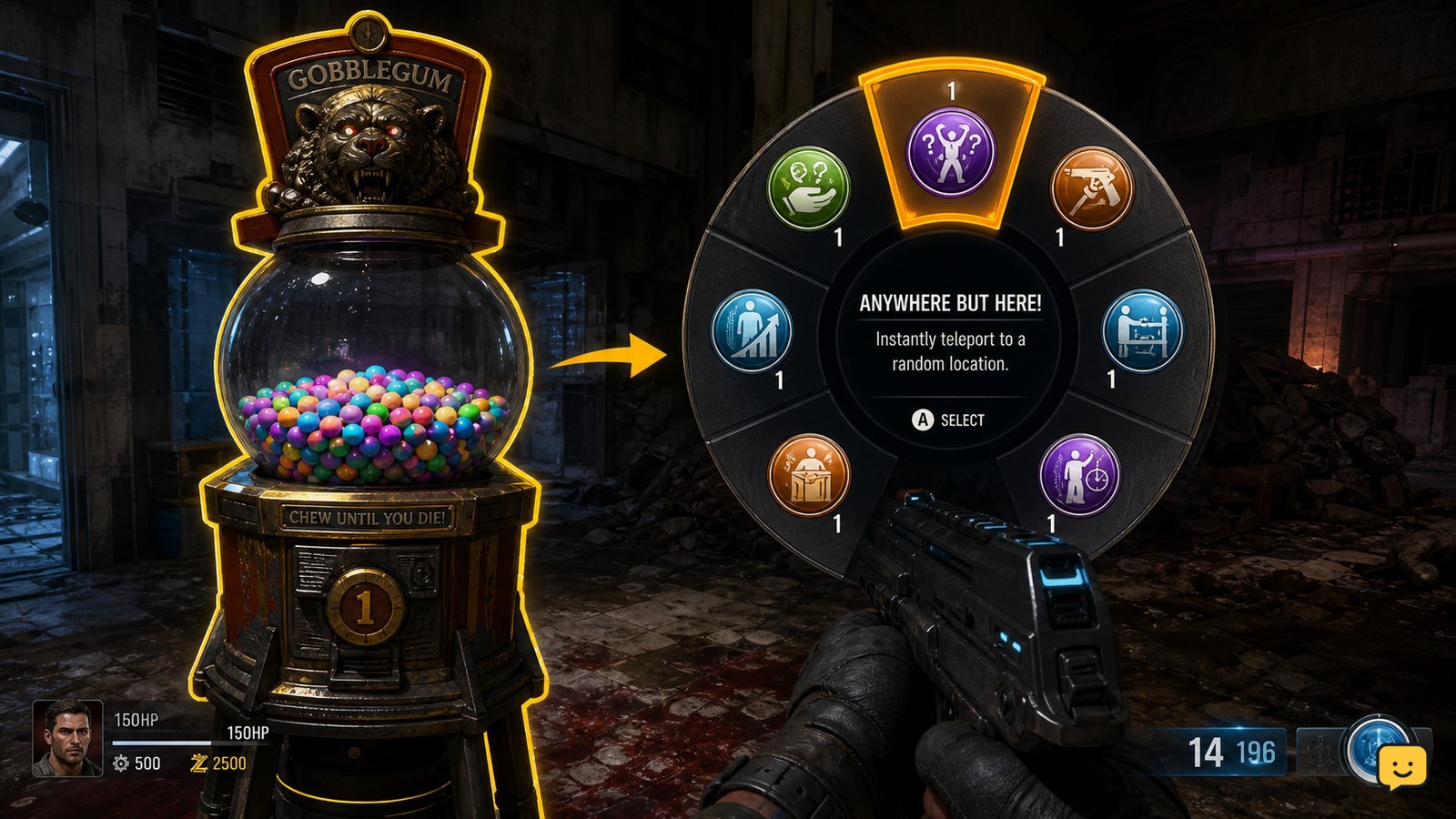
In Black Ops 7 Zombies, interact with a GobbleGum machine first, then press Right on the D-pad to open the GobbleGum wheel. Use Up or Down to highlight the GobbleGum you want and press A to activate it. The gum must be available in your current pack, and remapped controls or PC keybinds can change these inputs.
Browse more Call of Duty: Black Ops 7 guides
Activate a GobbleGum at the machine
Black Ops 7 Zombies requires you to use a GobbleGum machine before selecting a GobbleGum from the wheel.
- Approach an available GobbleGum machine.
- Use the displayed interact button and wait for the machine to finish dispensing the GobbleGum.
- Press Right on the D-pad to open the GobbleGum wheel.
- Press Up or Down to highlight the GobbleGum you want.
- Press A to confirm and activate it.
A community report describes this controller sequence as Right on the D-pad, Up or Down to choose, and A to use. Treat those buttons as the standard controller defaults, not fixed inputs for every layout.
Choose the correct GobbleGum before confirming
The GobbleGum wheel lets you choose from the gums currently available in your equipped Zombies pack.
After opening the wheel, pause long enough to read the highlighted item and its effect. Use Up or Down to move between choices, then confirm only when the intended gum is selected. This prevents activating a utility item meant for a later round or a different objective.
If the gum you expect is missing, do not continue pressing the confirm button. Exit the wheel and check the pack displayed before the match or the available inventory. A missing item is an availability problem, not a failed activation.
Verify that the GobbleGum activated
A successfully activated GobbleGum should leave the selection state and begin its listed effect or duration.
Check for the game’s activation feedback, the item leaving its available slot, or the effect appearing in the HUD. The exact visual feedback can vary by GobbleGum, so verify the specific effect rather than expecting every gum to use the same icon or timer.
If the wheel closes but no effect appears, wait briefly to rule out a delayed machine interaction. If there is still no feedback, treat the attempt as unverified and avoid spending another GobbleGum until you confirm the pack and controls.
Fix a missing wheel or activation prompt
A missing GobbleGum prompt usually means the machine interaction, available pack, or control input has not been confirmed.
- Move back to the machine and check whether the interact prompt appears.
- Wait until the dispensing animation or interaction has completed.
- Open the wheel with Right on the D-pad instead of pressing the confirm button first.
- Check whether the wheel contains an available GobbleGum.
- Review your controller or keyboard bindings if the default input does nothing.
For a machine that does not respond, leave its interaction range and try again after nearby combat has settled. If every machine fails and the wheel remains empty, stop spending attempts and check whether the current pack contains usable GobbleGums.
Use the correct controls on PC or a remapped layout
Black Ops 7 Zombies may use different GobbleGum inputs on PC or after control remapping.
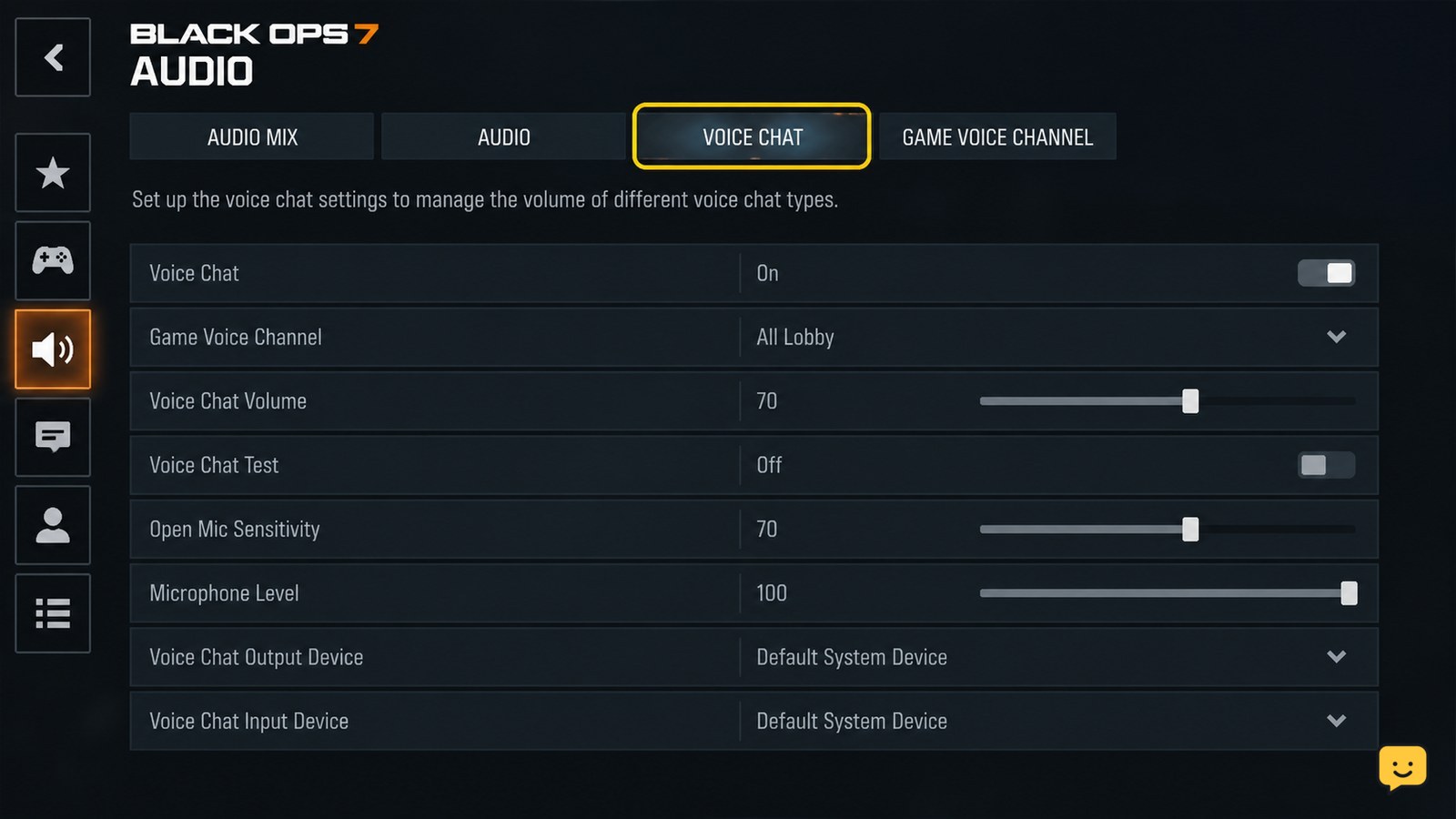
A third-party gameplay guide lists keyboard shortcuts for opening or selecting GobbleGums, but the supplied evidence does not establish one universal PC layout for every setup. Use the key shown by your in-game prompt or inspect the Zombies control bindings before entering a high-round run.
The reliable check is simple: the wheel must open, the highlighted selection must move, and the final confirmation must produce activation feedback. If one of those states does not occur, the input is not confirmed for your current layout.
Frequently asked questions
Do I need to use the GobbleGum machine before opening the wheel?
Yes. Interact with the GobbleGum machine and wait for its interaction to finish before opening the wheel. If the wheel is empty or no prompt appears, check that the machine interaction completed and that your current pack contains available GobbleGums.
What are the default controller buttons for GobbleGums in Black Ops 7?
The reported default controller sequence is Right on the D-pad to open the wheel, Up or Down to select a GobbleGum, and A to confirm. Remapped controls can change these buttons, so use the on-screen prompt when it differs.
Why is my GobbleGum missing from the wheel?
The GobbleGum may not be included in the pack active for that match, or it may no longer be available. Exit the wheel, check the displayed Zombies pack or inventory, and stop pressing confirm until the item appears as available.
Can I use the same GobbleGum repeatedly in one round?
Not necessarily. Availability depends on the GobbleGum and the pack or inventory state shown by the game. Check the wheel after activation; if the item is no longer available, choose another listed gum instead of assuming it can be reused.