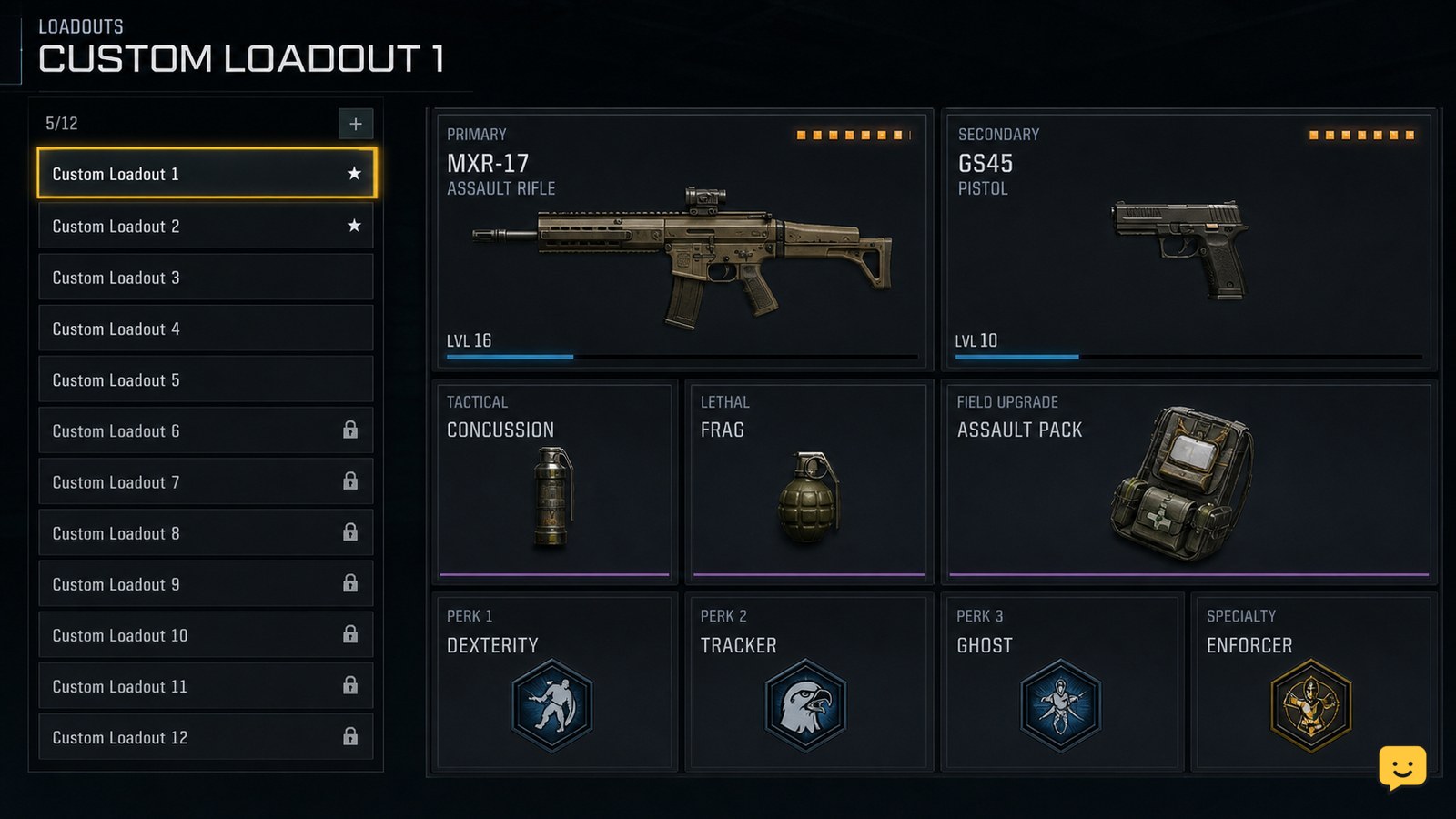
Open Black Ops 7 Multiplayer, select Loadouts, choose the class slot you want to change, and edit the weapons, attachments, equipment, Field Upgrade, and Scorestreak selections shown there. Back out only after the changes save, then verify the class in the pre-match loadout screen. If a slot is locked or missing, use another available class and stop before replacing a setup you still need.
Browse more Call of Duty: Black Ops 7 guides
Open Multiplayer Loadouts and choose a class slot
Black Ops 7 multiplayer classes are customized from the Multiplayer Loadouts screen. From the main menu, open Multiplayer, select Loadouts, and choose the class slot you want to edit.
Selecting a class should expose the equipment and reward choices assigned to that slot. The precise button prompt can differ between controller and mouse-and-keyboard layouts, so use the action shown beside the highlighted class rather than relying on a fixed key.
If you only see Zombies loadouts, return to the Multiplayer lobby. This guide does not apply to the Zombies preparation screen.
Replace the weapons and attachments shown in the class
Black Ops 7 lets you adjust the primary weapon, secondary weapon, and the attachment choices available on each weapon from the selected class.
- Highlight the primary or secondary weapon slot.
- Choose a different weapon, or open the current weapon to edit its available attachments.
- Review the weapon preview or stat panel before confirming the selection.
- Back out to the class overview and confirm that the new weapon remains displayed.
Use a second class slot for testing unfamiliar weapons. That preserves a dependable setup while you check recoil, range, movement, or sight visibility in a live match.
Set equipment, Field Upgrade, and Scorestreaks
Black Ops 7 multiplayer class customization also includes the non-weapon slots displayed in the class overview, including equipment, Field Upgrade, and Scorestreak selections.
- Open each available equipment slot and select the item you want to carry.
- Choose a Field Upgrade from its class slot, then confirm that its name appears on the overview.
- Open the Scorestreak section and assign the rewards you want to earn during multiplayer play.
- Check the full class summary before leaving the Loadouts screen.
ShowU’s Black Ops 7 Field Upgrade instructions place this change in Loadouts before a match, while its Scorestreak guide separates equipping rewards from earning and deploying them during play. Treat any slot that is unavailable as locked or mode-specific unless the current menu provides a clear way to select it.
Verify the saved class before spawning
The selected Black Ops 7 class is ready only when the pre-match screen shows the same class name and equipment choices you configured in Loadouts.
- Leave the class overview using the on-screen back or save prompt.
- Enter a standard Multiplayer match or remain in the pre-match lobby.
- Open the loadout selection screen and highlight the edited class.
- Compare the displayed primary weapon, secondary weapon, equipment, Field Upgrade, and Scorestreak choices with your intended setup.
- Select the class and confirm that your character spawns with the expected primary weapon.
If the old setup returns, go back to the lobby and edit the class again. Do not assume a mid-match change has become a permanent Loadouts change unless the class overview and the next pre-match screen both show it.
Fix a missing, locked, or unusable class option
A missing Black Ops 7 class option usually means you are in the wrong mode, the slot is locked, or the menu has not retained the selection.
Wrong mode: Leave Zombies or a special playlist and reopen Multiplayer Loadouts.
Locked item: Keep the current item or choose another displayed option. Stop if the menu does not identify the requirement; do not treat an old guide’s unlock condition as current.
Change did not save: Reopen the class before matchmaking, select the item again, and wait for the overview to update before backing out.
Class works in the lobby but not in the match: Check the pre-match class selection once more and select the edited slot manually. If the expected weapon or equipment still does not appear after spawning, leave the match normally and verify the class from the main Multiplayer Loadouts menu rather than repeatedly changing it during combat.
Frequently asked questions
Can I customize a Black Ops 7 class during a multiplayer match?
You can usually select another available loadout during a match when the game permits a respawn or class-change screen, but that is not the safest place to make permanent edits. Configure the class from Multiplayer > Loadouts before matchmaking, then use the in-match screen only to select an already saved class.
Why is my Black Ops 7 custom class not showing in the match?
The class may not have saved, you may be viewing a different mode’s loadouts, or you may have selected another class before spawning. Return to the Multiplayer lobby, reopen Loadouts, confirm the edited class overview, then select that same slot on the pre-match screen.
Why are some Black Ops 7 class items locked?
A locked item is unavailable to that account or mode until the game provides its current unlock path. Use another displayed weapon, attachment, equipment item, Field Upgrade, or Scorestreak. Stop if no requirement is shown, because older Black Ops guides may describe a different progression system.
Do Black Ops 7 Field Upgrades belong to multiplayer classes?
Yes, when the Field Upgrade slot is available in the Multiplayer Loadouts screen. Select the Field Upgrade there and verify its name in the class overview. If you are in Zombies, use that mode’s preparation menu instead; its class and round-start rules are separate.