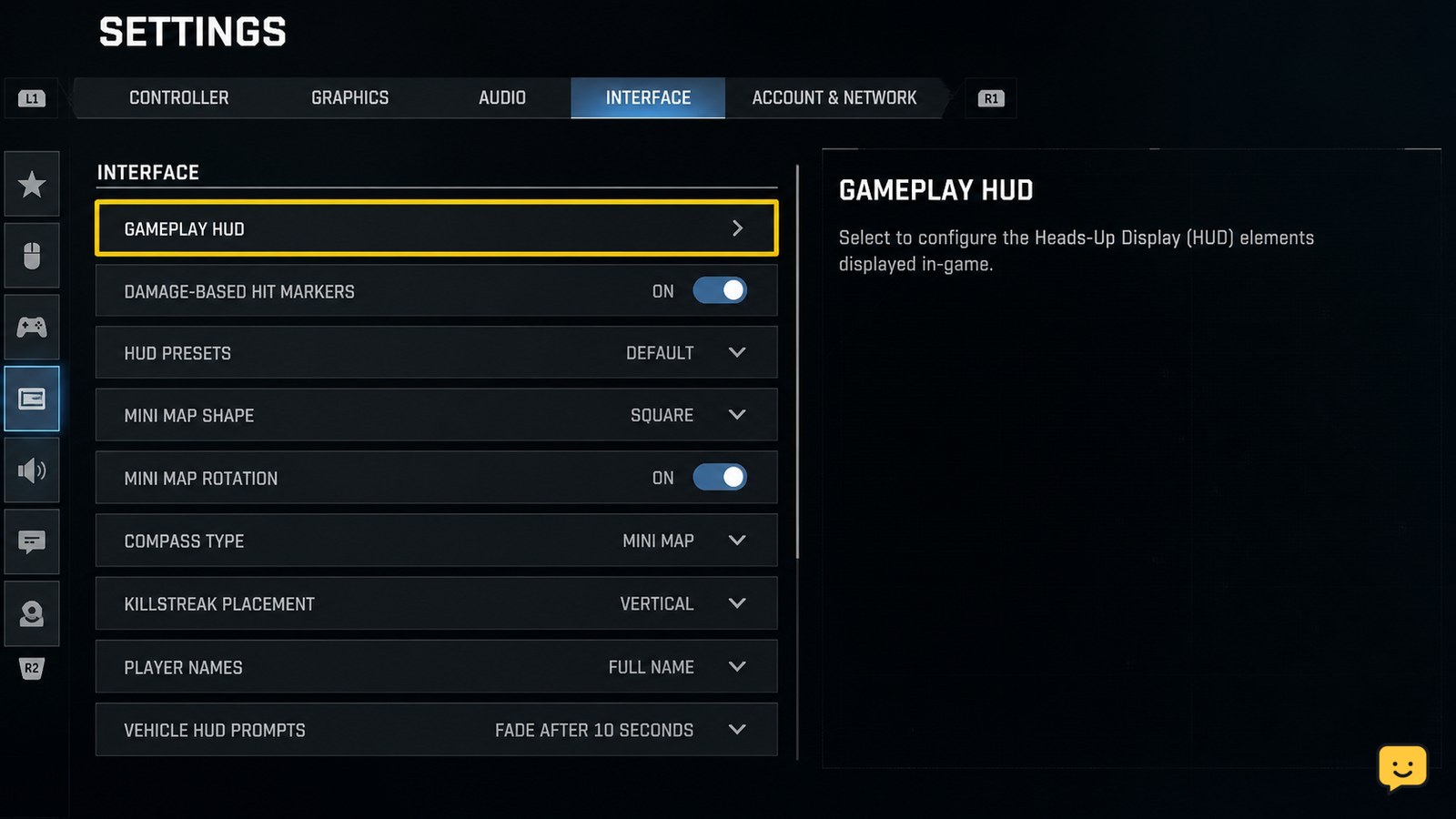
To change the minimap and HUD in Black Ops 7, open Settings, choose Interface, then open Gameplay HUD. Adjust the available HUD layout, minimap position, and HUD scale options, apply the changes, and enter a match to verify them. Menu names or available controls can vary by platform, mode, or current game build.
Browse more Call of Duty: Black Ops 7 guides
Find Gameplay HUD in Interface settings
Black Ops 7 places the relevant display controls in the Interface settings under the Gameplay HUD section, according to current gameplay-guide references describing the menu path.
- From the lobby or main menu, open Settings.
- Select Interface.
- Open Gameplay HUD.
If you are already in a match, open the pause menu and look for Settings. If the Interface tab is not available there, leave the match and use the lobby or main-menu settings instead.
Choose the minimap position and HUD layout
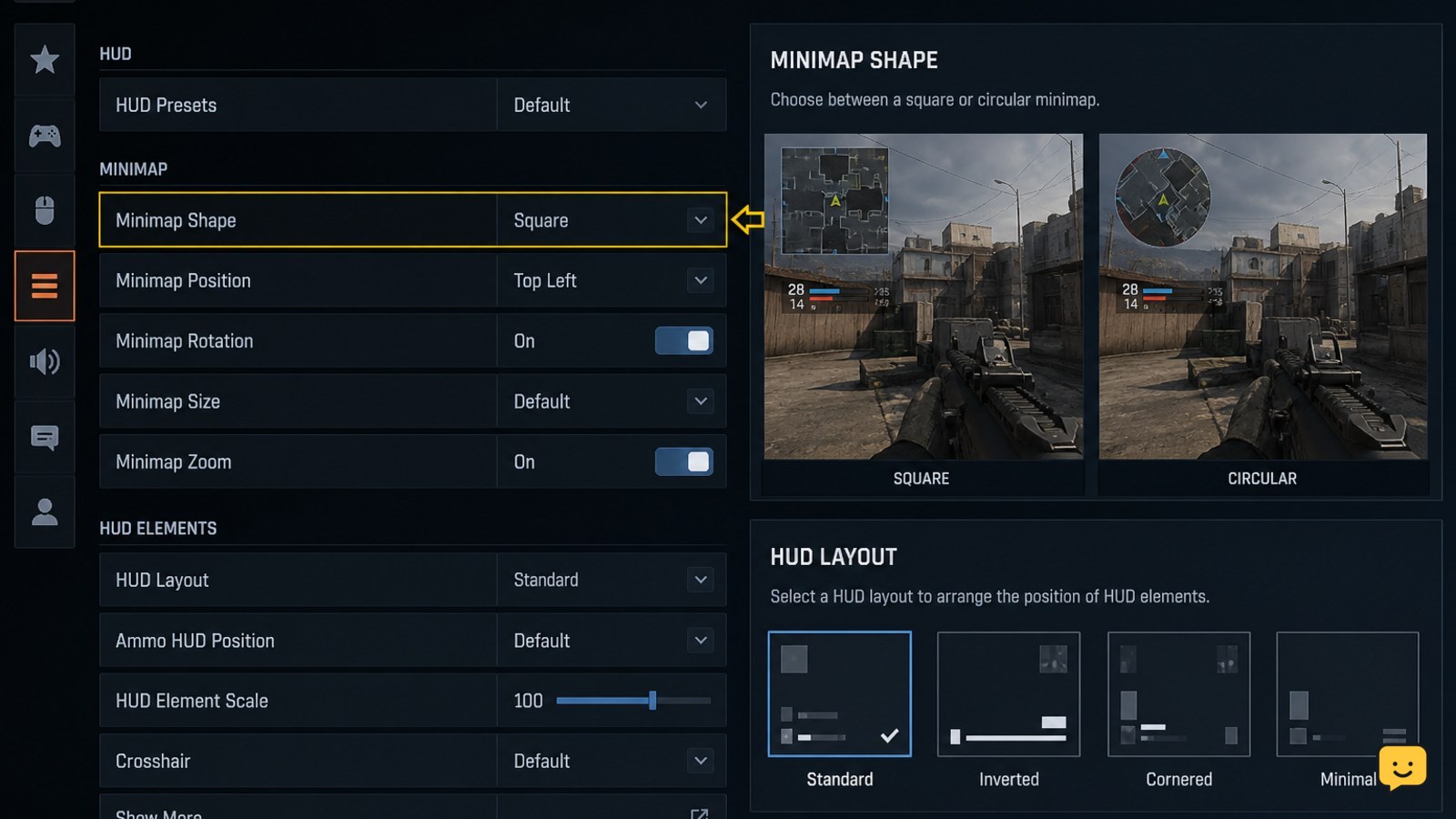
Black Ops 7’s Gameplay HUD controls let you adjust the minimap position and customize the arrangement of HUD elements when those controls are available for your selected mode.
- Highlight the option for the minimap position or its equivalent layout control.
- Choose the position that keeps the map visible without covering important central sightlines.
- Open the HUD layout control if you want to move or rearrange other widgets.
- Change one group of elements at a time, then check the preview or on-screen result before changing another group.
The available layout controls can differ between multiplayer and Zombies. Do not assume that a layout option shown in one mode must also appear in the other.
Adjust HUD scale without hiding key information
Black Ops 7’s HUD scale setting changes the size of on-screen interface elements, while the layout controls determine where those elements appear.
- In Gameplay HUD, find HUD scale.
- Lower the scale if the minimap, objective text, or other widgets obstruct your view.
- Raise the scale if text or icons are difficult to read from your normal viewing distance.
- Leave the settings screen only after the new value is visibly selected or saved.
Changing scale may make several HUD elements smaller at once. If one item becomes unreadable, return to the previous value before adjusting individual layout controls.
Verify the minimap and HUD in a live match
A Black Ops 7 HUD change is confirmed only when the minimap and other selected widgets appear in the intended position during gameplay.
- Start a low-risk match or enter the mode where you plan to use the layout.
- Look for the minimap immediately after spawning or entering the playable area.
- Check that objective markers, status information, and other required widgets remain visible.
- Move, aim, and open the pause menu once to confirm the layout is readable during normal play.
If the minimap is in the expected location and the HUD remains readable, the change is active. A settings preview alone is not enough because some elements appear only during a match.
What to do if the HUD change does not appear
If Black Ops 7 does not show the new minimap or HUD layout, first determine whether the issue affects the menu, one mode, or every match.
| Symptom | Next action |
|---|---|
| The option is missing | Check Interface and Gameplay HUD from the main menu, then compare the mode you are playing. |
| The option changes but resets | Reopen the same menu and confirm the value was retained before starting another match. |
| The menu shows the change but gameplay does not | Leave the match, restart the game, and verify the setting again from the main menu. |
| The minimap appears but other widgets are missing | Review HUD layout and HUD scale separately; one setting may have moved or reduced another element. |
Do not use a beta-era layout report as proof that a missing control is available in the current release. The supplied community discussion explicitly refers to the beta, while the current gameplay references support the Interface and Gameplay HUD path but do not document every platform or mode-specific option.
Frequently asked questions
Can I move the minimap in Black Ops 7?
Yes, current gameplay-guide references describe a minimap-position control inside Interface settings under Gameplay HUD. If you cannot see it, check the main-menu settings and the mode you are configuring before assuming the feature is unavailable.
Where is the HUD layout setting in Black Ops 7?
Open Settings, select Interface, and enter Gameplay HUD. The HUD layout control is described in that section, although the exact available options can vary by platform or game mode.
Why did my Black Ops 7 HUD settings reset?
Reopen Interface, then Gameplay HUD, and check whether the selected value was retained. If it was not, leave the match, restart the game, and set the option again from the main menu. Stop if the value still will not save.
Can I change HUD settings during a match?
You can try opening Settings from the pause menu, but some options may require the lobby or main menu. If Interface or Gameplay HUD is unavailable during the match, leave the match before changing the setting.