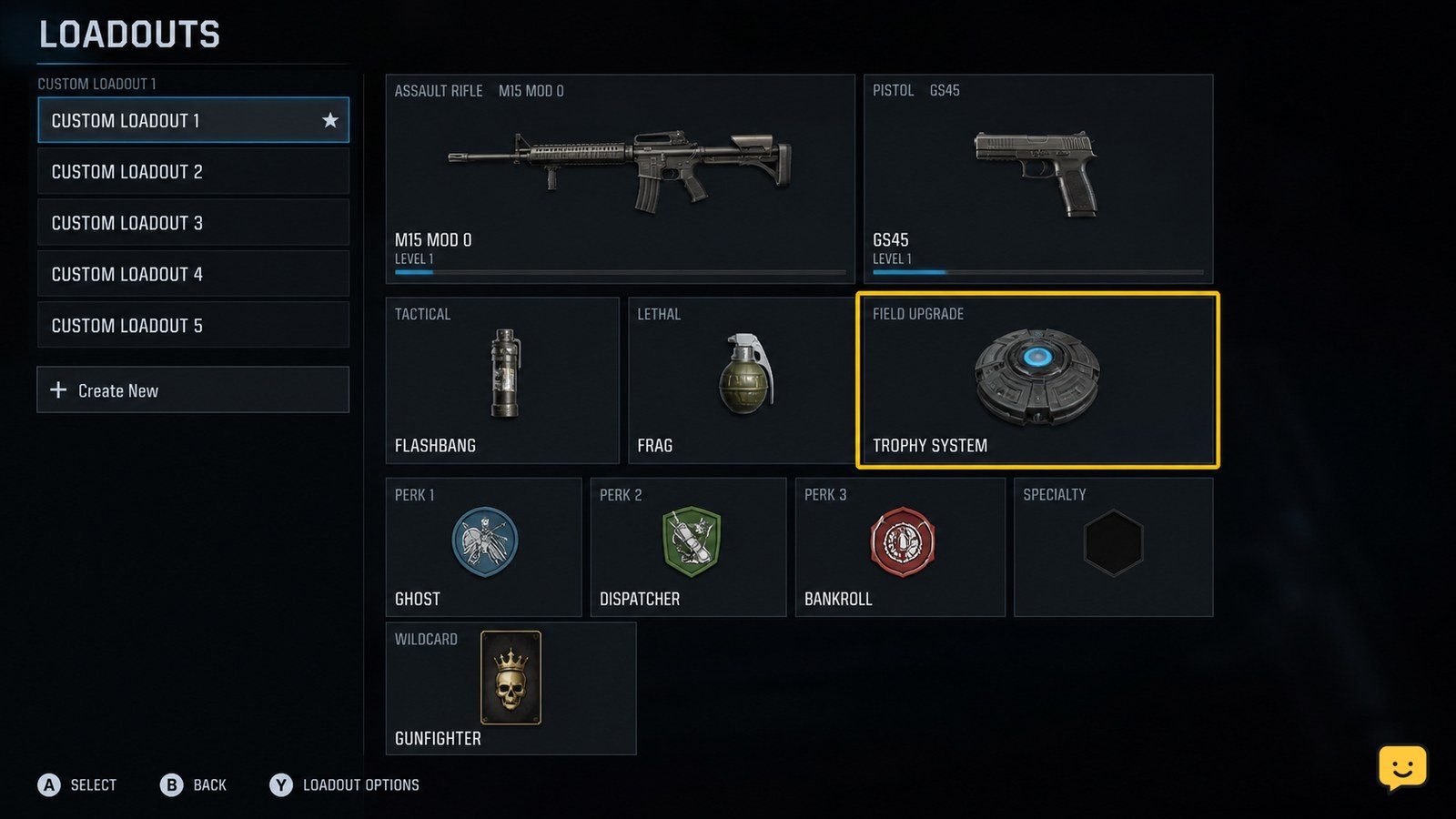
Open Black Ops 7’s Loadouts menu, select the class you plan to use, highlight its Field Upgrade slot, and choose a different upgrade. Confirm the class is saved before entering a match. In Zombies, the available loadout window can be limited to the opening round, so stop and return to the lobby if the slot is no longer editable.
Browse more Call of Duty: Black Ops 7 guides
Change the Field Upgrade from the Loadouts screen
Black Ops 7 changes a Field Upgrade through the class Loadouts screen, not from the weapon Gunsmith screen.
- From the main menu, open Loadouts.
- Select the class or loadout you intend to use.
- Highlight the Field Upgrade slot.
- Choose the replacement from the available Field Upgrade list.
- Confirm the selection, then back out of the class screen.
The selected upgrade should remain displayed in that class after you leave the menu. If the old upgrade is still shown, reopen the slot and confirm the replacement instead of starting a match.
Verify the replacement before entering a match
Black Ops 7 should show the new Field Upgrade on the edited class before matchmaking begins.
Reopen the same loadout and check three things: the replacement name is displayed, its icon has changed, and the class is still selected as your active loadout. This check prevents a common mistake where a player edits one class but enters the match with another.
In a match, activate the Field Upgrade only after checking the HUD icon. The GameFAQs Black Ops 7 field-upgrade guide confirms that the equipped upgrade is activated with the game’s Field Upgrade control, but the exact button depends on your platform and control layout.
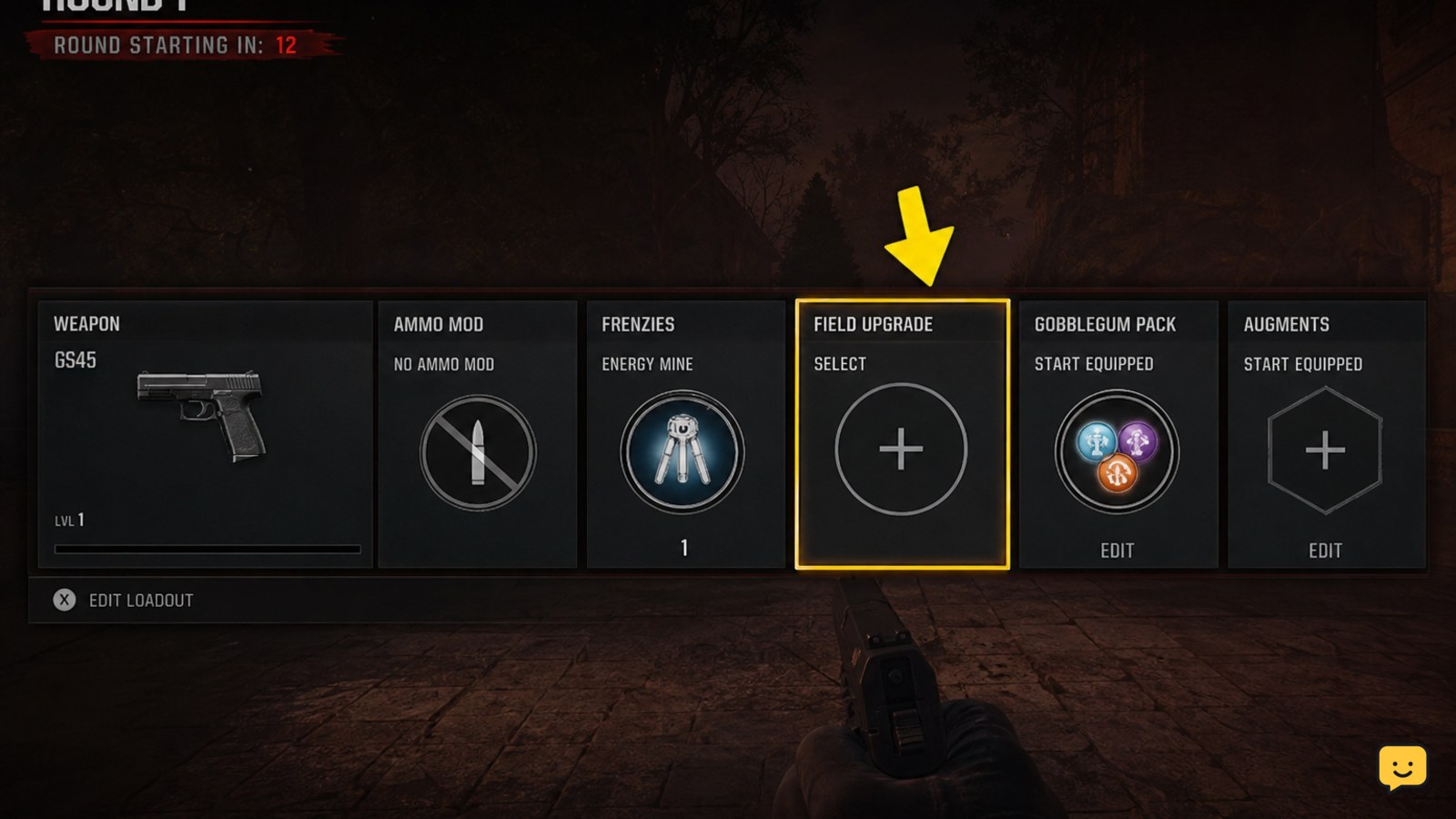
Change the Field Upgrade in Zombies while the slot is editable
Black Ops 7 Zombies can restrict loadout editing to the opening part of a match, so change the Field Upgrade as soon as the loadout option is available.
- Open the Zombies pause or loadout interface during the editable opening window.
- Select the current Field Upgrade slot.
- Choose the replacement and confirm it.
- Return to play and check the HUD icon before using a charge.
Community references for Black Ops 7 Zombies describe a round-one editing window and report that the Field Upgrade may remain changeable after other loadout options become restricted. Treat that as mode behavior rather than a guarantee for every match: if the slot cannot be selected, do not force the change. Return to the lobby and edit the class there.
Fix a Field Upgrade slot that will not change
A locked or unresponsive Field Upgrade slot usually means the current game state does not permit loadout editing, the wrong class is selected, or the replacement is unavailable.
- Slot is greyed out: leave the match or wait until the permitted loadout window appears. In Zombies, the opening-round limit is the main boundary to check.
- Selection changes but reverts: return to the main Loadouts menu, select the class again, choose the upgrade, and verify it remains displayed after backing out.
- Upgrade is missing: check whether it is unlocked for the account and mode. Do not assume an unavailable item is a save error.
- HUD still shows the old icon: confirm that you entered with the edited class, then restart matchmaking if the class screen and in-match HUD disagree.
If the slot remains unavailable from the main Loadouts menu, stop there. The supplied current evidence does not establish a separate workaround that safely changes a locked class slot.
Choose the Field Upgrade for the class’s job
Black Ops 7 class customization is most useful when the Field Upgrade supports the weapons and role already assigned to the class.
Use a defensive or space-making option when the class is built for holding an objective or surviving close pressure. Choose a damage or engagement-focused option when the class is intended to start fights. For Zombies, favor the upgrade that covers the situation your team cannot already handle, such as crowd control, emergency recovery, or an opening for a revive.
These are loadout decisions rather than permanent commitments. You can edit the class again between matches without changing the weapon attachments or rebuilding the entire loadout.
Frequently asked questions
Can you change a Field Upgrade during a Black Ops 7 match?
Sometimes. Zombies may expose an editable loadout window during the opening round, but the slot can become locked afterward. Multiplayer changes should be made from the Loadouts menu before matchmaking. If no Field Upgrade selection prompt appears, stop trying to change it in that match and edit the class from the lobby instead.
Why is my Field Upgrade locked in Black Ops 7 Zombies?
Your Zombies loadout window may have closed, or the game may be showing a class that is not currently editable. Check the pause or loadout screen during the opening round. If the Field Upgrade slot is greyed out, leave the match and replace it from the main Loadouts menu.
Does changing a Field Upgrade change the whole class?
No. Changing the Field Upgrade replaces that class slot only. Your weapons, attachments, equipment, perks, and other saved class choices should remain unchanged. Reopen the class after saving to confirm that the new Field Upgrade appears while the rest of the loadout is intact.
How do I know the Field Upgrade change worked?
Reopen the edited class before queueing and check that the upgrade name and icon have changed. After entering a match, compare the HUD Field Upgrade icon with the class you selected. If either screen still shows the old upgrade, return to the lobby and save the class again.