Open your Black Ops 7 loadout, choose a tactical equipment item, and save the class before entering a match. In standard modes, use the tactical input shown beside the equipment icon—usually L1 on PlayStation, LB on Xbox, or the bound keyboard key. In Black Ops Royale, open the inventory with Down, then cycle tacticals before deploying.
Browse more Call of Duty: Black Ops 7 guides
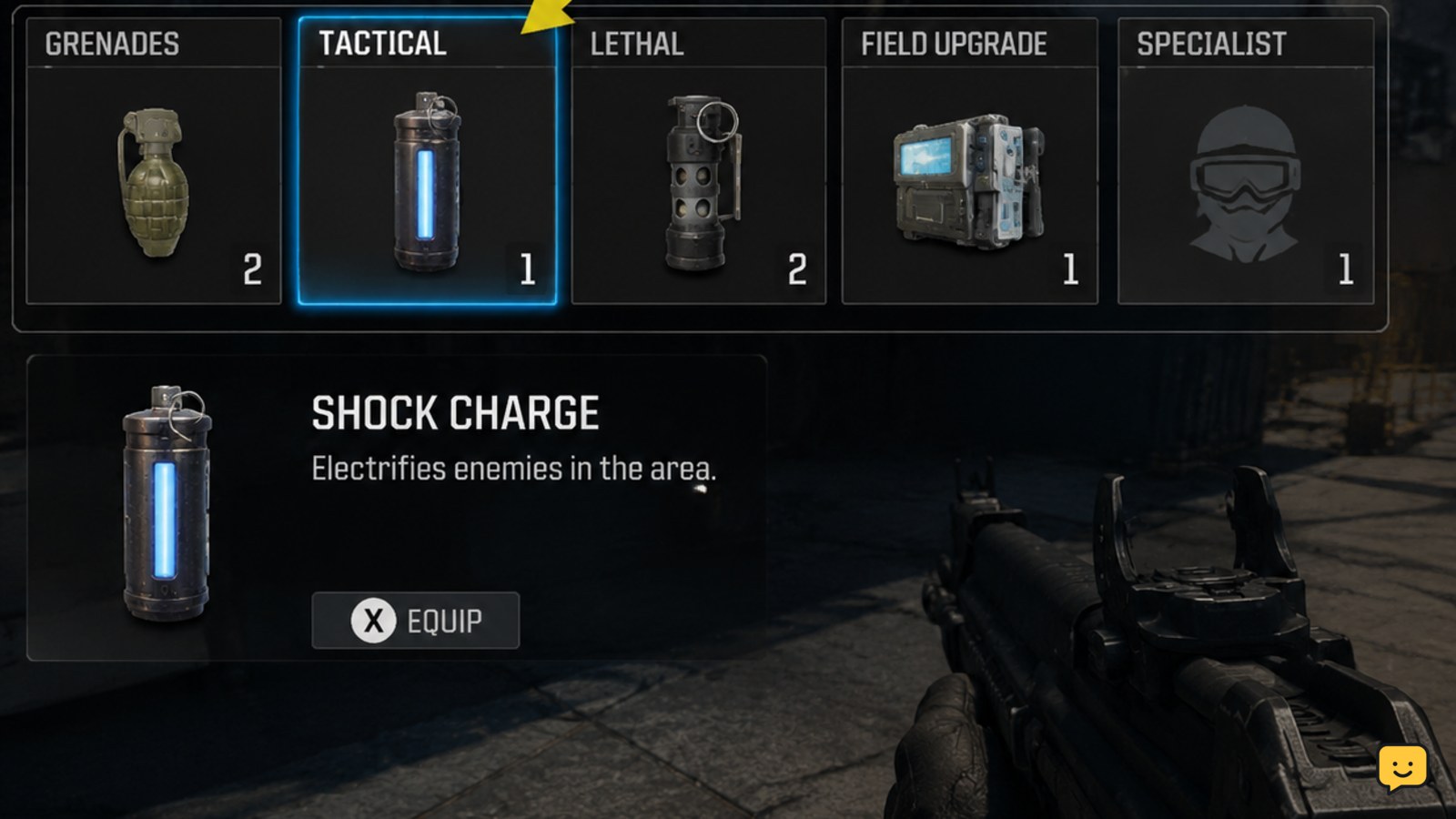
Choose a tactical in the Loadouts menu
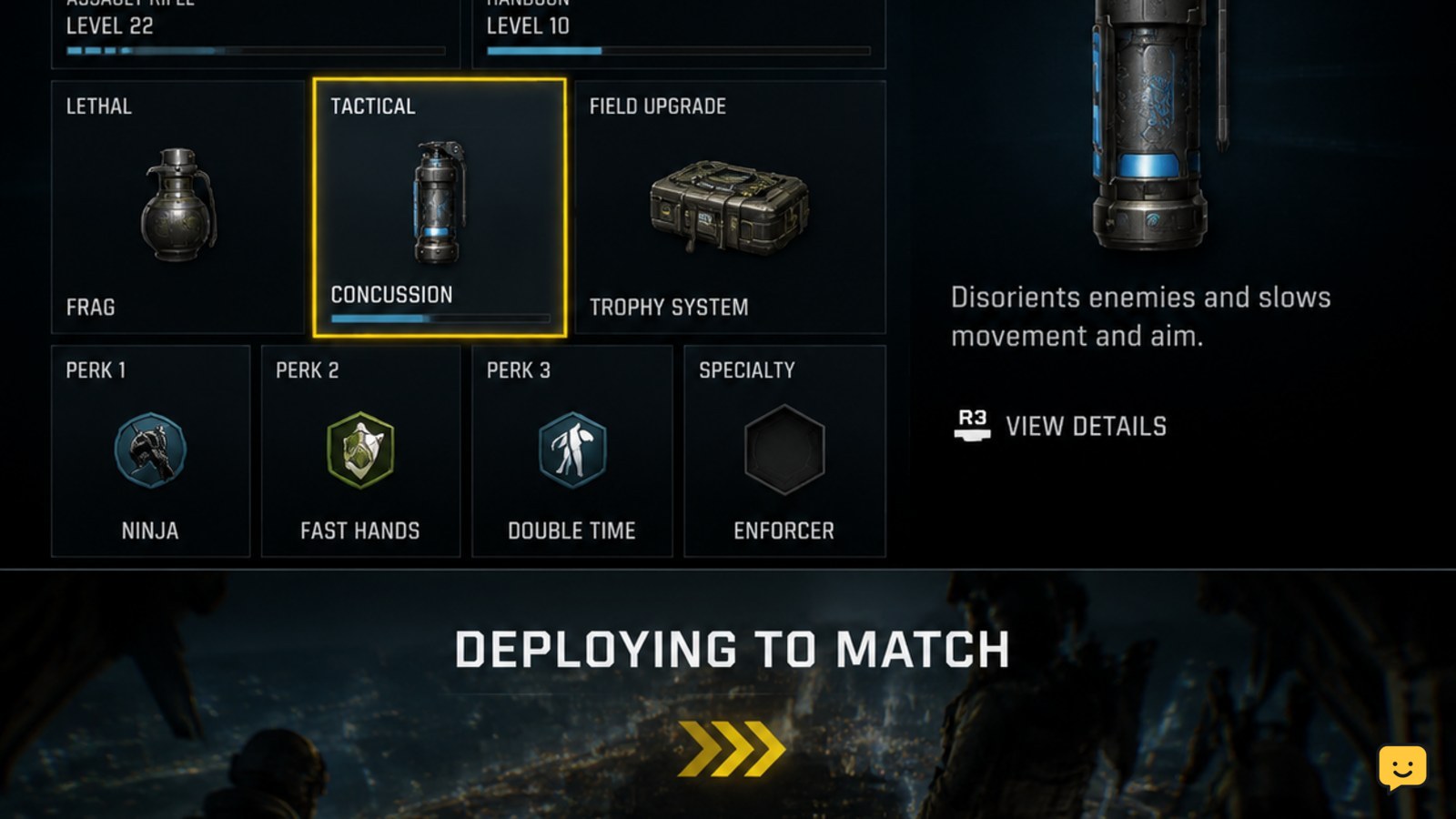
Start from the main menu and open Loadouts. Select the class you plan to use, then open its tactical equipment slot. Choose an available tactical and save or equip the class before launching the match.
The tactical slot is separate from lethal equipment and field upgrades. Check the item name and icon after selecting it so you do not enter the match with the wrong equipment type. Black Ops 7 equipment lists include several tactical options, and availability can depend on the mode or progression state.
Verify the result: return to the class overview and confirm that the selected tactical appears in the tactical slot. If the slot is locked or the item is missing, select an unlocked option instead; do not treat a locked item as a control problem.
Read the tactical input beside the equipment icon
Enter the match and look at the lower HUD. The tactical icon should show the item you equipped and the number of uses available. Press the input displayed next to that icon rather than relying on a remembered button from another Call of Duty title.
- On a default PlayStation controller layout, the tactical input is commonly L1.
- On a default Xbox controller layout, the corresponding input is commonly LB.
- On keyboard and mouse, use the key shown in Settings > Keyboard & Mouse > Keybinds.
These controls can change after custom remapping, and mode-specific interfaces can add an inventory step. The on-screen HUD and your control settings are the final check for the active match.
Deploy the tactical when its icon is ready
Press the tactical input once when the icon is available. Aim toward the intended area if the item uses a trajectory or placement preview, then release or confirm the input shown on screen. Some tacticals affect a location, while others target enemies or provide information, so use the preview and reticle rather than throwing immediately.
After deployment, watch for the equipment count to decrease and for the tactical effect to appear. A successful use may show a projectile, area effect, enemy marker, disruption effect, or other clear HUD response depending on the item.
Do not press the input repeatedly while the icon is greyed out. The equipment may be on cooldown, depleted, blocked by the current state, or unavailable in that mode.
Cycle tacticals in Black Ops Royale inventory
Black Ops Royale can handle tactical selection differently from standard multiplayer. Community reports describe opening the inventory with Down on the D-pad, then using the shoulder buttons to move between tactical and lethal equipment. On PlayStation, reports identify L1 for tacticals and R1 for lethals after the inventory is open.
Use this path when the tactical you want is in a secondary inventory slot:
- Press Down on the D-pad to open the equipment inventory.
- Press the tactical-cycle input shown by the inventory interface until the intended tactical is highlighted.
- Close the inventory or return to the gameplay view if required.
- Press the tactical input to deploy the highlighted item.
Verify the result: the highlighted item and the HUD icon should match before you throw it. If a grappling-style item or another tactical keeps appearing in the wrong slot, reopen the inventory and cycle the tactical category instead of changing the lethal slot.
Fix a tactical that will not appear or deploy
If you cannot use the selected equipment, identify the symptom before changing several settings at once.
- The item is absent from the loadout: choose another available tactical and check whether the original item is locked or restricted.
- The HUD shows the wrong tactical: reopen the loadout, equip the intended item, and confirm the class is active. In Black Ops Royale, cycle the inventory slot before deploying.
- The icon is greyed out: wait for the equipment to become ready, check the remaining count, and move out of any state that blocks equipment use.
- The button does nothing: open the control settings, find the tactical equipment binding, and restore or reassign it. Test the new input in a low-risk match.
- The tactical deploys but has no visible effect: check its range, target conditions, and area of effect. A tactical can activate successfully without producing a hit marker or damage indicator.
Leave the match and edit the class if the item, icon, and binding disagree. Re-enter only after the loadout overview and the in-match HUD show the same tactical.
Match the tactical to the situation before throwing
Choose equipment according to the problem you need to solve, not only the item’s damage potential. Detection or tracking tacticals can help locate enemies, while disruption or concealment tools can support a push, retreat, or objective capture. Read the item description in the loadout menu because effects and restrictions can differ between equipment types.
Deploy from cover when possible. Keep a weapon ready after the throw, and avoid spending the last tactical charge before entering an area where you may need to break line of sight or gather information. In team modes, deploy where teammates can use the resulting information or opening.
Stop testing in a live fight if the HUD does not confirm the selected item or available charge. Resolve the selection or binding issue in the loadout and settings menus first.
Frequently asked questions
What button uses tactical equipment in Black Ops 7?
The default controller input is commonly L1 on PlayStation and LB on Xbox, but custom layouts can change it. Check the tactical icon in the HUD and the tactical equipment binding in Settings before relying on a remembered control.
How do you change tactical equipment in Black Ops 7?
Open Loadouts, select your class, open the tactical equipment slot, choose an available item, and save the class. In Black Ops Royale, you may also need to open the inventory with Down and cycle to the selected tactical before using it.
Why is my tactical equipment greyed out?
A greyed-out tactical may be depleted, cooling down, blocked by the current gameplay state, unavailable in the mode, or missing from the active class. Check the equipment count, wait for the icon to become ready, and confirm the loadout before changing controls.
How do you cycle between tactical and lethal equipment in Black Ops Royale?
Open the inventory with Down on the D-pad, then use the shoulder-button prompts shown by the inventory to switch categories. Community reports identify L1 for tacticals and R1 for lethals on PlayStation, but the displayed prompt takes priority after remapping.