A smart TV remote will not control smart home devices unless the TV and remote support that ecosystem or a connected hub. Confirm compatibility, connect the TV and devices to the same smart home platform, pair the remote, and allow device-control permissions. If TV controls work but home devices do not, the problem is usually integration, pairing, network, or permission related.
Check whether the remote can control smart home devices
Most TV remotes communicate with the television through infrared, Bluetooth, or both. Smart lights, plugs, thermostats, and cameras usually need a network connection through a compatible TV platform, smart speaker, bridge, or hub. A remote with a microphone or a home-control button is not automatically compatible with every third-party ecosystem.
- Test the remote’s Power, volume, Home, and navigation buttons on the TV.
- Look for a home-control, assistant, microphone, device, or input button. Its presence suggests a possible integration, not guaranteed support.
- Check the TV manufacturer’s compatibility list for your exact model and the smart home platform you use.
- Confirm that the individual device type is supported. A platform may support lights but not every brand, camera, switch, or appliance.
Verification: The TV model, remote model, ecosystem, and device type should all appear in the same supported setup path. If the exact TV or device is unsupported, the remote cannot be made to control it through official settings. Use the device’s approved app, voice assistant, or compatible hub instead.
Reset and pair the TV remote
If ordinary TV buttons work but smart-home commands do nothing, refresh the remote connection before changing the home setup. Samsung’s support guidance, for example, recommends removing the batteries and holding Power for eight seconds on battery-powered Smart Remotes before reinstalling the batteries. Other brands use different button combinations, so follow the instructions for the exact model.
- Remove the remote’s batteries or disconnect its rechargeable power source if the manual allows it.
- Hold the remote’s Power button for the duration specified by the manufacturer. If no duration is listed, do not repeatedly hold random button combinations.
- Install fresh batteries with the correct orientation, or fully charge the remote.
- Stand close to the TV and use the official pairing shortcut shown on the TV screen or support page.
- Wait for the pairing confirmation before testing a smart-home command.
Verification: Navigate through the TV menu, open the home-control panel, and confirm that the remote is listed as connected. If only volume or Power works, the remote may be using infrared while Bluetooth or network-related controls remain unpaired.
Reconnect the TV, hub, and smart home platform
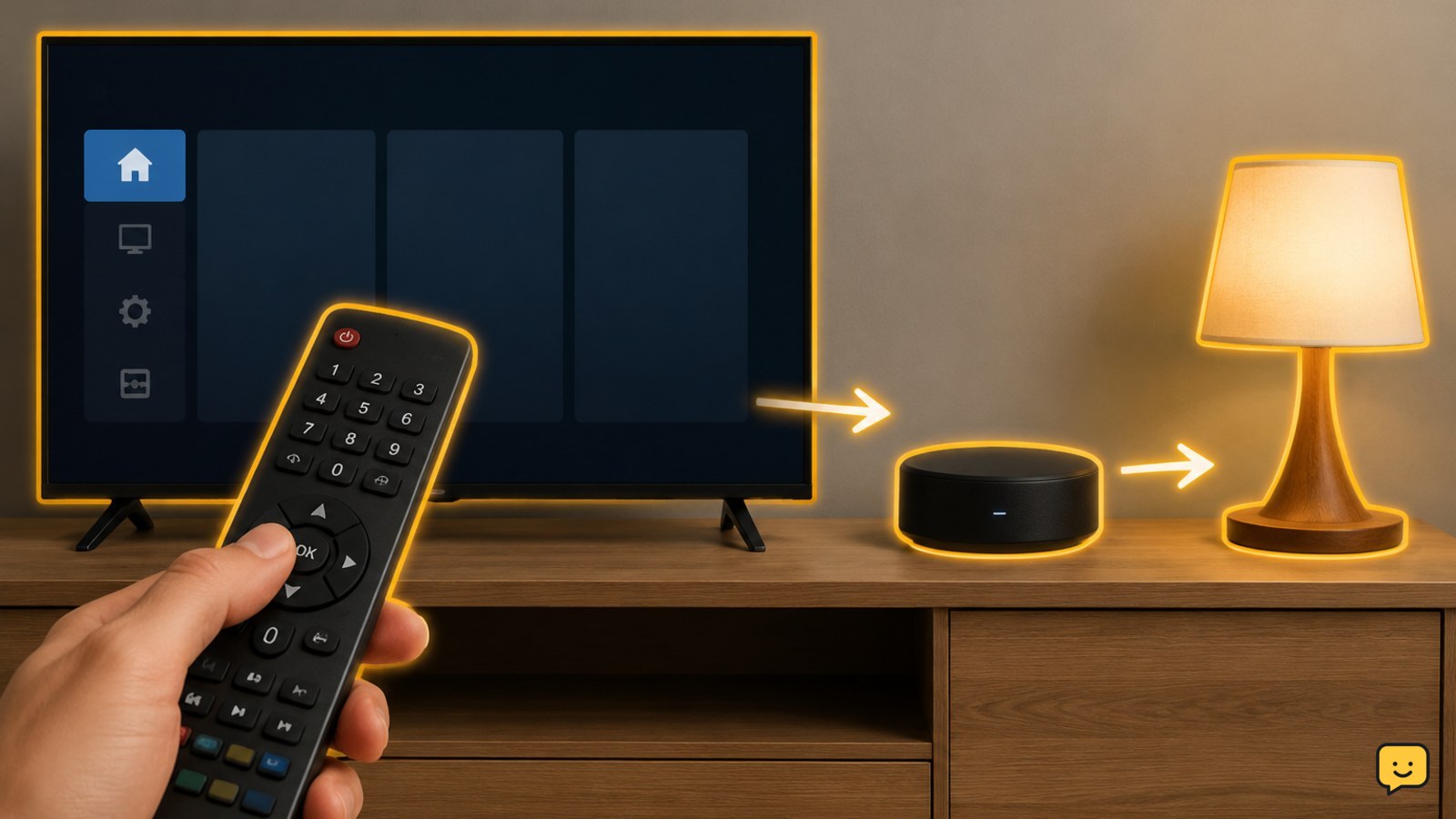
A remote command may pass through several links: remote to TV, TV to the smart home platform, and platform to the device or hub. One broken link can leave TV buttons working while home-device controls fail.
- Open the TV’s network settings and confirm that it is connected to the intended home Wi-Fi network.
- Confirm that the hub, bridge, or smart speaker is powered and connected to the same home network where the platform requires it.
- Open the platform’s official app and check whether the target device responds there.
- If the app also fails, restart the affected device and hub according to their manuals, then wait for them to reconnect.
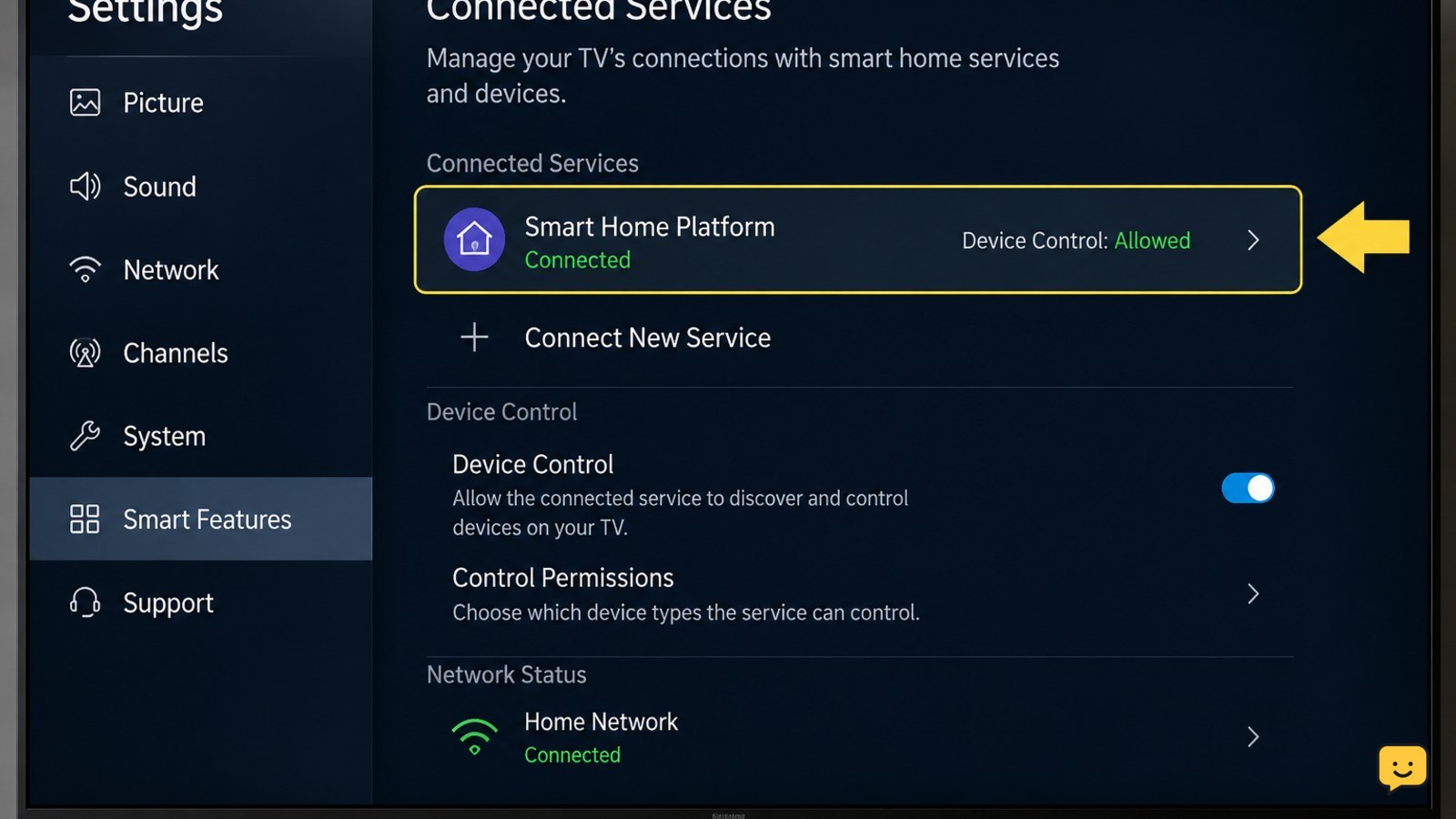
- In the TV’s connected-services or assistant settings, disconnect and reconnect only the affected service.
- Approve the requested device-control permissions using the account you own or manage.
Verification: Control one device from the official app first, then from the TV’s home-control screen, and finally with the remote. If the app works but the TV does not, focus on the TV integration or permission link. If the app fails too, the remote is not the primary fault.
Review rooms, device names, and control permissions
Integrations can appear connected while commands fail because the device is in a different home, room, account, or permission group. Duplicate names can also make a voice or remote command target the wrong device or produce no clear result.
- Check that the TV and target device belong to the same home or household in the platform app.
- Review the connected-service account and confirm it is the account that owns or has permission to control the device.
- Rename duplicate devices with short, distinct names such as “Desk Lamp” and “Sofa Lamp.”
- Check whether the device is offline, hidden, restricted, or assigned to a room the TV cannot access.
- Review privacy, microphone, local-network, and device-control permissions. Grant only the access needed for the integration.
- Save changes, close the TV control panel, and reopen it so the device list can refresh.
Security check: Never share a password or verification code to complete pairing. Use the platform’s normal sign-in and approval screens, and remove an integration you do not recognize.
Test a single command before rebuilding routines
Testing one simple action separates a connection problem from a routine or command problem. Choose a low-risk device, such as a lamp or plug that is not powering essential equipment.
- Turn one device off and on from the official platform app.
- Repeat the same action from the TV’s home-control screen.
- Repeat it with the remote’s specific home-control, assistant, or microphone button.
- Wait several seconds after each command and watch the device for a visible state change.
- Test a second device only after the first command succeeds.
Success condition: The same device changes state reliably from the remote at least twice, and the TV displays the matching status. At that point, reconnect any routines or scenes one at a time. If the TV reports success but the device does not change, treat the integration or device status as faulty rather than the remote.
What to do when the remote still cannot control devices
If the remote controls the TV but no smart-home device responds, check the support page for firmware requirements, regional restrictions, discontinued integrations, and model-specific limitations. Update the TV, remote, hub, and device only through their official settings. Then restart the TV and hub and repeat the single-device test.
If the remote cannot control the TV reliably either, troubleshoot the remote separately: inspect battery contacts, confirm the correct pairing mode, and test the TV’s own buttons. Do not assume a factory reset will add compatibility. A reset removes settings but cannot add an unsupported ecosystem.
Final stop point: If the exact models are supported, the app controls the device, permissions are correct, and a fresh pairing still fails, contact the TV or smart-home manufacturer with the model numbers, software versions, and the result of each test. Use the official app or a supported hub while waiting.
Frequently asked questions
Can any smart TV remote control smart home devices?
No. The TV, remote, smart home platform, and target device must support the same integration. Some remotes only control the TV and connected media equipment, while others can send commands through a supported hub or assistant. Check the exact TV and remote models rather than relying on the remote’s microphone, Bluetooth, or home button.
Why does my remote control the TV but not my smart lights?
The TV connection is working, but the smart-home integration may be disconnected, unsupported, offline, or missing permission. Test the light in its official app, then check the TV’s connected-service account, device access, network connection, and pairing status. If the app cannot control the light, fix that device or hub connection first.
Do the TV and smart devices need to be on the same Wi-Fi?
Often, yes, although the exact requirement depends on the platform and hub. Put the TV, hub, and test device on the intended home network, then check their connection status in the official apps. Guest networks, isolated networks, and different home profiles can prevent local discovery even when every device appears connected.
Will resetting the remote make it compatible with a smart home platform?
No. Resetting can clear a failed Bluetooth or device pairing, but it cannot add support for an ecosystem that the TV or remote does not offer. Reset and pair the remote only after checking compatibility. If the model is unsupported, use the platform’s approved app, voice assistant, or compatible hub instead.
Browse more Home Electronics guides for help with this topic.