Open your Google Account’s third-party connections page, review each unfamiliar app or service, and select it to see the access it has. Choose the option to remove or delete the connection, then confirm. Verify that the app no longer appears and review recent security activity, recovery methods, and 2-Step Verification. Removing access does not necessarily delete data already held by the app.
1. Open Google’s connected-apps settings
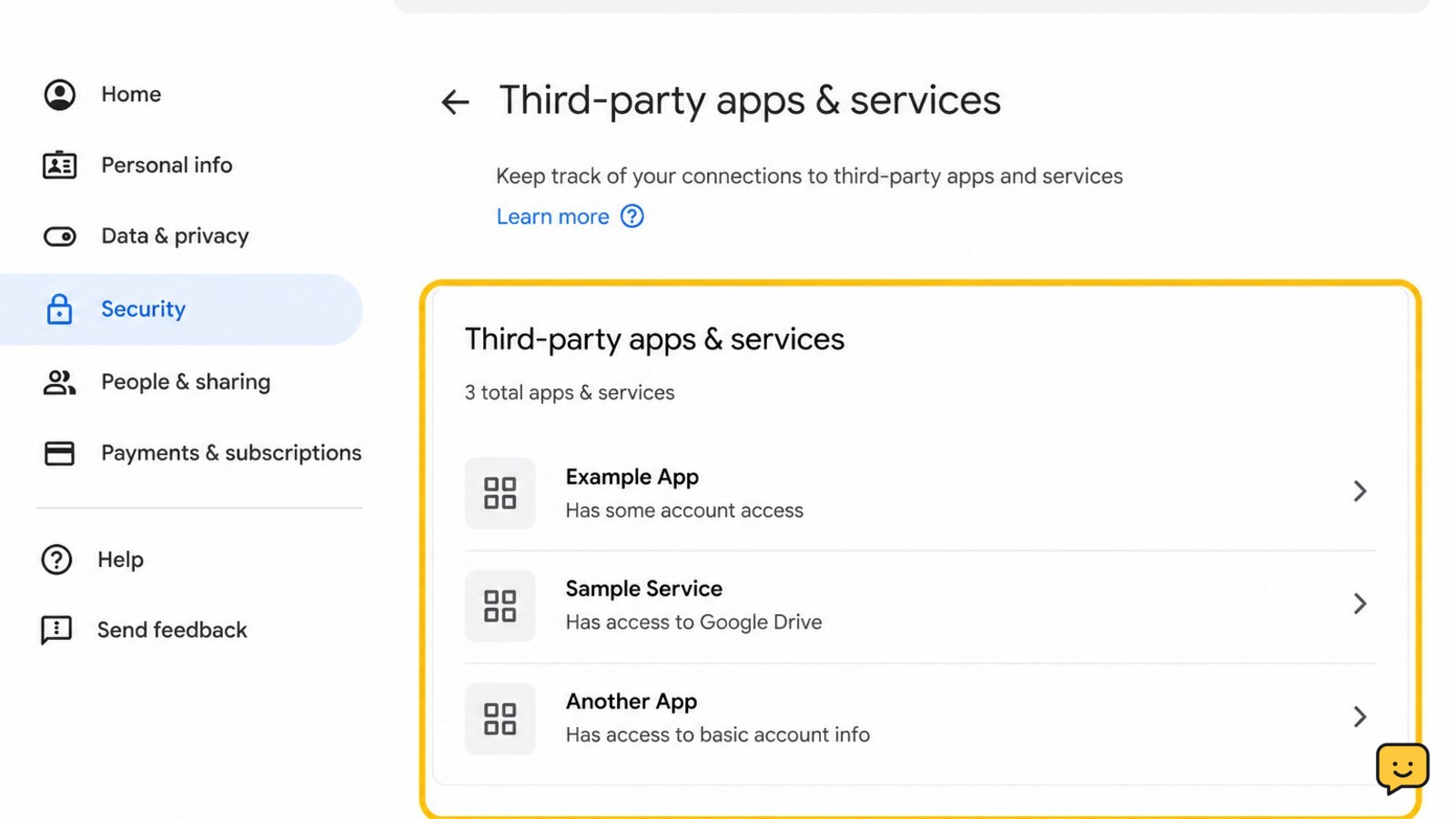
Go directly to myaccount.google.com/connections, or open your Google Account and select Security. Look for the area describing your connections to third-party apps and services. Google’s labels can change, so you may see options such as See all connections, Sign in with Google, or Access to your Google Account.
Google separates some connection types. An app may use Sign in with Google, have access to selected account data, or have a linked account relationship. Review each relevant group rather than assuming one list contains everything.
2. Check whether the app is actually unfamiliar
Before revoking access, select the app or service and read its details. Check the developer name, website, connection type, date or timing if shown, and the data or permissions it can use. An unfamiliar name may belong to a service you recognize under a parent company, an old phone app, a browser extension, or a workplace tool.
Look for clues in your email, installed apps, subscriptions, cloud backups, and password manager. Do not sign in to an unfamiliar website just to investigate it. If you still cannot connect the app to something you intentionally used, treat the connection as unnecessary.
3. Revoke the app’s Google access
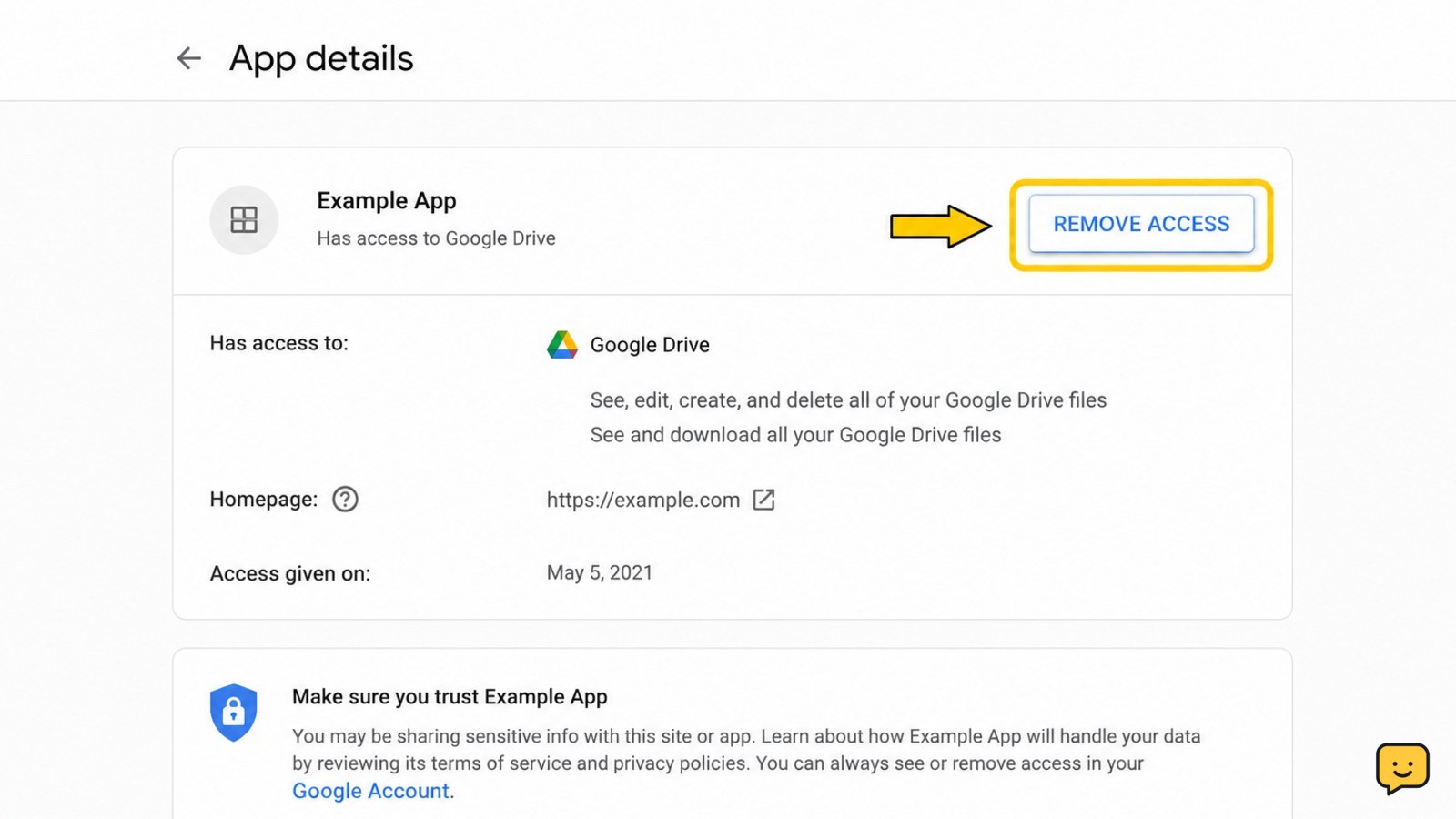
Open the unfamiliar app’s connection details and choose Remove access, Delete all connections, or the equivalent option displayed by Google. Read the confirmation message carefully, then confirm the removal.
Revoking access prevents that connection from continuing to use the permissions granted through Google. It may sign you out of the service, stop syncing, or disable features that depend on the connection. That is expected. It does not uninstall the app from your phone or computer.
If the service is legitimate but you want to keep using it, do not remove it until you know how you will sign in afterward. Removing a Google connection may leave the service with a separate password, another sign-in method, or no usable sign-in method at all.
4. Verify that the connection is gone
Return to the connected-apps list and search for the same app or developer. It should no longer appear as an active connection, or its details should show that access was removed. If Google displays a removal confirmation, save it only if you need a record.
Open the app or website separately only if you recognize it and need to confirm its status. If it reports that Google access is missing, the revocation worked. Do not grant access again merely because the service asks you to reconnect.
If the app remains listed, refresh the page, check another connection category, and repeat the removal from the app’s details page. If the control is unavailable, the connection may be managed by an organization or may use a different account.
5. Review account security without assuming a breach
An unfamiliar app connection does not by itself prove that someone accessed your account. It can result from an old authorization, a forgotten sign-in, a renamed service, or a connection made on a shared device. Still, a brief review is worthwhile.
- Open Security in your Google Account and review recent security activity and your devices or sessions.
- Check that your recovery phone number and recovery email are still yours.
- Review 2-Step Verification methods, passkeys, security keys, and backup codes for anything you do not recognize.
- Change your Google password if you find suspicious sign-ins, an unknown security change, password reuse, or any other sign of account misuse. Use a new, unique password.
- Turn on 2-Step Verification if it is not already enabled, then confirm that your available verification methods are current.
If you find evidence of unauthorized mailbox access, also inspect Gmail forwarding addresses, filters, and delegation. Access revocation alone may not undo changes made inside a service.
6. Check the third party separately
Google can remove the connection between your account and an app, but it cannot necessarily delete information that the app already received or stored. Visit the recognized provider’s official privacy or account settings if you want to request deletion, close the account, cancel a subscription, or remove data.
Use the provider’s address that you already know or find through a trusted search. Avoid support links in suspicious messages. If the provider claims it cannot remove data without a password you do not recognize, stop and use that provider’s official recovery and privacy channels.
If removal fails
The app is not listed: Confirm the Google email address at the top of the page, then check the other connection categories. The app may use a different Google Account or may be installed without being connected to Google.
Google asks you to verify it is you: Complete the check only on Google’s account pages. If verification fails repeatedly, use Google’s official recovery process rather than repeatedly guessing credentials.
The app reconnects: Uninstall or disable the related app, browser extension, or device integration, then review the connection list again. A provider may request a new authorization after you remove the old one.
You see other suspicious changes: Prioritize securing the Google Account: change the password from a trusted device, review recovery options and sessions, enable 2-Step Verification, and inspect Gmail settings. Do not wait for an unfamiliar app to reappear.
Frequently asked questions
What happens when I remove a third-party app from my Google Account?
Removing the connection stops that app from using the Google permissions you granted through the connection. It may sign you out or stop syncing. It does not necessarily uninstall the app, close your account with that provider, or delete data the provider already received. Use the provider’s official privacy or account settings for deletion or account closure.
Does an unknown app mean my Google Account was hacked?
No. An unfamiliar connection can come from an old authorization, a renamed service, or an app used on a shared device. Review recent security activity, devices, recovery methods, 2-Step Verification, and Gmail settings. Change your password and secure the account if you find changes or activity you did not make.
Why can’t I find an app connected to my Google Account?
First confirm that you are signed in to the correct Google Account. Then check each connection category, including Sign in with Google, account-data access, and linked accounts. Some apps are merely installed on a device and have no Google Account connection. Work or school administrators may also manage certain connections.
Can I remove third-party access from my phone?
Yes. Open your phone’s browser, go directly to myaccount.google.com, sign in, and open the connected-apps settings. The same account-level change applies across your devices. Removing an app from your phone alone does not necessarily revoke its Google Account permissions, so complete the removal in Google Account settings.
Browse more Privacy & Online Safety guides for help with this topic.