
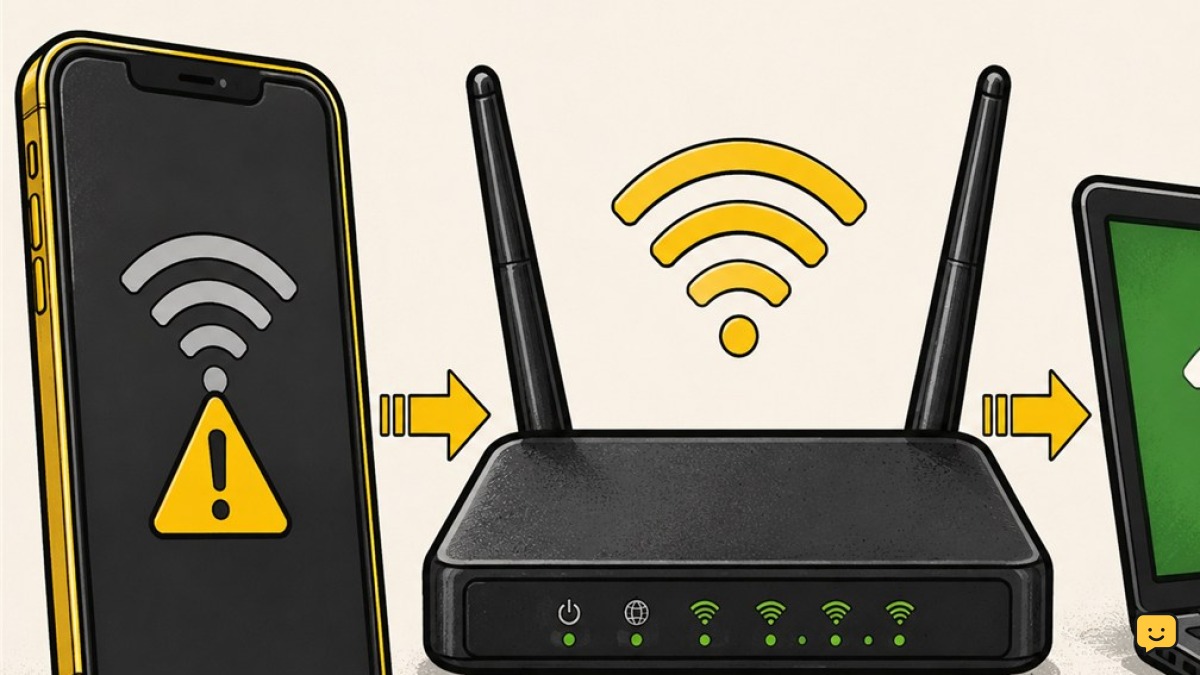
First, check whether other devices can use the same Wi-Fi; that separates a phone problem from a router or internet problem. Then toggle Airplane mode, restart the phone, forget and rejoin the saved network, and restart the router. If it still fails, restore automatic IP settings, update the phone, or reset network settings.
1. Identify whether the phone or network is failing
Start by testing the same home Wi-Fi with another trusted device, such as a computer, tablet, or second phone. This prevents unnecessary changes to equipment that is already working.
- If another device connects and reaches the internet, focus on the problem phone.
- If no device connects, restart the router and check for an internet-provider outage.
- If the phone connects to Wi-Fi but websites and apps do not load, the phone has joined the router but the network may lack internet access.
- If the home network does not appear on the phone at all, move closer to the router and refresh Wi-Fi before changing saved-network or IP settings.
Verify: Note whether the network is missing, rejects the password, remains stuck while connecting, or connects without internet. That result determines which step to try next.
2. Refresh the phone’s wireless connection
A temporary wireless fault can often be cleared without deleting settings.
- Turn Wi-Fi off on the phone.
- Turn Airplane mode on, wait briefly, and turn it off again.
- Turn Wi-Fi back on and select the home network.
- If the connection still fails, restart the phone normally and test again.
Verify: Confirm that the phone joins the correct network and can load an online page or refresh an internet-based app.
If it fails: Continue to the saved-network step. Do not repeatedly toggle settings if the phone cannot detect any Wi-Fi network; restart it once, check for updates, and then consider service.
3. Forget and rejoin the saved home network
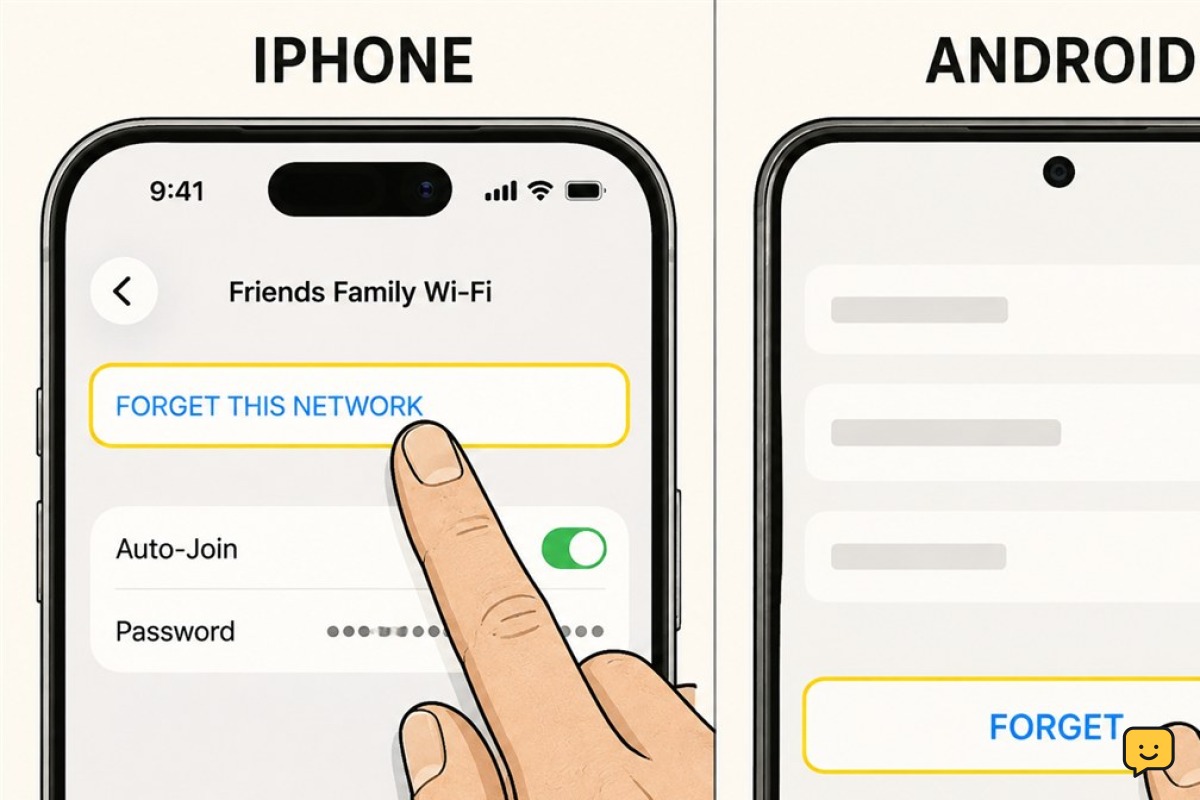
An old password or damaged saved-network profile can stop a phone from completing the connection.
- Open the phone’s Wi-Fi settings and select the home network.
- Choose the option to forget or remove that network.
- Select the network again from the available-network list.
- Enter the current Wi-Fi password carefully. Passwords are case-sensitive, so check capitalization and similar-looking characters.
Forgetting the network removes its saved connection details from that phone. It does not change the router password or disconnect other devices.
Verify: The phone should show the home network as connected and regain internet access.
If it fails: If the password is rejected, confirm it through an authorized source such as the router’s management app, the internet provider, or the person who manages the network. Do not keep guessing or weaken the router’s security settings.
4. Restart the router safely
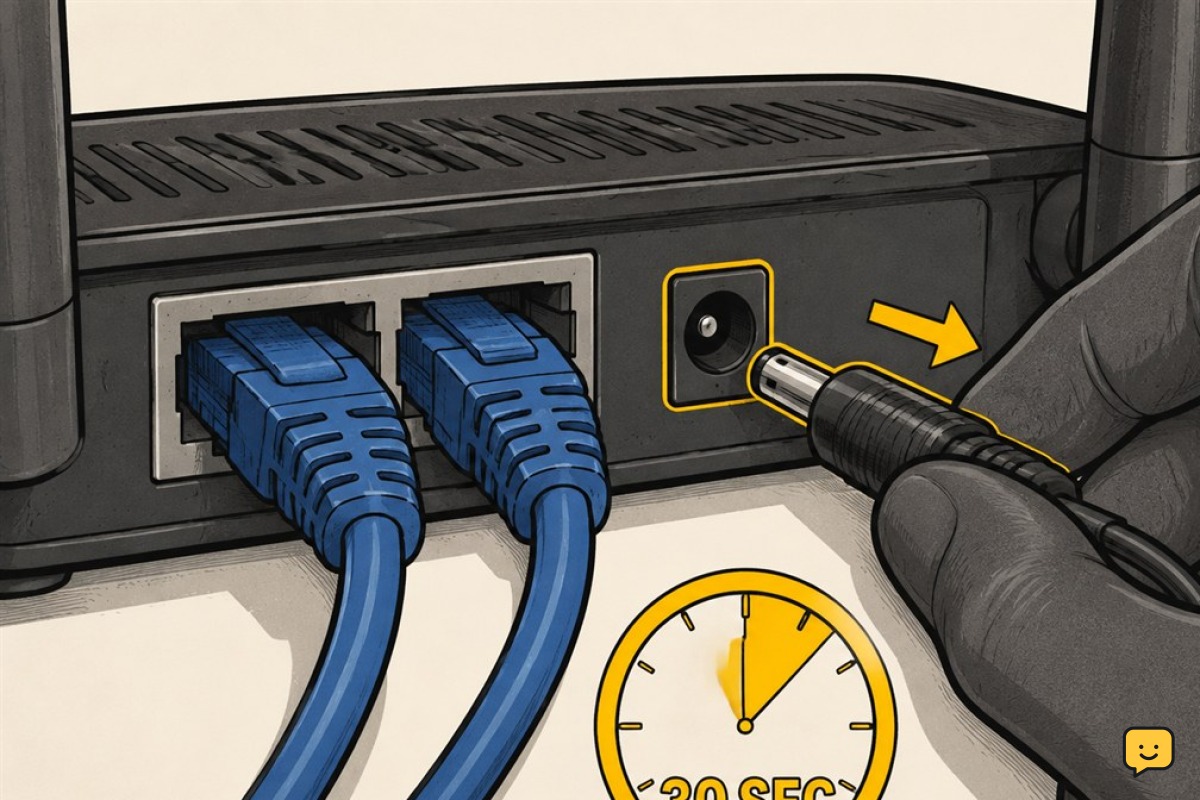
If several devices are affected, or the phone still cannot join after removing its saved profile, restart the home network equipment.
- Use the router or internet provider’s normal restart option when available. Otherwise, follow the manufacturer’s power-cycle instructions.
- Wait for the router’s normal connection lights to return before testing the phone.
- Reconnect the phone to the saved network and check internet access.
A restart is different from pressing a recessed reset button. A factory reset can erase the network name, password, and provider-specific settings, so do not use it for routine troubleshooting.
Verify: Test the phone and one other device. If neither device works, the failure is likely with the router, modem, or internet service rather than the phone.
5. Restore automatic IP and proxy settings
If other devices work but the phone remains stuck on connecting or reports no internet, inspect that network’s advanced settings. Exact menu names vary between Android phones and iPhones.
- Open the details for the home Wi-Fi network.
- Set IP assignment to automatic or DHCP unless your network administrator intentionally supplied a fixed address.
- Set the proxy option to off or none unless the network intentionally requires one.
- Save the changes, disconnect from the network, and reconnect.
Do not copy an IP address from another device. Two devices should not be manually assigned the same address.
Verify: The phone should finish connecting and gain internet access. If settings return to a custom value, check for a work profile, device-management configuration, VPN, or security app before removing anything required by an organization.
6. Update the phone, then reset network settings
Use these broader phone-side fixes only after the simpler steps have failed.
- Using mobile data or another working connection if available, check for a system software update from the phone’s official settings.
- Install the update, restart the phone, and test the home Wi-Fi again.
- If the phone still fails, find the option to reset network settings.
- Read the confirmation screen before proceeding. Depending on the phone, this may remove saved Wi-Fi networks, Bluetooth pairings, VPN details, and related connection preferences.
- After the reset, join the home network with its current password.
Verify: Test the home Wi-Fi and, if possible, a second trusted Wi-Fi network.
Failure path: If the phone connects elsewhere but not at home, focus on the router or ask the internet provider for help. If it cannot connect to any Wi-Fi while other devices can, contact the phone manufacturer or a qualified repair service. Avoid a full factory reset unless support recommends it and your data is backed up.
What the final test tells you
- Only the phone fails on every Wi-Fi network: The phone’s software, configuration, or wireless hardware is the likely cause.
- Only the home network fails on that phone: Recheck the saved profile, password, automatic IP setting, proxy setting, and router compatibility or configuration.
- Every device fails at home: Focus on the router, modem, or internet service.
- The phone connects but has no internet: Restart the network equipment and test another device before changing more phone settings.
Once a step restores a stable connection, stop troubleshooting. Additional resets can erase useful settings without improving the result.
Frequently asked questions
Why does my phone say the Wi-Fi password is incorrect when it is right?
The phone may have an outdated saved-network profile, or the router password may have changed. Forget the network, select it again, and enter the current password carefully. If it is still rejected, verify the password through an authorized router or provider source rather than repeatedly guessing.
Why does my phone connect to Wi-Fi but have no internet?
The phone may be connected to the router even though the router has no working internet connection. Test another device on the same network, restart the network equipment, and check for a provider outage. If other devices work, restore automatic IP and proxy settings on the phone.
Will forgetting a Wi-Fi network change my router settings?
No. Forgetting a network removes its saved password and connection profile only from that phone. It does not change the router’s network name or password and does not disconnect other devices.
Should I reset my router or phone to factory settings?
Not as an early fix. First restart the devices, forget and rejoin the network, check automatic IP settings, update the phone, and consider a network-settings reset. A factory reset can erase important data or configuration and should be a last resort with a backup and device-specific guidance.
When might the phone need repair?
Seek manufacturer or repair support if the phone cannot detect or join any Wi-Fi network after restarting, updating, and resetting network settings, especially if other devices work normally or the phone was recently dropped or exposed to liquid.
Browse more Computers & Internet guides for help with this topic.


