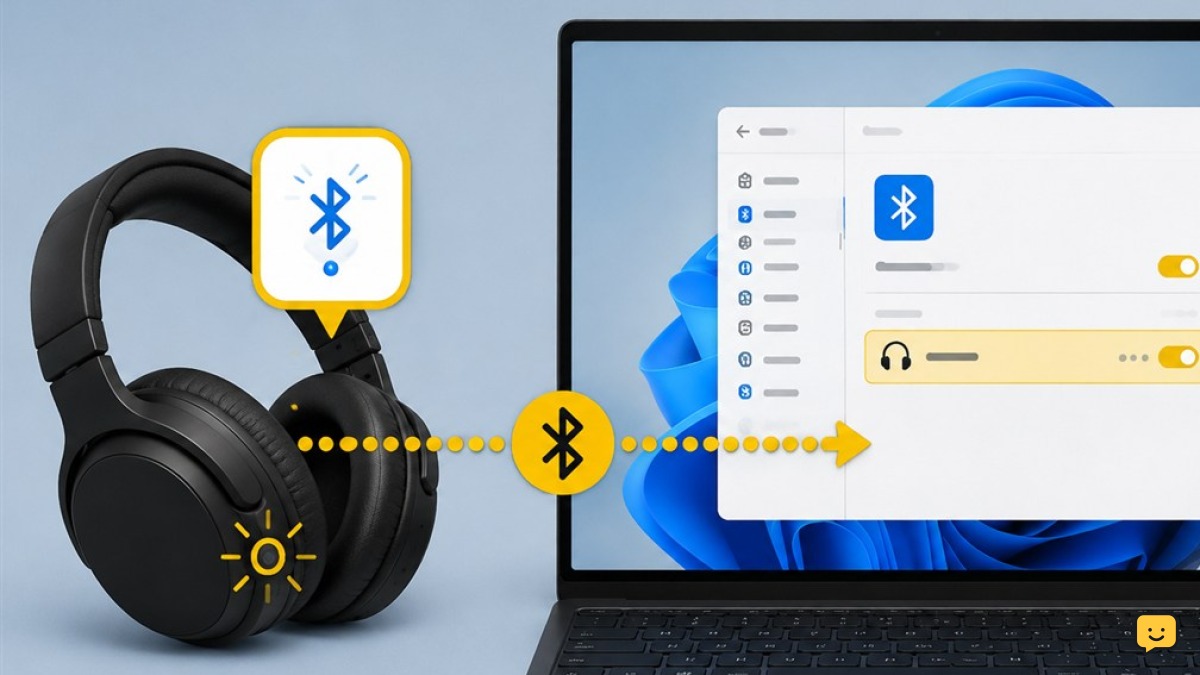
Put the headphones in pairing mode, then open Start > Settings > Bluetooth & devices in Windows 11. Turn Bluetooth on, choose Add device, select Bluetooth, and pick your headphones. After Windows shows them as connected, open the taskbar sound controls and select the headphones as the output device.
Check which connection path you need
This guide applies to Bluetooth headphones, earbuds, and headsets connecting directly to a Windows 11 computer. If your headset includes a dedicated USB wireless receiver, follow the receiver’s instructions instead; that connection may not use the Windows Bluetooth menu.
- First-time connection: Put the headphones in pairing mode and add them through Windows Settings.
- Previously paired headphones: Turn them on and use the reconnect steps below.
- Connected but silent: Leave the Bluetooth pairing intact and check the Windows audio output.
- Not listed: Make the headphones discoverable, disconnect competing devices, and retry detection.
Pair the headphones for the first time
- Turn on pairing mode. Follow the headphone manufacturer’s instructions. Pairing mode is different from simply turning the headphones on; many models use a held power or Bluetooth button and indicate pairing with a flashing light or sound.
- Open Bluetooth settings. Select Start, open Settings, and choose Bluetooth & devices.
- Turn on Bluetooth. If the Bluetooth switch is off, turn it on.
- Start device discovery. Select Add device, then choose Bluetooth.
- Select the headphones. Wait for their model name to appear, then select it. Avoid choosing an unfamiliar device with a similar name.
- Finish pairing. Wait for Windows to report that the device is connected, then close the device window.
If the headphones do not appear within about a minute, close the device window. Confirm that the headphones are still in pairing mode, move them closer to the PC, and try Add device again.
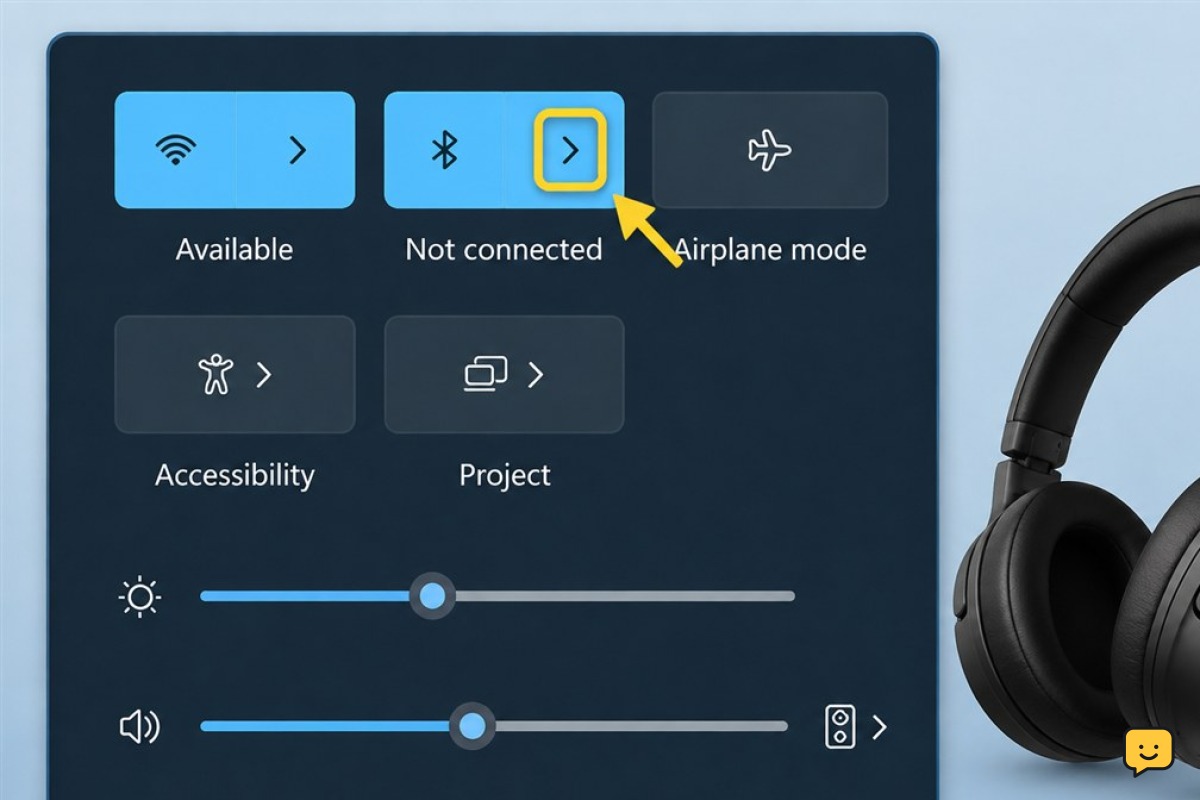
Reconnect headphones that were paired before
Windows generally keeps a paired device saved. You should not need to run the complete first-time setup whenever you use the headphones.
- Turn on Bluetooth in Windows.
- Turn on the headphones and keep them near the computer.
- Wait briefly for them to reconnect automatically.
- If they do not reconnect, open Settings > Bluetooth & devices and select the saved headphones or their available connection control.
If the headphones connect to your phone instead, temporarily turn off Bluetooth on the phone or disconnect the headphones from it. Then retry the Windows connection.
Select the headphones as the audio output
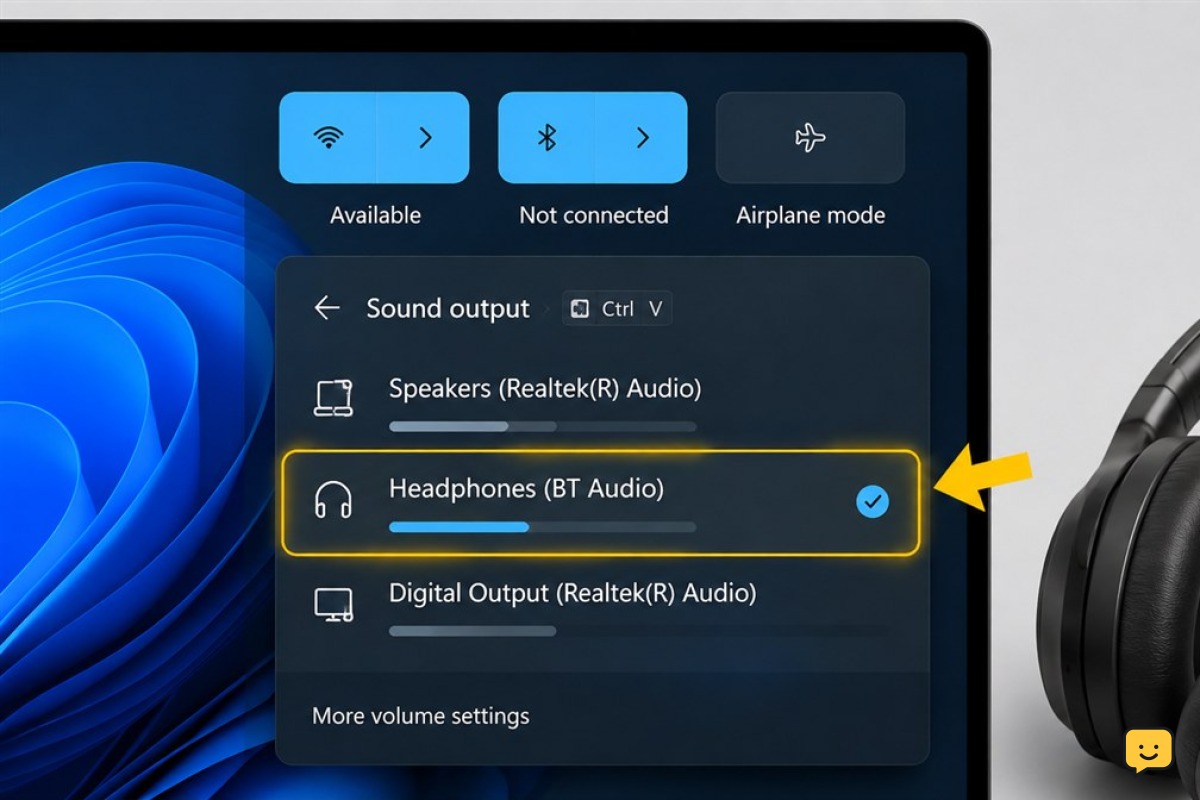
A Bluetooth connection does not always mean Windows has switched sound away from the computer’s speakers. Check the output before removing or pairing the headphones again.
- Select the sound area on the right side of the taskbar.
- Open the audio-output selector beside the volume control.
- Choose the Bluetooth headphones from the available output devices.
- Play a familiar video, music track, or Windows sound at a low volume.
- Raise the Windows and headphone volume gradually if necessary.
Verification: The headphones should remain listed as connected, the output selector should show them as active, and test audio should come through both earpieces. If that happens, setup is complete.
Fix headphones that do not appear
- Confirm pairing mode. Restart pairing mode according to the manufacturer’s instructions. A powered-on headset may still be undiscoverable.
- Check for another connection. Disconnect the headphones from nearby phones, tablets, TVs, or computers.
- Refresh Bluetooth. Turn Bluetooth off in Windows, wait a few seconds, and turn it on again.
- Reduce the distance. Place the headphones beside the computer during discovery.
- Retry discovery. Return to Settings > Bluetooth & devices > Add device > Bluetooth.
- Restart both devices. Restart Windows and power the headphones off and back on before trying again.
If other Bluetooth devices appear but the headphones do not, focus on the headphones’ pairing state or manufacturer reset procedure. If no Bluetooth devices appear and the Bluetooth control itself is missing, stop repeating device discovery and investigate the computer’s Bluetooth availability.
Fix a saved pair that will not reconnect
A stale saved pairing can prevent a clean reconnection. Remove it only after the simpler reconnect checks have failed.
- Open Settings > Bluetooth & devices.
- Find the headphones in the saved-device list.
- Open their additional options and choose Remove device.
- Confirm the removal.
- Put the headphones back into pairing mode.
- Select Add device > Bluetooth and pair them again.
Removing the device makes Windows forget that pairing. Do not use this step when the headphones are already connected and the only problem is incorrect audio output.
Fix connected headphones with no sound
- Confirm that the headphones are selected in the taskbar audio-output menu.
- Check that Windows is not muted and raise the volume gradually.
- Check the headphones’ own volume control, if present.
- Pause audio on other nearby devices that may still be using the headphones.
- Disconnect and reconnect the headphones through Bluetooth & devices.
- If silence continues, restart the headphones and the computer.
If sound works after choosing the correct output, leave the Bluetooth pairing unchanged. If the headphones repeatedly disconnect or never produce audio after being removed and paired again, consult the manufacturer’s support instructions for that model.
Confirm the connection is complete
Before closing Settings, perform these checks:
- The headphones are shown as connected in Bluetooth & devices.
- They are selected as the current sound output.
- Audio plays through the headphones without continuing through the computer speakers.
- The connection remains active when you close Settings.
- After turning the headphones off and back on, they reconnect without another first-time pairing.
Once these checks pass, stop troubleshooting. Repeatedly removing and re-pairing a working device is unnecessary.
Frequently asked questions
Why are my Bluetooth headphones not showing up in Windows 11?
The headphones may be on without being in pairing mode, connected to another nearby device, out of range, or low on power. Restart pairing mode, disconnect other devices, place the headphones close to the PC, and retry Add device > Bluetooth.
Why do my headphones say connected but play no sound?
Windows may still be sending audio to its speakers or another device. Open the taskbar sound controls, display the available outputs, and select the Bluetooth headphones. Also check the Windows and headphone volume levels.
Do I need to pair my Bluetooth headphones every time?
Normally, no. Windows saves the pairing, so turning on the headphones near the computer should allow them to reconnect. If they connect to a phone first, disconnect them from that phone and retry Windows.
Should I remove the headphones from Windows and pair them again?
Only after checking pairing mode, nearby device connections, Bluetooth status, and the selected audio output. Remove and re-pair the headphones when a previously saved connection will not reconnect.
Why is there no Bluetooth option in Windows 11?
If the Bluetooth control is absent rather than merely turned off, Windows may not currently recognize usable Bluetooth hardware. Stop repeating the headphone pairing process and check the computer’s Bluetooth support or contact its manufacturer or administrator.
Browse more Home Electronics guides for help with this topic.