
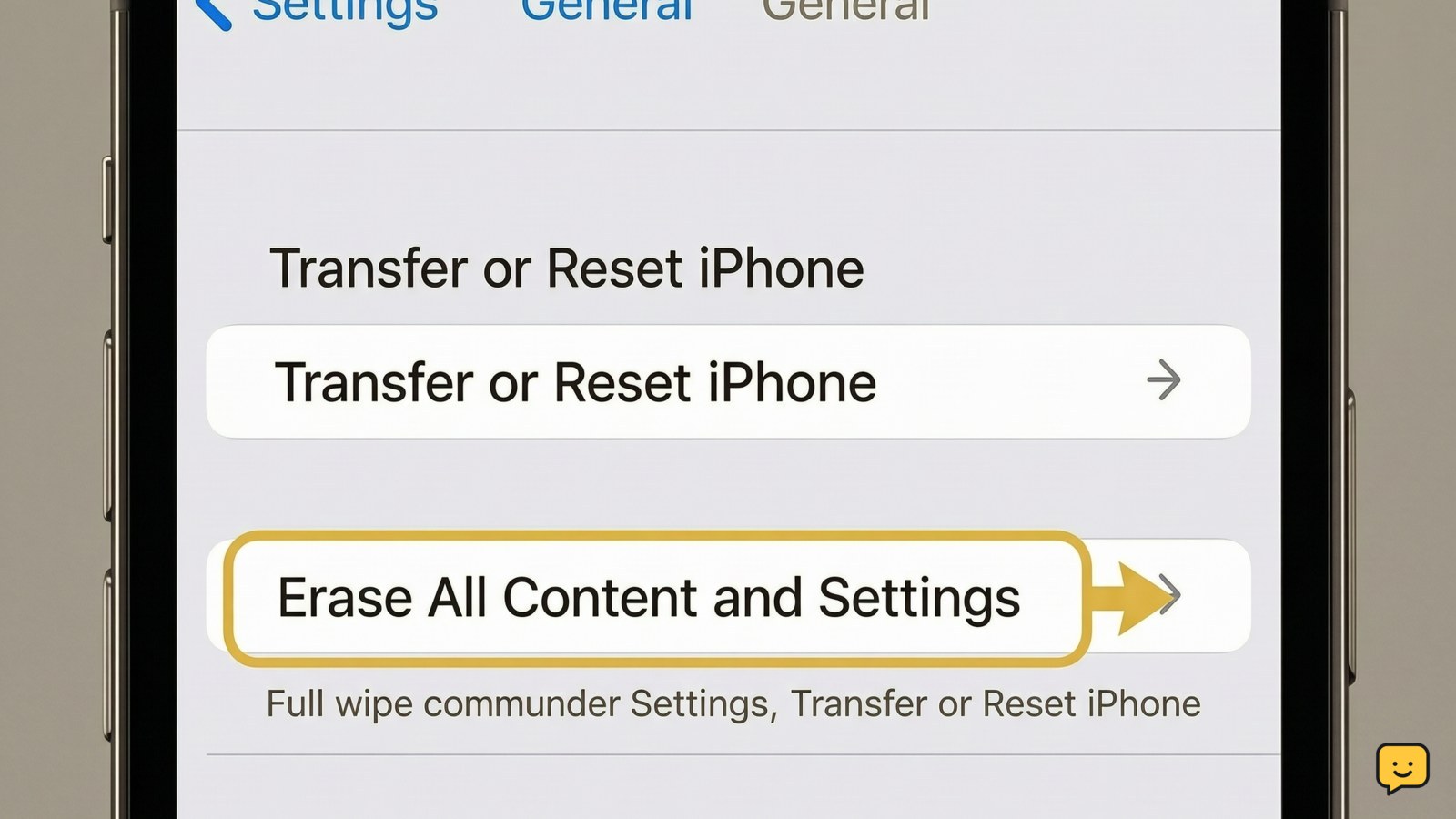
To wipe an iPhone, first back up anything you need, then open Settings > General > Transfer or Reset iPhone. Tap Erase All Content and Settings, review the warnings, enter the requested passcode or Apple Account details, and confirm. The process is complete when the iPhone restarts to the Hello setup screen.
For more help with this topic, use the Mobile Devices guides.
Back up the iPhone before erasing it
Back up the iPhone before wiping it if you need to keep its photos, messages, files, or settings. Erasing all content and settings is destructive: after confirmation, information stored locally is removed and cannot be recovered from the phone through normal menus.
Check that the backup you need has finished before opening the erase command. If the iPhone contains anything irreplaceable and you cannot confirm a backup, stop here rather than continuing. A wipe is appropriate only when you are ready to remove the device’s local data, such as before giving it away, selling it, or starting fresh.
Erase all content and settings from Settings
On a working, unlocked iPhone, the erase command is in Settings > General > Transfer or Reset iPhone. Apple’s current iPhone guide identifies Erase All Content and Settings as the control that removes the device’s content and settings.
- Open the Settings app.
- Tap General.
- Scroll down and tap Transfer or Reset iPhone.
- Tap Erase All Content and Settings.
- Review the information shown, then tap Continue if that is the displayed option.
- Enter the iPhone passcode or Apple Account password when the phone requests it.
- Read any cellular-plan or eSIM prompt. Do not remove a plan until you know that doing so will not interrupt a transfer you still need.
- Confirm the erase and leave the iPhone connected to power while it works.
The exact confirmation wording can vary with the iOS version and the phone’s setup, but the erase option remains under the Transfer or Reset iPhone screen according to Apple Support.
Verify that the iPhone is truly wiped
A wiped iPhone restarts to the initial Hello setup screen instead of showing your familiar Home Screen, apps, photos, or messages. Swipe or tap through only far enough to confirm that setup has begun; do not sign in again if the phone is being sold or handed to someone else.
If the Home Screen appears after the restart, the erase did not finish. Wait for the process to complete and check again. If personal content is still visible, return to Settings and repeat the erase only after confirming that the phone is stable and that you have not lost access to data you meant to keep.
What to do if the erase option fails
If the iPhone will not accept the passcode or Apple Account password, stop rather than trying repeated guesses. Those credentials protect the erase and account-related parts of the device; an unofficial unlocking tool can create additional privacy and security risks.
If the phone is frozen, unusually hot, physically damaged, or stuck on a progress screen for an extended period, disconnect unnecessary accessories and stop using it if the condition worsens. Keep the device powered only if it remains at a normal temperature. Use Apple’s official support route for recovery instructions that match the iPhone model and iOS state instead of following a bypass procedure.
If you are erasing the phone for another person and it still asks for your account after restarting, do not provide your password to them. Sign in only on the device yourself when an official Apple prompt requires it, then verify that the phone returns to the Hello screen before handing it over.
Choose the right reset when you do not want a full wipe
Use Erase All Content and Settings only when you want the iPhone’s personal data and settings removed. The Transfer or Reset iPhone screen also contains reset choices for narrower problems, but a settings reset is not the same as wiping the phone: it may preserve personal content while changing selected preferences.
If your goal is troubleshooting rather than selling, pause at the reset screen and identify the specific problem first. Do not select the full erase option as a general fix unless your backup is complete and you are prepared to set up the iPhone again.
Frequently asked questions
Will wiping an iPhone remove everything on it?
Yes. Erase All Content and Settings is the full-device erase option. It removes locally stored personal content and settings, then returns the iPhone to its initial setup state. Confirm that your backup is complete before using it.
Do I need my Apple Account password to wipe an iPhone?
You may be asked for the iPhone passcode or Apple Account password during the erase. If you cannot identify the requested account or do not know the credentials, stop and use Apple’s official account-recovery or support options rather than an unofficial bypass.
How do I know an iPhone has been wiped before selling it?
Restart the process and check for the Hello setup screen. The phone should not open to your Home Screen or display your apps, photos, messages, or account. Do not hand it over while personal content or an account prompt tied to you remains visible.
Should I remove the eSIM when wiping an iPhone?
Read the eSIM or cellular-plan prompt before confirming. Keep or remove the plan based on whether it has already moved to another device and what your carrier requires. If you are unsure, stop before choosing an option and contact the carrier.


