
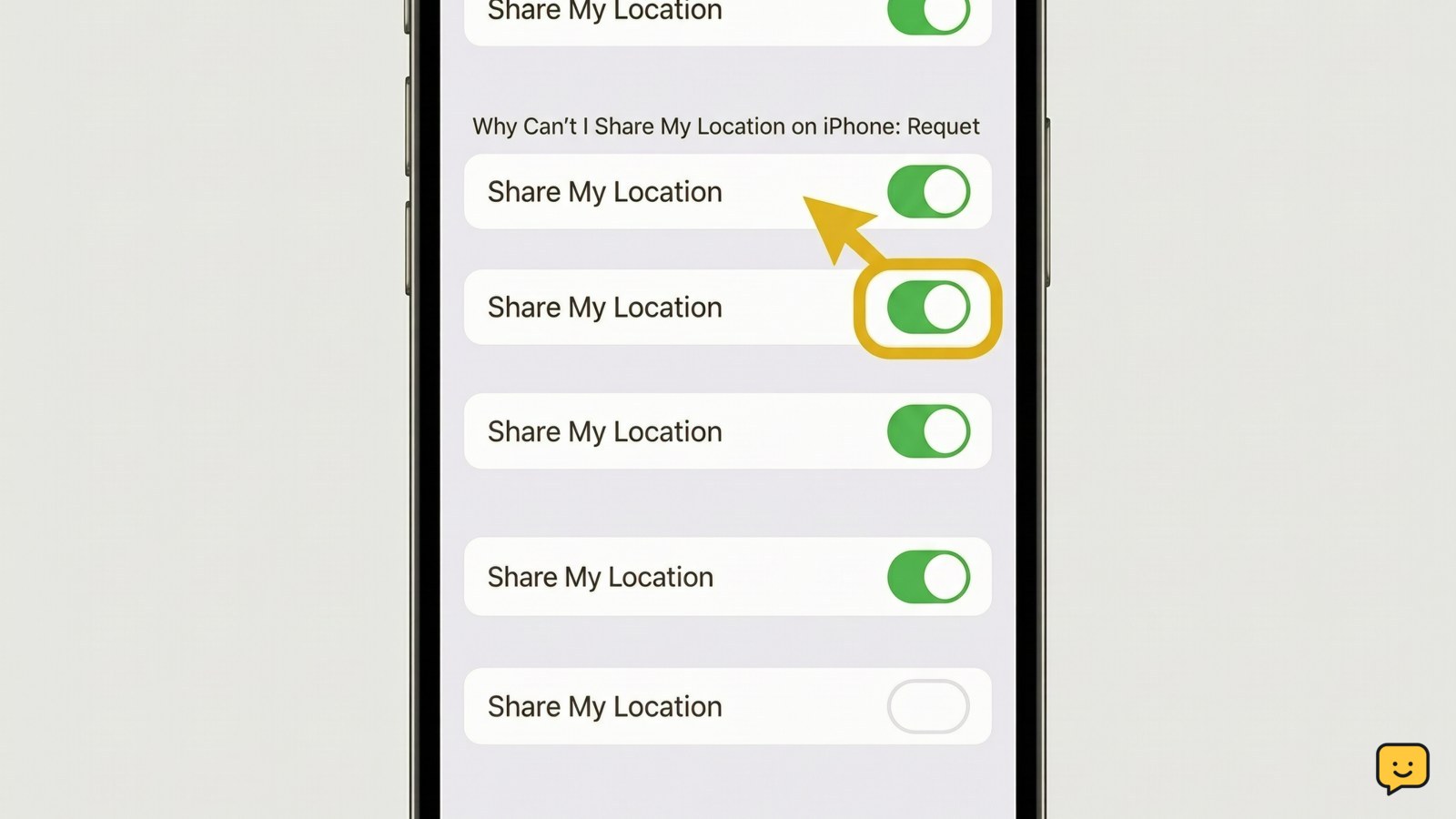
You usually can’t share location because Location Services or Share My Location is off, the iPhone has no usable connection, a Screen Time or management restriction blocks changes, or the wrong Apple Account or device is selected. Check those items in order, then send a new Find My request and verify it on the recipient’s screen.
For more help with this topic, use the Mobile Devices guides.
Match the location-sharing symptom to the likely cause
iPhone location-sharing failures usually point to a disabled setting, an unavailable connection, or a restriction rather than a hardware fault. Start with the message or behavior you can see, then use the matching check.
| What you see | Likely cause | First action |
|---|---|---|
| Find My cannot show your position | Location Services is off | Turn on Location Services in Privacy & Security. |
| Share My Location is off or unavailable | Find My sharing is disabled or the account setup needs attention | Check the Find My settings for your Apple Account. |
| “Share Location Unavailable” or a spinning request | No working Wi-Fi or cellular connection | Load a webpage, then retry after reconnecting. |
| The setting is dimmed or cannot be changed | Screen Time or device management restriction | Review restrictions or ask the administrator. |
Use Find My for the test rather than relying only on a message sent earlier. It shows whether the iPhone can provide a current location at all.
Turn on Location Services for the iPhone
Location Services must be enabled before Find My can determine and share an iPhone’s location. Apple specifically recommends checking this setting when people cannot see a shared location.
- Open Settings.
- Tap Privacy & Security, then Location Services.
- Turn on Location Services if it is off.
- Return to the Home Screen, open Find My, and wait briefly for the map to load.
Success check: Find My shows a dot or place label for your current position instead of an unavailable-location message. If the switch is already on but the map remains blank, move to an area with better reception and complete the connection check below.
Do not turn off Location Services again merely to troubleshoot a sharing request. It prevents Find My and other permitted apps from refreshing location until you re-enable it.
Enable Share My Location and select this iPhone
Share My Location is the separate Find My control that allows your iPhone to send its location to people you choose. Location Services can be on while this sharing control is off.
- Open Settings and tap your name at the top.
- Tap Find My.
- Turn on Share My Location.
- Open Find My, tap Me, and check that the iPhone is identified as the device used for your location if you use more than one Apple device.
Success check: the Share My Location switch stays on after you leave and reopen Settings. In Find My, your Me tab should no longer indicate that another device is supplying your location.
If the switch turns off again, confirm that you are signed in to the intended Apple Account. An iPhone with multiple personal devices can share the location of a different signed-in device unless you select the iPhone as the source.
Restore a connection and check your Apple Account
Find My needs an internet connection to send a refreshed location to another person, so a weak or disconnected Wi-Fi or cellular connection can make sharing appear unavailable. Open Safari and load a familiar website; if it does not load, reconnect to Wi-Fi or move to an area with cellular coverage before trying again.
If the cellular or Wi-Fi status is unclear, {link} explains what Airplane Mode disconnects and how to turn services back on.
- Check that Airplane Mode is off in Control Center or Settings.
- Toggle Wi-Fi off and on if you are using Wi-Fi, or try cellular data if it is available.
- In Settings, tap your name and confirm the expected Apple Account is signed in.
- Return to Find My and refresh the map before sending another invitation.
Success check: webpages load and Find My updates your position. If the map updates but the invitation still fails, continue to restrictions and then create a new sharing request.
If the cellular or Wi-Fi status is unclear, what Airplane Mode disconnects explains what Airplane Mode disconnects and how to turn services back on.
Check Screen Time and managed-device restrictions
Screen Time or organization management can prevent changes to location privacy controls, which is why a switch may be dimmed, missing, or immediately reversed. Check this only when you cannot change Location Services or location-sharing settings normally.
- Open Settings and tap Screen Time.
- Open Content & Privacy Restrictions if it is enabled.
- Review the Location Services controls and any setting that prevents account or privacy changes.
Success check: you can return to Privacy & Security and change Location Services, or the control is no longer locked. A family organizer may control these choices on a child’s device. Work and school iPhones can also be managed remotely; do not remove profiles or attempt to evade a policy. Ask the organizer or administrator which location-sharing option is permitted.
Send a new Find My request and verify the result
A new Find My request confirms that the repaired settings are working and avoids relying on an earlier failed invitation. Open Find My, tap People, choose the option to add or share with a person, select the trusted contact, and choose a sharing duration.
Success check: the person appears in your People list with a sharing status, and the recipient can see a current location rather than a stale or unavailable result. Ask them to refresh Find My after accepting the request.
If existing contacts can see you but a new person cannot, remove only the failed pending request if one appears, confirm the recipient’s contact details are correct, and send one fresh request. Avoid repeatedly sending invitations; it will not fix a blocked setting or offline phone.
When sharing is no longer needed, open Find My, select the person, and use the option to stop sharing your location. This stops future Find My access, but it cannot remove screenshots or location details someone has already saved.
Know when to stop and get direct support
Persistent location-sharing failure after Location Services, Share My Location, connectivity, and restrictions are all confirmed may require Apple Account or device-specific help. Restart the iPhone once, install an available iOS update from Settings > General > Software Update, then test Find My again.
Stop troubleshooting and contact Apple Support if Find My cannot locate the iPhone even with Location Services on and a working connection, or if an Apple Account sign-in warning continues. Contact the family organizer or device administrator when the controls are restricted; they are the appropriate route for a managed device.
Frequently asked questions
Why does my iPhone say Share Location Unavailable?
It usually means Find My cannot complete the request because the iPhone is offline, Location Services is disabled, Share My Location is off, or an account or restriction setting needs attention. First verify that Find My can show your own current location, then send a new request.
Can I share my location if I have no cellular signal?
Yes, if the iPhone has a working Wi-Fi connection and Find My can reach Apple’s services. If neither Wi-Fi nor cellular data is available, your location cannot refresh for the recipient until the iPhone reconnects.
Why is Share My Location greyed out on my iPhone?
A greyed-out control can be caused by Screen Time content and privacy restrictions or management by a family, work, or school administrator. Check Screen Time first. If the iPhone is managed, ask the organizer or administrator to review the permitted settings.
Does turning off Share My Location stop everyone from seeing me?
Yes. Turning off Share My Location stops future Find My location sharing with people you had chosen. It does not delete any screenshots, addresses, or past location information another person may already have recorded.


