
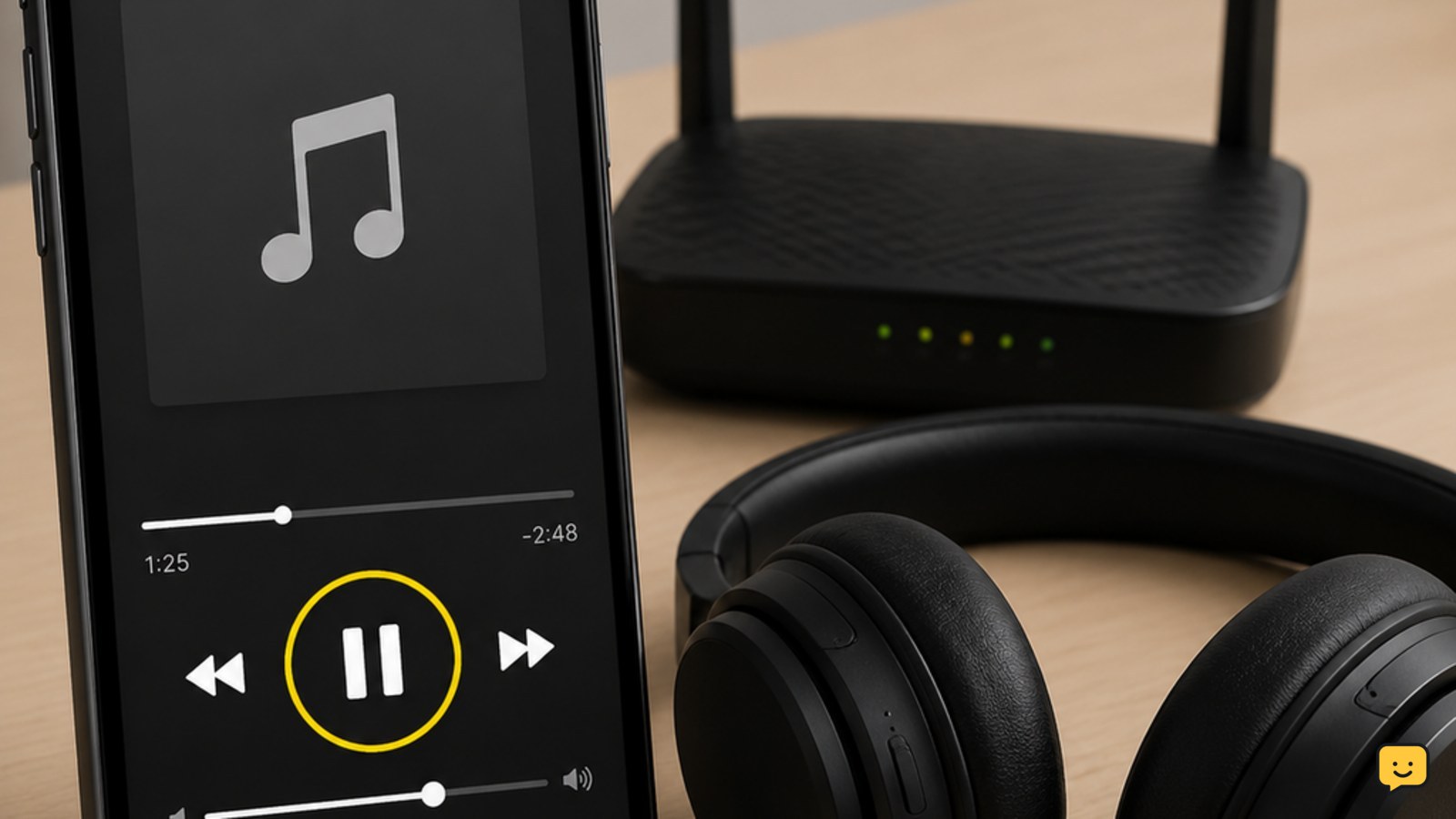
Spotify usually keeps pausing because its connection is dropping, your phone is restricting background activity, Bluetooth is interrupting playback, or another device is taking control. First test a downloaded song, then check the network, pause controls, battery restrictions, Bluetooth connection, app updates, and cache. Menu names vary by device and Spotify version.
For more help with this topic, use the Mobile Devices guides.
Test a download to separate connection faults
A downloaded Spotify song that plays normally while your device is offline points toward a network or streaming problem; a downloaded song that also pauses points toward the app, device, Bluetooth connection, or playback control.
- Connect headphones or use the device speaker.
- Play a song or podcast episode that is already downloaded.
- Temporarily enable Airplane Mode, then start playback.
- Let it play for several minutes.
Turn Airplane Mode off after the test. If offline playback is stable, continue with the connection checks. If it still pauses, skip to the device, Bluetooth, and app checks.
Check the network and streaming quality
Spotify that pauses only while streaming is commonly waiting for data after a Wi-Fi or mobile-data interruption. Compare the same track on Wi-Fi and mobile data, but avoid using mobile data for extended testing if your plan is limited.
- Move closer to the Wi-Fi router or try a different trusted network.
- Pause downloads, video calls, cloud backups, and other high-bandwidth activity.
- Open another streaming app or a webpage on the same device.
- Restart the router only if several devices are also losing internet access. Wait until its connection lights return to their normal state.
If other apps also disconnect, the problem is probably the network rather than Spotify. On a Windows 11 computer, these Windows 11 Wi-Fi disconnection checks cover the relevant adapter and router branches.
If other apps also disconnect, these Windows 11 Wi-Fi disconnection checks cover the relevant adapter and router branches.
Remove background and battery restrictions
Spotify may stop when a mobile device suspends its background activity, especially after you lock the screen or switch to another app. Android menu names differ by manufacturer, but the relevant control is usually Spotify’s battery setting.
- Open Settings and search for Spotify in Apps.
- Open Battery, Battery usage, or a similarly named option.
- Allow background activity or choose an unrestricted setting if the device offers that choice.
- Also check any battery-saver, memory-cleaner, or device-optimization app and exclude Spotify from automatic app closing.
On Windows, open Spotify’s app settings and confirm that background operation is not blocked by the operating system or a third-party power utility. Community reports specifically describe background-permission checks for Windows and battery-optimization exceptions for Android, but these reports are troubleshooting leads rather than guarantees for every version.
Lock the screen or switch apps and play for at least five minutes. If playback now continues, the background restriction was the likely cause. If it pauses only when the screen turns off, revisit this section before reinstalling Spotify.
Check Bluetooth and playback controls
Spotify can appear to pause when a Bluetooth accessory sends a pause command, disconnects briefly, loses charge, or changes the active output.
- Charge the headphones, speaker, car system, or other accessory.
- Disconnect unused Bluetooth devices that may be sending media commands.
- Forget the accessory in Bluetooth settings, restart both devices, and pair them again.
- Play Spotify through the built-in device speaker for several minutes.
If the built-in speaker works but Bluetooth playback pauses, test a second accessory. One accessory failing while another works indicates an accessory, pairing, or media-control problem. If every output pauses, continue with the app and account checks.
Check another device and account playback
Playback that pauses after starting Spotify on a speaker, TV, computer, or car system may be controlled by another device using the same account or Spotify Connect session.
- Open Spotify’s device picker while a track is playing.
- Confirm that the intended phone, computer, speaker, TV, or car system is selected.
- Stop playback on devices you recognize but are not using.
- Sign out of Spotify on shared or unused devices if the pauses continue.
If an unfamiliar device repeatedly appears, treat that as an account-security issue: change your Spotify password, review account access through official Spotify settings, and do not share verification codes. Do not attempt to access or remove a device you do not control through unofficial methods.
Update, restart, or reinstall Spotify in order
Spotify app files or an outdated installation can cause repeated pausing after network, operating-system, or accessory changes. Restarting is the lowest-risk app reset; reinstalling is the final app-level step.
- Force-close Spotify, restart the device, and open Spotify again.
- Install the latest Spotify version offered by your device’s official app store or desktop installer.
- In Spotify settings, clear the cache if that option is available. Clearing cache is different from clearing app data.
- Test a downloaded song and a streamed song.
- If both still pause, reinstall Spotify from the official store or Spotify website, then sign in and test before restoring every setting.
Downloaded music may need to be downloaded again after reinstalling. Do not use unofficial installers or random “cleaner” tools. If the problem began immediately after an update and affects several devices, check Spotify’s official service-status or support channels before repeatedly changing local settings.
Verify the result and choose the next branch
The fix is verified when the same song plays continuously for several minutes with the screen locked, the original network restored, and the intended Bluetooth or speaker output selected.
- Test one downloaded track offline.
- Test one streamed track on Wi-Fi.
- Test with the screen locked or another app open.
- Reconnect your usual Bluetooth accessory and repeat the test.
If only one song pauses, remove and redownload that item or test another album; the issue may be limited to that local download. If every song pauses on one device after reinstalling, test Spotify in a browser or on another device. If playback fails everywhere, record the device types, network, time, and exact behavior before contacting Spotify Support.
Frequently asked questions
Why does Spotify pause when I lock my phone?
Spotify pausing only after the screen locks usually indicates a background-activity or battery-optimization restriction. Open your phone’s Spotify app settings, find Battery or Battery usage, and allow background activity or an unrestricted mode when available. Battery-saver and memory-cleaner apps can apply similar limits. If downloaded songs also pause with the screen locked, test without Bluetooth to separate background limits from accessory commands.
Why does Spotify keep pausing with Bluetooth headphones?
Bluetooth headphones can pause Spotify when they are low on battery, disconnect briefly, or send an accidental media-control command. Charge the headphones, disconnect unused Bluetooth devices, then forget and pair the headphones again. Play through the phone or computer’s built-in speaker. If playback is stable there but pauses with the headphones, test another accessory or the headphones with another device.
Can a weak internet connection make Spotify pause?
Yes. Streaming playback can pause when Wi-Fi or mobile data stops delivering audio reliably. Try a downloaded song in Airplane Mode: stable offline playback points toward the connection. Compare Wi-Fi with mobile data, move closer to the router, and pause other heavy network activity. If several apps lose internet access, troubleshoot the network rather than repeatedly reinstalling Spotify.
Why does Spotify pause even though the app is open?
An open Spotify window does not rule out a Bluetooth command, unstable connection, another device controlling playback, corrupted cache, or a service-side problem. Test the built-in speaker, check Spotify’s device picker, restart the app and device, and compare downloaded with streamed content. The branch that changes the symptom identifies the next check.


