To change your WiFi password, sign in to your router’s official app or administration page, open WiFi, Wireless, or Security settings, replace the network password, and save. The router may restart or disconnect devices. Reconnect using the new password, then confirm a known device has internet access and unfamiliar devices are no longer listed.
For more help with this topic, use the Privacy Online Safety guides.
Open the router’s official WiFi settings
Your router’s official app or administration page is where the wireless password is changed. First connect to the home network, then open the router app or the administration address documented by the manufacturer or internet provider. D-Link’s instructions describe opening the router configuration page and signing in with the router username and password; menu names vary by model.
- Choose the router or home network you want to manage.
- Sign in with the router-admin credentials, not the WiFi password, unless the provider’s app uses one account for both.
- Open a menu named WiFi, Wireless, Wireless Settings, or Security.
Confirm that the page identifies your router or network before changing anything. If the page only shows a generic login and you cannot verify its source, stop and use the manufacturer’s support site or official app instead.
Replace the wireless network password
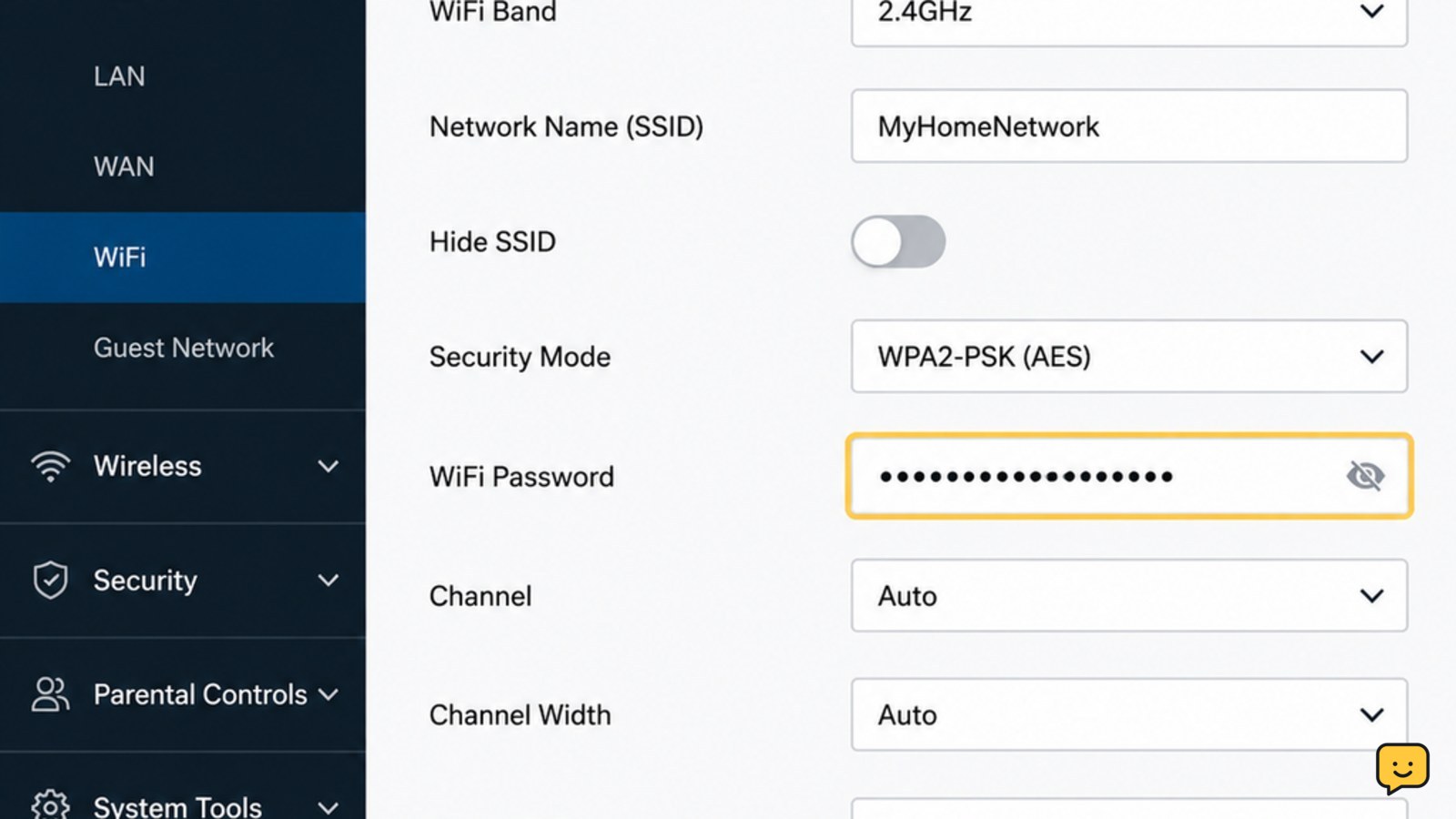
The wireless settings page normally places the current key beside a label such as WiFi password, Wireless key, or Network key. Change that field, leaving the network name unchanged unless you also want to rename the network.
- Reveal the existing password only if the page provides a safe show-password control and you need to distinguish it from the admin password.
- Enter the new unique password twice if the router provides confirmation fields.
- Review the characters carefully, including uppercase letters, numbers, spaces, and punctuation.
- Select Save, Apply, or the equivalent control.
The router may briefly restart its wireless service. A device that was connected before the change can lose access immediately. This is expected, but do not unplug the router while it is applying the setting unless the manufacturer specifically instructs you to do so.
Reconnect devices with the new key
Every device using the changed wireless network must authenticate with the new password. On each phone, tablet, computer, television, camera, printer, or smart-home device, open its WiFi list, select the same network name, and enter the new key.
- Remove or forget the saved network only if the device keeps submitting the old password.
- Join the network again and accept the connection.
- Update devices that are offline but do not have an obvious WiFi prompt, using their network settings or the manufacturer’s official app.
Spectrum’s support guidance also points users to a device’s saved-network settings when viewing or managing a saved WiFi password. If the network name was unchanged, reconnect to that same name; if you changed both name and password, select the new network entry.
Verify the password change worked
A successful change has three observable signs: a known device joins with the new password, internet access returns, and the router’s connected-device list no longer shows devices that only knew the old password.
- Test one nearby phone or computer with the new password.
- Open a trusted website or another service you normally use to confirm internet access.
- Open the router app or administration page and review connected devices.
- Check the guest network separately. Changing the main WiFi password may not change a guest-network password.
Do not assume that a device is authorized only because it has a familiar name. Compare the list with your household’s phones, computers, televisions, printers, and other equipment. An unknown entry can be a renamed device, a mesh node, or a guest-network connection, so identify it before taking further action.
Fix access problems without losing control
If the new password does not work, identify whether the failure is limited to one device or affects the whole network before making another change.
| What you see | Likely cause | Next safe action |
|---|---|---|
| One device rejects the new key | It retained the old saved credential or the key was mistyped | Forget the saved network, reselect the correct network name, and enter the password carefully |
| All wireless devices disconnect | The router applied the new key | Reconnect one nearby device first; do not reset the router |
| The password field is missing | You opened account settings, guest settings, or the wrong device page | Return to the official router support instructions and locate WiFi or Wireless settings |
| You cannot sign in as administrator | The admin credential is different from the WiFi key or has been forgotten | Use the provider’s official recovery route; stop before a factory reset on rented or managed equipment |
| An unfamiliar device remains connected | It may use the guest network, Ethernet, another access point, or a separate mesh setting | Review guest, mesh, wired, and remote-management settings through official documentation |
If you lose access to the router settings after changing the password, connect by Ethernet if the router has a network port and your device supports it. If that is unavailable, use the manufacturer’s documented recovery process. A factory reset can erase the network name, password, provider settings, and other configuration, so do not use it as a first response.
Protect the router after changing WiFi access
Changing the wireless key protects the network only if the router’s administration account remains protected. Keep the router-admin password separate from the WiFi password, install firmware updates offered through the official management interface, and disable remote administration when you do not need it and the manufacturer supports that option.
Review the connected-device list again after reconnecting your own equipment. If you suspect someone obtained the old password, changing the WiFi key is useful, but it does not remove a person who has access through another network, an Ethernet connection, a guest network, or the router-admin account. Address each access path separately and contact the provider when the equipment is managed by them.
Frequently asked questions
Will changing my WiFi password disconnect everyone?
Yes. Devices using the old wireless key will usually disconnect or fail to reconnect after the router applies the new password. Rejoin each authorized device manually with the new key. Wired devices may remain connected, and a separate guest network may continue using its own password.
Is the WiFi password the same as the router login password?
Usually, no. The WiFi password authenticates phones, computers, and other devices to the wireless network. The router login or administrator password opens configuration settings. Some provider apps combine account access and router management, but the two credentials still serve different purposes.
What should I do if I forgot the router administrator password?
Use the router manufacturer’s or internet provider’s official recovery instructions first. Check the provider account or owner manual only through a trusted source. Do not keep guessing credentials, use an unofficial bypass, or factory-reset rented equipment until the provider confirms that reset is appropriate.
How can I tell whether the new WiFi password worked?
Connect a known phone or computer using the new key, then open a trusted website to verify internet access. Check the router’s connected-device list afterward. Devices that only had the old key should need to authenticate again, although guest, wired, mesh, or separately managed connections may behave differently.