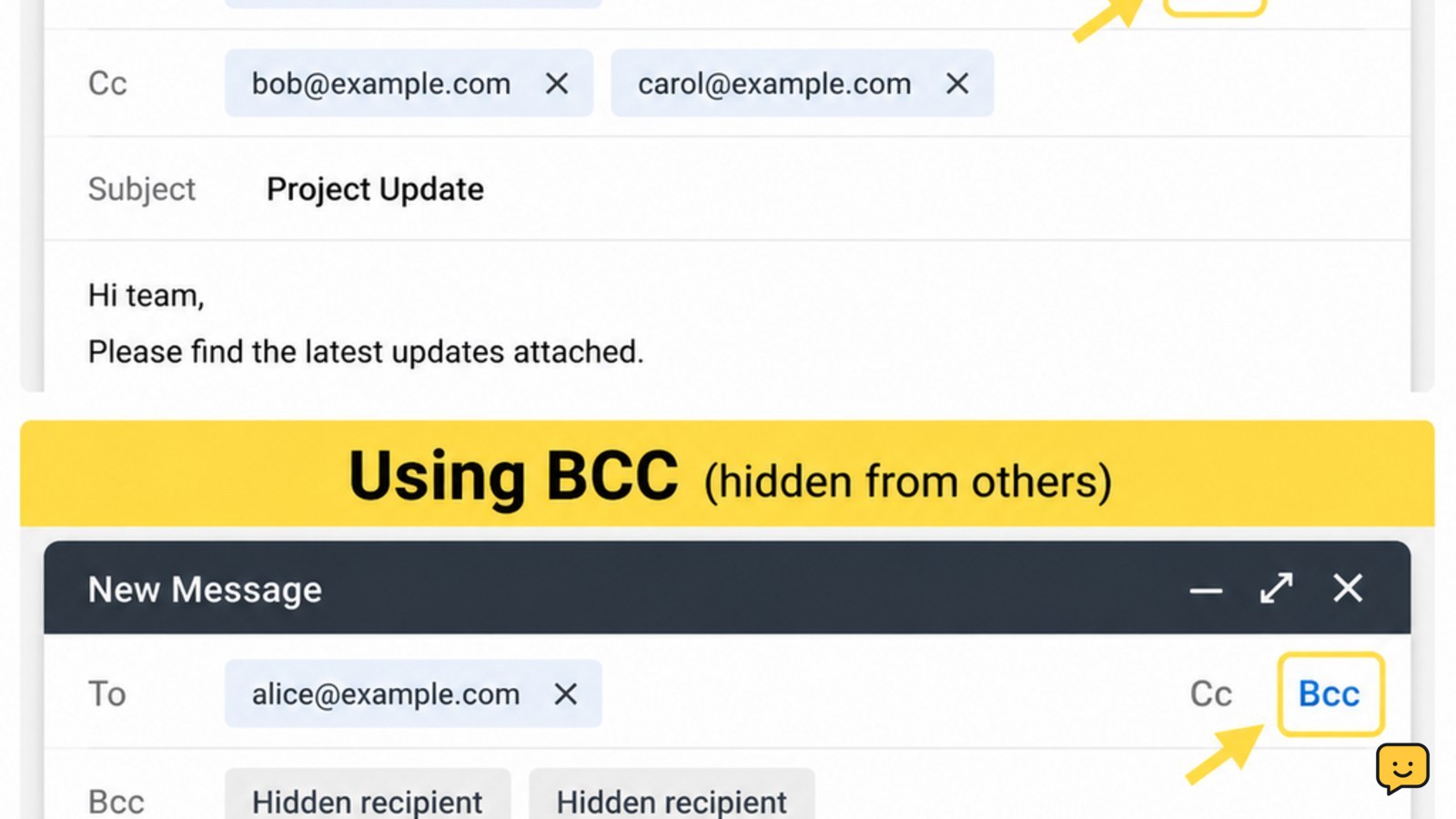
CC means Carbon Copy: people in the CC field receive a copy and can see the sender, To recipients, and other CC recipients. BCC means Blind Carbon Copy: those recipients receive a copy, but their addresses are hidden from other recipients. Example: put your manager in CC for visibility, or use BCC to protect addresses in a group announcement.
For more help with this topic, use the Email Social Accounts guides.
Choose To, CC, or BCC for each recipient
Email recipient fields answer different questions. Use To for people expected to read or act on the message, CC for people who should stay informed without taking action, and BCC when recipients should receive the message without seeing one another’s addresses.
| Field | What recipients can see | Best use |
|---|---|---|
| To | The sender, other To recipients, and visible CC recipients | Main recipients who need to respond or complete a task |
| CC | The sender, To recipients, and all other CC recipients | Visibility, coordination, or keeping a manager informed |
| BCC | The sender and visible To or CC recipients, but not other BCC addresses | Privacy for group mailings or a discreet copy |
CC stands for Carbon Copy, and BCC stands for Blind Carbon Copy. Spark Mail, Salesforce, Gmelius, and Missive describe the same basic distinction: CC is visible to the other listed recipients, while BCC conceals BCC addresses from them.
See how CC works in an email example
CC makes the additional recipient visible. Suppose Alex emails Jordan about a project and copies Taylor for awareness:
To: [email protected]
Cc: [email protected]
Subject: Project schedule

Hi Jordan,
Can you confirm the delivery date?
Jordan and Taylor both receive the message. Jordan can see that Taylor was copied, and Taylor can see Jordan’s address. If either recipient selects Reply all, the reply may go to the sender and the visible To and CC recipients.
Use CC when the copied person has a legitimate reason to see the conversation. Avoid adding people merely to create pressure or expose an address list. Before sending, expand the recipient fields and verify that every visible address is appropriate for everyone included.
See how BCC protects recipient addresses
BCC hides each BCC recipient from the other BCC recipients. For a neighborhood announcement, you could send:
To: Your own address
Bcc: [email protected], [email protected], [email protected]
Subject: Community meeting
Each neighbor receives the message, but the other BCC addresses are not shown in the message header. Sending to your own address in To can make the privacy purpose clear and avoids leaving the To field empty, although email services handle an empty To field differently.
BCC is useful for protecting personal addresses in a group announcement, but it is not a security or encryption feature. Recipients can still see the sender, message, attachments, and any addresses that you placed in To or CC. Salesforce also cautions that BCC is not a way to hide your own email address.
Verification: After sending a test message to yourself and one trusted secondary address, inspect the received headers. The secondary address should not appear in the visible recipient list when it was placed in BCC.
Use CC or BCC safely in Gmail and Outlook
Gmail and Outlook both let you reveal CC and BCC fields from the compose window. The exact control wording can vary by web, desktop, or mobile version, but the decision is the same.
- Start a new message and enter the main recipients in To.
- Select Cc or Bcc beside the To field. On some mobile screens, open the recipient options first.
- Enter copied recipients in the selected field, checking each address as it is added.
- Review the subject, attachment, and recipient visibility before selecting Send.
- Open the sent message and confirm the recipient fields show the intended visible and hidden recipients.
If CC or BCC is not visible, look for a small Cc/Bcc link, a recipient-options button, or a three-dot menu in the compose window. Do not send until you can identify where each recipient will appear.
Fix the common CC and BCC mistakes before sending
Most CC and BCC mistakes come from confusing visibility with privacy. Use this symptom-to-action check:
| If you see this | Take this action |
|---|---|
| A group of unrelated addresses is in To or CC | Move the addresses to BCC, or send separate messages. |
| A person needs to complete a task | Put that person in To and explain the requested action. |
| A manager only needs awareness | Put the manager in CC, unless the conversation is confidential. |
| A BCC recipient needs to join an ongoing discussion | Move them into a new message or visible thread with their consent; BCC recipients may not see later replies. |
| You are unsure who can see an address | Stop, remove the recipient, and confirm the field label before sending. |
If you sent an address list by mistake, check whether your provider offers an immediate Undo Send or recall option. Availability depends on the service and timing, and it cannot reliably retract a message that has already reached an external mailbox. ShowU explains the practical limits in what works after sending an email.
If you exposed an address list, check what works after sending an email immediately, though delivery may already have occurred.
Choose a safer alternative for repeated group emails
Use a mailing list, contact group, or dedicated group service when the same people need regular messages. BCC is suitable for occasional announcements, but repeated manual entry increases the chance of exposing an address or leaving out a recipient.
For Outlook users, a reusable contact group can reduce manual address entry and make the recipient list easier to review. See how to make an Outlook email group if the message is part of an ongoing group workflow.
For sensitive subjects, use an approved secure collaboration or encrypted-mail system rather than treating BCC as protection for the content. Stop before sending if your organization has a required mailing-list, privacy, or data-handling policy that you cannot verify.
For recurring Outlook announcements, use how to make an Outlook email group instead of retyping addresses each time.
Frequently asked questions
Can BCC recipients see each other?
No. BCC recipients normally cannot see the other addresses placed in BCC. They can still see the sender and any recipients listed in To or CC. If a recipient replies to the sender, the reply does not automatically reveal the other BCC addresses.
Should I use CC or BCC for a group email?
Use BCC when the group members do not need to see one another’s email addresses. Use CC only when every recipient should know who else received the message and may need to coordinate openly.
What happens when someone replies all to a BCC email?
A BCC recipient’s Reply all generally goes to the sender and the visible To or CC recipients, not to the other hidden BCC recipients. Email apps can differ in how they present the reply controls, so review the address line before sending.
Does BCC hide the email from the email provider?
No. BCC hides recipients from one another, but it does not encrypt the message or hide it from the sender’s and recipients’ email services. Use an approved encrypted or secure collaboration service for sensitive information.