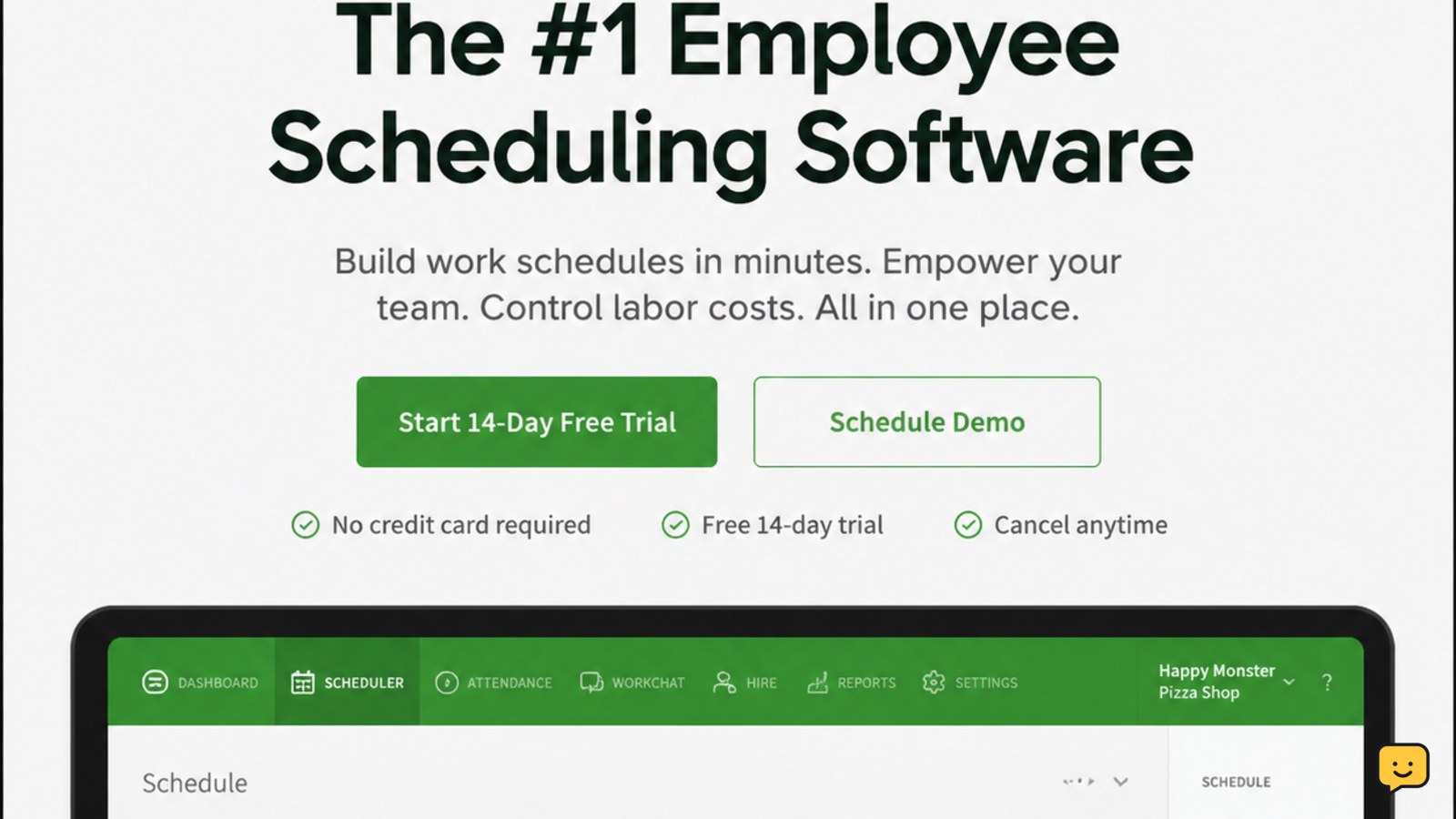
To use the When I Work login, go to the official When I Work website and select Go To Login, then enter the email address and password tied to your account. If you registered with Google, choose the Google sign-in option instead. You can also sign in through the When I Work iOS or Android app.
For more help with this topic, use the Email Social Accounts guides.
Open the official When I Work login
The official When I Work website provides a Go To Login option. Open wheniwork.com yourself rather than using a login link from an unexpected email, text, or social media message.
- Check that the address bar shows the official When I Work domain and a secure connection.
- Select Go To Login.
- Wait for the sign-in page to load before entering any account details.
Success check: You should see a When I Work sign-in screen with an email-and-password path and, where available, a Google sign-in choice.
Sign in with your email and password
Use the email address and password associated with your When I Work account when you want to sign in directly.
- Enter your registered email address.
- Enter your When I Work password carefully, including capitalization and symbols.
- Submit the form and wait for the account page to appear.
Success check: A successful login takes you to your When I Work account rather than returning to the sign-in form. If a password manager fills an old address or password, clear the fields and enter the current details manually once.
If the password is rejected, do not keep guessing. Use the password-recovery control displayed on the official sign-in page. If repeated attempts have locked the account, follow the guidance in recovering a locked account.
If repeated attempts have locked the account, follow the guidance in recovering a locked account.
Choose Google sign-in when the account supports it
When I Work supports signing in with Google instead of an email address and password for accounts configured for that method, according to the When I Work Help Center.
- On the When I Work sign-in page, choose the Google sign-in option.
- Select the Google account that matches the email used for your When I Work profile.
- Complete any Google identity check shown in the trusted Google window.
Success check: You return to When I Work and see your account rather than the login form. If Google signs in successfully but When I Work rejects the account, the Google email may not match the email on your When I Work profile.
Some workplaces may require Google sign-in. If the correct Google account is unavailable or your employer uses a different sign-in arrangement, contact your workplace administrator instead of creating a second account.
Log in through the When I Work mobile app
The When I Work Help Center identifies mobile apps for iOS and Android. Install the official app through your device’s recognized app store, open it, and use the same email-password or supported Google method used for your account.
- Open the When I Work app.
- Choose the sign-in option that matches your account.
- Enter your details or complete Google sign-in.
- Wait for your schedule or account home screen to load.
Success check: The app displays your When I Work account information, not a registration screen. If the app repeatedly returns to login, update it through the official app store, restart it, and try the official website. Do not install an APK or profile from a message claiming to fix the login.
Fix the login when the expected result does not appear
When I Work login failures usually require identifying which part of sign-in failed before trying another method.
- Wrong password message: stop guessing and use the official password-recovery option.
- Google account not accepted: confirm that the selected Google email is the one attached to your When I Work profile.
- No recovery or verification message: check the address or phone method shown by the official page, then review spam or blocked-message folders. For general missing-code steps, see what to do when a code never arrives.
- Login works on one device but not another: compare the account method, app version, and email address rather than repeatedly changing the password.
- Workplace access is denied: ask your employer or When I Work administrator to confirm that your account is active and assigned to the correct workplace.
Stop condition: If the official recovery process cannot verify you, do not send identity documents or credentials to an unofficial support address. Use the contact path provided by When I Work or your workplace administrator.
Frequently asked questions
Where is the When I Work login?
Open the official When I Work website at wheniwork.com and select Go To Login. You can also open the official When I Work app on iOS or Android and choose its sign-in option.
Can I log in to When I Work with Google?
Yes, if your When I Work account supports Google sign-in. Choose the Google option and select the Google account connected to your When I Work profile. If it is rejected, your Google email may not match the account email.
Why does When I Work say my password is wrong?
A wrong-password message can result from an outdated saved password, a typing error, or using the wrong email address. Re-enter the account details once, then use the official password-recovery option instead of repeatedly guessing.
Can I use When I Work on my phone?
Yes. The When I Work Help Center provides mobile access through iOS and Android apps. Install the official app from your device’s recognized app store and use the same supported sign-in method as on the website.