
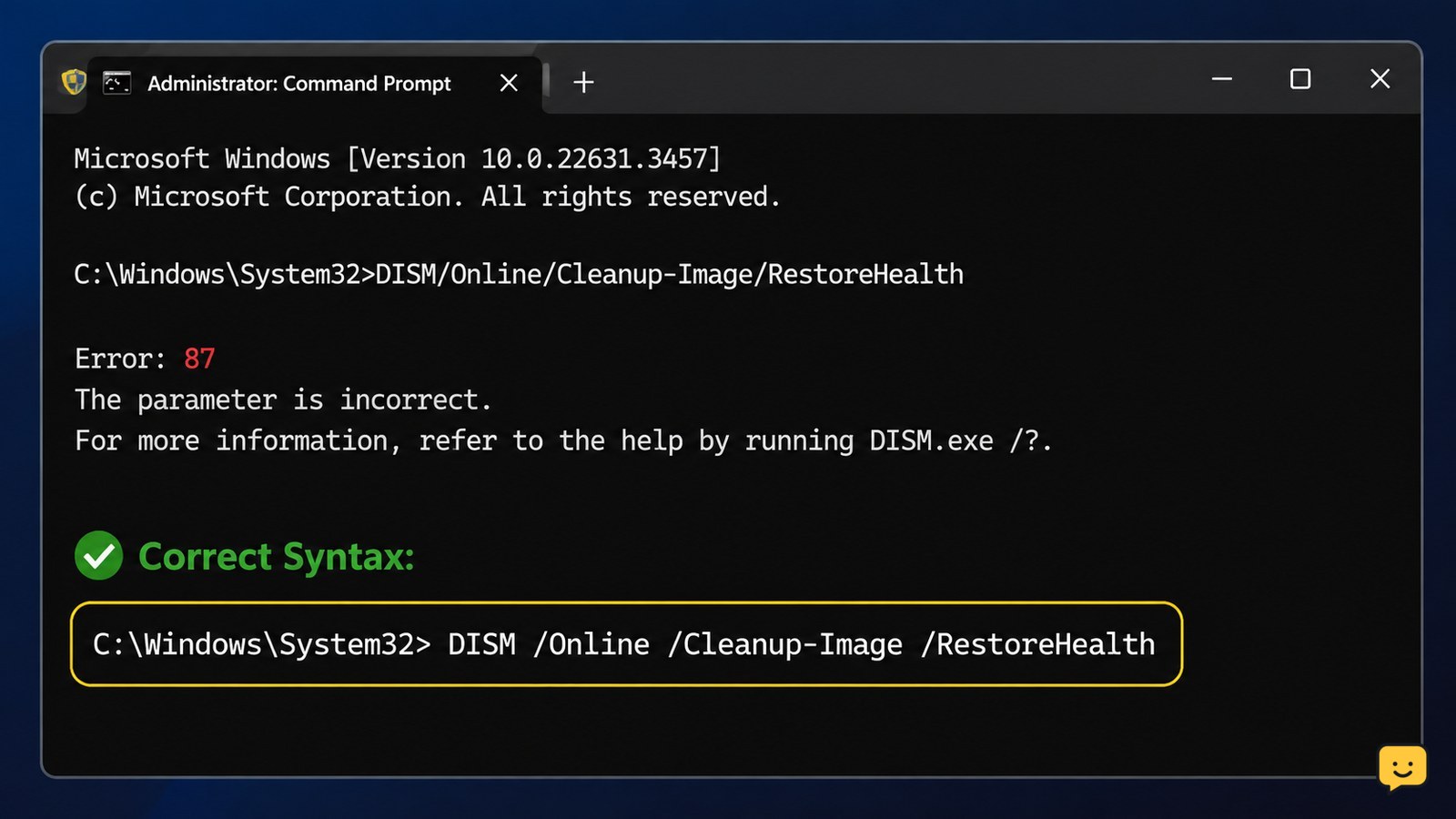
DISM Error 87 usually means the command syntax is incorrect, an option is misspelled, or the option is unsupported by that Windows installation. Open Windows Terminal or Command Prompt as administrator, enter the DISM command with spaces and forward slashes exactly as shown, then run CheckHealth, ScanHealth, and RestoreHealth in that order.
For more help with this topic, use the Computers Internet guides.
Check the command and Windows version first
DISM Error 87 means the Deployment Image Servicing and Management tool rejected a parameter or command format. The most common causes are a misspelled switch, missing spaces, an unsupported option, or running a command intended for a different image type.
For a running Windows 10 or Windows 11 installation, the command begins with dism /online. The switches are not interchangeable with commands for an offline Windows image. If you copied a command from an older guide, remove extra quotation marks, smart punctuation, and trailing characters before trying again.
Open Settings > System > About and check the Windows edition and system type. If the PC uses Windows 7 or another older release, do not assume the Windows 10/11 repair sequence applies; the available DISM options can differ by version.
Open an elevated Windows terminal
DISM repair commands require administrator rights when they target the running Windows installation. Right-click Start, choose Terminal (Admin) or Command Prompt (Admin), and select Yes at the User Account Control prompt.
Verify the window is elevated before continuing. The title normally includes Administrator, and the prompt should open without an access-denied message. If Terminal (Admin) is unavailable, search for Command Prompt, right-click it, select Run as administrator, and use that window instead.
Failure path: If Windows refuses the administrator prompt, you cannot complete the online repair from that account. Stop rather than trying to bypass the permission check; sign in with an authorized administrator account or contact the device owner.
Run a supported DISM command in the correct order
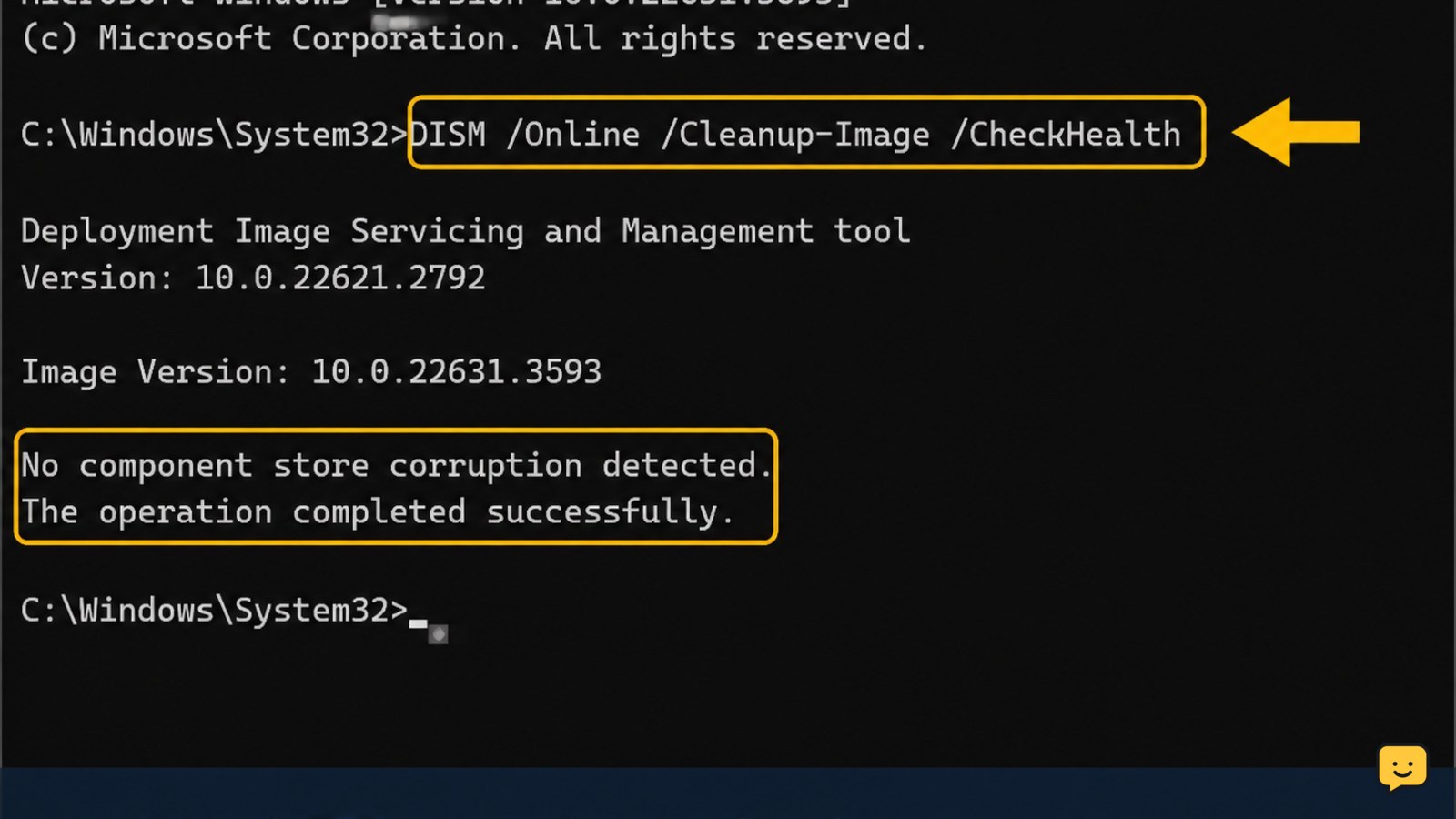
On Windows 10 or Windows 11, run these commands one at a time in an elevated terminal. Press Enter after each command and wait for it to finish before starting the next:
DISM /Online /Cleanup-Image /CheckHealthDISM /Online /Cleanup-Image /ScanHealthDISM /Online /Cleanup-Image /RestoreHealth
CheckHealth makes a quick check for a recorded component-store problem. ScanHealth performs a deeper scan, while RestoreHealth attempts to repair the Windows component store. Microsoft’s DISM reference documents these switches for servicing the running operating system; option availability remains version-dependent.
Use the exact capitalization and spacing shown above. DISM is generally case-insensitive, but the spaces and forward slashes matter. Do not combine the three commands on one line until the individual commands work.
Success check: The command should finish with a completion percentage and a message such as The operation completed successfully. If Error 87 appears immediately, compare the entered line character by character with the version above.
Repair the component store when ScanHealth finds damage
If ScanHealth reports that the component store is repairable, run DISM /Online /Cleanup-Image /RestoreHealth again from the elevated terminal. The repair may take significantly longer than the scan, and the progress percentage can pause while DISM processes the image.
If RestoreHealth completes successfully, restart Windows. Then run System File Checker with:
sfc /scannow
Restart again after SFC finishes. The observable result is either a message that no integrity violations were found or a message stating that corrupted files were repaired. After the restart, repeat the original Windows task that exposed the problem and check whether the error has returned.
If RestoreHealth returns Error 87 again, do not repeatedly paste random switches. Recheck the Windows version, remove copied formatting, and confirm that the terminal is elevated. Microsoft’s repair guidance also treats the Windows component source as a possible issue when the local repair files are unavailable.
Use a matching repair source only when RestoreHealth cannot repair
When RestoreHealth reports that source files could not be found, a matching Windows installation source may be required. This is a separate procedure from correcting Error 87 because the /Source path must point to valid files from the same Windows release, edition, language, and architecture.
Do not guess a drive letter or use an unrelated ISO. If you have verified matching installation media, the command structure is:
DISM /Online /Cleanup-Image /RestoreHealth /Source:X:\sources\install.wim:1 /LimitAccess
Replace X: and the image index only after confirming them. The index is not universal across installation media. If the source contains install.esd rather than install.wim, the path and source syntax must match that file type.
Stop condition: If you cannot verify the media and index, stop here. Use Windows installation repair options or qualified support instead of applying an uncertain source, which can create a new servicing problem.
Choose the next action when Error 87 remains
If the same command still returns Error 87, the problem is more likely command parsing, version incompatibility, or an incorrect target than component-store damage.
- Error 87 appears immediately: retype the command manually, check every slash and space, and remove quotation marks.
- Access is denied: close the window and reopen Terminal or Command Prompt with administrator rights.
- RestoreHealth says source files are missing: use only a verified matching source, or stop and choose Windows recovery support.
- DISM reports disk or I/O errors: protect important files first and investigate storage health before more repair attempts.
- Windows will not start normally: use Windows Recovery Environment and do not substitute the online command for an offline-image command.
For related installation failures, review the checks for Windows install error 0x80070306. If the PC also shows crashes or drive-related symptoms, the guidance for a KERNEL_DATA_INPAGE_ERROR can help identify when storage or memory checks should come first.
For related installation failures, review the checks for Windows install error 0x80070306.
Frequently asked questions
What does DISM Error 87 mean?
DISM Error 87 means the servicing tool could not interpret a command or parameter. Check for a misspelled switch, missing space, incorrect slash, unsupported option, or command aimed at the wrong image type. Retype the command in an administrator terminal rather than copying formatted text from a webpage.
Can I fix DISM Error 87 without reinstalling Windows?
Yes, often. Correcting the command syntax and running the supported online repair sequence may resolve the error without reinstalling Windows. If RestoreHealth cannot find repair files or the storage is failing, you may need matching installation media, Windows recovery, or professional support instead.
Why does DISM RestoreHealth return Error 87 immediately?
An immediate Error 87 usually points to command parsing or an unsupported option, not a long-running component-store scan. Check that the terminal is elevated and that the command uses /Online, /Cleanup-Image, and /RestoreHealth with spaces between each switch.
Should I run SFC before DISM?
For this error, correct and run DISM first because DISM repairs the component store that SFC may use. After RestoreHealth completes successfully, run <code>sfc /scannow</code>, restart Windows, and check whether the original problem is resolved.
Does the Windows 10/11 DISM command work on Windows 7?
Not necessarily. DISM options and repair behavior vary by Windows release, so do not apply the Windows 10/11 online sequence blindly to Windows 7. Confirm the release-specific documentation or use supported recovery media for that installation.


