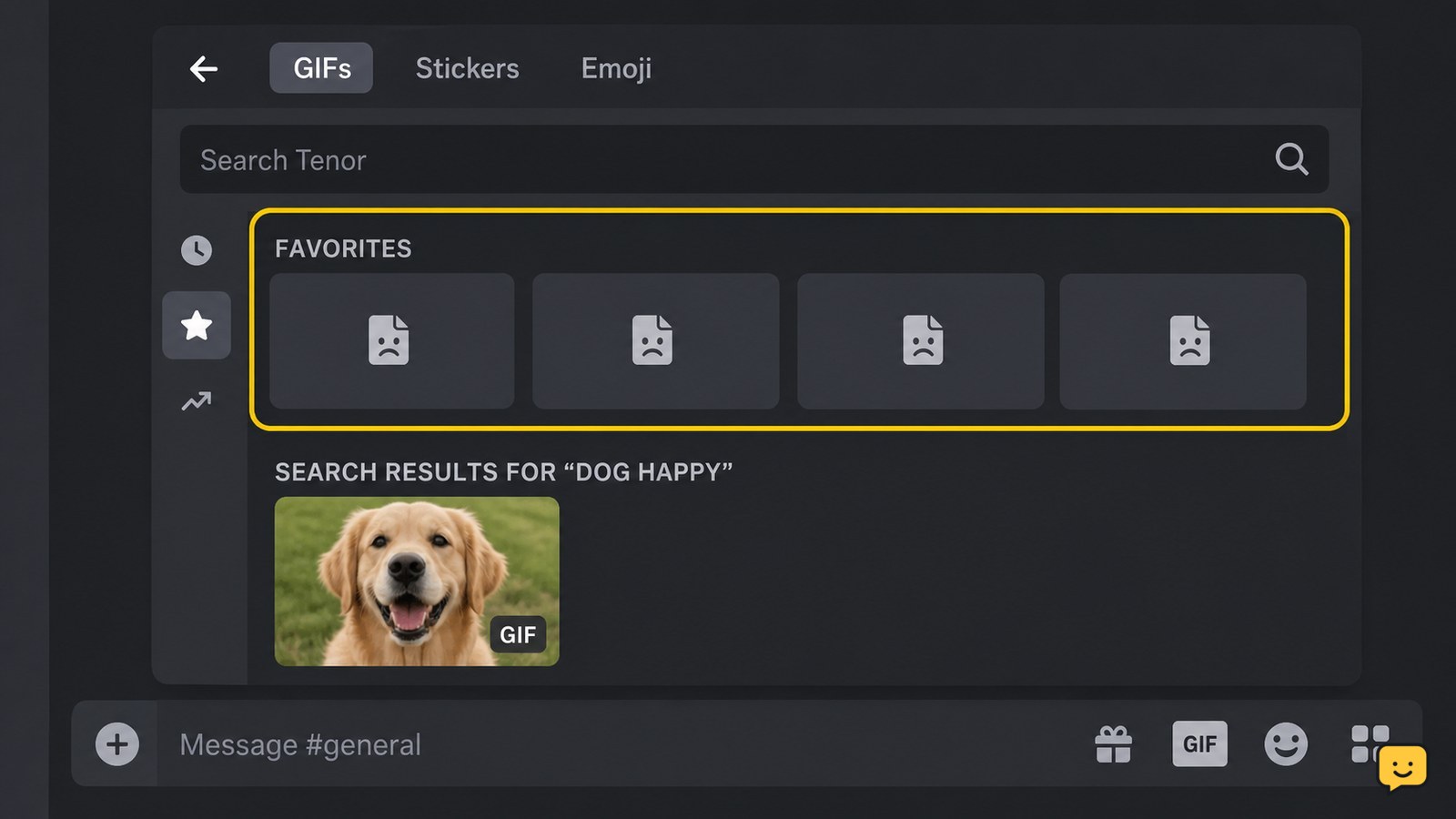
If Discord GIFs are not loading in Favorites, first check Discord’s motion setting under User Settings > Accessibility > Motion and turn off any option that prevents GIF playback. Then update Discord, restart it, clear the app cache where your device provides that control, and sign back in through the official app. Test one favorite and a newly searched GIF.
For more help with this topic, use the Email Social Accounts guides.
Check whether Favorites or all Discord GIFs are affected
Discord GIFs not loading only in Favorites usually point to a client-side library or cache problem, while GIFs failing everywhere can also involve playback settings, connectivity, or a Discord-side fault.
- Open a channel or direct message and use the GIF picker to search for a new GIF.
- Try one saved item from Favorites.
- Note the result: a new GIF that loads while Favorites stays blank narrows the problem to saved entries or cached library data; neither loading means you should check the motion setting and client state.
Do not delete your Favorites yet. That removes saved items without proving that playback is the cause.
Turn off the Discord Motion setting that blocks playback
Discord’s motion controls can prevent GIFs from playing, so check User Settings > Accessibility > Motion before changing account data.
- Open Discord and select the User Settings control.
- Choose Accessibility.
- Find the Motion section and turn off the option that reduces or prevents animated media from playing, if it is enabled.
- Return to a channel, open the GIF picker, and test one favorite.
A successful check is a visible GIF preview that loads and animates when selected. A Discord support-community report identifies Motion settings as a cause of GIF playback problems, but menu wording can vary by client and version.
If the setting is already correct and both new and favorited GIFs still fail, continue without changing privacy or account-security settings.
Update Discord, restart it, and clear its cached data
Updating Discord and refreshing local cached data can address a damaged or stale client state; a supplied community report specifically lists updating, clearing the app cache, and logging out as troubleshooting actions.
- Install any available Discord update from your device’s official app store or Discord’s official download page.
- Fully quit Discord, not just the visible window, and reopen it.
- If your Discord client or device exposes a clear-cache control, use that control and then reopen Discord. Cache-menu names differ by platform, so do not remove account data or uninstall the app unless you understand what local data will be lost.
- Test one favorite and one newly searched GIF.
If GIFs work after the restart but fail again after reopening Discord, the local client or a current Discord defect is more likely than an account compromise. Record your platform and client version before reporting it.
Sign out safely, then compare another official Discord client
Signing out and back in can refresh the account’s saved-GIF state, but it is a recovery step rather than a password fix.
- Sign out from Discord’s own account menu.
- Close and reopen the official client.
- Sign in only through the official Discord app or discord.com.
- Open Favorites and test a saved GIF.
Success means the Favorites panel repopulates and at least one saved GIF displays or plays. If the desktop app fails, test Discord in a current browser at discord.com; if the browser works, use it temporarily while the app is repaired. If both official clients fail but other Discord media loads, report the affected Favorites panel rather than repeatedly logging in.
The supplied evidence describes this sequence as a reported app fix, not a guaranteed universal solution. Discord’s community reports do not confirm that every current client has the same defect.
Choose the safe next action when Favorites still stays blank
When Discord GIFs remain unavailable in Favorites after the client checks, preserve the account and stop escalating locally.
- Only one favorite fails: search for the same or a similar GIF again and save a fresh copy. The individual saved item may be unavailable or corrupted.
- All Favorites fail, but new GIFs load: use the browser or another official client temporarily and report the Favorites-library symptom.
- All GIFs fail everywhere: check Discord’s official status information and retry later rather than installing an unofficial client.
- Account warnings appear: stop troubleshooting playback, review active sessions, change the password from official Discord settings, and use two-factor authentication if available.
Include the platform, app or browser version, whether new GIFs load, and the exact visible symptom in a support report. Never send a password, backup code, or authentication code to someone offering a GIF fix.
Frequently asked questions
Why do Discord GIFs work in search but not in Favorites?
That pattern usually points to saved-library data or a client cache problem rather than a total GIF playback failure. Test a newly searched GIF, restart Discord, update it, and clear its cache when your platform provides that option. If new GIFs work in the browser but Favorites fails in the app, use the browser temporarily and report the Favorites-specific symptom.
Can Discord’s Accessibility settings stop GIFs from playing?
Yes. Discord’s Accessibility > Motion controls can restrict animated media. Open User Settings, choose Accessibility, review Motion, and disable the option that prevents or reduces animation if it is enabled. Test both a favorite and a newly searched GIF afterward. Exact wording may differ between Discord clients.
Will logging out delete my Discord GIF Favorites?
Logging out should not be used as a way to delete Favorites; it is a troubleshooting step intended to refresh the client’s account state. Use Discord’s own sign-out control, then sign back in only through the official app or discord.com. Do not clear all app data or remove saved items unless you accept the possibility of losing local data.
What should I do if Discord GIFs still do not load on every device?
If GIFs fail in the official app and at discord.com after you check Motion settings and install updates, stop repeatedly resetting the account. Check Discord’s official status information, wait for a possible service-side issue to clear, and report the platform, client version, and whether images or other media load. Do not install unofficial clients or share login codes.