
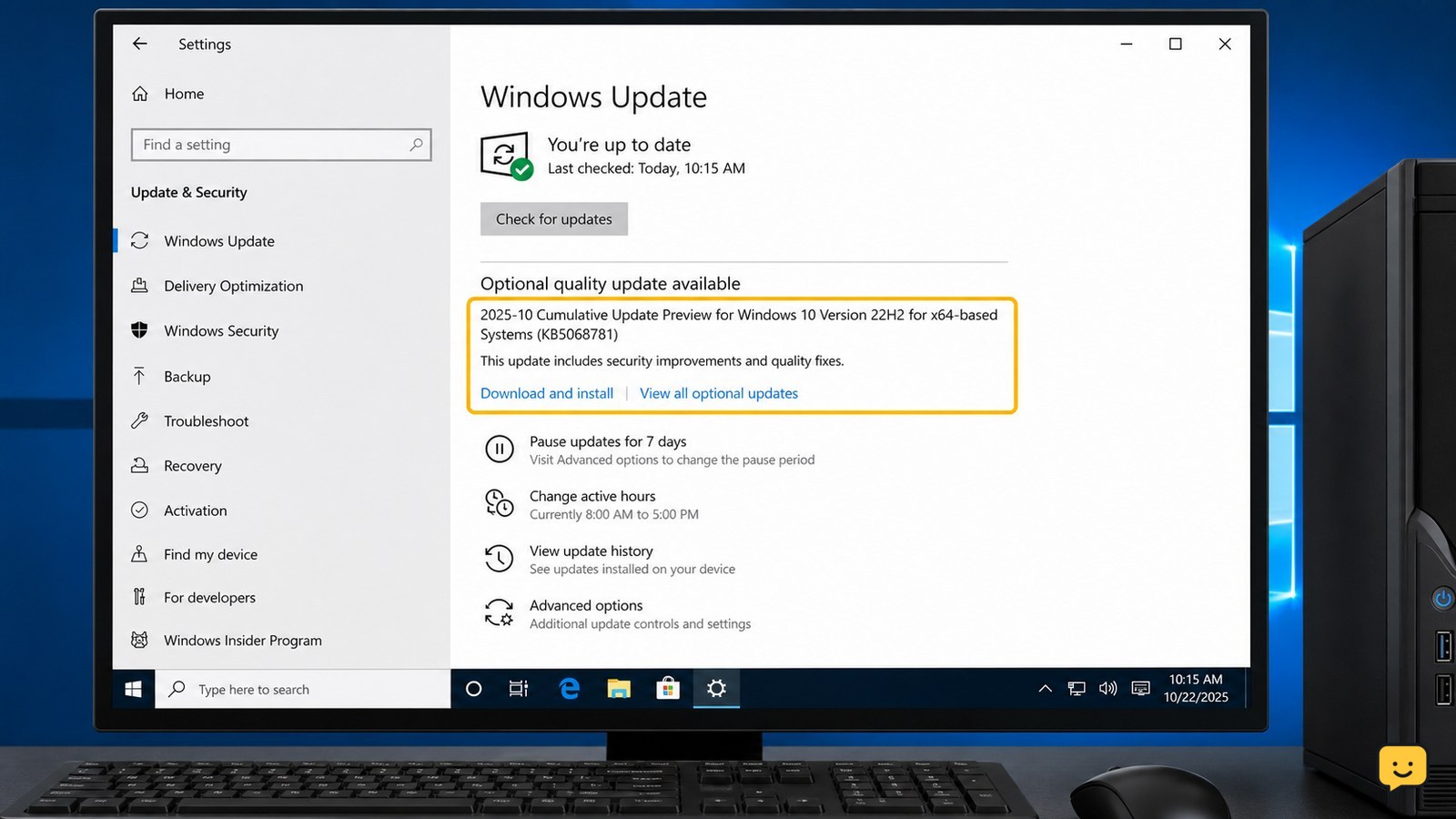
KB5068781 is the November 11, 2025 security update for eligible Windows 10 22H2 devices enrolled in Extended Security Updates. Install the required ESU preparation package first, then open Settings > Update & Security > Windows Update and select Check for updates. After restarting, verify that the OS build is 19045.6575 or 19044.6575.
For more help with this topic, use the Computers Internet guides.
Check whether Windows 10 can receive KB5068781
KB5068781 applies to eligible Windows 10 version 22H2 devices covered by Extended Security Updates, not to every Windows 10 installation. Microsoft lists the resulting operating system builds as 19044.6575 for Windows 10 Enterprise LTSC 2021 and 19045.6575 for Windows 10 version 22H2 editions covered by the release.
- Press Windows key + R, type
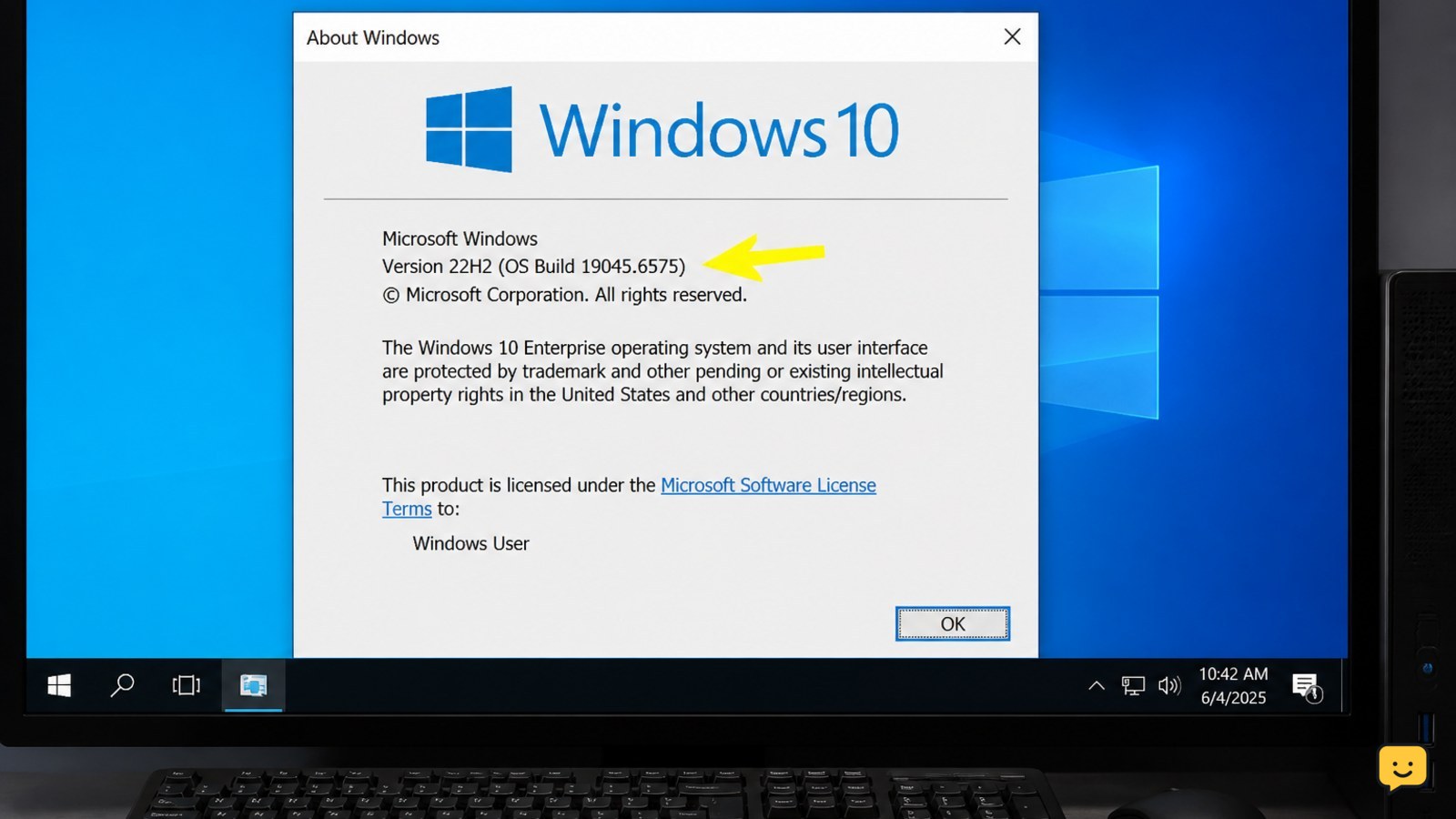
winver, and press Enter. - Confirm that the version is Windows 10 22H2 and note the current OS build.
- Open Settings > System > About to check the edition and system type.
If the device is still on an earlier feature version, KB5068781 is not the correct update to force. Upgrade through a supported Windows path first, or continue using the device’s approved servicing plan.
Install the ESU preparation package before KB5068781
The ESU preparation package must be installed before Windows can deploy KB5068781. Microsoft states that installing the preparation package enables deployment of the November 11, 2025 security update.
- Open Settings > Update & Security > Windows Update.
- Select Check for updates.
- Install any offered Extended Security Updates licensing or preparation item.
- Restart when Windows requests it, then return to Windows Update and check again.
Success means the preparation item shows as installed or no longer appears as a pending prerequisite. If Windows Update says the computer is not eligible, verify the Windows edition, 22H2 status, ESU enrollment, and licensing with the device administrator. Do not substitute an unrelated package.
Download and install KB5068781 through Windows Update
Windows Update is the safest default installation route because it checks the device’s servicing prerequisites before offering KB5068781.
- Close applications and connect the computer to AC power.
- Go to Settings > Update & Security > Windows Update.
- Select Check for updates and wait for the scan to finish.
- When 2025-11 Cumulative Update for Windows 10 Version 22H2 or KB5068781 appears, select Download and install.
- Choose Restart now when prompted, or schedule the restart for a suitable time.
During a successful installation, Windows displays progress, restarts, and eventually returns to the sign-in screen. A normal restart may take longer than usual. Do not power off the computer while the update screen is actively progressing.
Verify KB5068781 and the resulting OS build
Verification confirms whether KB5068781 installed rather than merely downloaded.
- Sign in after the restart and open Settings > Update & Security > Windows Update > View update history.
- Look under Quality Updates for KB5068781 and a successful installation status.
- Press Windows key + R, enter
winver, and compare the build number.
The expected result is OS build 19045.6575 on Windows 10 version 22H2 or build 19044.6575 where Microsoft lists that servicing branch. If the update history says it succeeded but the build is unchanged, restart once more and check again before attempting another installation.
What to do if KB5068781 does not install
If KB5068781 fails, first identify whether Windows is blocking the prerequisite, reporting an eligibility problem, or returning an installation error.
- KB5068781 is not offered: confirm Windows 10 22H2, ESU enrollment, and the preparation package. An unavailable update should not be forced onto an unsupported device.
- Download remains pending: restart Windows, check the network connection, confirm free storage, and run Windows Update again.
- Installation fails with an error code: write down the code and the failed update status before trying repair steps. The Windows Update install error guide covers a separate 0x80070306 failure path without assuming every KB5068781 error has the same cause.
- The computer repeatedly rolls back: stop repeated retries, preserve the error details, and ask an administrator or Microsoft support for servicing assistance.
Do not delete the Windows Update cache, edit the registry, or use unofficial package mirrors as a first response. Those actions can make later diagnosis harder and may damage update servicing.
Use the Windows Update install error guide when the failure specifically reports 0x80070306: Windows Update install error guide
Frequently asked questions
What is KB5068781?
KB5068781 is the November 11, 2025 Windows 10 Extended Security Update listed by Microsoft for eligible Windows 10 devices. It produces OS build 19045.6575 on the applicable Windows 10 version 22H2 branch and build 19044.6575 on the other listed servicing branch.
Why can’t I find KB5068781 in Windows Update?
KB5068781 may not appear because the computer is not running Windows 10 22H2, is not enrolled in ESU, lacks the required ESU preparation package, or uses an edition outside the update’s eligibility. Check those conditions before considering any manual installation.
How do I know if KB5068781 installed?
Check Settings > Update & Security > Windows Update > View update history and look for KB5068781 under Quality Updates. Then run winver. The expected build is 19045.6575 or 19044.6575, depending on the Windows servicing branch.
Is KB5068781 for Windows 11?
No. The Microsoft support entry identifies KB5068781 as a Windows 10 update. Windows 11 uses different cumulative update identifiers, so do not install this package on Windows 11.
What should I do if KB5068781 keeps failing?
Record the exact Windows Update error code, restart once, confirm free storage and ESU eligibility, and try Windows Update again. If the same failure repeats or Windows rolls back the update, stop repeated attempts and use supported Microsoft or administrator-assisted servicing.


