
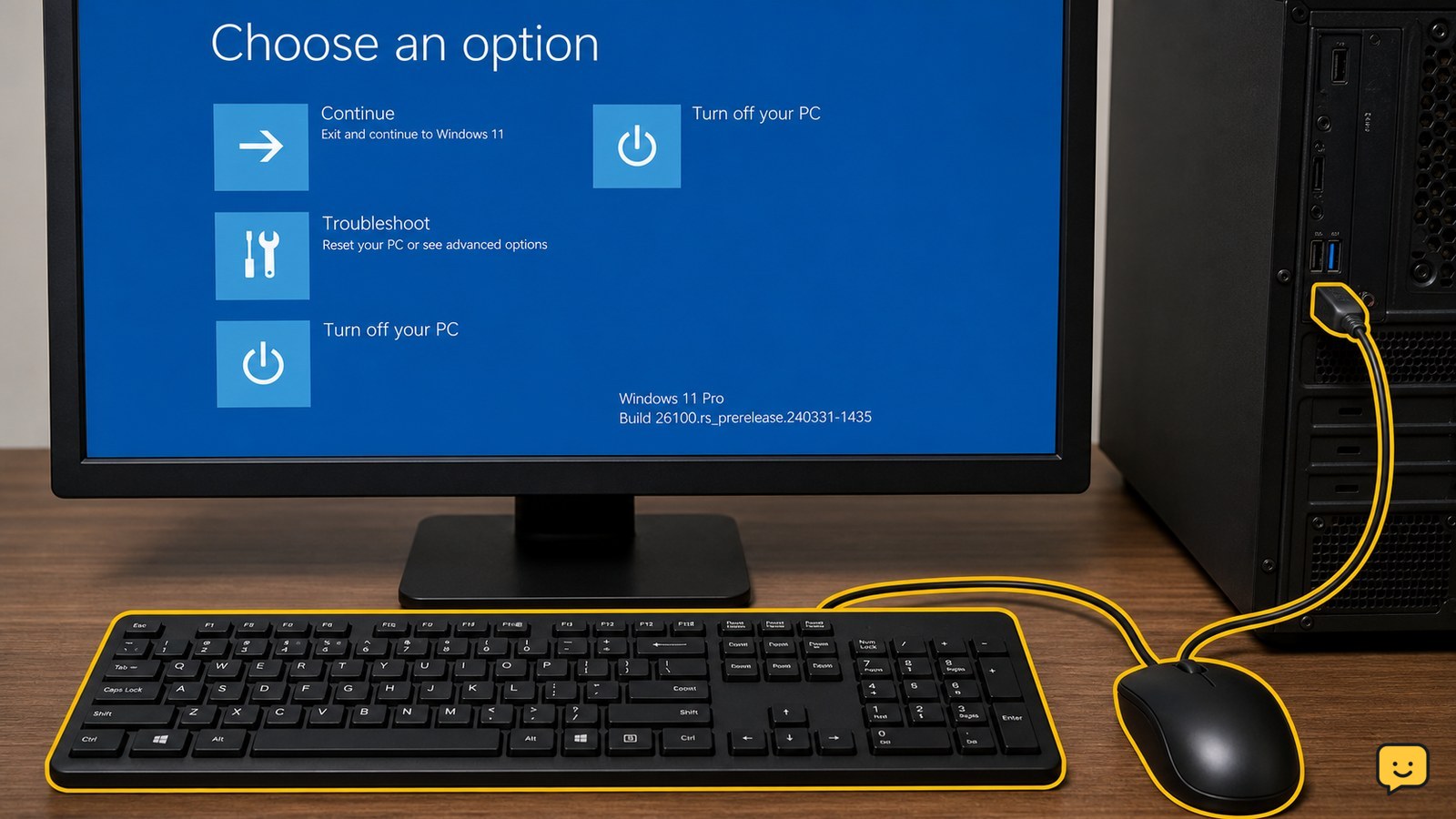
KB5070773 is an out-of-band Windows update for Windows 11 systems affected by a Windows Recovery Environment problem in which USB mice and keyboards may stop working. Check Windows Update for the package, install it, restart the PC, and confirm the update appears in update history. Test WinRE only after saving work and securing any required BitLocker recovery key.
For more help with this topic, use the Computers Internet guides.
Check whether KB5070773 applies to your Windows 11 PC
KB5070773 applies to the Windows Recovery Environment issue reported for Windows 11 24H2 and 25H2 systems, not to every USB failure in Windows. The reported symptom is specific: after affected updates, a USB mouse or keyboard may be unusable when the computer starts WinRE, even though the device may work normally on the desktop.
- Press Windows key + R, type winver, and press Enter.
- Record the Windows version shown in the dialog. Close it with OK.
- Open Settings, choose Windows Update, and select Check for updates.
If Windows Update lists KB5070773 or identifies an update that includes the same WinRE USB correction, continue. If it does not appear, do not assume the PC is defective: the package may already be installed, may not match the device’s version, or may be superseded by a later cumulative update.
Install KB5070773 through Windows Update
Windows Update is the safest installation route because it selects packages that match the PC’s Windows version, architecture, and servicing state.
- Keep the computer connected to power and close programs that contain unsaved work.
- In Settings > Windows Update, select Check for updates.
- Choose Download & install if KB5070773 is offered.
- Allow Windows to restart when prompted. Do not turn off the PC during installation.
Windows may show a later cumulative update instead of the KB number. That can be normal if the later package replaces or includes the earlier fix. Use the update’s details and the PC’s version information before attempting any manual installation.
If installation fails repeatedly, record the displayed error code and the exact Windows version. Avoid downloading an unrelated package from a third-party site.
Verify the update and the WinRE USB behavior
Successful installation means Windows records the package, the PC returns to the desktop without an update error, and compatible USB input works when WinRE loads.
- Open Settings > Windows Update > Update history.
- Expand the quality-update area and look for KB5070773 or a newer update that supersedes it.
- Test the USB mouse or keyboard in normal Windows first. Confirm that pointer movement, key presses, and the USB connection behave normally.
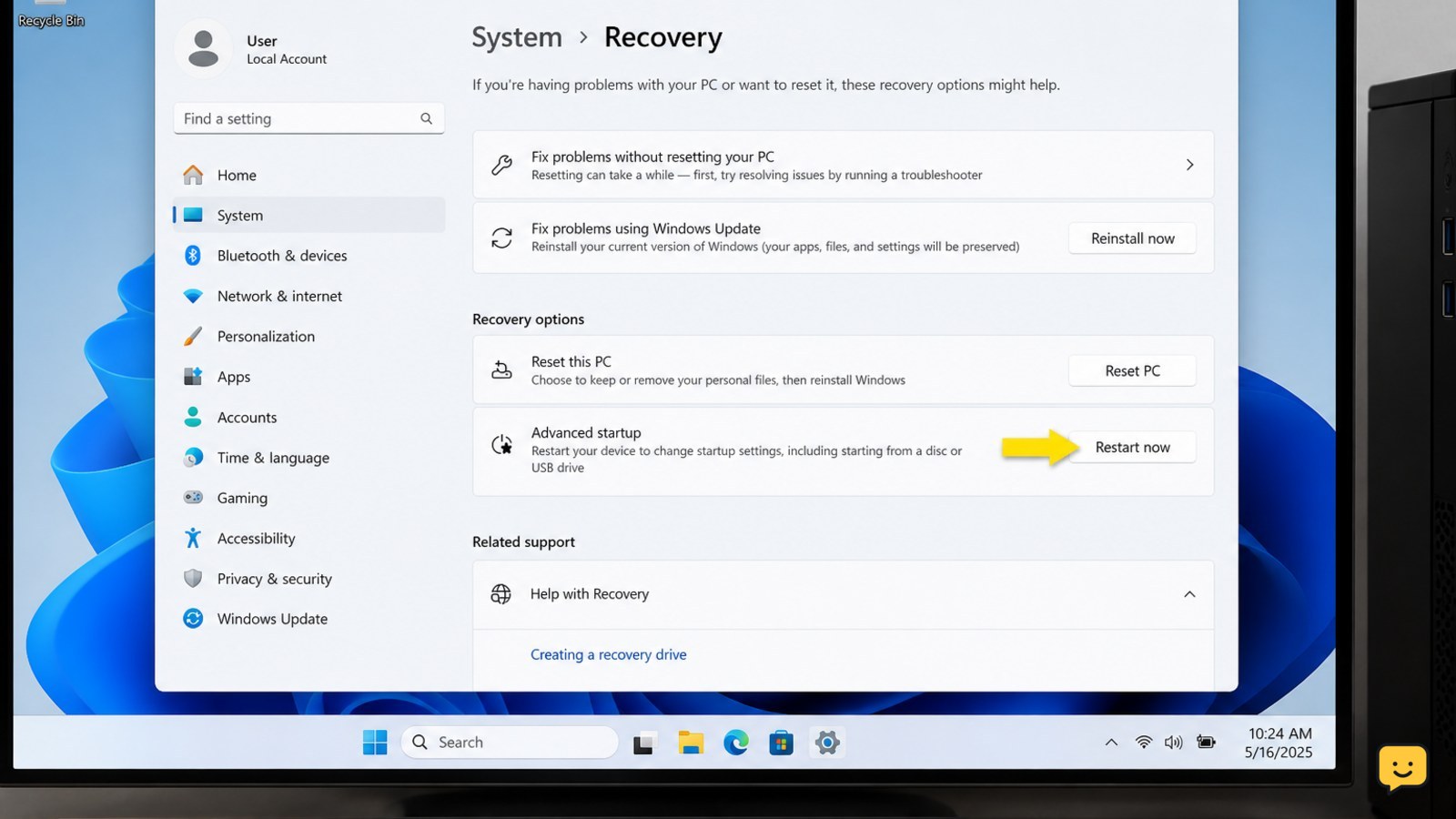
Only then test recovery input. Save your work, confirm that you have any needed recovery key, and open Settings > System > Recovery. Under advanced startup, choose Restart now. When WinRE appears, check whether the USB mouse moves or the keyboard responds in the recovery menus.
If both devices work in WinRE, the reported recovery-input symptom is resolved. Exit through the available restart or continue option rather than selecting a reset or reinstall choice unless that is your deliberate recovery plan.
What to do if KB5070773 is missing or will not install
If KB5070773 is absent, fails, or does not restore USB input in WinRE, use the failure detail to choose the next safe action.
- It is already listed: Install any newer Windows quality update offered for the same version, restart, and repeat the update-history check.
- It fails with an error: Restart once, reconnect to a stable network, check available storage, and try Windows Update again. Record the error before escalating.
- USB fails only in WinRE: Try a different USB port and a basic wired keyboard or mouse. If the device works on the desktop but not in recovery, the problem remains recovery-specific.
- USB fails in normal Windows too: Test another port and another known-working device. If several devices fail, investigate the port, chipset, or driver rather than repeatedly installing KB5070773.
For a persistent Windows Update installation error, use the structured checks in Windows Update installation error guidance. Stop and seek administrator or manufacturer support if recovery input remains unavailable after the applicable update and basic port checks.
For a persistent Windows Update installation error, use the structured checks in Windows Update installation error guidance.
Frequently asked questions
What problem does KB5070773 fix?
KB5070773 addresses a Windows Recovery Environment problem in which USB mice and keyboards could stop working on affected Windows 11 systems. It is not a general fix for every USB problem in normal Windows.
How do I install KB5070773?
Open Settings, select Windows Update, choose Check for updates, and install KB5070773 if it is offered. Windows may instead provide a newer cumulative update that replaces or includes the same correction.
Why can I not see KB5070773 in Windows Update?
The update may already be installed, replaced by a newer cumulative update, or unavailable for your Windows version. Check winver and Settings > Windows Update > Update history before attempting a manual download.
Does KB5070773 fix a USB keyboard that fails on the Windows desktop?
Not necessarily. The documented problem concerns USB input in WinRE. If the keyboard also fails in normal Windows, test another port and device, then investigate hardware, USB power, chipset, or driver causes.
Is it safe to test Windows Recovery Environment after installing the update?
Yes, provided you save your work, keep the PC powered, and have any required BitLocker recovery key. Do not choose Reset this PC or reinstall options unless you intentionally want to begin recovery.


