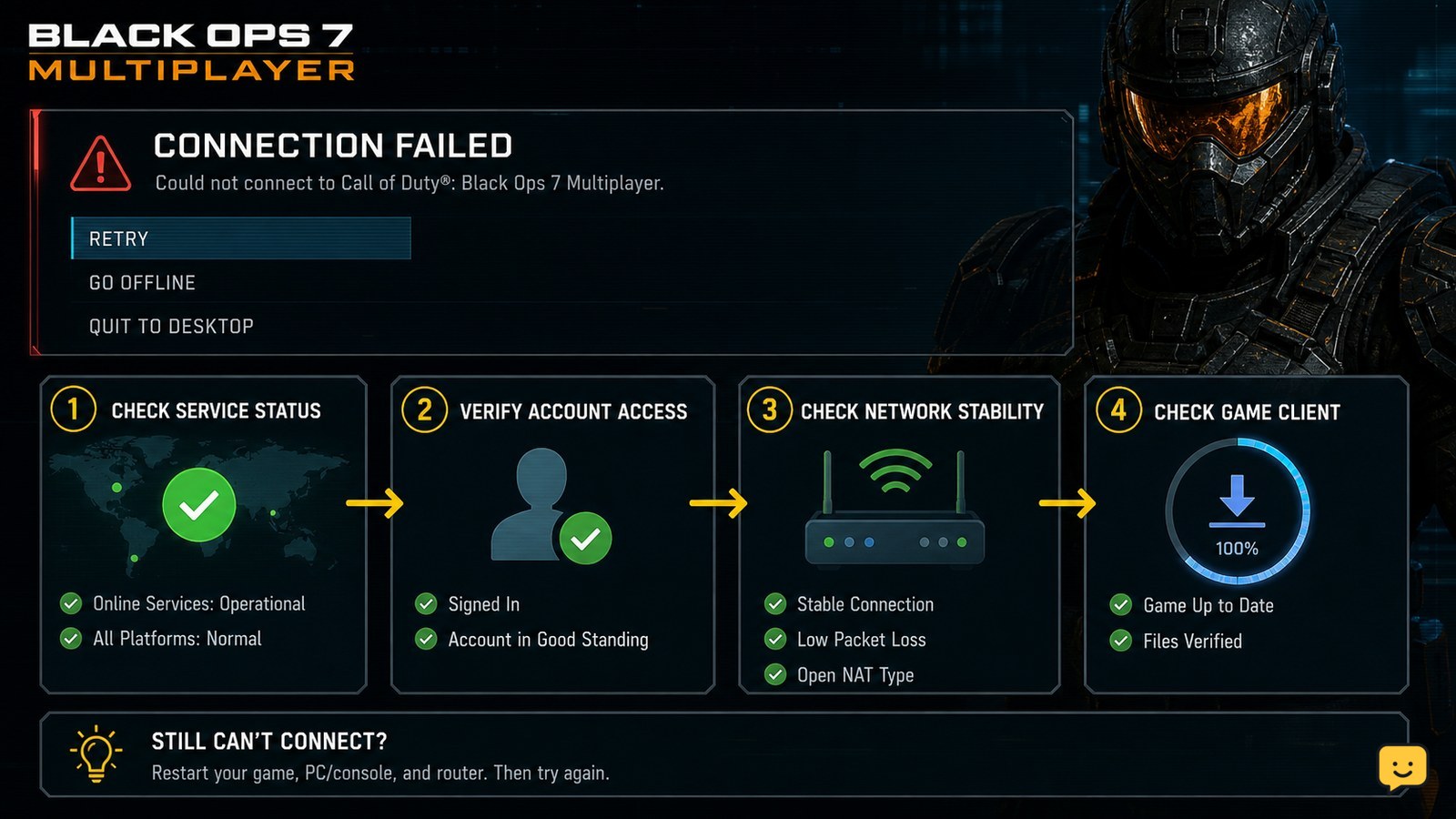
Black Ops 7 multiplayer usually fails to connect because Activision or platform services are unavailable, your account or multiplayer license is not being recognized, or your network cannot maintain the connection. Check service status first, then restart the game and router, confirm account access and updates, and test multiplayer again before changing advanced network settings.
For more help with this topic, use the Call of Duty: Black Ops 7 guides.
Check whether Black Ops 7 services are down
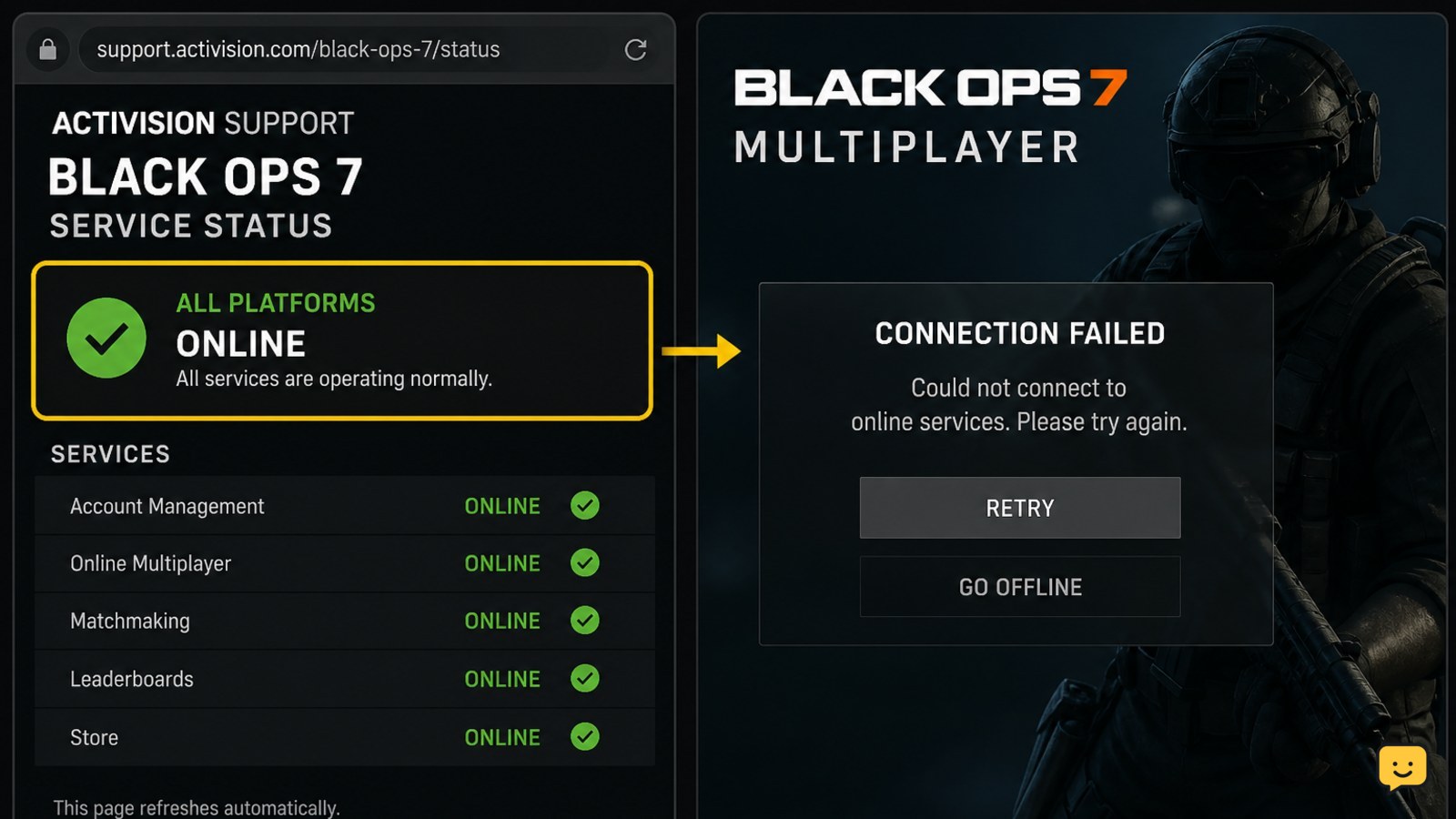
Black Ops 7 multiplayer cannot connect when Activision or a platform service is experiencing an outage, maintenance period, or widespread login problem.
- Open Activision Support and check the Black Ops 7 known issues page.
- Check the service-status page for your platform: Xbox, PlayStation, Steam, or Battle.net.
- Compare the symptom with the reported problem. A missing friends list, failed sign-in, or every matchmaking mode failing points more strongly to a service-side issue than to your Wi-Fi.
Verify: If other online games or services also fail, wait for the provider to restore service. If only Black Ops 7 fails and no outage is listed, continue with the account and network checks below. Activision’s known-issues page is the appropriate first reference for problems it is actively tracking.
Verify multiplayer access, ownership, and account status
Black Ops 7 multiplayer may refuse to connect when the platform does not recognize the game license, required subscription, or signed-in account.
- Confirm that the correct platform account is signed in on the device that owns the game.
- If you use a disc, insert the disc and wait for the platform to validate it. If you use a digital copy, check the game in your library and confirm it is installed from the purchasing account.
- Check that any platform subscription required for online console multiplayer is active. A community report specifically linked a later multiplayer access problem with expired Game Pass or license recognition, but this is a troubleshooting lead rather than official confirmation.
- Open the Activision account page in a browser and confirm that you are using the intended account and linked platform identity.
Verify: Restart Black Ops 7 after correcting ownership or subscription access. If the game displays a suspension, ban, or account-security message, do not try to work around it; use the official appeal or account-recovery route.
Restart the network and isolate Wi-Fi problems
Black Ops 7 multiplayer needs a stable route to online services, so short dropouts, congestion, or a failing router can cause sign-in and matchmaking errors.
- Close the game and shut down downloads, streaming, cloud backups, and other high-bandwidth activity on the same connection.
- Restart the modem and router. Disconnect power, wait at least 30 seconds, reconnect the equipment, and wait until the connection is fully restored.
- Test another online game or service on the same device.
- If possible, test Black Ops 7 over a wired Ethernet connection or a different trusted network. Do not use an unfamiliar public network for account sign-in.
Read the result: If a wired or alternate connection works, the original Wi-Fi path is the likely cause. Move closer to the router, reduce interference, or contact your internet provider. If every online service works except Black Ops 7, return to service, account, and game-client checks rather than repeatedly rebooting the router.
Update and fully relaunch Black Ops 7
Black Ops 7 multiplayer can fail when the client, required content, or platform software is out of date or left in an incomplete suspended state.
- Check for a Black Ops 7 update on your platform and install every pending game update.
- Check for a console, Windows, Steam, or Battle.net update where applicable.
- Fully quit the game, then relaunch it after the update finishes. On consoles, avoid resuming the game from a suspended state during this test.
- Wait at the main menu until sign-in and content checks finish before selecting Multiplayer.
Verify: A successful fix should let you enter the Multiplayer menu and begin a playlist search without immediately returning to the sign-in or connection screen. If the update repeatedly pauses, fails validation, or reports missing files, repair or verify the installation through the platform’s normal game-management tools.
Check in-game connection and cross-platform options
Black Ops 7’s available online and cross-platform options can affect matchmaking, but the exact menu names may vary by platform and game update.
- Open the game’s Settings menu and review Network, Account, Privacy, and Crossplay-related options if they are present in your build.
- Make sure online play, communication, and matchmaking are not restricted by a console family-safety setting or a platform privacy rule.
- If you are trying to join a friend, test public matchmaking first. A public match works when the problem is limited to party joining or one player’s network path.
- If matchmaking hangs only in one playlist, try another available playlist once. A mode-specific issue can be different from a complete multiplayer outage.
Failure branch: If the game cannot reach Multiplayer at all, changing crossplay or party settings is unlikely to solve the root problem. Recheck service status and account access, then record the error code for Activision Support.
If you cannot select Multiplayer reliably, use the Black Ops 7 controller fixes guide Black Ops 7 controller fixes before testing connection settings.
What to do if Black Ops 7 still will not connect
Persistent Black Ops 7 multiplayer failures after service, account, network, and update checks need platform-specific repair or official support.
- Capture the exact error text or code, platform, connection type, and the time the failure occurred.
- Try one final clean launch after signing out of the platform profile and signing back in through the normal platform controls.
- On PC, use the launcher’s standard scan, verify, or repair option before reinstalling. On console, use the platform’s normal repair and storage-management guidance.
- Contact Activision Support if the same error remains on a known-good connection, especially when other players can connect and your account shows an ownership or enforcement message.
Do not delete saved data or unlink accounts as a first response. Those actions can create separate synchronization or ownership problems and are not required for ordinary connection troubleshooting.
Frequently asked questions
Why does Black Ops 7 say it cannot connect to the host?
The message can indicate a host-side network problem, a party-joining failure, or a wider service issue. Test public matchmaking first, then try a different network or ask the host to restart the game and router. If every mode fails for all players, check Activision’s known-issues and service information before changing local settings.
Can an expired Game Pass or online subscription stop Black Ops 7 multiplayer?
Yes, an expired subscription can prevent online console multiplayer when the platform requires one for the game. Confirm the subscription on the purchasing or primary platform account, then fully restart Black Ops 7. Physical ownership does not always replace a platform’s online multiplayer requirement.
Should I change my DNS or open router ports for Black Ops 7?
Not first. Restart the router, stop competing downloads, and test Ethernet or another trusted connection before changing DNS or port rules. Advanced router changes are platform- and network-dependent, can create new problems, and are not a reliable response to an active Activision outage.
Why does Black Ops 7 multiplayer work on another network?
That result points to the original Wi-Fi, router, ISP route, or network restrictions rather than the game account. Keep the working connection as a comparison, then improve the original network by reducing congestion, using Ethernet, updating router firmware, or asking the ISP to investigate packet loss.