
Skip to content
ShowU
Computers & Internet · 8 min read

Fix This Site Can’t Be Reached: Connection Checks

“This Site Can’t Be Reached” means Chrome could not establish a connection to the address you entered. First test another reliable site and try the affected address on mobile data. If only one site fails everywhere, wait or contact its owner. If many sites fail only on your device, restart the connection and check browser or DNS settings.

Maya Chen
Maya Chen · Updated
In this guide
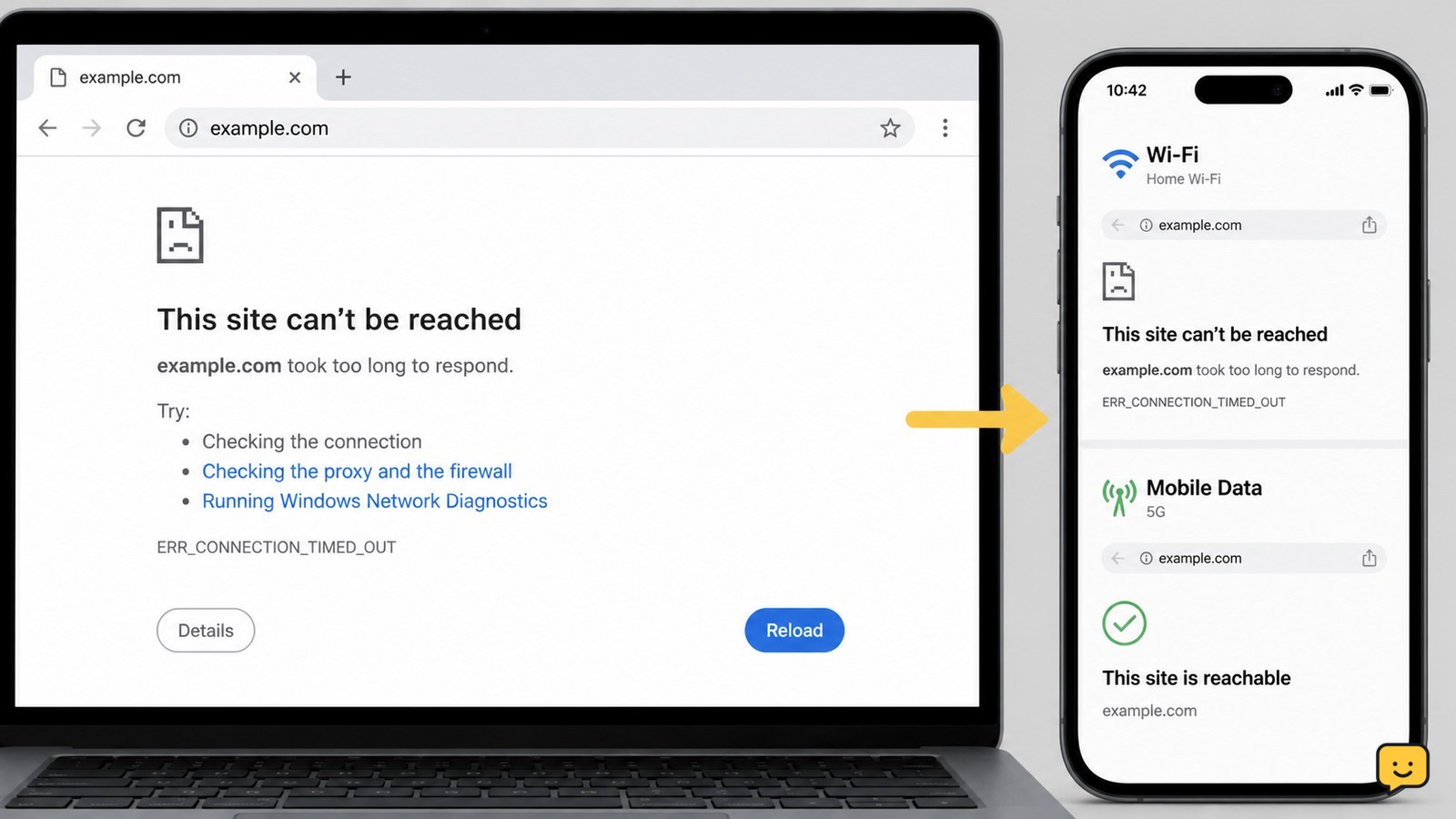
Laptop browser showing a connection error beside phone tests on Wi-Fi and mobile data

Before you begin

  • Keep the exact website address and any code shown below the error message, such as DNS_PROBE_FINISHED_NXDOMAIN or ERR_CONNECTION_TIMED_OUT.
  • Do not enter passwords, payment details, or personal information into a look-alike address while checking whether the original site is unavailable.
  • If you are using a work, school, hotel, or public Wi-Fi network, expect that its network rules may block some websites.

“This Site Can’t Be Reached” means Chrome could not establish a connection to the address you entered. First test another reliable site and try the affected address on mobile data. If only one site fails everywhere, wait or contact its owner. If many sites fail only on your device, restart the connection and check browser or DNS settings.

Check whether the problem is one website or your connection

The fastest diagnosis is to compare the affected website with other websites and another network. Open two established sites you normally use, then open the failing address in a private or Incognito window. Next, turn off Wi-Fi on your phone and try the same address using mobile data.

  1. If other sites open but this one fails on both Wi-Fi and mobile data, the website may be offline, moved, or misconfigured.
  2. If the site opens on mobile data but not home Wi-Fi, focus on your router, internet service, or DNS settings.
  3. If no websites open on the computer but another device on the same Wi-Fi works, focus on the computer’s browser and network settings.
  4. If the address works in an Incognito window, an extension, saved site data, or a browser setting is a likely cause.

Success looks like a clear pattern: one site failing everywhere points away from your device, while several sites failing on one device points toward a local connection problem.

Restart the device and network connection

A fresh connection can clear a temporary router or device networking fault without changing saved settings. Close Chrome completely, restart the computer or phone, and then restart the router only if multiple devices have trouble loading sites.

  1. Unplug the router’s power cable for 30 seconds. Do not press its Reset pinhole button, which can erase your internet settings.
  2. Reconnect power and wait until its normal internet-status light returns. This can take several minutes.
  3. Reconnect your device to Wi-Fi and reload the address.

If pages load normally afterward, no further repair is needed. If your Windows computer repeatedly drops off Wi-Fi, use the more focused checks in the related guide.

Rule out a mistyped, redirected, or blocked address

A precise website address check can solve an error caused by a typo, an old bookmark, or an incomplete address. Type the site’s main domain manually in Chrome’s address bar instead of opening a search-result ad, a message link, or an old bookmark.

Check for misspelled letters, an incorrect ending such as .com instead of the organization’s actual domain, and extra words before or after the domain. If the main homepage opens but a saved page does not, update or delete that bookmark.

On a public sign-in network, open a non-sensitive website first. If a Wi-Fi sign-in page appears, complete the network’s normal access process and then try the website again. Do not use an unfamiliar sign-in page to submit important account credentials.

Test Chrome without extensions or stored site data

Chrome extensions and corrupted stored site data can interfere with a website connection, especially when the site works in Incognito mode. Google’s Chrome Help documents how to clear browsing data and reset Chrome settings when normal browsing behavior is affected.

  1. In Chrome, open chrome://extensions.
  2. Turn off extensions temporarily, starting with VPN, proxy, ad-blocking, security, or download-management extensions.
  3. Reload the site after each change. If it opens, turn on only the extensions you need to identify the conflicting one.
  4. If it still fails, open Chrome Settings, search for Clear browsing data, and clear cached images and files. Keep passwords unchecked unless you intend to remove them.

Success means the website opens after an extension is disabled or after the cache is cleared. If the error remains in Incognito mode with extensions disabled, continue to the DNS checks rather than repeatedly clearing data.

Match the Chrome error code to the next safe action

The smaller code on Chrome’s error page helps separate a name-lookup problem from a timeout or refusal. Use it as a direction, not as proof that your device is at fault.

Code or symptom Likely meaning Next action
DNS_PROBE_FINISHED_NXDOMAIN The domain name could not be found. Recheck the spelling, test the site on mobile data, then flush DNS or use a trusted DNS provider.
ERR_CONNECTION_TIMED_OUT The browser received no response in time. Restart the router and test another network. If only that site times out everywhere, wait for its owner to resolve it.
ERR_CONNECTION_REFUSED The destination did not accept the connection. Try again later and check the site’s official status channel if it has one.
ERR_INTERNET_DISCONNECTED Your device is not connected to the internet. Reconnect to Wi-Fi or Ethernet and check whether other devices can get online.

Do not change advanced Chrome experimental settings to address a generic connection error. Those changes can create new browsing or compatibility problems and do not establish whether the website itself is available.

Annotated browser connection error page with the diagnostic error code highlighted
The small code below the message provides the most useful next troubleshooting direction.

Refresh DNS when the site fails only on your network

DNS converts a website name into the network address your browser needs, so a stale or failing DNS lookup can prevent one or many sites from opening. Google Public DNS provides current setup guidance for devices and routers; use a trusted provider only if the address works from another network but not yours.

On Windows, open Command Prompt as a normal user, enter ipconfig /flushdns, press Enter, then close and reopen Chrome. A confirmation that the DNS Resolver Cache was flushed is the expected result.

On macOS, the command differs by version, so use Apple’s current support guidance or restart the Mac and router before entering Terminal commands. On a phone, toggling Airplane Mode on and off briefly can request a fresh connection. If a DNS change fixes the site but breaks access to an employer, school, or smart-home service, restore the previous DNS setting and ask the service administrator which DNS configuration is required.

Use a network reset only after simpler checks fail

A network reset is a last local-device step because it removes saved network adapters and requires you to reconnect to Wi-Fi. Use it only when multiple websites fail on one Windows device, other devices can browse normally, and browser checks did not help.

In Windows 11, open Settings > Network & internet > Advanced network settings > Network reset, then choose Reset now. Save unfinished online work first. Windows restarts the PC, and you will need the Wi-Fi password afterward.

Verify the result by opening several websites in Chrome. If Wi-Fi shows as connected but webpages still do not load, check the dedicated Windows connection troubleshooting steps before repeating the reset.

Know when the website owner or network administrator must act

When one website cannot be reached from multiple devices and separate networks, local troubleshooting cannot repair the destination server, domain registration, or hosting configuration. Wait and try again later, use the organization’s verified app or official social-status channel, or contact its support team through a known contact method.

If the message appears only on a managed workplace, school, hotel, or library connection, the administrator may have a filtering, sign-in, DNS, or firewall rule to review. Report the exact address, time, network name, and Chrome error code. Do not disable security software or attempt to evade network controls.

Frequently asked questions

Why does Chrome say “This Site Can’t Be Reached” when my Wi-Fi is connected?

A Wi-Fi connection only confirms that your device joined the router; it does not confirm that the router has internet access or can resolve website names. Test another website and another device. If both fail, restart the router or contact your internet provider. If only one site fails, it may be a site-side issue.

Can clearing Chrome cache fix “This Site Can’t Be Reached”?

Yes, but mainly when stale browser data is interfering with a site and the address works in Incognito mode. Clear cached images and files first, then test again. Clearing the cache will not repair a website that is offline or an internet connection that is unavailable.

Should I disable my firewall or antivirus to open a website?

No. Do not broadly disable firewall or antivirus protection as a routine connection fix. If a trusted security product specifically reports that it blocked a site, review its alert and use the product’s support guidance. Otherwise, test the address on another network to distinguish a local issue from a site outage.

What does DNS_PROBE_FINISHED_NXDOMAIN mean?

It means Chrome could not find a network address for the domain name. Check the spelling first, particularly the domain ending. If the address is correct and works on mobile data, flush your device DNS cache or ask the network administrator whether its DNS service has a problem.

Share this guide Facebook X LinkedIn Reddit WhatsApp Email