
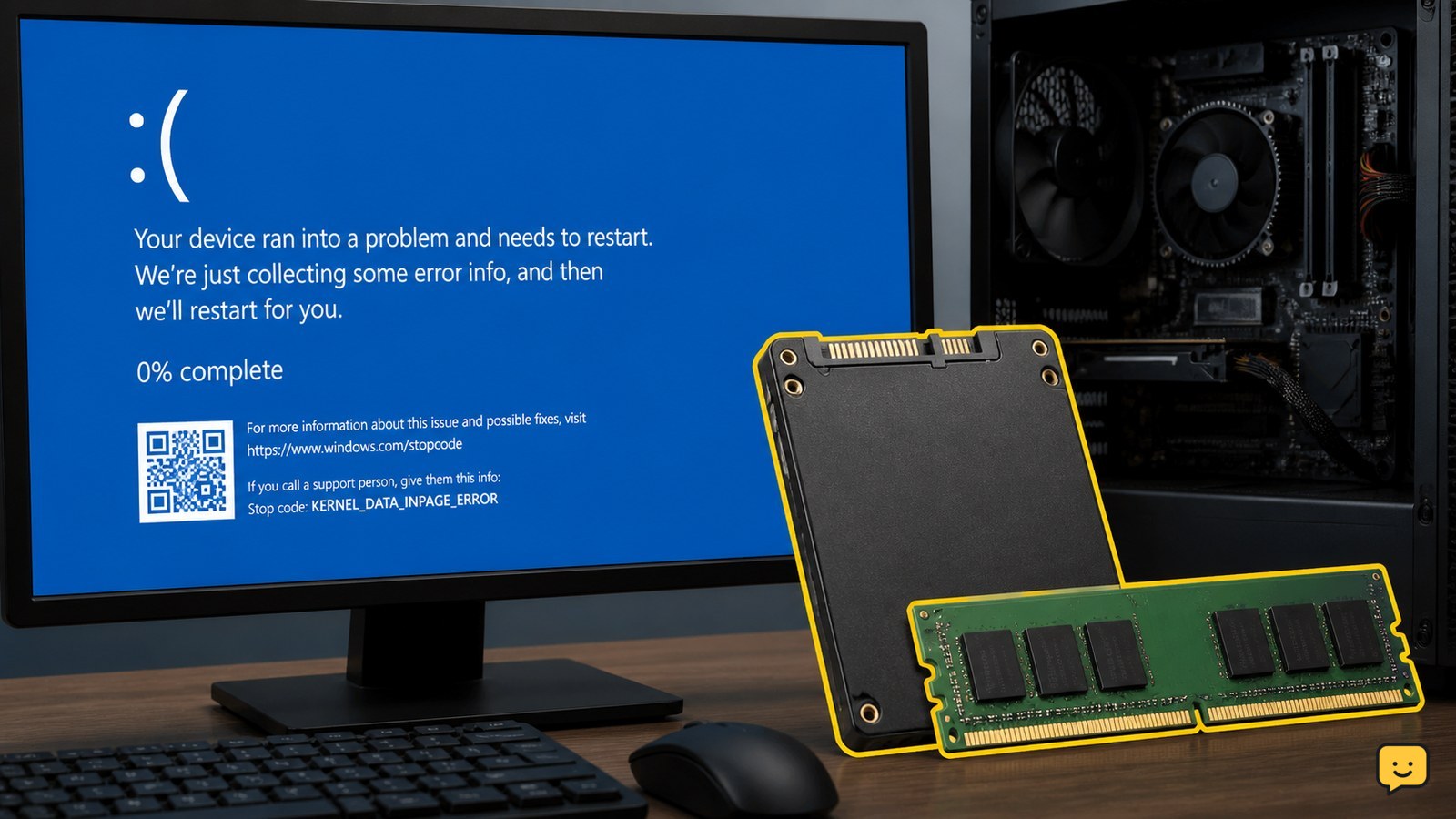
KERNEL_DATA_INPAGE_ERROR is a Windows blue-screen failure while Windows is reading data from storage or memory. First back up important files if the PC still starts. Then disconnect nonessential USB devices, install Windows updates, check free space and malware, test the drive, and run Windows Memory Diagnostic. Repeated crashes or a failing drive require professional repair or replacement.
For more help with this topic, use the Computers Internet guides.
Check whether the error is repeating
KERNEL_DATA_INPAGE_ERROR is more concerning when it returns after every restart, appears during file access, or is joined by missing files and a slow or freezing drive.
Record when the crash happens. A failure during startup or while opening files points more strongly toward storage or its connection; crashes during varied tasks can also involve RAM, drivers, malware, or damaged Windows files. The stop code identifies the failure class, but it does not prove which component is defective.
- Restart once and see whether Windows reaches the desktop.
- Open Settings > Windows Update and note whether updates are waiting.
- Check whether File Explorer opens normally and whether the system drive has free space.
Verify: Continue only if the PC remains stable long enough to protect important data. If it crashes repeatedly before the desktop appears, move to Windows Recovery or arrange repair instead of forcing many restarts.
Protect files before testing the drive
Back up important files before drive diagnostics because KERNEL_DATA_INPAGE_ERROR can be associated with bad sectors or a failing hard disk, according to NeoSmart and Reclaime.
- Copy documents, photos, work files, browser exports, and other irreplaceable data to a separate physical drive or a trusted cloud location.
- Copy in smaller groups if a large transfer freezes. Start with the most valuable folders.
- If one file repeatedly stops the copy, do not keep retrying indefinitely; record its location and continue with other data.
For a safer file-transfer workflow when Windows reports a copy failure, use this guide to handle Windows copy errors. It covers checking the source and destination before more repair work.
Verify: Open several backed-up files from the second location. A completed copy operation is not enough if the destination files cannot be opened.
Use this guide to handle Windows copy errors before running intensive drive repairs or scans.
Remove simple connection and update causes
Loose storage connections, problematic USB devices, pending Windows updates, low disk space, and malware are reasonable first checks for this blue screen.
- Shut down the computer completely.
- Disconnect nonessential USB drives, docks, memory-card readers, printers, and other peripherals.
- For a desktop, power off and have a qualified person check that the internal storage and power cables are firmly seated. Do not open a laptop unless its service instructions and your experience support that work.
- Start Windows and install available updates from Settings > Windows Update.
- Keep enough free space for Windows to operate normally. If storage is nearly full, remove only files you have already backed up.
- Run a scan with Windows Security from Windows Security > Virus & threat protection.
Reclaime specifically lists checking USB cables, freeing disk space, installing Windows updates, and checking for viruses among its suggested causes and fixes.
Verify: Use the computer normally with the peripherals still disconnected. If the crash stops, reconnect devices one at a time and test after each connection. Replace the cable or device that brings the error back.
If updates fail while you are applying this check, use these steps to fix Windows Update failures safely.
Test and repair Windows system files
Damaged Windows components can cause instability, so repair system files only after protecting personal data and checking for an obvious storage connection problem.
- Right-click Start and select Terminal (Admin) or Command Prompt (Admin).
- Run
sfc /scannowand wait for it to reach 100 percent. - Read the result. If Windows repaired files, restart and test the computer. If it found files but could not repair everything, do not assume the storage is healthy; continue with drive and memory checks.
- Run
DISM /Online /Cleanup-Image /RestoreHealthif SFC reports unrepaired corruption, then runsfc /scannowagain.
Verify: The useful result is not merely a completed command. Windows should remain stable through a restart and ordinary file access afterward.
If the blue screen returns during these commands, freezes, or reports read errors, stop treating the problem as software-only and prioritize drive diagnosis or professional service.
Check the storage drive for errors
A storage fault is a leading concern when KERNEL_DATA_INPAGE_ERROR appears during startup, file opening, installation, or large transfers. NeoSmart identifies bad sectors and hard-disk errors as common causes.
- Open Terminal (Admin) or Command Prompt (Admin).
- Run
chkdsk C: /scanto perform an online scan of the Windows drive. - Review the result for file-system errors or indications that a repair is needed.
- If Windows schedules an offline repair, back up first and allow it to run during the next restart only when the drive is not showing physical failure symptoms.
Do not repeatedly run repair commands on a drive that is clicking, disappearing from Windows, or producing rapidly worsening read failures. A repair may change file-system information and is not a substitute for recovering data from a failing drive.
Verify: After a successful scan or repair, restart Windows and open several files from the affected drive. If the same stop code returns, the drive, its cable, controller, or another hardware component still needs diagnosis.
Test RAM and choose the next repair
Faulty RAM can also trigger KERNEL_DATA_INPAGE_ERROR, so run a memory test when storage checks do not explain the crashes or when failures occur across unrelated tasks.
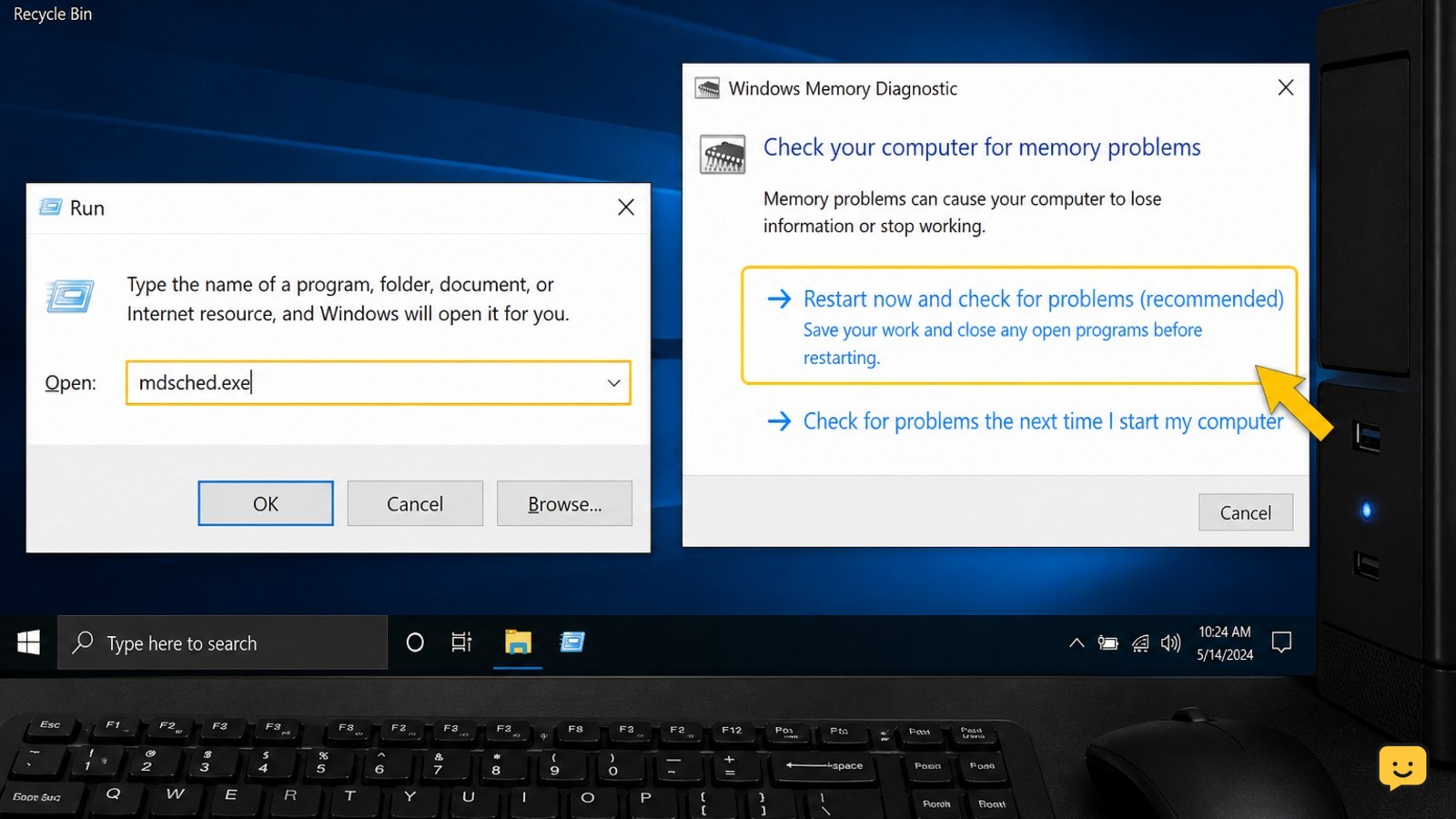
- Press Windows key + R, enter
mdsched.exe, and press Enter. - Choose Restart now and check for problems after saving open work.
- Let Windows Memory Diagnostic complete and review the result after Windows starts.
If the test reports memory problems, power off the computer and have the RAM modules tested or replaced. On a desktop, reseating or testing modules one at a time may help, but only attempt this if you can safely work inside the computer and follow its service guidance.
If the memory test passes but the blue screen continues, arrange a hardware diagnosis focused on the storage drive, storage cable or controller, and motherboard. If Windows no longer starts reliably, use another computer to prepare a backup or recovery plan rather than repeatedly restarting the affected machine.
Success looks like: Windows completes several restarts, opens files without freezing, and does not display the stop code again. One successful boot is not enough to declare the hardware fixed.
What to do if the error started after a change
A recently installed driver, storage upgrade, memory upgrade, security program, or Windows update can provide a useful rollback path when the crashes began immediately afterward.
- Remove newly connected peripherals and test again.
- Use Settings > System > Recovery to review available recovery options if Windows remains usable.
- For a recent driver or update, use Windows Recovery options to uninstall the latest quality update or roll back the affected device driver when that option is available.
- Do not reset or reinstall Windows until important files are backed up and hardware failure has been considered.
If the problem began after a storage or RAM replacement, power down and have the installation checked for compatibility, seating, and cable problems. If the error remains after the change is reversed, treat the original hardware or Windows installation as still suspect.
Frequently asked questions
What does KERNEL_DATA_INPAGE_ERROR usually mean?
It means Windows could not reliably read required kernel data from storage or memory. Common possibilities include bad sectors, a failing drive, loose storage connections, faulty RAM, malware, low disk space, or damaged Windows files. The stop code alone cannot identify the defective part, so back up files and test storage and memory separately.
Can a hard drive cause kernel data inpage error?
Yes. A hard drive or SSD can cause this error when Windows encounters unreadable sectors, file-system corruption, a failing controller, or an unreliable connection. Repeated crashes during startup, file opening, or copying make storage more suspicious. Back up important data first and stop using the drive if it makes unusual mechanical sounds or repeatedly disappears.
How do I check RAM for this blue screen?
Use Windows Memory Diagnostic. Press Windows key + R, enter mdsched.exe, select the option to restart and check for problems, then let the test finish. If it reports errors, have the memory tested or replaced. A passing result does not completely rule out intermittent RAM or a different hardware fault.
Will reinstalling Windows fix KERNEL_DATA_INPAGE_ERROR?
It may help only when corrupted Windows files or software are responsible. Reinstalling Windows will not repair a failing drive, defective RAM, damaged cable, or storage controller, and it can complicate data recovery. Back up files and check hardware first; use a reset or reinstall only after the drive is considered healthy.


