
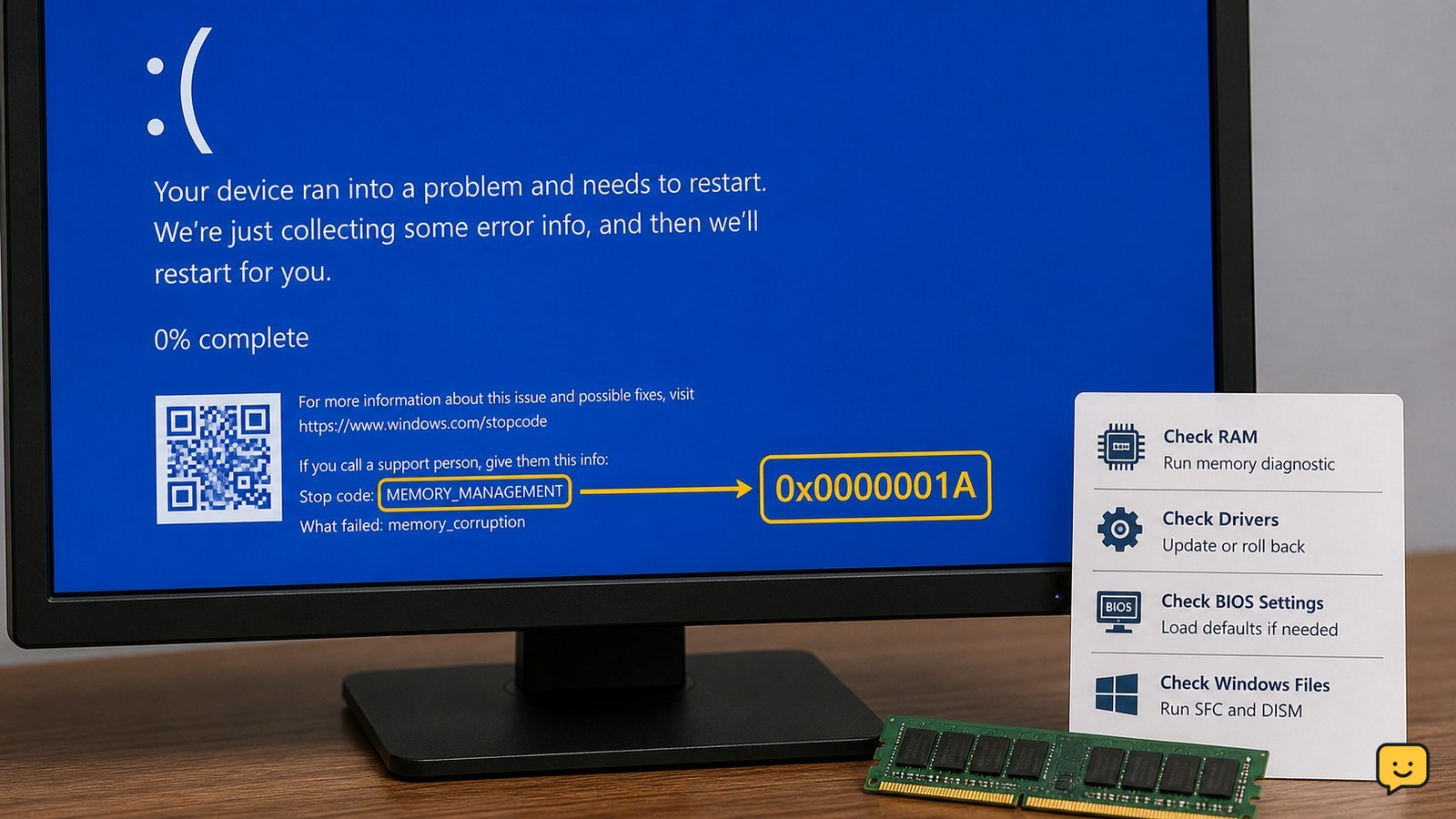
Windows MEMORY_MANAGEMENT 0x1A usually points to faulty or unstable RAM, a memory-related driver, damaged system files, or BIOS overclocking. Save important files first, run Windows Memory Diagnostic, return BIOS settings to default, update or roll back recent drivers, and repair Windows files. If the memory test reports errors or crashes continue, stop using the PC for critical work and arrange hardware service.
Confirm the 0x1A crash and protect your files
Windows MEMORY_MANAGEMENT 0x1A is a stop error associated with a serious memory-management failure. Microsoft describes bug check 0x1A as a memory-management error, but the code alone does not prove that a RAM stick is defective.
- On the next crash, photograph the blue screen or record the complete message, including any file name.
- Open Settings > System > About and note whether the computer runs Windows 10 or Windows 11.
- Think back to the last change: new RAM, a BIOS update, an overclock, a graphics driver, a Windows update, or a newly installed utility.
If the computer remains usable, copy documents and other irreplaceable files before deeper testing. A crash during a disk repair or memory test can interrupt unsaved work.
Run Windows Memory Diagnostic before changing hardware
Windows Memory Diagnostic checks installed physical memory without requiring a separate download, making it the safest first hardware screen.
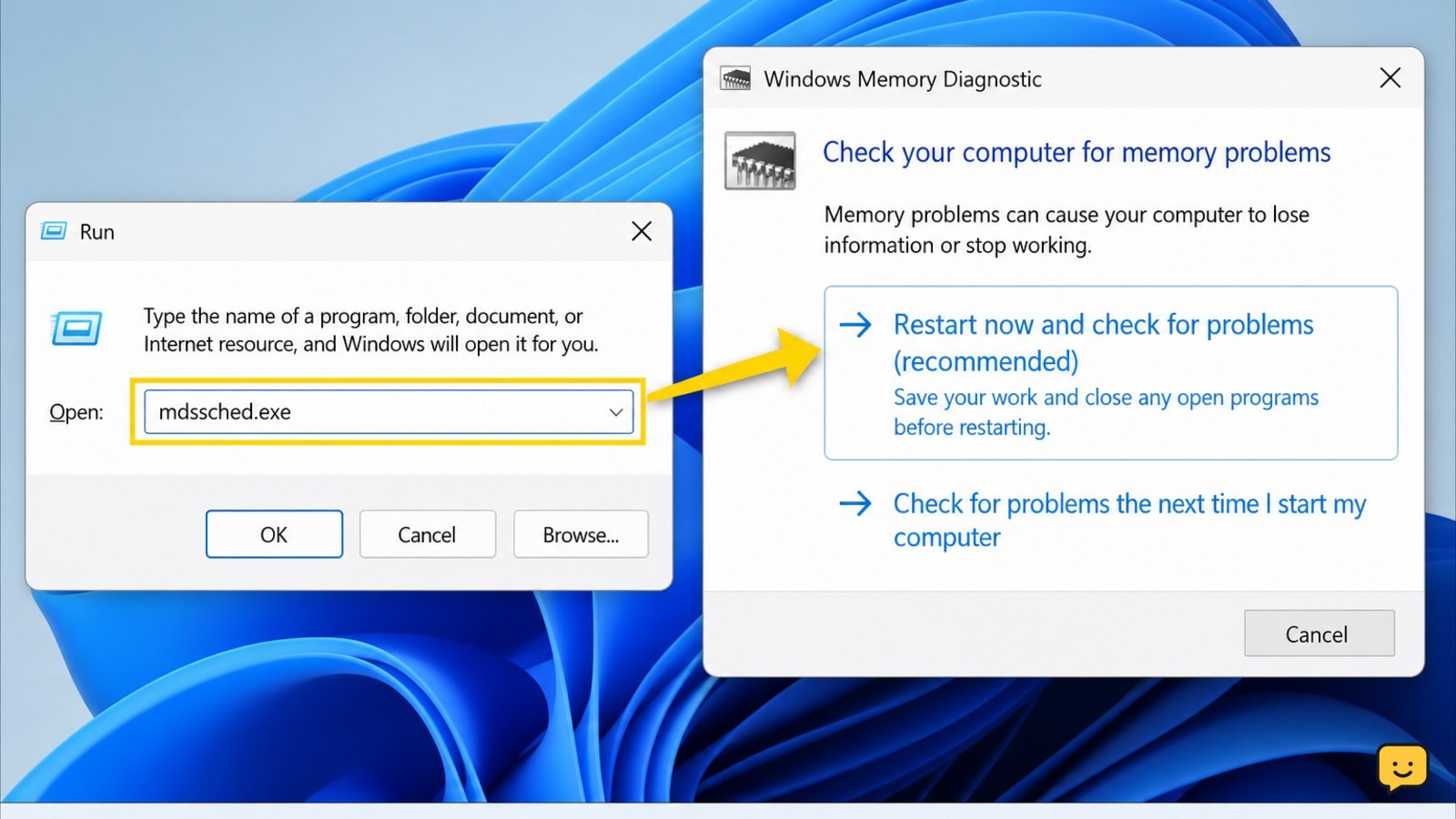
- Press Windows key + R, type
mdsched.exe, and press Enter. - Choose Restart now and check for problems only after saving work and closing applications.
- Let the test finish. The computer will restart automatically when the check is complete.
- After Windows loads, open Event Viewer, select Windows Logs > System, choose Find, and search for
MemoryDiagnostics-Results.
Success check: the result says that Windows tested the memory without finding errors. Failure path: any reported memory error is a hardware warning. Power off, stop relying on the computer for important work, and have the RAM or motherboard diagnosed. Do not assume a clean result rules out an intermittent fault; repeat crashes justify a longer bootable memory test or professional testing.
Return BIOS memory settings to a stable baseline
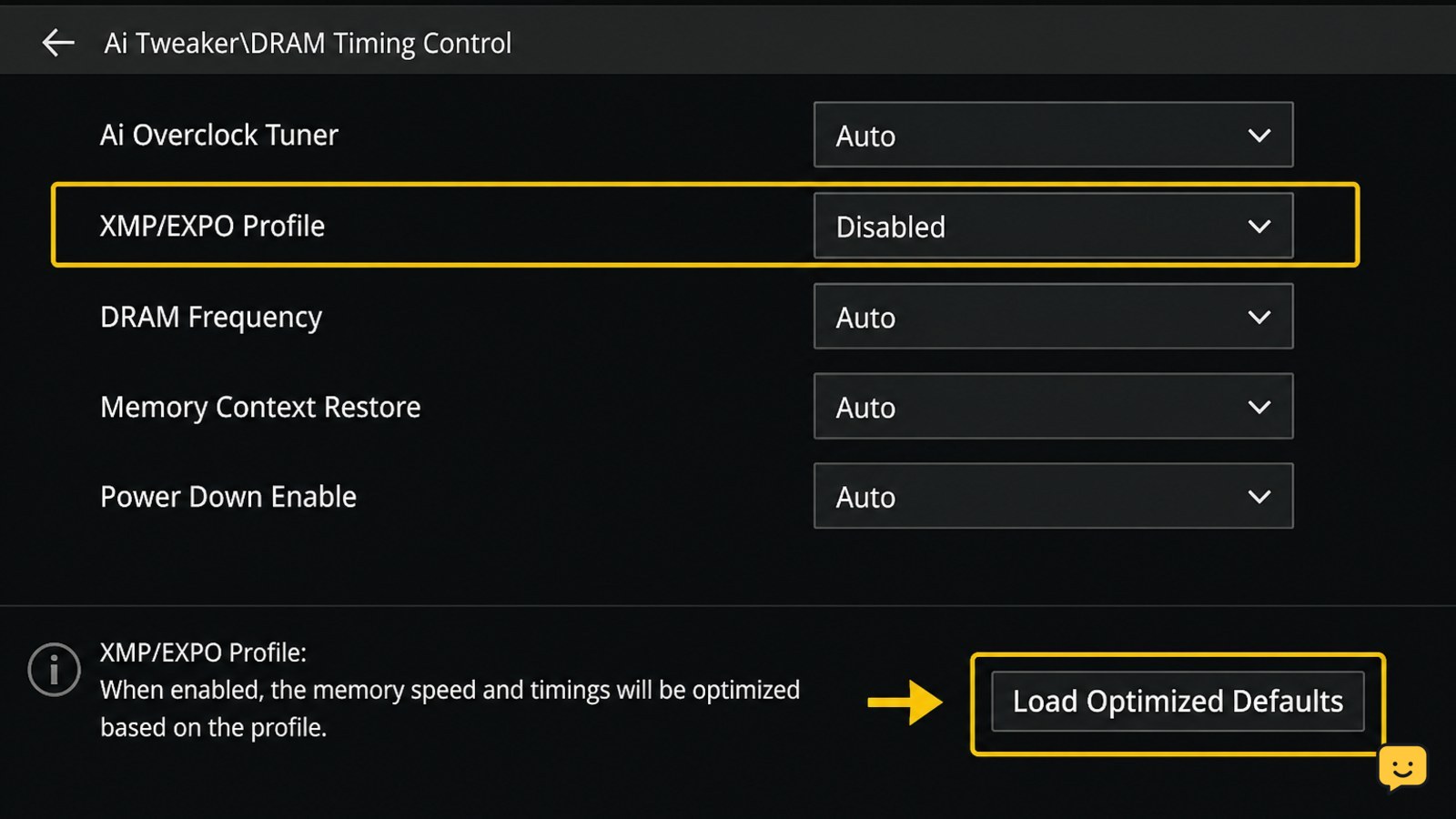
Unstable XMP, EXPO, overclocking, undervolting, or manually set memory timings can trigger MEMORY_MANAGEMENT crashes even when RAM passes a short test.
- Restart and enter the firmware setup using the key shown by the manufacturer, commonly Delete, F2, or a similar startup key.
- Choose the option labelled Load Optimized Defaults, Load Setup Defaults, or the manufacturer’s equivalent.
- Disable memory overclocking profiles such as XMP or EXPO temporarily. Do not change unrelated settings.
- Save changes and boot Windows.
Success check: crashes stop during the same workload that previously failed. If Windows requests a BitLocker recovery key after the change, stop altering firmware settings until the key is available. If returning to defaults does not help, leave the settings at default and continue with driver and system-file checks.
Update or roll back the driver linked to the crash
A damaged or incompatible driver can corrupt memory use and produce the same 0x1A symptom as a RAM fault. Focus first on drivers changed shortly before the crashes began, especially graphics, storage, chipset, and network drivers.
- Right-click Start and open Device Manager.
- Expand the relevant device category and check for a warning icon.
- For a recently updated device, open Properties > Driver and use Roll Back Driver when available.
- Otherwise, install the current driver from the computer or component manufacturer’s support page. Match the exact model and Windows version.
- Restart and use the computer normally long enough to test the original workload.
Do not install several driver packs or registry utilities at once; that removes the ability to identify the change that helped. If the crash started immediately after a graphics or chipset update, rolling back that specific driver is a more useful test than updating everything blindly.
Repair Windows system files and check the storage drive
Damaged Windows components can contribute to memory-management crashes, so repair them after the RAM and BIOS checks rather than treating a system-file repair as proof that the hardware is healthy.
- Right-click Start and open Terminal (Admin) or Command Prompt (Admin).
- Run
DISM /Online /Cleanup-Image /RestoreHealthand wait for it to complete. - Then run
sfc /scannow. - Restart when prompted, then check whether the original blue screen returns.
If either command reports that it could not complete, restart and run it again once. If the computer freezes, reports drive errors, or becomes unable to boot, stop repeated repairs and protect the data first. A failing storage drive can make repairs unreliable and needs separate health testing or service.
Verify the result and decide when repair is needed
The fix is credible only when the computer remains stable after the suspected cause is removed and the same workload no longer produces 0x1A.
- Use the computer with BIOS defaults and the corrected driver configuration.
- Repeat the task that previously caused the crash, such as gaming, waking from sleep, or transferring large files.
- Check Event Viewer > Windows Logs > System for new memory-diagnostic errors, unexpected restarts, or recurring hardware warnings.
- If crashes continue, test one RAM module at a time only if the desktop or laptop manual supports user access. Power off fully, disconnect power, and follow the manufacturer’s slot instructions.
If one module or slot consistently produces errors, replace or service the affected hardware. If errors appear across known-good RAM, the motherboard, memory controller, power supply, or storage system may be involved. At that point, stop swapping parts without a backup and give a repair technician the crash photos, test results, recent-change history, and exact computer model.
Frequently asked questions
Does MEMORY_MANAGEMENT 0x1A always mean bad RAM?
No. Bad or unstable RAM is a leading possibility, but the same stop code can involve drivers, BIOS memory settings, damaged Windows files, or another hardware fault. Use the Windows Memory Diagnostic result as evidence rather than replacing parts immediately. A clean short test does not rule out intermittent RAM or a motherboard problem.
Can a Windows update cause the 0x1A blue screen?
Yes, a new driver or system change can expose a compatibility problem, although the stop code does not identify the update by itself. Check when the crashes began, review recently installed updates and drivers, and roll back the specific recent change when Windows provides that option. Keep BIOS memory settings at their defaults while testing.
What should I do if Windows Memory Diagnostic finds errors?
Treat the result as a hardware warning. Back up files if Windows remains stable, then stop using the computer for critical work. A technician can test each memory module and slot, verify compatibility, and check the motherboard. Do not keep running demanding applications or repeatedly reseating parts if the device is under warranty.
Why does the computer crash only during games or heavy tasks?
Heavy workloads increase memory use, heat, and power demand, so they can expose marginal RAM, an unstable memory profile, a graphics driver fault, or inadequate cooling. Return BIOS settings to default, update or roll back the graphics driver, and monitor whether the crash returns under the same workload. Repeated failure warrants hardware testing.
For more help with this topic, use the Computers Internet guides.


