
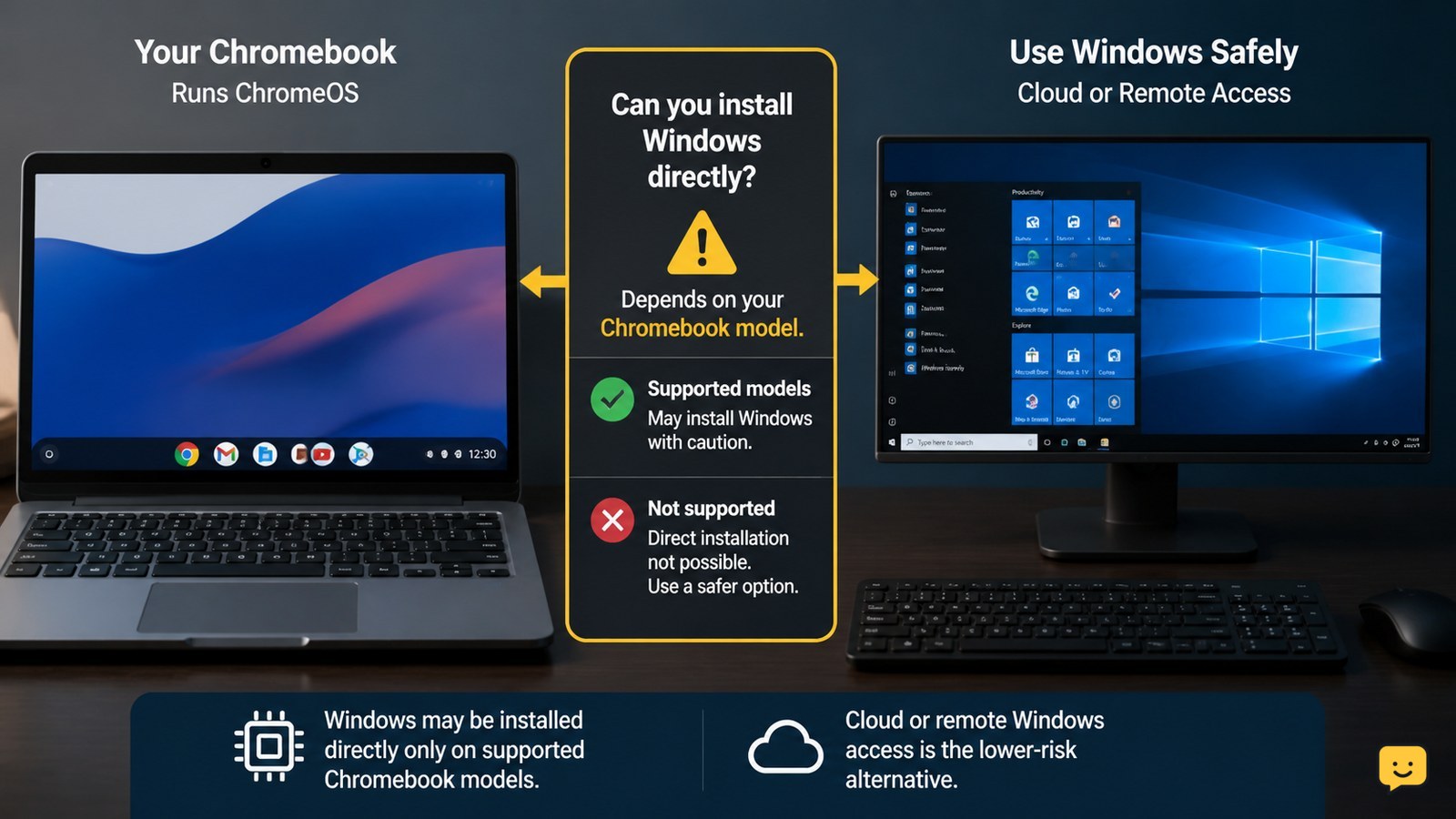
You can get Windows on a Chromebook in two ways: install it directly only when your exact model has compatible firmware and drivers, or access Windows through a cloud or remote computer without modifying the Chromebook. Direct installation can erase local data, break hardware features, and leave the device unsupported, so stop if your model is not listed in a current compatibility guide.
Check whether your exact Chromebook supports Windows
Your exact Chromebook model—not merely its brand—determines whether a direct Windows installation is practical. Open ChromeOS Settings, find the device information on the About ChromeOS page, and record the full model name and board or processor details shown there.
Use that information to search a current, model-specific compatibility guide. Coolstar’s Windows-on-Chromebook guide provides model selection and installation information, but its instructions are not interchangeable between devices. A listing should identify compatible firmware, Windows version, and working drivers.
Verify before continuing: the guide must match your model exactly and document support for the features you need. If the model is absent, listed as broken, or marked untested, do not flash firmware or continue with a direct installation.
Choose direct installation or cloud Windows
Direct installation replaces or modifies the Chromebook’s normal boot process and is suitable only for a confirmed compatible model. It may require Developer Mode, custom firmware, Windows installation media, and separate drivers; ITarian’s overview identifies Developer Mode and custom firmware as parts of this model-dependent process.
Choose cloud or remote Windows when you need Windows applications but do not want to erase ChromeOS or alter firmware. A browser-based cloud Windows service, such as the approach described by V2Cloud, keeps Windows on a remote computer and lets the Chromebook act as the access device.
Decision rule: use direct installation only when you can follow the complete guide for your model and recover the device. Otherwise, use cloud or remote Windows, or use a separate Windows PC. Do not treat an emulator or compatibility layer as a full Windows installation; application support varies.
Back up the Chromebook and prepare recovery
Back up local Chromebook files before changing Developer Mode or firmware because the process can powerwash the device. Copy Downloads and other locally saved folders to cloud storage or an external drive, and confirm that the files open from the backup.
Create the official ChromeOS recovery path recommended for your Chromebook before attempting a direct install. Keep the recovery media available rather than assuming Windows can be removed easily later.
Prepare a USB drive large enough for the model-specific recovery or installer instructions, a legitimate Windows ISO or installation drive, and any drivers named by the exact compatibility guide. If the guide does not identify the required driver source, stop instead of downloading random driver packages.
Install Windows only through the matching model guide
For a supported Chromebook, follow the complete model-specific guide in order. The documented sequence may include enabling Developer Mode, confirming the data wipe, installing compatible custom firmware, booting Windows installation media, and installing Chromebook-specific drivers.
- Read the full guide and note every recovery and rollback instruction before making the first change.
- Enter Developer Mode only after your backup is verified and you understand that the Chromebook may be powerwashed.
- Use only the firmware file named for the exact model or board. Never substitute firmware because two Chromebooks look similar.
- Install Windows from the prepared media, then install only the drivers specified for that model.
- Restart after each major stage and record any missing device, warning, or boot error before making another change.
Do not continue if the firmware process reports an error, the device repeatedly reboots, or the installer cannot detect the internal storage. Power off only as the model guide directs, then use the prepared recovery procedure or seek repair help.
Verify Windows hardware before relying on it
Windows is usable on a Chromebook only when the installed system and essential hardware work together. After the first successful boot, verify the display, keyboard, touchpad, Wi-Fi, audio, camera, USB ports, charging behavior, sleep and wake, and battery reporting.
Confirm success by opening Windows Settings and checking that no essential device is missing or showing an error in Device Manager. Test Wi-Fi by loading several pages, play audio through the built-in speakers, connect a USB device, close and reopen the lid, and confirm that the Chromebook resumes normally.
If one nonessential feature fails, consult the exact model guide for its documented driver or limitation. If charging, thermal behavior, boot reliability, storage detection, or input devices fail, stop using the Windows installation for important work and restore ChromeOS or obtain model-specific repair advice.
What to do if direct installation is unsupported
If your Chromebook is not listed or the required firmware is unavailable, the safest answer is not to force Windows onto it. Use a cloud Windows desktop or remote-access a Windows computer instead; this avoids firmware changes and preserves ChromeOS.
For a cloud option, create the service account through its official site, sign in from the Chromebook browser, and test the Windows application you need before paying for a longer plan. A slow or unreliable connection will make remote Windows frustrating even when the Chromebook itself is functioning normally.
If the required program has a ChromeOS, web, Android, or Linux version, use that version when its publisher supports your task. If you need dependable offline Windows support, a Windows computer is usually the safer hardware choice.
Frequently asked questions
Can every Chromebook run Windows?
No. Windows support depends on the exact Chromebook model, processor, firmware, storage, and available drivers. A compatible brand or product family does not prove that every model will work. If a current model-specific guide does not list your device, do not attempt a firmware installation.
Will installing Windows remove ChromeOS?
It can. Enabling Developer Mode may powerwash the Chromebook, and replacing or modifying firmware can change how the device boots. Back up local files and create ChromeOS recovery media first. Keep the recovery procedure available in case you decide to return to ChromeOS.
Can I use Windows on a Chromebook without installing it?
Yes. Cloud Windows or remote access lets the Chromebook connect to Windows running on another computer or service through a browser or client. This avoids changing firmware, but performance depends on the internet connection and the service may require a subscription.
What should I do if Wi-Fi or the keyboard stops working in Windows?
Stop relying on that installation for important work and check the exact model guide for a documented driver or limitation. Do not install random firmware or driver packages. If charging, booting, overheating, storage detection, or input remains unreliable, restore ChromeOS using the prepared recovery method or seek repair assistance.
For more help with this topic, use the Computers Internet guides.


