
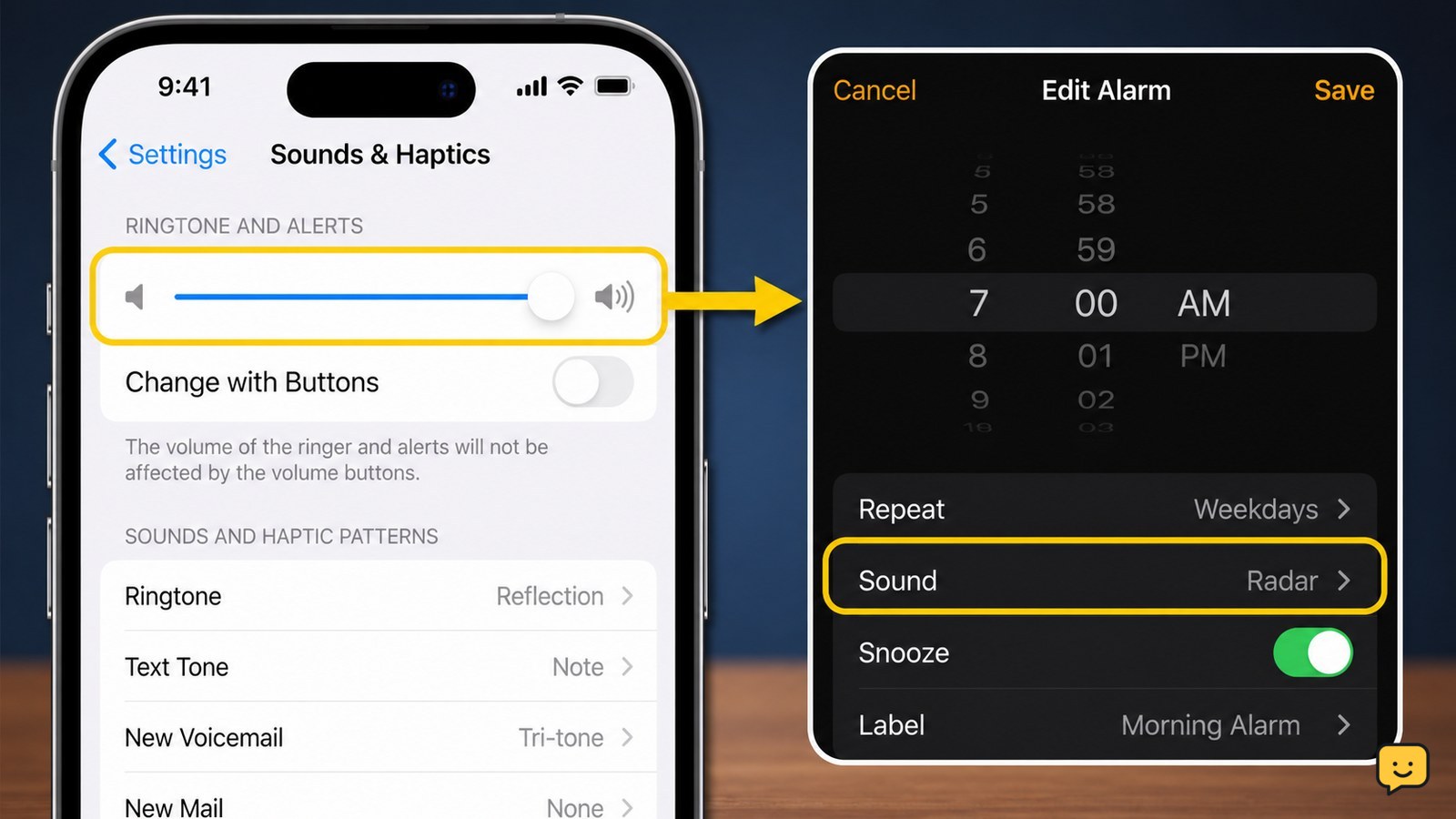
Your iPhone alarm is usually quiet because the Ringtone and Alerts volume is low, not because the media volume is low. Open Settings > Sounds & Haptics, raise Ringtone and Alerts, and turn off Change with Buttons so the side buttons cannot reduce it accidentally. Then check that the alarm sound is not set to None.
Raise the iPhone alarm volume in Sounds & Haptics
The built-in iPhone alarm uses the Ringtone and Alerts volume. It is separate from the volume used for music, videos, and many games.
- Open Settings.
- Tap Sounds & Haptics.
- Under Ringtone and Alerts, move the slider to the right.
- While the slider is visible, move it slightly back and forth. The iPhone should play an alert preview, letting you confirm that the speaker is producing sound.
Apple Community guidance and other troubleshooting reports identify this slider as the main control when an iPhone alarm is too quiet. Raising media volume from Control Center will not correct a low alert-volume setting.
Verify the result: the alert preview should be clearly audible at the selected level. If the preview is loud but the alarm is not, continue to the alarm sound check.
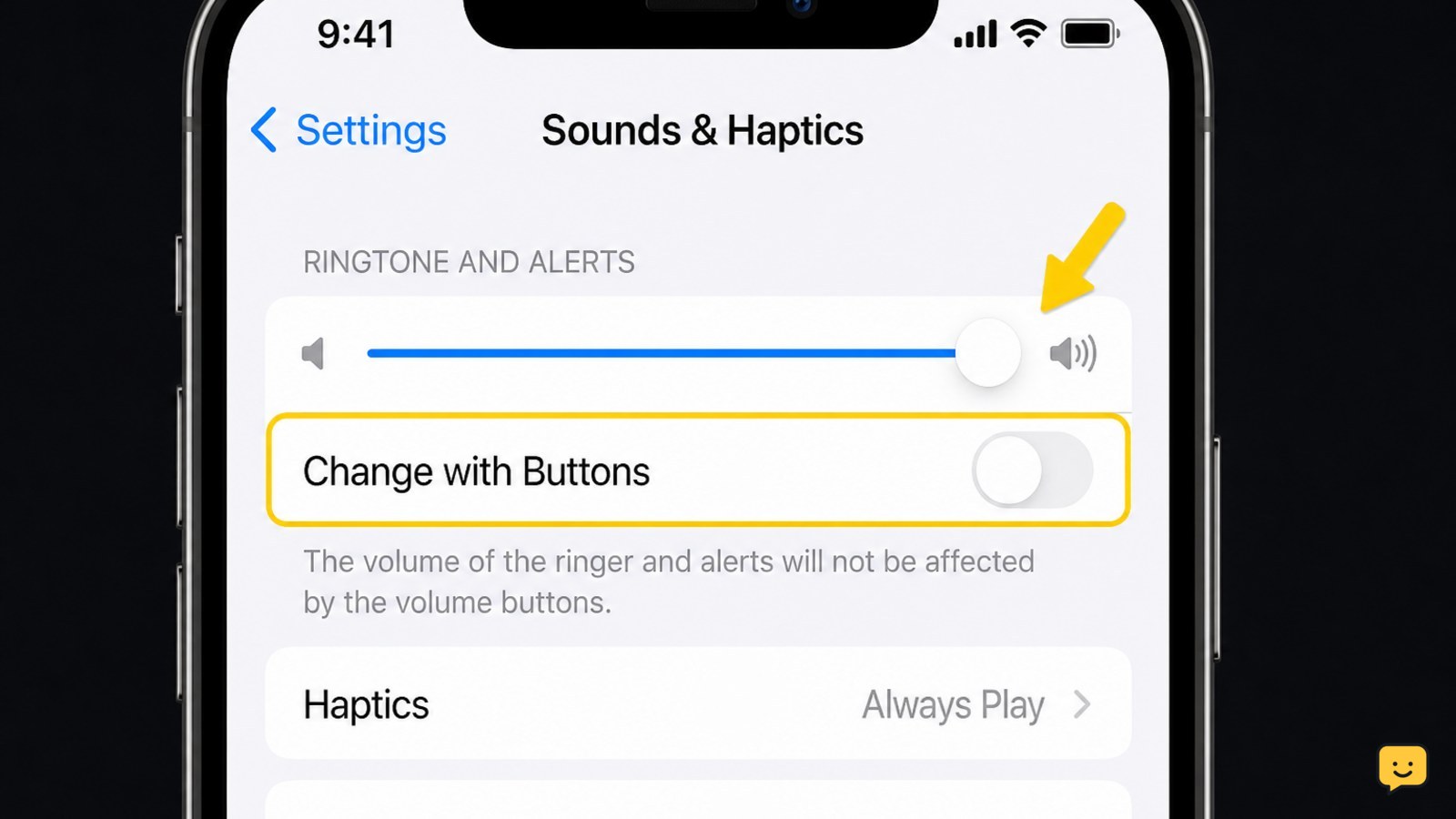
Turn off Change with Buttons to prevent accidental volume drops
Change with Buttons can let the physical volume buttons lower the same alert level used by alarms. If you often press the buttons while watching videos or handling the phone, the alarm setting may have been reduced without you noticing.
- Stay in Settings > Sounds & Haptics.
- Turn Change with Buttons off.
- Set Ringtone and Alerts to your preferred level using the on-screen slider.
With this option off, the side buttons adjust media volume during ordinary playback rather than quietly changing the alert level. Check the slider again after changing the setting.
If the option is already off: leave it off and proceed. The next likely cause is an individual alarm’s sound choice.
Check that the alarm has an audible sound
An individual Clock alarm can be quiet or silent when its Sound setting is wrong. Check the alarm itself rather than assuming every alarm uses the same tone.
- Open the Clock app and tap Alarms.
- Tap Edit, then select the affected alarm.
- Tap Sound.
- Choose a built-in alarm tone with a clear, strong sound instead of None.
- Tap Back, then Save or Done, depending on the screen shown.
If only one alarm is quiet while another sounds normally, that comparison points to the individual alarm’s sound choice rather than the iPhone’s main volume control. If you use a Sleep schedule alarm or a third-party app, inspect that alarm’s own sound and volume settings as well.
Test a one-time alarm before depending on it
A short test alarm confirms whether the change works before your next important wake-up.
- In Clock > Alarms, create a one-time alarm for two or three minutes ahead.
- Use the same sound you plan to keep and confirm the alarm switch is green.
- Lock the iPhone and place it where the speaker is not covered by bedding, clothing, or a case edge.
- Wait for the alarm, then stop it with Stop.
Success looks like this: the alarm begins at the selected alert volume and is easy to hear from your normal sleeping position. If it is still quiet, create a second test with a different built-in tone. A loud second tone suggests the original sound was the problem.
What to do if the alert preview and alarm are still quiet
If both the Sounds & Haptics preview and a test alarm are quiet, the problem may be broader than the Clock app.
- Remove anything covering the speaker openings, including a case or debris that can be cleared without inserting a sharp object.
- Play a ringtone or other alert preview at the same volume and compare it with the alarm.
- Restart the iPhone, then repeat the test alarm.
- Install any available iOS update through Settings > General > Software Update, then test again.
If music, calls, alert previews, and alarms are all unusually quiet, or the speaker sounds distorted, treat it as a possible speaker or hardware fault. Use another alarm source temporarily and seek Apple or authorized service rather than repeatedly raising a distorted speaker to maximum volume.
Frequently asked questions
Does iPhone alarm volume use media volume?
No. The built-in Clock alarm uses the Ringtone and Alerts level in Settings > Sounds & Haptics. Music and video volume can be high while the alarm remains quiet. Raise the alert slider and confirm it with the on-screen preview.
Can the iPhone side buttons make my alarm quieter?
Yes, if Change with Buttons is enabled. In Settings > Sounds & Haptics, turn that option off and set Ringtone and Alerts with the slider. This prevents ordinary button presses from lowering the alarm-related alert volume.
Why is only one iPhone alarm quiet?
Only one alarm being quiet usually points to that alarm’s Sound selection. Open Clock > Alarms > Edit, select the alarm, tap Sound, and choose an audible built-in tone. Also check whether that alarm belongs to a Sleep schedule or another app with separate controls.
Will Silent mode stop the built-in iPhone alarm?
Silent mode normally does not prevent a built-in Clock alarm from sounding. If the alarm is silent or very quiet, check the Ringtone and Alerts slider and confirm the individual alarm’s Sound is not set to None.
What should I do if my iPhone speaker is quiet everywhere?
If ringtones, alert previews, calls, music, and alarms are all quiet or distorted, remove case obstructions, restart the iPhone, and test again. Do not keep increasing a crackling speaker; use a backup alarm and arrange Apple or authorized service.
For more help with this topic, use the Mobile Devices guides.


