
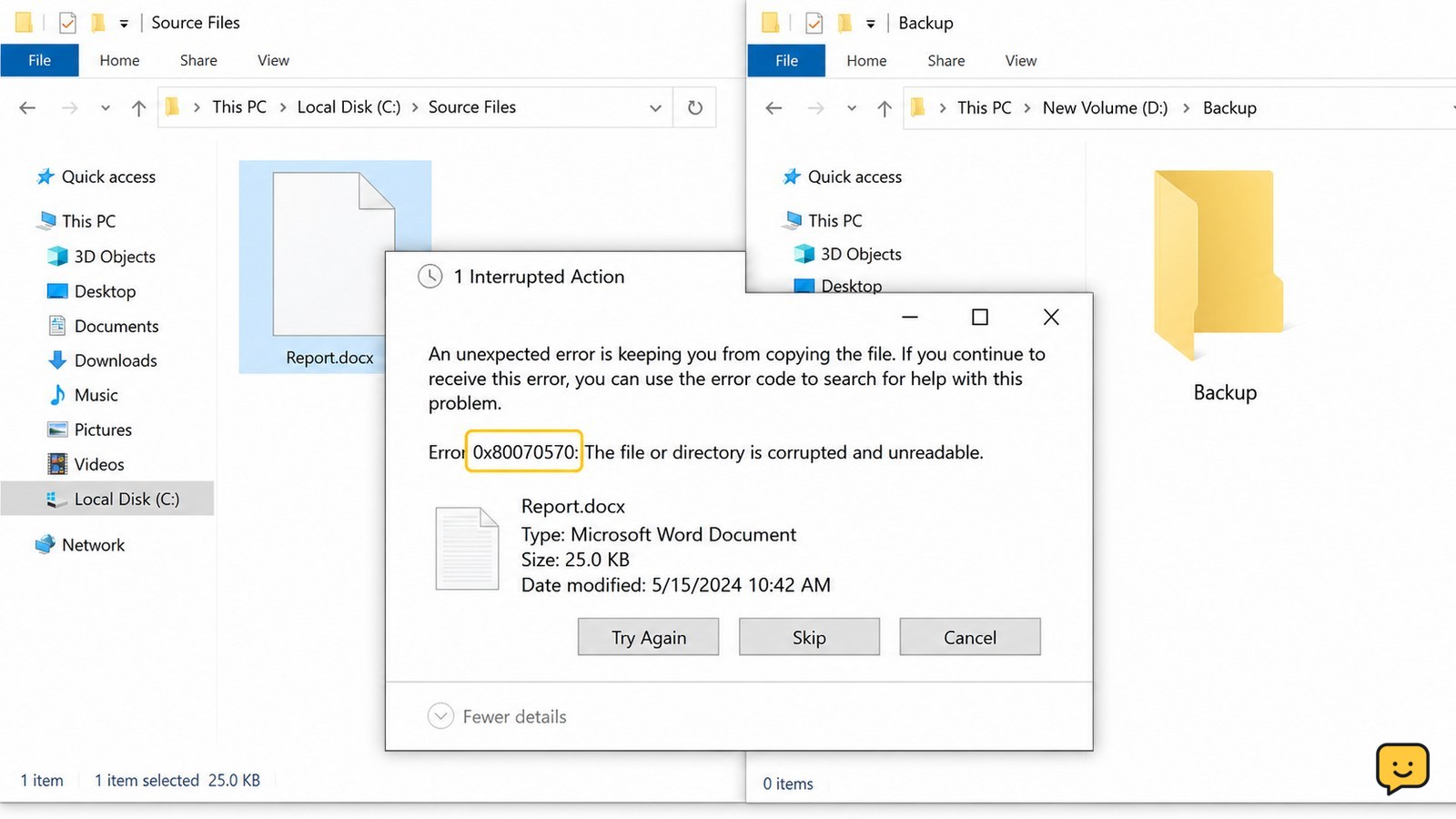
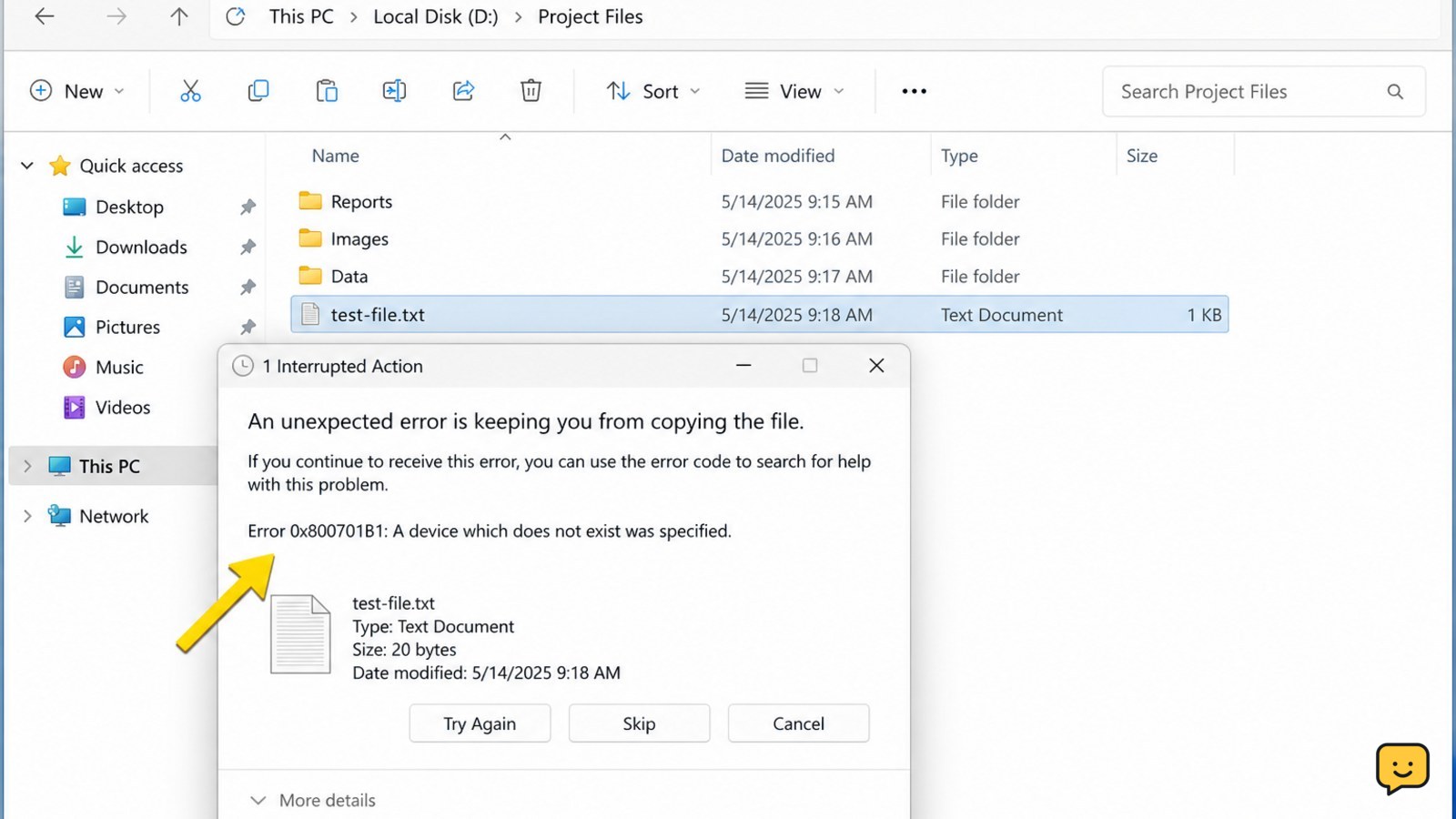
When Windows says an unexpected error is keeping you from copying the file, record the error code first, then test a small file, check free space and the file path, and try a shorter destination such as C:\Temp. If only one file fails, suspect that file or its archive. If many files fail or the drive disconnects, stop repeated attempts and protect the data before repair.
Record the code and identify what actually fails
The Windows copy dialog is a general failure message, so the error code and failure pattern are the fastest clues. Click More details if available, copy the code into a note, and record the source and destination locations.
Try copying one small, unimportant file from the same source to the same destination. Then try copying the problem file to a different local folder. Use the results to narrow the cause:
| What happens | Most likely area | Next action |
|---|---|---|
| Only one file fails | That file, its name, path, or archive | Shorten the name and path, then test the file elsewhere |
| Every file from one drive fails | USB connection, drive access, or file-system damage | Try one different port once, then protect the data |
| Files copy to the computer but not a USB destination | Destination space, permissions, or destination file system | Check space and test another destination |
| Only a ZIP extraction fails | Archive damage, long paths, or an incomplete download | Move the ZIP to a short local path and extract again |
Reports about this dialog include codes such as 0x80004005 and 0x80070570, but the code alone does not prove a single cause. Treat it as a clue, not a diagnosis.
Check the file name, path, and archive location
A long or unusual path can prevent File Explorer from completing a copy even when the drive has space. Create a short temporary folder such as C:\Temp, copy the problem file there, and use a simple name such as test.zip or video.mp4.
- Right-click the file and choose Rename. Use plain letters and numbers temporarily; do not change the extension.
- Copy the file to
C:\Tempor another local folder close to the drive root. - If that works, copy the new file to the original destination and open it to verify it is usable.
If the file is inside a ZIP archive, copy the ZIP itself to the short local folder before extracting. If extraction still fails at the same item, the archive may be incomplete or damaged. Download a fresh copy from the original source when possible instead of repeatedly extracting the damaged copy.
Verification: the copied file should appear at the destination, show a plausible file size, and open normally. If the copy stops at the same percentage or filename each time, do not delete the source file.
Check destination space, access, and security blocks
The destination must have enough free space and allow your Windows account to create files. In File Explorer, right-click the destination drive, select Properties, and check the available space. For a folder, try creating and deleting a small text file; this confirms basic write access without risking the original data.
If the destination is a network, synchronized, or removable folder, test a local folder on the computer first. A successful local copy points to the destination connection or service rather than the source file.
For a file downloaded from the internet, right-click it, choose Properties, and look for an Unblock option. Use that only when you recognize and trust the file. Do not disable antivirus protection as a first step, and do not bypass a warning for an unknown download. If security software identifies malware, stop and remove the file through the security product instead of copying it.
If the destination is full, protected, or unavailable, Windows may fail before any useful data is written. Free space, choose a folder you control, or use a different known-good destination. Do not grant broad permissions to an unfamiliar file or drive just to force the copy.
Separate a USB connection problem from drive damage
When multiple files fail from the same removable drive, check the physical connection before changing the file system. Eject the drive normally, reconnect it directly to another USB port, and avoid hubs or loose adapters. Then copy one small test file.
If the drive disconnects during the test, becomes unusually slow, or fails on another computer too, repeated copying can increase the risk of losing access. Stop, leave the original connected only long enough to make a prioritized backup if it remains stable, and seek professional recovery for irreplaceable files.
Windows may offer to scan or repair the drive. Repair can be reasonable after a verified backup, but it is not the safest first move when the failing drive holds the only copy. Do not format or initialize it. If the drive opens normally and the data exists elsewhere, you can use Windows drive-checking tools afterward and retry the copy.
Verification: a healthy basic test shows the drive remains visible, the test file reaches the destination, and the source does not disconnect. If any of those checks fail, the issue is no longer just a File Explorer setting.
Use a safer alternate copy route when Explorer still fails
If the file opens from the source but File Explorer repeatedly fails, reduce the transfer to one file and use a different destination or another computer. This helps distinguish a Windows interface problem from a source or destination fault without modifying the original.
- Copy the file to a local folder on the same computer.
- Open the copied file and compare its size with the source.
- Only after it opens correctly, copy that verified copy to the removable, network, or synchronized destination.
If the file cannot be read from any location, the source copy may be incomplete or corrupted. For a cloud download, download it again. For a removable drive, prioritize recovery rather than experimenting with repeated repairs. If every file fails only on one destination, replace the cable, destination drive, network path, or storage service rather than changing the source files.
The task is complete when the destination contains the file, its size is plausible, and the file opens or extracts correctly. Do not use Move until that verification succeeds.
Frequently asked questions
What does error 0x80004005 mean when copying a file?
Error 0x80004005 is a nonspecific Windows error and does not identify one guaranteed cause. Check whether one file or every file fails, then test a short local path, available space, and the source connection. If the same removable drive fails across computers or disconnects, treat the problem as possible drive or file-system trouble and protect the data before repair.
Why does copying a ZIP file fail in Windows?
A ZIP copy or extraction can fail because the archive is incomplete, the path is too long, or the source or destination has a read or write problem. Move the ZIP to a short local folder, rename it simply without changing .zip, and extract it there. If the same item fails again, obtain a fresh archive rather than deleting the original.
Should I run CHKDSK when Windows cannot copy a file?
Run drive-repair checks only after confirming that important files exist in another location. If the failing drive contains the only copy, repeatedly disconnects, makes unusual sounds, or asks to be formatted, stop instead. Repair tools can change file-system information, so data recovery is safer before repair when the files are irreplaceable.
Why can I copy some files but not one specific file?
One failing file points more toward a damaged or incomplete file, a long or unusual name, a locked source, or an archive problem than a completely full destination. Copy it to a short local path with a simple temporary name, then open the result. If it fails at the same file every time, replace or re-download that file when possible.
For more help with this topic, use the Computers Internet guides.


