If your controller is not working in Call of Duty: Black Ops 7, first confirm that the platform detects it, reconnect it before launching the game, and test it in another application. On PC, close competing remapping or overlay software and check the game’s input or aiming device setting. Then reset controller bindings and verify one button in a private match.
Browse more Call of Duty: Black Ops 7 guides
Check whether Black Ops 7 or the platform detects the controller
Call of Duty: Black Ops 7 can only respond to a controller that the platform recognizes first. With the game closed, press a button and check whether the console responds, or open your PC’s controller test screen and confirm that button presses and stick movement register.
If the controller fails the platform test, the problem is outside Black Ops 7. Reconnect it, try a different USB port, replace the cable if possible, or pair it again. For Bluetooth devices, remove the old pairing and pair the controller again while it is close to the system.
Test the same controller in another game or controller test utility. If it works there but Black Ops 7 ignores it, continue to the input-setting checks. If it fails everywhere, stop troubleshooting the game and repair or replace the connection first.
Reconnect the controller before launching the game
Black Ops 7 may keep the input device selected when the game starts, so reconnecting after launch is not always enough. Fully close the game, disconnect extra controllers and USB input devices, connect or pair the controller you want to use, and then start Black Ops 7.
Use a wired connection for the first test when playing on PC or when a wireless connection is unstable. A successful test should let you move through the title screen or menus with the controller without touching the mouse or keyboard.
If the controller works only after reconnecting, the startup order or wireless handshake is the likely cause. Use the working connection for now and pair or update the controller through the platform’s normal device settings later.
Set the correct controller or aiming input on PC
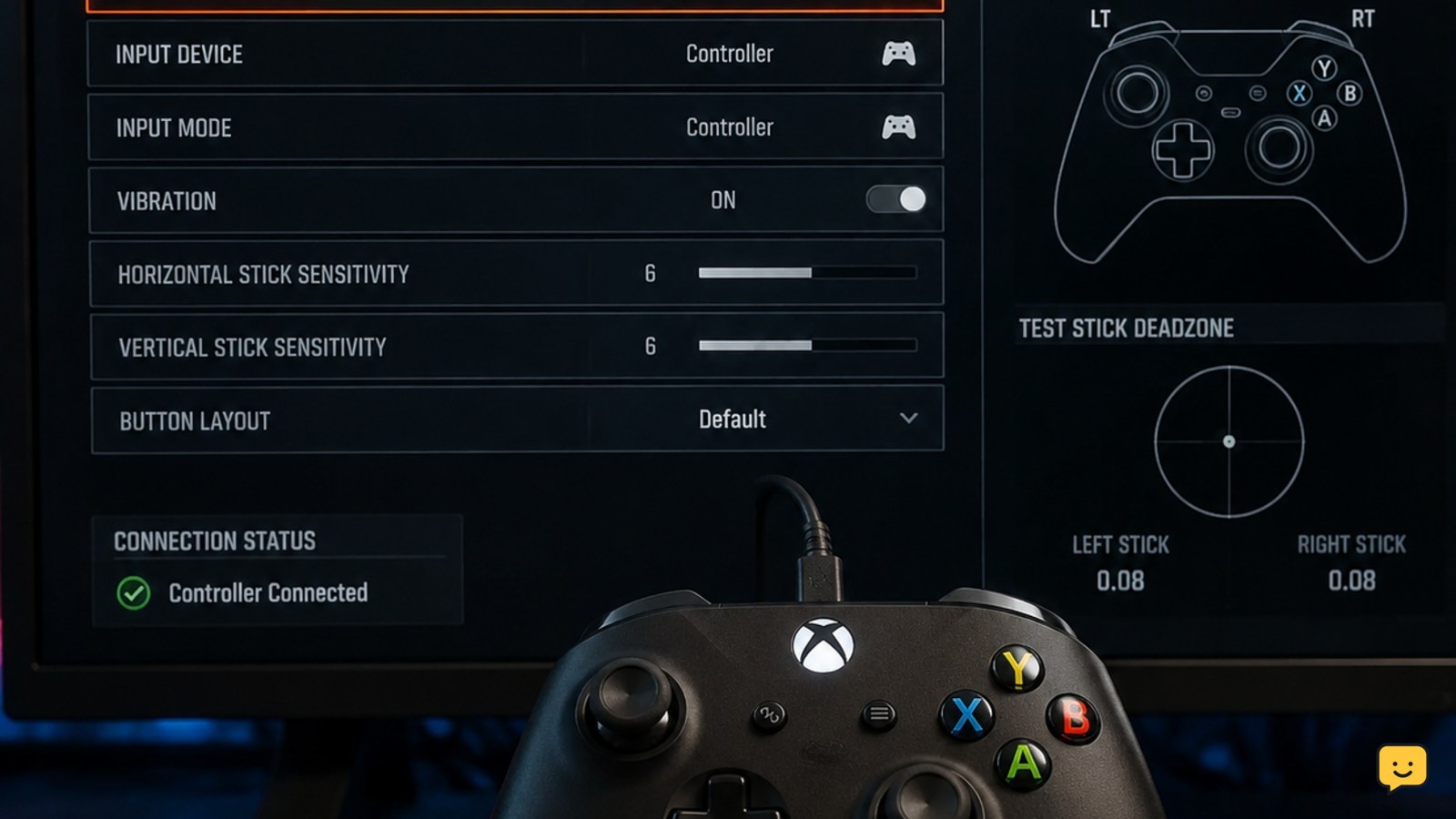
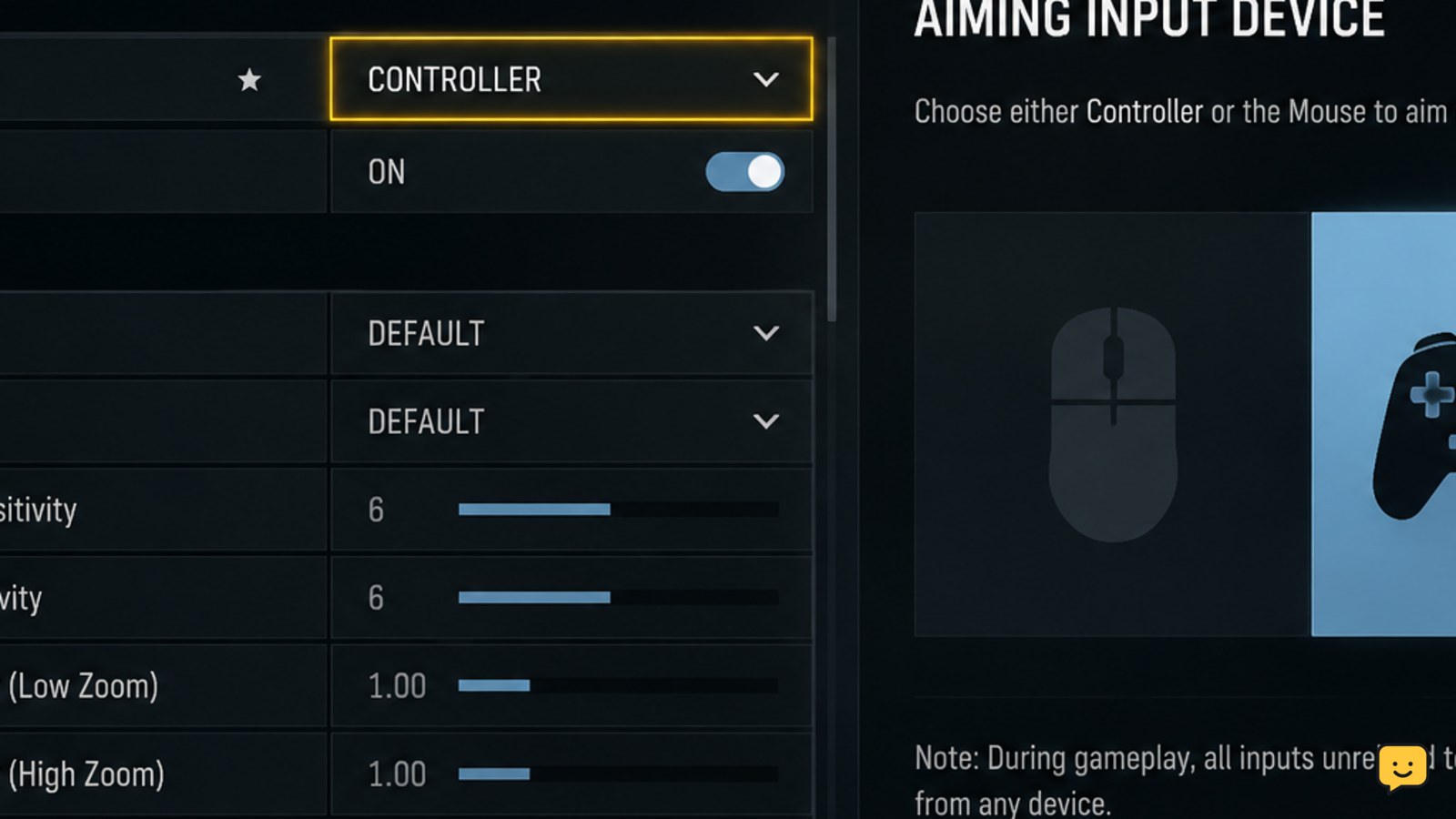
On PC, Black Ops 7 may be receiving keyboard and mouse input while the controller is connected, or it may be set to the wrong aiming device. Open the game’s Settings menu, choose the Controls or Controller area, and look for the input or aiming-device option. Select the controller or gamepad option when that choice is available.
After changing the option, move a stick or press a face button while the settings screen is open. The menu should react with controller prompts or movement. If the prompts do not change, close the game and relaunch it with only the controller connected.
The supplied Black Ops 7 controller guides specifically focus on changing aiming input and restoring controller recognition on PC. Their menu wording may vary by build or platform, so use the current label shown in your copy rather than relying on an older screenshot.
Remove PC input conflicts and test one device at a time
PC controller conflicts usually come from more than one program trying to translate or claim the same input. Before relaunching Black Ops 7, close controller remapping tools, virtual-controller utilities, nonessential overlays, and other game launchers that may apply a custom layout.
Disconnect racing wheels, fight sticks, HOTAS devices, extra gamepads, and unnecessary USB adapters. Leave one controller connected and test it in the game menu. If it starts working, reconnect devices one by one until the conflict returns.
Do not run multiple remapping layers at the same time. If you need a remapped layout, use one method only and confirm that the game shows controller prompts instead of keyboard prompts. If closing the conflicting software changes nothing, continue with a clean binding reset.
Reset controller bindings and verify a single button
Black Ops 7’s controller bindings can prevent an action from responding even when the device is detected. In Settings, open Controls or Controller, select the controller layout or button-bindings page, and use the on-screen option to restore the default controller layout.
Save or apply the change, then test a single known action such as menu navigation, jump, or fire. Do not remap every control immediately. Testing one action first tells you whether the issue is detection or a damaged custom layout.
If the controller works after the reset, add custom bindings one at a time and test after each change. If the reset option is unavailable or the menu still shows keyboard controls, return to the PC input-mode step instead of repeatedly changing individual buttons.
Use the platform branch that matches the failure
The correct recovery step depends on where the controller stops responding. On a console, verify the controller is assigned to the intended user profile, reconnect it from the console’s accessory settings, and test another game before reopening Black Ops 7.
On PC, test a wired connection, one controller, and no remapping or overlay software. If the game responds only in menus but not during a match, check the controller layout and aiming-input setting again, then test in a private or practice environment before entering an online match.
If the controller is detected and works in another game but remains unusable in Black Ops 7 after a relaunch and default-layout reset, record the platform, connection type, and exact failure point. That information is more useful to support than repeating the same reset.
Frequently asked questions
Why does my controller work in the Black Ops 7 menu but not in a match?
The game may be detecting the controller but using a different input or aiming mode during gameplay, or a custom layout may have removed an important action. Recheck the controller input setting, restore the default layout, and test one action in a private or practice session. If only online play fails, compare the result after restarting the game and platform.
Why is Black Ops 7 showing keyboard prompts when I use a controller?
Keyboard prompts usually mean the game is currently prioritizing keyboard and mouse input or has not accepted the controller as the active device. Disconnect extra input devices, close PC remapping or overlay software, reconnect one controller before launch, and select the controller or gamepad input option in the Controls settings.
Will resetting controller settings delete my Black Ops 7 progress?
Resetting the controller layout should change control bindings, not multiplayer progression or weapon levels. Use the in-game restore-defaults option rather than deleting saved data. If the game warns that a broader settings reset will remove other preferences, cancel and record your current settings before proceeding.
What should I do if two controllers are not working in Black Ops 7?
First test both controllers at the platform level and in another game. If both fail there, troubleshoot the console, Bluetooth pairing, USB ports, cable, or PC drivers. If both work elsewhere but Black Ops 7 ignores them, relaunch with one controller connected, remove input conflicts on PC, and restore the default controller layout.